
How to Fix Javascript Void(0) in Chrome, Firefox & Edge
To easily fix the Javascript void error on all browsers, remove clutter & make sure Java is properly enabled


 5 min. read
  Updated on
![How to fix javascript: void(0) error [Windows 10, Chrome, Firefox]](https://windowsreport.com/wp-content/uploads/2019/02/Fix-javascript-void0-error-886x590.jpg)
Before we tackle the steps let’s see what is it exactly we’re dealing with. In other words, what is Javascript void 0 error? Well, Javascript Void 0 is a standard error that occurs when users try to access certain web pages.
While it is not a major or critical issue, it’s still quite annoying to be blocked from accessing websites without an actual reason, so let’s see how to fix it.
Table of contents
How do I fix JavaScript void 0 in Chrome?
1. Make sure Java is properly installed
- Press the Win+X keyboard keys and from the displayed list choose Control Panel.
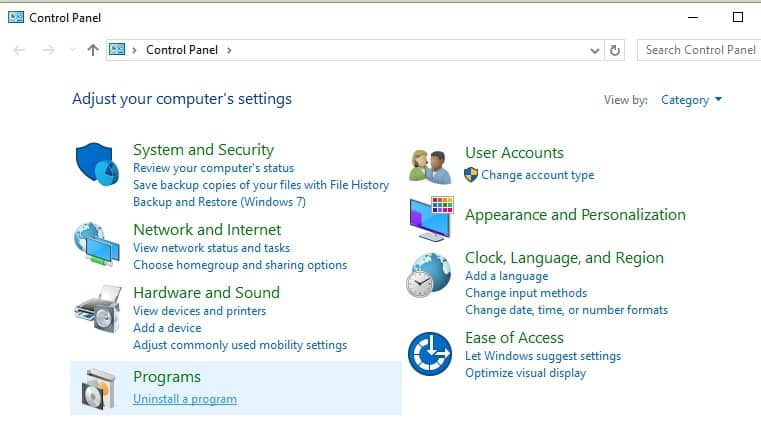
- From Control Panel switch to Categories and then click on Programs.
- Under Programs and Features, click on Uninstall.
- The list of all installed programs will be listed.
- Search for the Java entry. If you cannot find Java, install it on your PC.

 Tip
Tip
2. Turn on Java on your browser
Enable Java on Google Chrome:
1. Click on the Menu icon (the three dots from the upper right corner).
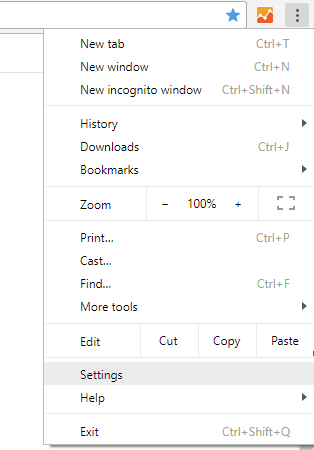
2. Then, choose Settings and select Advanced.
3. Scroll down until you find Content Settings; access this option.
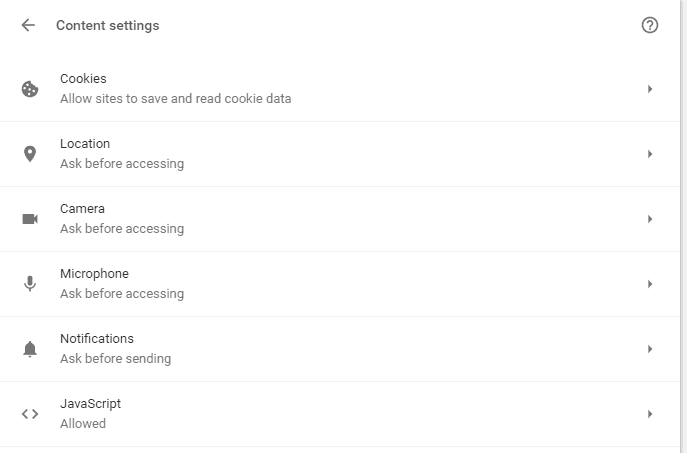
4. Find the Javascript entry – the allowed status should be displayed; otherwise choose to allow all sites to run JavaScript (recommended).
Enable Java on Edge:
1. Open Edge and click on the three dots in the upper right corner.
2. Select Settings from the Menu.
3. In the left pane, look for Site permissions and click on it.
4. In the new windows, locate and click on JavaScript.
5. Toggle the switch next to Allow (recommended) to ON and restart the browser to validate the changes.
Enable Java on Firefox:
1. Launch Firefox and click on the Menu icon.
2. Select Add-ons and then go to the Plugins tab.
3. Select the Java Platform plugin which should be displayed there.
4. Finally, pick up always activate.
You need to enable Java on your browser. Now, depending on your favorite browser this option might differ as shown above.
Need help enabling scripts? Follow our enable JavaScript in your browser guide for Chrome, Firefox, and Edge.
3. Reload the webpage
If the problem is only temporary you can solve the Javascript:void(0) error by reloading the webpage by bypassing the cache.
That can be achieved by pressing the CTRL+F5 keyboard hotkeys. Additionally, you should also clear the cache on your browser before retrying to access your favorite web pages.
4. Remove cookies
Cookies are there to optimize your browsing experience. However, it might also be the reason why you get the JavaScript Void 0 error while trying to access certain websites.
So, you can fix this malfunction by removing cookies.
Here is how you can complete this task for different web browsers:
Google Chrome:
- Open Chrome and click on the Menu icon.
- Then, select More Tools and pick Clear Browsing Data.
- Select the Cookies and other site data entry and perform the wipe.
- Restart your browser at the end.
Mozilla Firefox:
- Run Firefox and click on the Menu button.
- Go to Options and under Privacy & Security choose History.
- Under Firefox will choose Use custom settings for history.
- Next, click on the Show Cookies button.
- Just remove all cookies and restart your browser.
MS Edge:
- Open the Edge browser on your PC.
- Click on the Settings option.
- Click on the Privacy, search, and services tab.
- Now, go to the Clear browsing data tab and click the Choose what to clear button.
- Select the Time range, check the Cookies and other site data, and Cached images and files options (optionally).
- Click the Clear now button.
Alternatively, you can use a specialized tool such as CCleaner to automatically clean your browser’s cookies, trackers, internet history, download history, and cache.
5. Clear the cache
If the issue persists, clearing the browser cache may help you to fix it.
- Go to your browser‘s settings page.
- Find the option that allows you to clear browsing data.
- Locate the cache option and delete all the cache information stored in your browser.

For example, if you use Google Chrome, click on the menu icon, go to Settings, Advanced, and then navigate to Privacy and Security. Scroll down to Clear browsing data.
It’s worth mentioning that there are variations of this error, so let’s quickly review some of the most common issues reported by users:
- Javascript void(0) error Windows 10, Windows 11
- Javascript void(0) Chrome, Firefox, Edge
- HTML link Javascript void 0
- Javascript void(0) Chrome Mac
- Javascript void(0) on click
- Href Javascript void 0 not working
Hopefully, you can now browse through the Internet without any further issues. The steps from above should have helped you fix the Javascript Void 0 error.
FAQs
The “Javascript:void(0)” message appears when a web page link or script fails to execute properly. It usually means the browser blocked the action or the site’s JavaScript code ran into an error.
Common reasons include disabled JavaScript in your browser, outdated cache, corrupted extensions, or security settings blocking scripts. Sometimes, the issue comes from the website’s own faulty code.
Enable JavaScript in your browser settings, clear cookies and cache, and disable conflicting extensions. If that doesn’t work, try updating your browser or switching to another one temporarily.
No. It’s not a virus or malware. It simply indicates that a script on a web page failed to run, preventing certain buttons or links from working correctly.
If you have further questions or if you didn’t correctly understand some of the steps listed in this guide, don’t hesitate to contact us by using the comments field down below.
We are always here to assist you with the best Windows tips and tricks.

Read our disclosure page to find out how can you help Windows Report sustain the editorial team. Read more



Improve this guide




User forum
0 messages