
Java Virtual Machine Launcher Error: 4 Easy Fixes on Windows


 2 min. read
  Published on

If you see a Java Virtual Machine Launcher error on Windows, it usually means the system cannot start Java properly. This issue can be linked to configuration problems, corrupted files, or incompatible versions of Java. Luckily, there are simple fixes you can try.
How to fix the Java Virtual Machine Launcher error?
Table of contents
1. Check your Java installation
- Open Control Panel and uninstall your current Java version
- Download the latest Java release from the official Oracle website

- Install Java and restart your PC

If this does not work, see this guide on fixing fatal Java errors.
2. Increase Java heap size
- Open the application launch configuration or shortcut properties
- Add the parameter -Xmx512M or higher based on available RAM
- Apply the change and relaunch the program
For more details, read this article on Windows error 2 with the Java VM.
3. Modify environment variables
- Press Win + S and search for Environment Variables
- Select Edit the system environment variables then click Environment Variables…
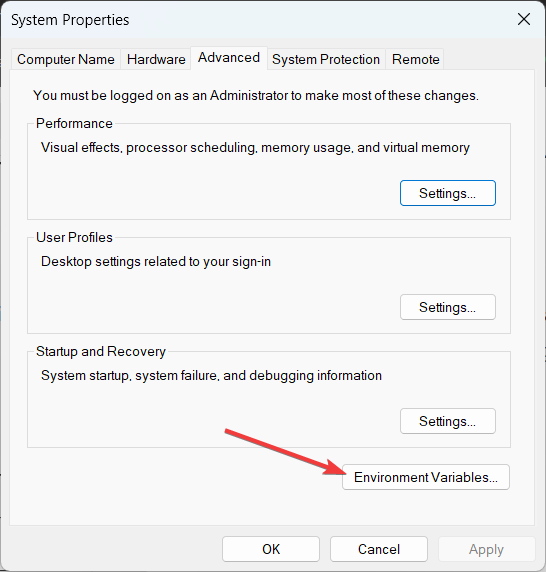
- Under System variables, create or edit
JAVA_HOME - Set it to your Java folder, for example
C:\Program Files\Java\jdk-21 - Click OK on all dialogs and restart your computer

4. Repair runtime conflicts
- Update or reinstall the Java Runtime Environment
- Remove duplicate or outdated Java versions from Programs and Features

- Update or uninstall software that injects JVM options or hooks
- Run the app again to confirm the launcher starts correctly

For guided steps, check this Java runtime error troubleshooting guide.
FAQs
It usually comes from corrupted Java files, incorrect system variables, or memory allocation issues.
Yes. Try increasing the heap size and correcting JAVA_HOME before reinstalling.
No. It can appear on any supported Windows version when Java is misconfigured.

Read our disclosure page to find out how can you help Windows Report sustain the editorial team. Read more



Improve this guide



User forum
0 messages