
How to Move a Mouse That Won't Go to Second Monitor
Temporary glitches are the cause of this problem


 2 min. read
  Updated on
Key notes
- If your mouse won’t go to your second monitor, change the display settings.
- Reinstalling display drivers can sometimes help with this problem.

If you find that your mouse won’t go to the second screen of your dual-monitor setup, you are not alone. It’s a common bug affecting people who are trying to setup a new display.
The most common reasons your mouse won’t show up on your secondary display are mismatched resolution settings or a display setup that places your monitor in a different position than it actually is.
Here’s how you can fix it.
How to force mouse go to second display
- 1. 1. Change your display settings
1. Press the Win + X keys on your keyboard -> select Settings.
2. Click on System -> then choose Display from the left-side menu.

3. Select Identify in order for Windows to identify your displays.

4. Drag and drop display 1 to the left side, and display 2 to the right side (or however your dual display setup is located in real life).
5. Under the Multiple displays section -> click on the drop-down list -> make sure Extend these displays option is selected.
Some users reported that the issue was gone after aligning the bottom edges of all displays in display settings, so try moving monitors horizontally in the settings to do that.
2. Reinstall your display drivers
- Press the Windows key + X and choose Device Manager.
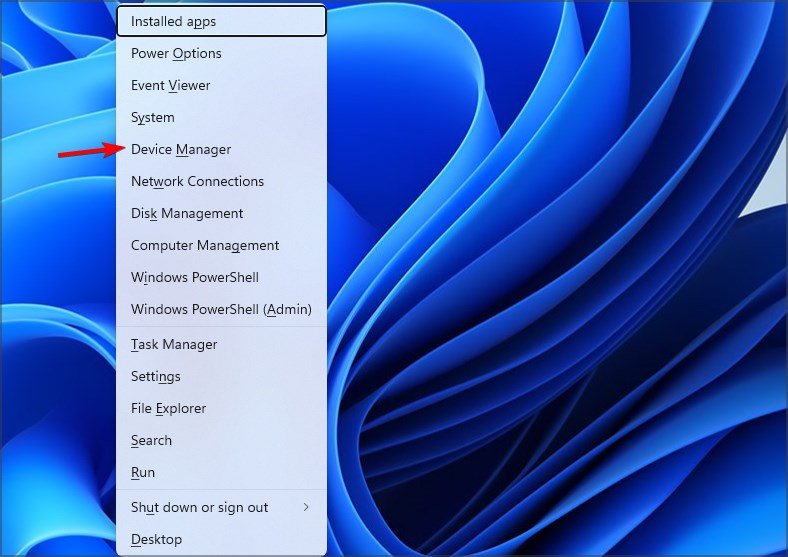
- Locate your display driver, right-click it, and choose Uninstall device.

- If available, check Attempt to remove the driver for this device and click Uninstall.

- Restart your PC and install the necessary drivers again.


We hope you found this guide helpful and easy to follow. Please feel free to let us know if the method presented here managed to help you solve the issue of your mouse not moving between screens.
Dual-monitor setups can have problems, and many reported that their laptop is not detecting second monitor. We also have a guide on how to move a game to a second monitor, so don’t miss it.
Other common issues include the mouse cursor disappearing, mouse lag, the mouse jumping around the screen, or when your mouse keeps clicking on its own.
You can do so, by simply leaving a comment in the section found under this article.

Read our disclosure page to find out how can you help Windows Report sustain the editorial team. Read more



Improve this guide


User forum
19 messages