
Tasklist and Taskkill Guide: View and Stop Windows Processes


 4 min. read
  Updated on

Tasklist and Taskkill help you inspect running processes and force close stubborn apps. These built-in tools run in Command Prompt and give you control when Task Manager cannot respond.
Table of contents
- How to Use Tasklist and Taskkill in Windows?
- What Tasklist Does
- When to Use Tasklist
- View All Running Processes
- Sort Processes by Memory Usage
- Filter Processes by Name
- When to Use Taskkill
- Close an App by Name
- Force Close an Unresponsive App
- Kill a Process by PID
- Stop Background Apps That Slow Your PC
- Terminate Leftover Processes After a Crash
- Troubleshoot Suspicious Activity
- Tips for Best Results
- FAQs
How to Use Tasklist and Taskkill in Windows?
What Tasklist Does
Tasklist shows every running process on your system and includes details like memory usage, image names, and PID values.
When to Use Tasklist
- When Task Manager does not load
- When you need PID numbers
- When troubleshooting hangs or resource spikes
View All Running Processes
Run the following steps to display a complete list of processes:
- Press Windows key and type cmd.
- Select Run as administrator.

- Type tasklist and press Enter.
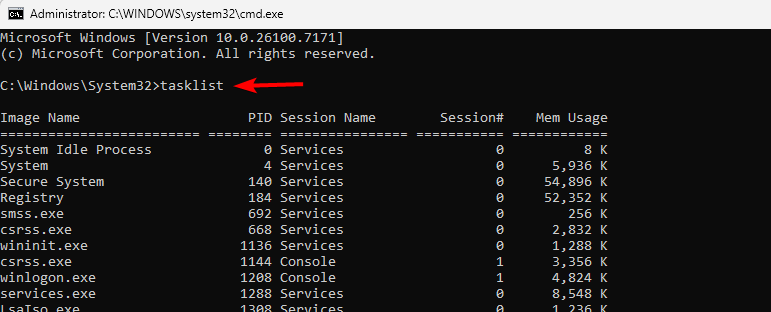


Learn more in this full Command Prompt commands list.
Sort Processes by Memory Usage
Follow these steps to see which processes use the most RAM:
- Open Command Prompt as admin.
- Type
tasklist /fo table /nh | sort /r /+64
- Review the processes that consume the most memory.

If you need to navigate folders before running commands, check this guide on opening folders in Command Prompt.
Filter Processes by Name
Use these steps to filter your view to a specific app:
- Open Command Prompt.
- Type
tasklist /fi "imagename eq firefox.exe"
- Review the filtered results.

To improve your file management workflow, see this guide on copying files using Command Prompt.
When to Use Taskkill
- When apps freeze
- When CPU usage spikes unexpectedly
- When apps block shutdown
- When processes stay open after a crash
Close an App by Name
Follow these steps to stop an app safely:
- Press Windows key and open Command Prompt.
- Type
taskkill /im notepad.exe
- Press Enter.

Force Close an Unresponsive App
Use this method when apps ignore normal close commands:
- Open Command Prompt as admin.
- Type
taskkill /f /im chrome.exe - Wait for the confirmation message.
Kill a Process by PID
Use these steps to terminate a specific instance of an app:
- Run
tasklistto view PID numbers. - Identify the PID to terminate.
- Type taskkill /pid 1234 using the correct PID.
Stop Background Apps That Slow Your PC
Follow these steps to identify heavy background processes:
- Run
tasklist - Find resource-heavy items.
- Terminate them with Taskkill.
Terminate Leftover Processes After a Crash
Use this to remove stuck app instances:
- Run tasklist to find leftovers.
- Note their PIDs.
- Close them with Taskkill.
Troubleshoot Suspicious Activity
Follow these steps to control unfamiliar processes:
- Inspect running items via Tasklist.
- Identify suspicious entries.
- Terminate them with Taskkill.
Tips for Best Results
Use these best practices:
- Use /f only for frozen applications.
- Verify PIDs before killing processes.
- Use filters to reduce errors.
- Create batch scripts for repeated tasks.
FAQs
Tasklist shows running processes while Taskkill closes them.
You need admin rights for protected or system processes.
You stay safe as long as you avoid terminating critical system processes.
It provides deeper control when apps freeze or hide.
Tasklist and Taskkill give you reliable control over frozen, heavy, or suspicious processes. Tasklist helps you inspect system activity while Taskkill lets you stop unwanted apps instantly.
You can improve control over open programs by using this guide on how to close running apps, which walks you through quick methods to shut down active or unwanted processes.

Read our disclosure page to find out how can you help Windows Report sustain the editorial team. Read more



Improve this guide



User forum
0 messages