
Ubuntu Linux enables GitHub login from terminal redirect to browser or Personal Access Tokens (PATs)
- Install git-credential-manager as official instruction
- Download deb installer from https://github.com/GitCredentialManager/git-credential-manager/releases/latest
- Install via following command:
sudo dpkg -i gcm-manager-[cpu architect & version].deb
- Run configure command to initialize providers:
git-credential-manager-core configure
- Set global git credential store to
secretservicegit config --global credential.credentialStore secretservice
Next time when you needs to perform some git operation needs to login(like cloning a private repository), the GUI login prompt will automatically pop up and let you choose the way to login.

以下說明Azure Application Gateway如何套用GoDaddy發行HTTPS憑證的步驟:
- 從GoDaddy的憑證下載網頁下載 [其他] 類型的zip憑證檔案:

- zip檔解壓縮後,解壓縮目錄內放入先前申請HTTPS憑證時使用的私鑰Private Key檔案(在此示範畫面是generated-private.key的檔案):

- 使用Windows 10的WSL環境,在該目錄下執行下述指令產生上傳用pfx憑證檔:
cat [客戶序號].crt gd_bundle-g2-g1.crt > bundle.crt
openssl pkcs12 -export -inkey generated-private.key -in bundle.crt -export -out ssl_com.pfx

第一行的[客戶序號].crt檔案為下載的zip壓縮檔中除了gd_bundle-g2-g1.crt之外的另一個附檔名為.crt的憑證檔案,而在第二個指令執行時會要求建立密碼,一定要建立非空白的密碼,否則後續的Azure Portal上傳pfx憑證檔案時上傳網頁驗證會無法通過。
- 將產生的.pfx檔案在Azure Portal網頁的Application Gateway Listenser設定區塊:

新增或編輯既有Listener畫面中設定HTTPS憑證的區塊上傳:
然後按Save儲存生效。


Mac電腦
命令列工具
- 建議安裝iTerm2,原本內建的終端機沒有辦法很容易控制並提供多組啟動session的設定,並且要複製/貼上字串到命令列視窗很不順手。
- iTerm2的功能說明請參考官網介紹:http://www.iterm2.com/features.html
- 注意:如果有使用sourcetree並且設定預設命令列工具是iTerm2的話,請使用iTerm2 ver2.X的版本,直到sourcetree有 ver2.3.1之後的更新版釋出(問題原因請看此)。
應用程式套件管理工具
homebrew
- 官網網址:http://brew.sh/
- 安裝前要先設定命令列的預設"Command Line Build Tools":(參考此說明)
- 建議先在App Store下載安裝Xcode,但如果該機器是純粹用來做跑jenkins的build machine,可以不必裝。
- 在命令列執行:
xcode-select --install - 安裝完畢後的驗證:執行
ls /Library/Developer/CommandLineTools,確認該目錄存在。
- 安裝流程:
- 執行過程中會需要sudo權限,因此該帳號需要建立登入密碼。
- 將官網上那串ruby執行命令貼到命令列視窗上,按下enter執行。
- 執行完後,確認有"brew"這個指令列程式可用:執行
which brew,確認/usr/local/bin/brew這個路徑的程式存在。 - 執行
brew update && brew doctor,假如有顯示”Your system is ready to brew.“的字串表示homebrew去呼叫command line build tools能正常運作,安裝成功。
- 安裝/更新/移除程式的方法
- 安裝新的命令列程式,用以下指令:
brew install [程式名稱] - 更新先前已經由homebrew安裝過的程式,用以下指令:
brew upgrade [程式名稱] - 移除homebrew所安裝的程式,用以下指令:
brew uninstall [程式名稱]
- 安裝新的命令列程式,用以下指令:
其他設定
允許非Mac App Store的程式執行
預設Mac OS X只會允許從App Store以及有效數位簽章的程式執行,在某些第三方OpenSource專案例如CocoaPods提供的App會變成下載後,即使放在應用程式目錄內,仍舊不能用點兩下的方式執行,必須打開權限才能夠讓這類的App執行。啟用的方法如下:
在命令列視窗執行:
sudo spctl --master-disable
執行時會需要sudo密碼,執行完畢後,可用sudo spctl --status查看或是從系統選單的[系統偏好設定]/[安全與隱私]/[一般]的最下方查看確實是勾選到最下一個的"允許任意位置"項目。
該指令的詳細說明可以參考官網。
讓Xcode在執行時不會一直跳出允許提升權限(sudo)的提示視窗
在命令列執行:
DevToolsSecurity -enable
然後會顯示"Developer mode is now enabled"字串,啟用Developer mode成功。
該指令的詳細說明可以參考官網。
Use dokany and Win-SSHFS:
- Install dokany driver according your windows version:
https://github.com/dokan-dev/dokany/wiki/Installation#choose-a-version
Note: currently v0.8.0 and above is not compatible with Win-SSHFS. - Download Win-SSHFS release v1.5.12.8 zip file, extract it to a folder can execute.
https://github.com/dimov-cz/win-sshfs/releases
Note: currently v1.5.12.9 release has symbolic link bug. - Run WinSshFS.exe which is in that extracted folder, create settings like following example:
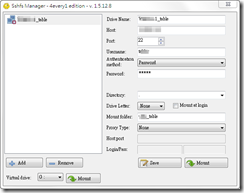
- Click Mount in setting window right most button or in system tray menu:
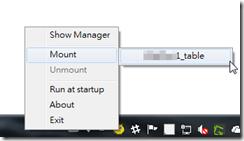
- And you will see a virtual driver and has the mounted folder as the setting "Mount folder" specified in File Explorer window.
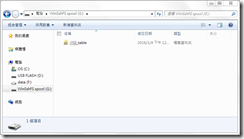


And be sure to unmount when you want to disconnect the virtual file system: 
Reference:
To set global npm install location in windows: (here use D:\npm for example)
- Set those environment variables:
Environment Variable Value npm_config_home D:\npm\home npm_config_prefix D:\npm npm_config_userconfig D:\npm\home\npmrc -
Create a text file called npmrc in D:\npm\home, which contains:
save-prefix = ~
-
Append the additional “D:\npm;” to
%PATH%environment variable.
And now you can move the content in the %APPDATA%\npm folder to the new location D:\npm.
Since the node.js RPM installer in EPEL repository is old (v0.10.x), we can use “nodejs-rpm” to installable rpm package:
- Install necessary packages:
- CentOS v7.x:
sudo yum install -y gcc-c++ git make openssl-devel yum-utils rpmdevtools
- CentOS v6.x:
It need to install Python v2.7 and new version of GCC C++ compiler if you want to build Node.js v4.x RPM packages, and install following requirements:sudo yum install -y git openssl-devel yum-utils rpmdevtools
- CentOS v7.x:
- Use git to get latest source of nodejs-rpm in Github:
git clone https://github.com/kazuhisya/nodejs-rpm.git
- Use yum-builddep to config necessary rpm packages:
cd nodejs-rpm;sudo yum-builddep -y ./nodejs.spec
- Build rpm package:
- CentOS v6.x:
scl enable python27 devtoolset-3 'make rpm'
- CentOS v7.x:
make rpm
- CentOS v6.x:
The final rpm package files will place in nodejs-rpm/dist/ folder as:
- CentOS v6.x:

- CentOS v7.x:

Install as:
(Replace the [version] with current release node.js version number)
- CentOS v6.x:
sudo yum install -y nodejs-[version].el6.x86_64.rpm nodejs-npm-[version].el6.x86_64.rpm --nogpgcheck
- CentOS v7.x:
sudo yum install -y nodejs-[version].el7.x86_64.rpm nodejs-npm-[version].el7.x86_64.rpm --nogpgcheck
- 官方說明網址:http://slack.zendesk.com
- 要呼叫某人時就用”@“加顯示名稱。
- 自己寫的訊息可以按訊息右邊的小齒輪(滑鼠指標移到訊息最右邊會出現)做送出後的修改,要刪掉就是編輯的時候全部清空然後按Enter。
- 每則訊息右邊的星號可以按下後可儲存書籤bookmark,按整個畫面最右上方的圓圈星號可以跳過去直接看。
- 訊息輸入要強制換行時按shift+enter。
- 每個聊天室channel的直接連結網址是http://{申請slack名稱}.slack.com/messages/{聊天室名稱去掉#字號} 。
- 所有帳號名稱的列表可http://{申請slack名稱}.slack.com/team 裡搜尋。
- 手機app和瀏覽器皆可使用的輸入格式如下(類似Markdown語法,但又不是,請見官方說明):
粗體 → 文字前後加星號(*)斜體 →文字前後加底線(_)
引用
↓
文字前加大於符號(>)顯示在句子中的
console.log("單段程式碼")→文字前後加撇號(‵),記得也要前後留半形空白字元。console.log("可保留空白和換行字元的多行文字,"); console.log("這是第二行。");↓
文字前後都加三個撇號(‵‵‵)
 なかぬならなくまで待とうホトトギス
