A line chart or line plot is a graphical representation used to show the relationship between two continuous variables by connecting data points with a straight line. It is commonly used to visualize trends, patterns or changes over time.
In Matplotlib line charts are created using the pyplot sublibrary which provides simple and flexible functions for plotting data. In a line chart, the x-axis typically represents the independent variable while the y-axis represents the dependent variable.
Syntax: plt.plot(x, y, color, linestyle, linewidth, marker)
where:
\bm{x} : The values for the x-axis\bm{y} : The corresponding values for the y-axis- color: Specifies the color of the line
- linestyle: Defines the style of the line
- linewidth: Controls the thickness of the line
- marker: Adds markers at data points
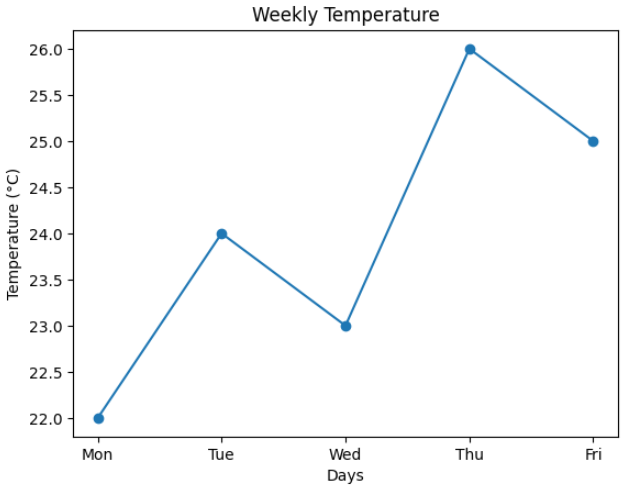
Consider a simple example where we visualise the weekly temperature using a line chart in Matplotlib
import matplotlib.pyplot as plt
import numpy as np

days = ['Mon', 'Tue', 'Wed', 'Thu', 'Fri']
temperature = [22, 24, 23, 26, 25]

plt.plot(days, temperature, marker='o')
plt.title('Weekly Temperature')
plt.xlabel('Days')
plt.ylabel('Temperature (°C)')
plt.show()
Output:
1. Matplotlib Simple Line Plot
A line plot is used to represent the relationship between two continuous variables. Matplotlib provides the plot() function through its pyplot module to create simple and advanced line charts efficiently.
Simple Line Plot
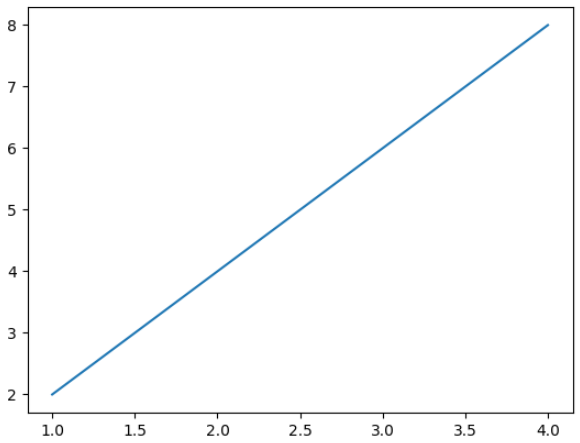
For creating a basic line chart, you can use the plot() function. This function draws a line by connecting data points on the x-axis and y-axis, making it easy to visualize relationships between two continuous variables.
import matplotlib.pyplot as plt
import numpy as np

x = np.array([1, 2, 3, 4])
y = x * 2

plt.plot(x, y)
plt.show()
Output:
Adding Labels and Title to a Line Plot
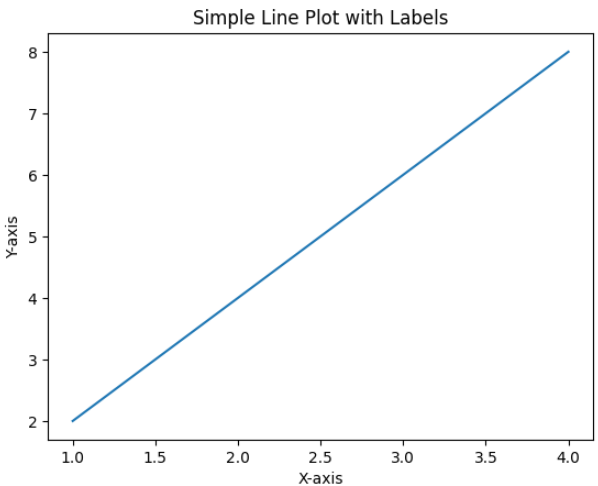
To improve readability, you can use the xlabel(), ylabel() and title() functions. These functions help in clearly identifying the axes and the purpose of the line chart.
import matplotlib.pyplot as plt
import numpy as np

x = np.array([1, 2, 3, 4])
y = x * 2

plt.plot(x, y)
plt.xlabel("X-axis")
plt.ylabel("Y-axis")
plt.title("Simple Line Plot with Labels")
plt.show()
Output:
Using Markers in Line Plots
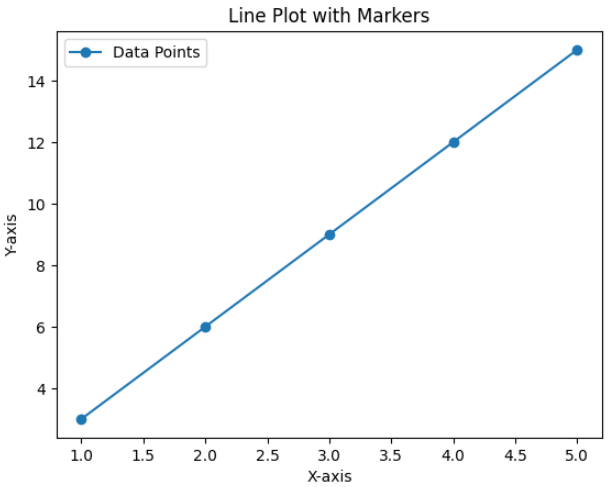
Markers help highlight individual data points on a line plot making it easier to identify exact values. They are especially useful for small datasets or precise comparisons. The marker parameter in plt.plot() specifies the shape of symbols used to mark each data point.
import matplotlib.pyplot as plt
import numpy as np

x = np.array([1, 2, 3, 4, 5])
y = [3, 6, 9, 12, 15]

plt.plot(x, y, marker='o', linestyle='-', label='Data Points')
plt.xlabel("X-axis")
plt.ylabel("Y-axis")
plt.title("Line Plot with Markers")
plt.legend()
plt.show()
Output:
2. Adding Grid to a Line Chart
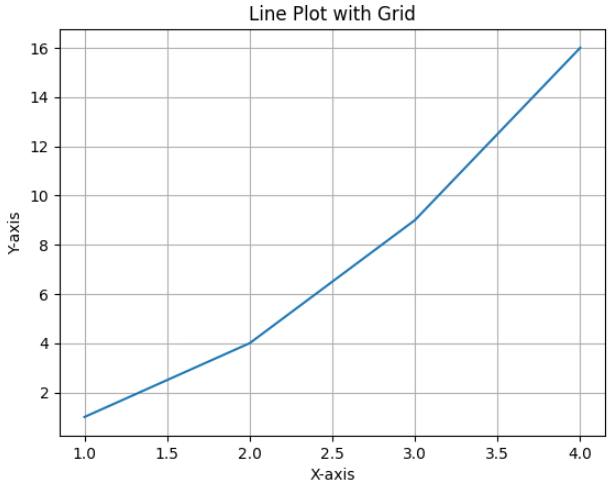
Grids make it easier to read values and follow trends across the chart. You can enable grids using the grid() function
import matplotlib.pyplot as plt

x = [1, 2, 3, 4]
y = [1, 4, 9, 16]

plt.plot(x, y)
plt.grid(True)
plt.xlabel("X-axis")
plt.ylabel("Y-axis")
plt.title("Line Plot with Grid")
plt.show()
Output:
3. Line Chart with Annotations
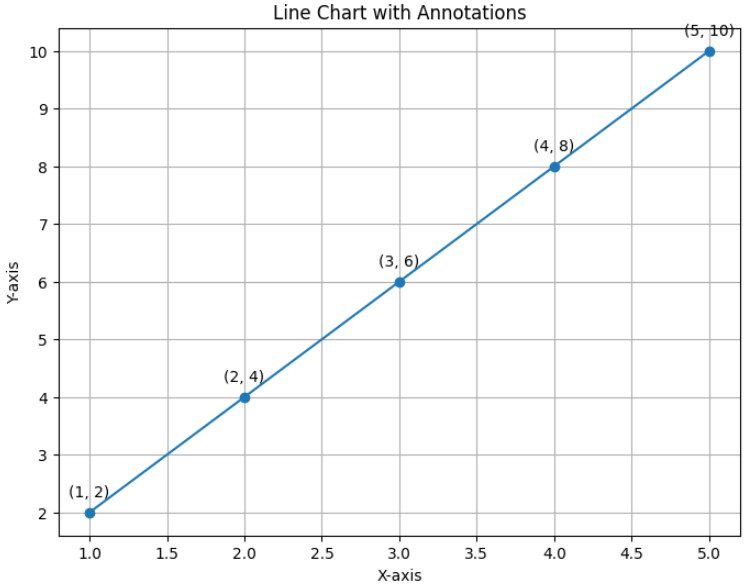
For adding annotations to a line chart you can use the annotate() function. This function allows you to display additional information such as the exact x and y values directly on the data points, improving clarity and data interpretation.
import matplotlib.pyplot as plt

x = [1, 2, 3, 4, 5]
y = [2, 4, 6, 8, 10]

plt.figure(figsize=(8, 6))
plt.plot(x, y, marker='o', linestyle='-')

for xi, yi in zip(x, y):
    plt.annotate(f'({xi}, {yi})',
                 (xi, yi),
                 textcoords="offset points",
                 xytext=(0, 10),
                 ha='center')

plt.title('Line Chart with Annotations')
plt.xlabel('X-axis')
plt.ylabel('Y-axis')
plt.grid(True)
plt.show()
Output:
4. Multiple Line Charts Using Matplotlib
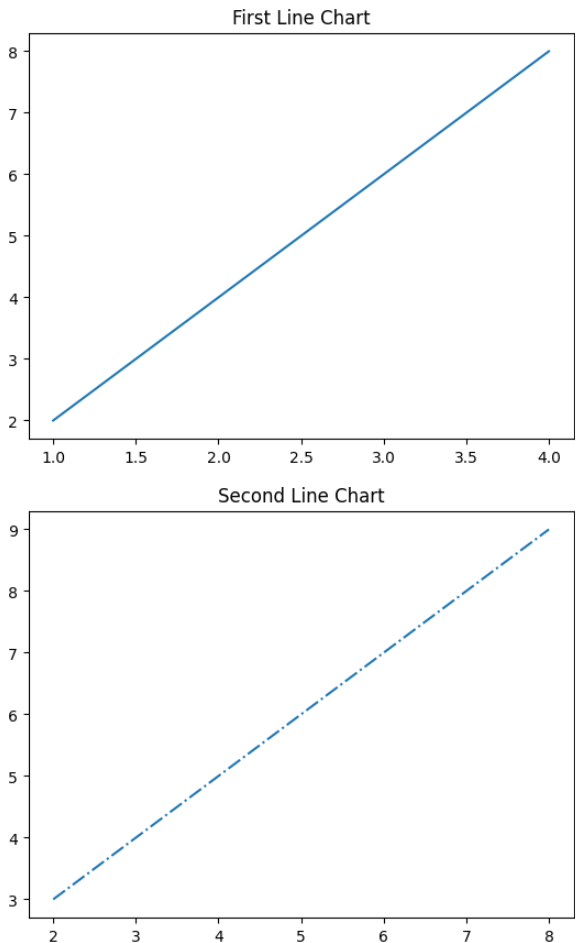
To create multiple line charts in separate containers you can use the figure() function. Each call to figure() generates a new plotting area, making it easier to visualize and compare different datasets independently.
import matplotlib.pyplot as plt
import numpy as np

x = np.array([1, 2, 3, 4])
y = x * 2

plt.plot(x, y)
plt.title("First Line Chart")
plt.show()

plt.figure()
x1 = [2, 4, 6, 8]
y1 = [3, 5, 7, 9]
plt.plot(x1, y1, '-.')
plt.title("Second Line Chart")
plt.show()
Output:
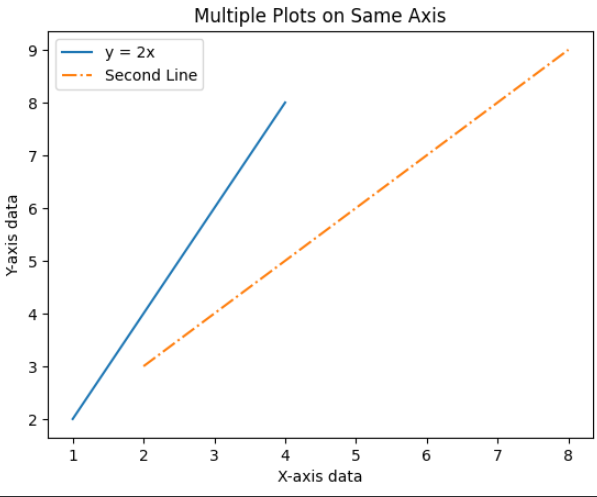
5. Multiple Plots on the Same Axis
To plot multiple lines on the same axis, you can call the plot() function multiple times before displaying the graph. This approach is useful for comparing different datasets within the same coordinate system.
import matplotlib.pyplot as plt
import numpy as np

x = np.array([1, 2, 3, 4])
y = x * 2

x1 = [2, 4, 6, 8]
y1 = [3, 5, 7, 9]

plt.plot(x, y, label='y = 2x')
plt.plot(x1, y1, '-.', label='Second Line')

plt.xlabel("X-axis data")
plt.ylabel("Y-axis data")
plt.title("Multiple Plots on Same Axis")
plt.legend()
plt.show()
Output:
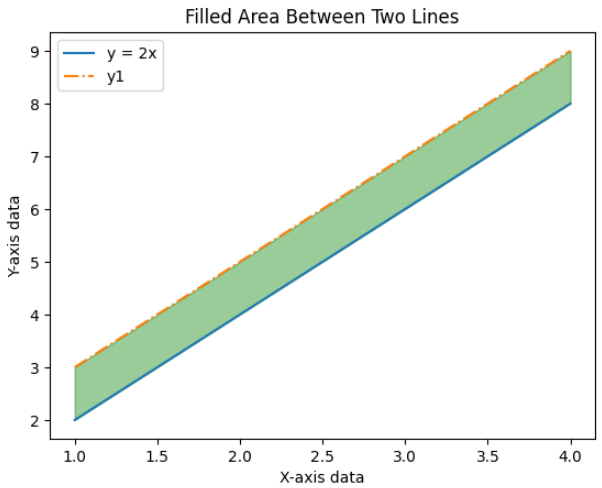
6. Fill the Area Between Two Lines
To fill the region between two line plots, you can use the fill_between() function. This function shades the area between two curves, helping visualize the difference or range between datasets.
import matplotlib.pyplot as plt
import numpy as np

x = np.array([1, 2, 3, 4])
y = x * 2
y1 = [3, 5, 7, 9]

plt.plot(x, y, label='y = 2x')
plt.plot(x, y1, '-.', label='y1')

plt.fill_between(x, y, y1, color='green', alpha=0.4)

plt.xlabel("X-axis data")
plt.ylabel("Y-axis data")
plt.title("Filled Area Between Two Lines")
plt.legend()
plt.show()
Output:
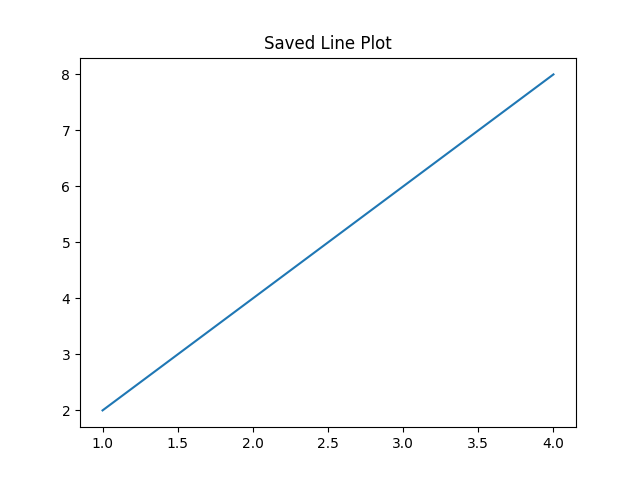
7. Saving a Line Chart to a File
Instead of displaying a plot you can save it as an image using the savefig() function.
import matplotlib.pyplot as plt

x = [1, 2, 3, 4]
y = [2, 4, 6, 8]

plt.plot(x, y)
plt.title("Saved Line Plot")
plt.savefig("line_plot.png")
plt.show()
Output:
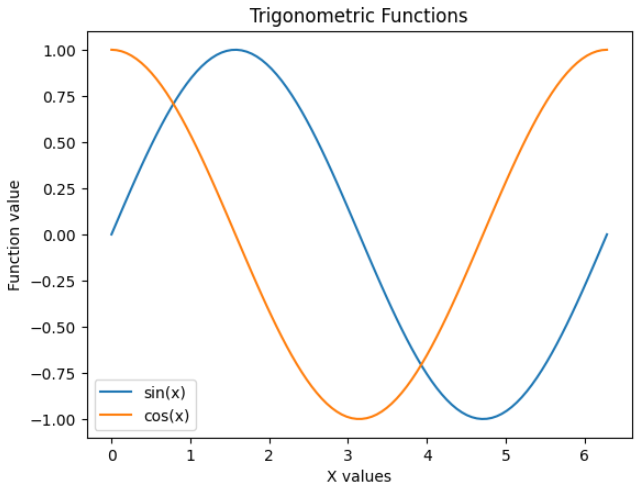
8. Plotting Trigonometric Functions
Trigonometric functions such as sine, cosine and tangent can be visualized using plt.plot() by generating input values over a continuous range. The numpy.linspace() function creates evenly spaced values, allowing smooth and accurate curves.
import numpy as np
import matplotlib.pyplot as plt

x = np.linspace(0, 2 * np.pi, 100)
y_sin = np.sin(x)
y_cos = np.cos(x)

plt.plot(x, y_sin, label="sin(x)")
plt.plot(x, y_cos, label="cos(x)")
plt.xlabel("X values")
plt.ylabel("Function value")
plt.title("Trigonometric Functions")
plt.legend()
plt.show()