
The tee command reads standard input and writes it to both standard output and one or more files at the same time. It’s usually used with pipes and filters to duplicate the input into each output. The name comes from the T-shaped pipe fitting in plumbing, as it splits the data flow just like a pipe tee splits water.
This command is useful when you want to see the output on the screen and save it to a file simultaneously. It doesn’t just redirect, it copies the input stream to all specified outputs, letting you monitor and log program results at once.
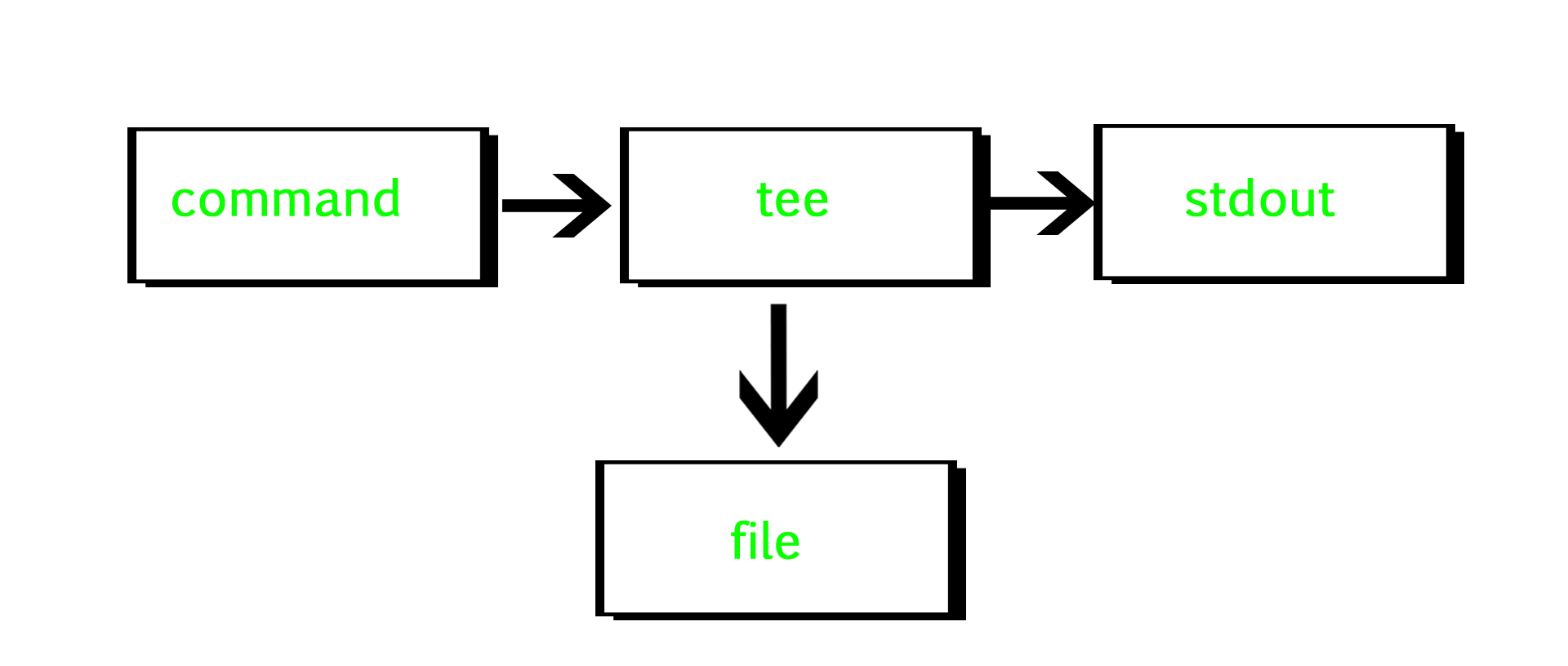
SYNTAX
tee [OPTION]... [FILE]...
Options in tee command
The tee command helps in logging outputs while still allowing you to view them live in the terminal.
1. -a Option (Append Mode)
It basically do not overwrite the file but append to the given file. Suppose we have
file1.txt
Input: geek
       for
       geeks
and
file2.txt
Input:geeks
      for
      geeks
SYNTAX :
This command counts the number of lines in file1.txt, appends the result to file2.txt, and also displays it on the terminal.
geek@HP:~$ wc -l file1.txt|tee -a file2.txt
OUTPUT :
3 file1.txt
geek@HP:~$cat file2.txt
OUTPUT:
      geeks
      for
      geeks
      3 file1.txt

2.--help Option
It gives the help message and exit.
SYNTAX :
tee --help

3.--version Option
It gives the version information and exit.
SYNTAX :
tee --version

Application
Suppose we want to count number of characters in our file and also want to save the output to new text file so to do both activities at same time, we use tee command.
wc -l file1.txt| tee file2.txt
15 file1.txt
Here we have file1 with 15 characters, so the output will be 15 and the output will be stored to file2. In order to check the output we use :
cat file2.txt
15 file1.txt

Application Example: Counting Lines (wc)
Suppose we want to count the number of lines in a file, see the count, and save that count to a new file.
File Content (file1.txt):
geeks
for
geeks
Command:
wc -l file1.txt | tee file2.txtOutput:
3 file1.txtAdvanced Pipeline Usage
tee fits perfectly in the middle of a processing pipeline to capture intermediate states without stopping the flow.
Example: Download a file, save a backup, and extract it all in one go.
wget -O - http://example.com/data.tar.gz | tee data_backup.tar.gz | tar -xzvf -- Step 1: wget downloads the file to stdout.
- Step 2: tee catches it, saves data_backup.tar.gz.
- Step 3: tee passes the data along to tar for extraction.
Key Options
| Option | Description |
|---|---|
| -a (--append) | Append to the file instead of overwriting it. |
| -i (--ignore-interrupts) | Ignore interrupt signals (useful for long scripts). |
| --help | Display the help message. |
| --version | Display version information. |
