


Are you facing the Android “No Command” error? In this tutorial, you will learn its causes and quick fixes using 4 simple and effective methods.
Seeing the Android “No Command” error on your device can be frustrating, especially when it prevents your phone from starting normally. The ” No Command” error usually appears during recovery mode due to a system glitch, failed update, or corrupted files.
In this tutorial, I’ll explain what the Android “No Command” error means and walk you through four quick and effective methods to fix it and get your device working again.
Table of Contents:
Android “No Command” Error – Causes and Fixes

The Android “No Command” error usually appears when your device enters recovery mode but fails to load the recovery menu properly. This can happen due to a failed system update, corrupted cache files, or an unexpected system crash.
Fortunately, the issue can often be fixed without visiting a service centre.
Below are four quick and effective methods you can try to resolve the Android “No Command” error and regain access to your device. I have also mentioned the top 5 causes for this “No Command” Error below.
What does the “No Command” error mean in Recovery Mode
No Command error in recovery mode means that you have made some mistake in resetting the phone, or it might be that your device is trying to prevent you from factory resetting it by mistake. It doesn’t explain the reason or what to do.
This error usually occurs when you are trying to reset your device. Sometimes, while doing that, you might see the icon of Resting Android Robot or a triangle with an exclamation mark saying No Command as shown in the image below.
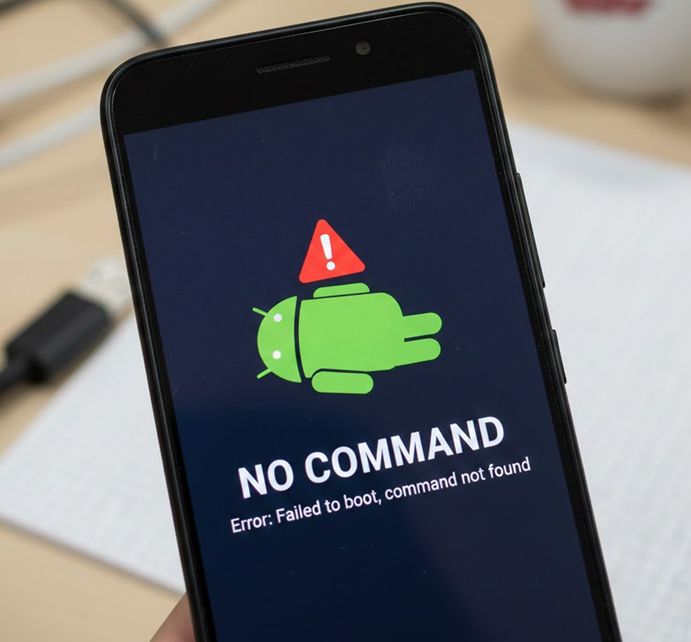
Top Reasons Why Android Shows the “No Command” Error
The following are the top 5 reasons why your Android smartphone may face this no-command error in Android recovery mode:
- Improper settings on your device.
- Problem with the app.
- Your phone denying superuser access.
- Failed installation or update of your Android OS.
- Problem with hardware.
Due to one or more of the above-mentioned reasons, the device will be stuck in a boot loop and you will not be able to do anything.
How to fix no command in an Android phone Screen
There are several different ways of resolving Android no command errors on your phone. Let’s go through them one by one.
#1) Go into Recovery Mode Again

[image source]
That’s the first thing to do. Try to get back into recovery mode since it can help you fix every issue on your device. If you are not sure how to get into recovery mode on your device, try the following combinations one by one:
- Power +Volume Up buttons
- Power +Home +Volume Up buttons
- Power +Volume Down buttons
- Power +Home+ Volume Down buttons
One of these should work. Once you enter recovery mode, your device will list a number of options. From there, choose wipe cache partition or factory reset. Wiping the cache partition is easy, and it doesn’t delete your data while a factory reset will.
After choosing an option, reboot your device. Once the phone restarts, the issue should be fixed.
Also Read =>> Top Android Data Recovery Software
#2) Remove and Reinsert Battery

[image source]
Today’s more modern smartphones don’t come with removable batteries. While the devices came with removable batteries, most issues were easy to fix. You just need to remove and reinsert the battery. Voilá, all errors are fixed. So, feel blessed if your phone has a removable battery, and to fix this error, just remove and reinsert your battery.
#3) Update the OS Manually

[image source]
If you recently updated your software or tried to flash a custom ROM and then started receiving this error message, then you will need to manually update the OS.
- Enter Android Recovery Mode.
- Use the Volume up and down button to navigate through the menu.
- Select Apply to update from the cache.
- Press the power button to open it.
- Select Software update.
- Press the power button to start the installation.
If you are facing no command error while flashing custom ROM:
- Select Apply updates from external storage in recovery mode.
- Access the updater.
- Select the software file you have downloaded to install the updates.
This should resolve the Android recovery mode with no command error.
#4) Force Restart Your Device

[image source]
If nothing works, force restarting your device will. Here are some combinations that can help you force reboot your device if you don’t exactly know how to for yours.
- Hold down the Volume Down and Power buttons.
- Hold down the Power button for 30 seconds.
One of these two options will force a restart of your device, eliminating the error.
#5) Flash a ROM

[image source]
If nothing works, try installing a ROM on your device. If you have a custom recovery like ClockworkMod or Team Win Recovery installed on your phone. You can download a ROM compatible with your phone and then use recovery mode to install it.
- Download device-compatible ROM to your computer.
- Move the ROM Zip file to the SD card of your phone or its internal storage.
- Launch recovery mode on your Android device.
- Choose the install zip from the SD card option.
- Choose ROM from the memory and install it.
Frequently Asking Questions
What does it mean when my Android says no command?
This error usually shows up when you try to access the recovery mode or during the installation of new software. This usually means your device is just waiting for a command to access the recovery options.
How do I fix the Android recovery mode not working?
Try force restarting your device or get into the recovery mode and wipe the cache partition or factory reset your device. If the no command error occurs after you have installed an update, choose to manually update your OS from the recovery mode.
How do I force an Android into recovery mode?
One of the following methods will force your Android device to go into recovery mode:
1. Power +Volume Up buttons
2. Power +Home +Volume Up buttons
3. Power +Volume Down buttons
4. Power +Home+ Volume Down buttons
Why is the recovery mode not working?
The most common reason for recovery mode not working is that your device has denied or terminated superuser access during phone resetting or OS update. Force restart your device to fix this issue.
What do you do when a factory reset doesn’t work?
If you cannot factory reset from your device’s settings, launch the recovery mode and select factory reset from the menu.
Conclusion
In this article, I have taken you through what a no-command error in an Android phone is, why it occurs, and different ways to resolve it. Usually, it is a feature of the device and not a problem. It’s more like your phone is waiting for a command before entering recovery mode.
With the right combination of keys, you can easily access the recovery mode. However, if your phone gets stuck in this error, force restarting, factory resetting, or manually updating the OS should work.
Research process
Total time taken to research and publish this article is Approx 30 hours.
This guide is based on testing common Android recovery scenarios, reviewing official Android troubleshooting resources, and analyzing user-reported fixes across multiple devices to ensure the solutions are accurate, safe, and effective.
Was this helpful?
Recommended Reading
-

Here you will find a list of Android Smartwatches reviewed and compared for you with features and technical specifications to select wisely: Want to use the next stage of hand wearable that will keep track of your fitness regime? Having a good smartwatch will help you achieve it. The Android…
-

Explore and compare the top Android Data Recovery Software and go for the best Android Recovery App to recover your precious data: Your smartphone or Android device, in particular, can do a lot of heavy lifting, the most useful of which can store data. An Android device can masquerade as…
-
This article reviews the top Antivirus for Android with comparison. Check the details to choose the best Android antivirus app for you: An antivirus software (also known as AV software), is used to detect, block and remove all types of threats to a device. The threats may include viruses, malware,…
-
Are you searching for the best Hidden Spy Apps for Android? Read this review of the top Undetectable Spyware apps for Android smartphones to select the best option: A spy app can monitor the smartphone activities of your child. The apps let you monitor smartphone activities to protect your child.…
-
Explore the list of popular Keyloggers for Android devices. Select the best Keylogger for Android that suits your requirements: Keylogging, short for keystroke logging, refers to the monitoring or recording of every keystroke registered on a keyboard without the knowledge of that device’s user. It is a prominent feature found…
-
Read This Informative Review Of Top Android Emulators You can Use In 2024 for an Enhanced Gaming Experience. Select the Best Android Emulator From This List: What is an Android Emulator? Android Emulator is an Android Virtual Device i.e. AVD which is designed to represent any particular Android device. Windows…
-
Are you searching for a music player for your Android device? Go through this review and comparison of the Best Android Music Players to end your search: Music is the art of combining different sounds to produce a unified, continuous sound. Music can express feelings, emotions, and ideas in a charismatic…
-
Review, compare and select among the best Android Tablets for watching videos, checking emails, browsing the web, playing games, etc: Is it getting difficult for you to carry your laptop everywhere? You may be on a journey and planning to watch a movie! Want to make your work portable? A…


no comand