
Article status shows the current state of each article in the knowledge base portal. Each status is represented by a colour-coded icon displayed next to the article name in the left navigation pane, so you can identify what needs attention without opening each article individually.
Article status applies to both articles and category pages. Hover over any status icon to see the article version, contributor details, and the date of the last action.
When to use article status
- Quickly identify Draft articles that still need work before publishing, or Stale articles that have reached their review reminder date.
- Spot articles that are published with an active draft so you know which ones have pending updates in progress.
- Identify articles in non-primary languages that still require translation via the Globe icon.
Article statuses in the portal
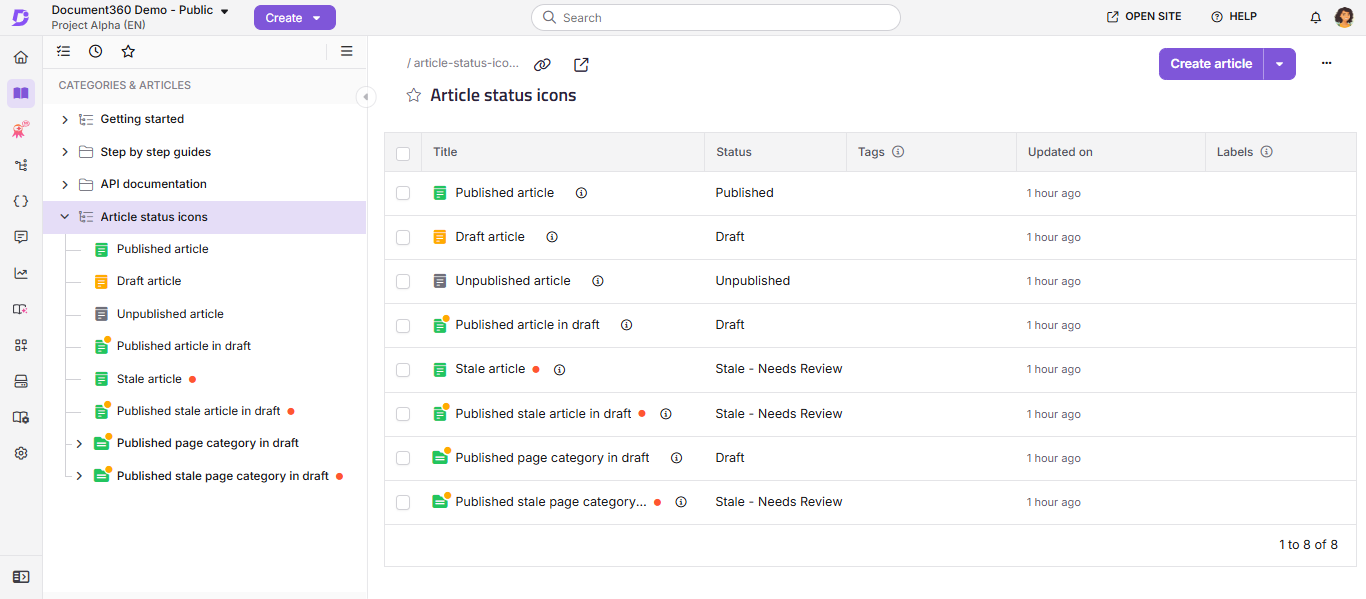
| Status | What it means |
|---|---|
| Draft | The article has not been published. It is only accessible to portal users. A draft can exist on its own (never published) or alongside a published version when edits are in progress. |
| Published | The article is live and publicly available on the knowledge base site. No active draft currently exists for this article. |
| Unpublished | The article was previously published but has been taken offline. It is no longer visible on the knowledge base site and is accessible only within the portal. |
| Stale | The article has reached its configured review reminder date and requires review. A red dot appears next to the article name in the category tree. The article remains live on the knowledge base site until it is reviewed and the Stale state is cleared. |
Published with active draft  |
The article is live, but a draft version is currently being edited. A yellow dot appears on the published (green) article icon to show that a published article has an active draft. The published version remains on the knowledge base site until the draft is republished. |
| Stale in edit mode |
The article has reached its review reminder date and is currently open in draft edit mode. The published article icon shows a yellow dot on the green article icon to indicate the active draft, along with a red dot next to the article name in the category tree indicating the stale state. |
| Globe | Appears only for articles in languages other than the main language. Indicates that the article content has not yet been translated. Clicking the Globe icon opens the translation panel where you can begin or continue the translation workflow. |
The Stale, Published with active draft, and Stale in edit mode statuses apply to articles and page category only. Folder and index category pages show Draft, Published, and Unpublished statuses only.
Hover details by status
Hovering over a status icon displays a pane with additional details about the article. The information shown depends on the current status.
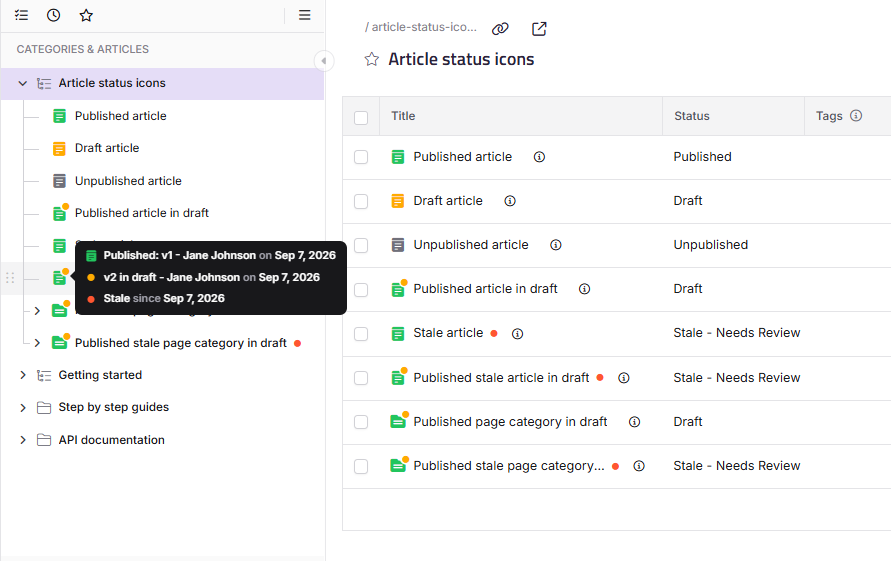
| Status | Information displayed on hover |
|---|---|
| Draft | Draft version, contributor who created it, and draft date. |
| Published | Published version, contributor who published it, and published date. |
| Unpublished | Unpublished version, contributor who published it, and published date. |
| Stale | The date since which the article has been stale. |
| Published with active draft |
Last published version details and draft version details. |
| Globe | Globe indicates translation is required. |
Article status of hidden articles
Hidden articles are shown with a strikethrough on the article name in the portal, regardless of their current status icon colour. A hidden Draft article still shows the yellow icon with a strikethrough. A hidden Published article shows the green icon with a strikethrough. The strikethrough is the visual signal that the article is hidden. The status icon still reflects the editorial state.
Hidden articles are not available on the knowledge base site but remain fully accessible within the portal. Articles can be hidden in any status.
Articles in a hidden category are also hidden on the knowledge base site.
Article status vs. status indicator
These are two different features that are sometimes confused.
| Article status | Status indicator | |
|---|---|---|
| Where it appears | Knowledge base portal, next to the article name in the left navigation pane. | Knowledge base site, next to the article title for readers. |
| Who sees it | Portal users only. | Knowledge base site readers. |
| Purpose | Shows the editorial state of the article. | Signals to readers that content is new or updated. |
| Examples | Draft, Published, Unpublished, Stale. | New, Updated, Custom. |
Learn more about Status indicator.
FAQ
What is the difference between article status and the status indicator?
Article status is visible only in the knowledge base portal and reflects the editorial state of an article: Draft, Published, Unpublished, or Stale. The status indicator is visible to readers on the knowledge base site and signals whether content is new or recently updated. They serve different audiences and different purposes.
How can I tell if a published article has a draft in progress?
A published article with an active draft is shown with a yellow dot on its green icon in the category tree. This indicates the article is live, but a draft version is currently being edited. The published version remains available to readers on the knowledge base site until the draft is republished.
What happens when an article becomes Stale?
When an article reaches its configured review reminder date, it enters the Stale state automatically and a red dot appears next to the article name in the category tree. The article remains live on the knowledge base site. Contributors can review the content and mark it as reviewed from the Stale badge in the editor or from the Review reminder tab in Article settings.
Do category pages also show article statuses?
Yes. Page categories show the Draft, Published, Unpublished, Stale, Published with active draft, and Stale in edit mode statuses. Folder and index category pages show only Draft, Published, and Unpublished.
What does the Globe icon mean on an article?
The Globe icon appears only on articles in languages other than the main language. It indicates that the article has not yet been translated. Clicking the Globe icon opens the translation panel where you can begin or continue the translation workflow.
