Mobile Menu Widget Tutorial

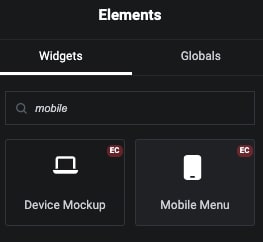
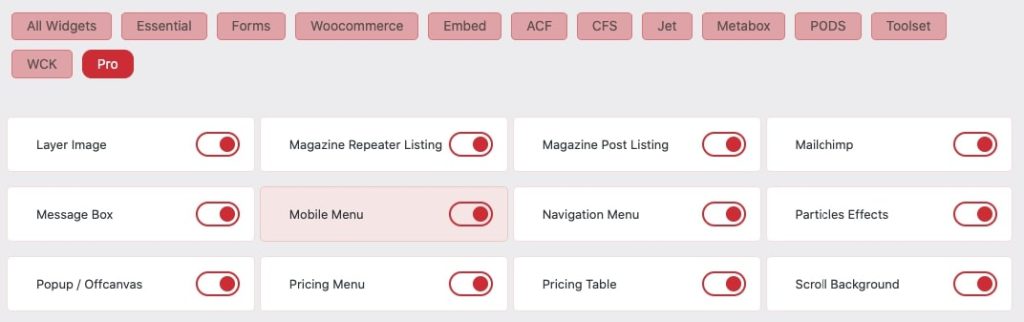
Essential Classy Tab from Dashboad -> Widgets then enable Mobile Menu

Image

Now Drag and Drop Mobile Menu widget

Image

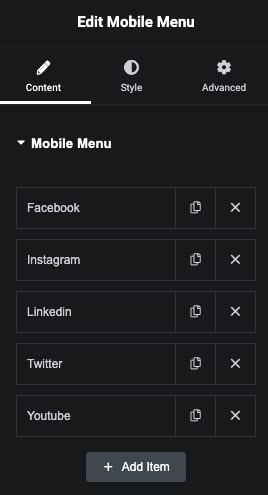
Mobile Menu Repeater

Image

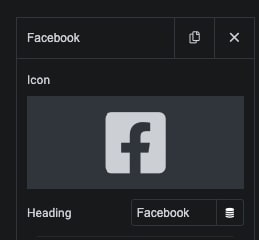
In Repeater, You can manage Text and Icon.

Image

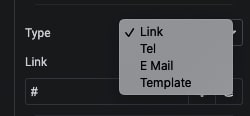
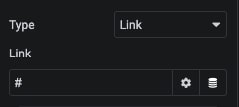
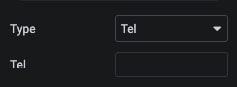
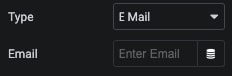
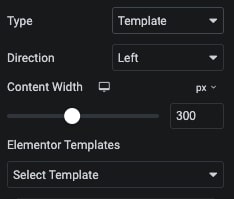
In Type, We have Link, Tel, Email and Template Options.

Image
Image

Simply Enter Link

Image

Enter Tel. Number

Image

Enter Email

Image

Select Template and Manage Direction with Width.

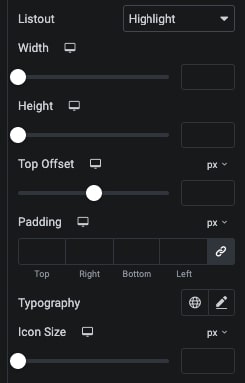
In Repeater, We have Highlight Listout options. Where, You can manage Styling of Particular Item.

Like. Manage Width, Height, Top Offset, Padding, Typography and Icon Size.
Image

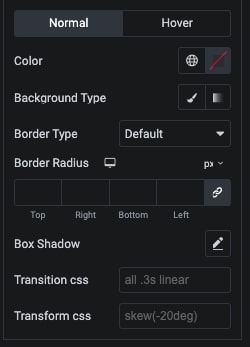
Also, In repeater for Highlight Item, We have Color, Background, Border, Shadow, Transition and Transform CSS Styling options for Normal and Hover State.

Image

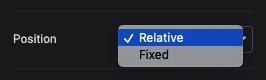
We have 2 position options

Image

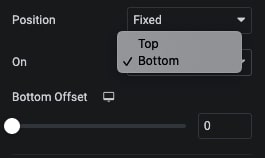
In Fixed Position, We have Top and Bottom with Offset options.

Image

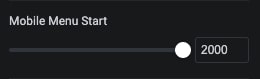
In Mobile Menu Start, You can manage Screen Size, Where you want to Start Display Mobile Menu.

Image

Swipe Menu

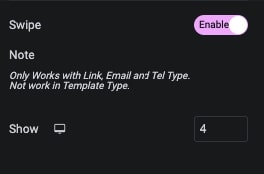
If you have More Menu Items, Then You can use Swipe options.
A Swipe Menu is a touch-friendly navigation interface allowing users to swipe left or right to access hidden menus or options. It’s perfect for mobile and responsive designs, enhancing user experience with smooth transitions.
Image

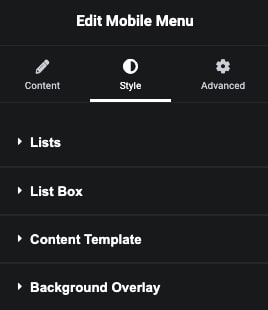
Mobile Menu Style Tab

Image

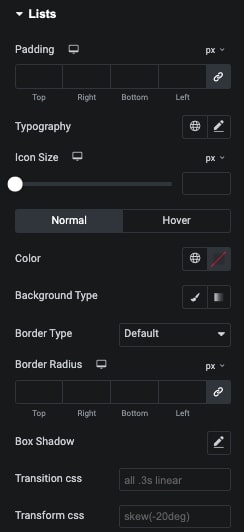
Lists – Style Tab

In this tab, We have Padding, Typography and Icon Size options.

Also, We have Color, Background, Border, Shadow, Transition and Transform CSS Styling options for Normal and Hover State.

Image

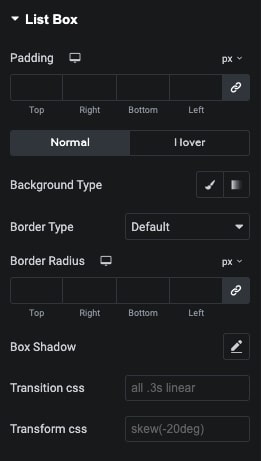
List Box – Style Tab

In this tab, You can manage Pading of Box.

Also, Manage Background, Border, Shadow, Transition and Transform CSS for Normal and Hover State.

Image

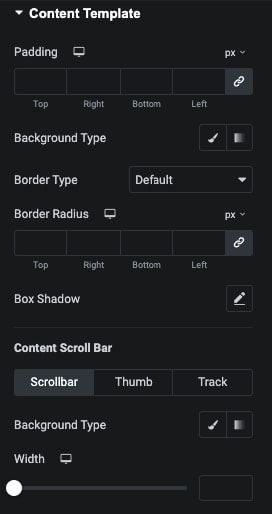
Content Template – Style Tab

In this tab, You can manage Padding, Background, Border and Box Shadow.
Also, We have Content Scroll Bar Styling Options.
Image

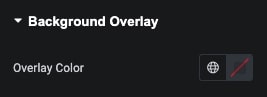
Background Overlay – Styling Tab

In This tab, You can manage Overlay Color of Outside Template.

Image