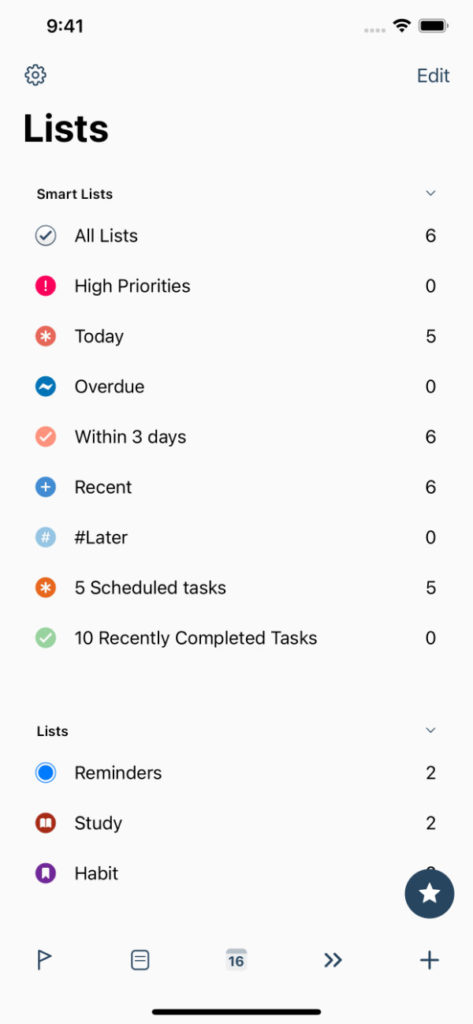
A reminder list gives a task a home. A Smart List gives you a useful view of your tasks—such as today’s work, your calls, or items that still need a date.
GoodTask lets you use both. Keep your existing Apple Reminders lists, then create focused views across the lists you choose.
Reminders lists and Smart Lists: what changes?
A Reminders list contains the original reminders. Renaming, editing, or deleting that list affects the underlying list in Apple Reminders.
A Smart List gathers tasks that match your chosen sources and filters. It is not a separate place to store copies. Editing a task through a Smart List changes the original reminder.
Create your first Smart List
- Use the add controls on GoodTask’s Lists page to add a Smart List.
- Give it a name that describes what you want to see, such as “Today’s work.”
- Choose the Reminders lists and calendars it can use.
- Add one useful filter, such as Scheduled → Today, a priority, or a text filter.
- Choose its sort order and default view, then save.
Choose your Work list as the source. Add a filter for tasks scheduled today, then an additional text filter for #calls. Give the relevant tasks that text tag. You now have a focused view without creating duplicate tasks.
Three useful lists to try
- Unscheduled work: choose your work lists and filter for undated tasks. Review this list when you have space to plan ahead.
- Important tasks: filter by priority across the lists that matter to you.
- Waiting for a reply: use a text label such as #waiting, then filter for it. Remove the label when the reply arrives.
See tags in GoodTask for more on using text labels with Smart Lists and Quick Actions.
Combine filters deliberately
An additional AND/ADD rule narrows the results. An OR rule includes tasks that match an alternative. Filter order can change the result, so start with a simple rule and check the list before adding another. Invert finds the opposite of a supported filter.
If a task disappears after you complete, reschedule, or retag it, it may simply no longer match the Smart List. Check its original Reminders list before assuming it has been deleted.
Make your lists comfortable to use
You can give a Smart List its own icon, color, sort options, selected calendars, and default view. Choose where undated tasks appear so that the view fits the job you use it for.
Use groups and spaces to organize the Lists page itself. A group collects lists in the sidebar; it is different from a Smart List’s filters. For the full filter reference and exact controls on your device, use the in-app guide below.
Next: use Quick Actions to apply recurring task edits, or explore different views of the same list.
Put it into practice with GoodTask
GoodTask works with Apple Reminders and Calendars, so you can build on the lists and events you already use.
Explore GoodTask for iPhone & iPad · Explore GoodTask for Mac
