
Submersible Water Pump
The water pump is submerged in water, and moves water using one tube connected to the pump. It plugs into the pump port on the Forward Education breakout board.
This pump is included in Climate Action Kits 2024 & Older.
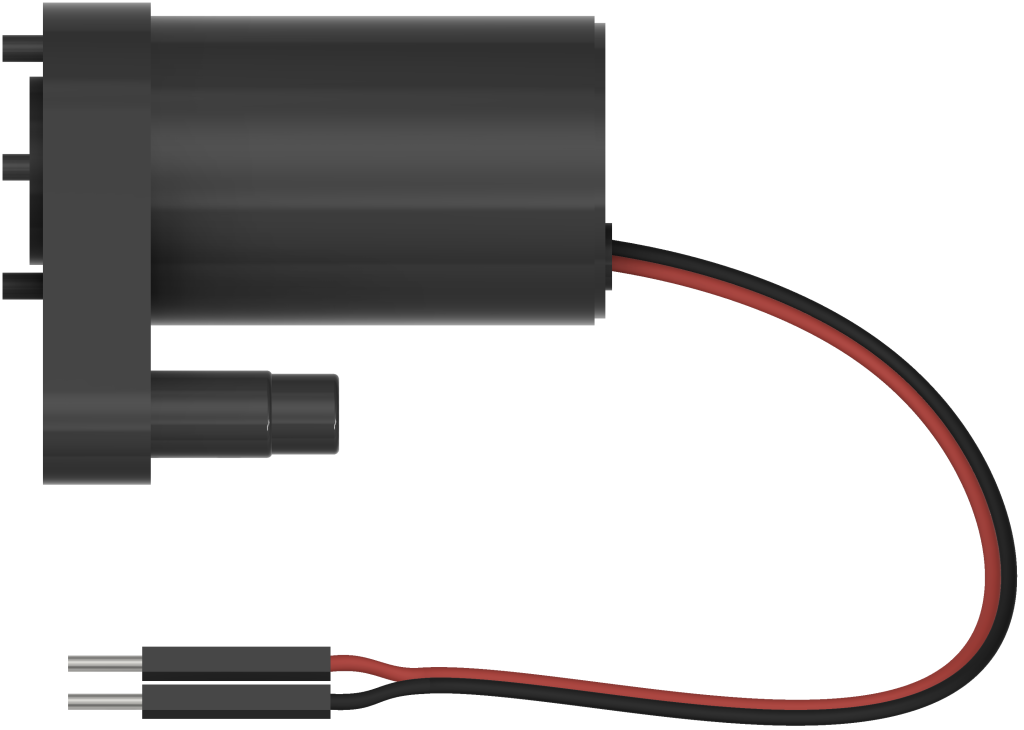
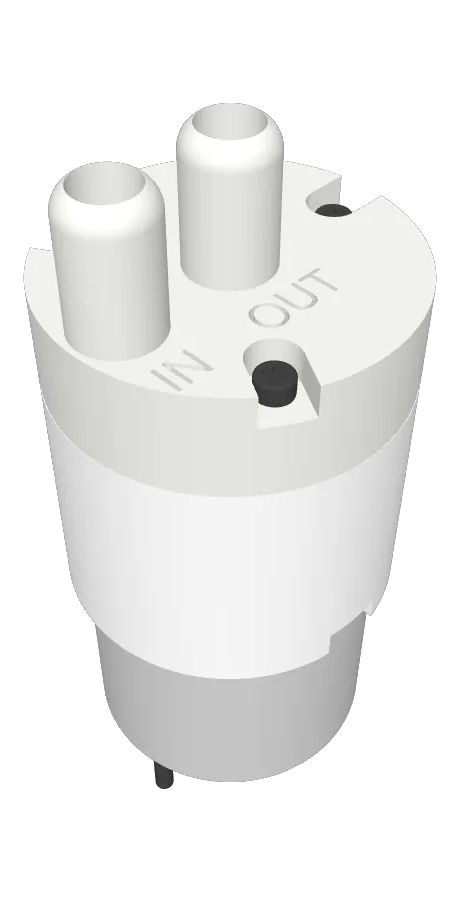
Does your water pump look like this? Check out the peristaltic water pump tutorial instead!
Handling & Care

This type of pump cannot be left submerged for extended periods of time. Remember to remove the pump from water after you’re done with the project and dry it as best as possible with a paper towel.
Do not put the pump and water tubing away while they are wet; let them finish air drying before putting them back into the kit with the other components that are sensitive to water.
Breakout Board Connection
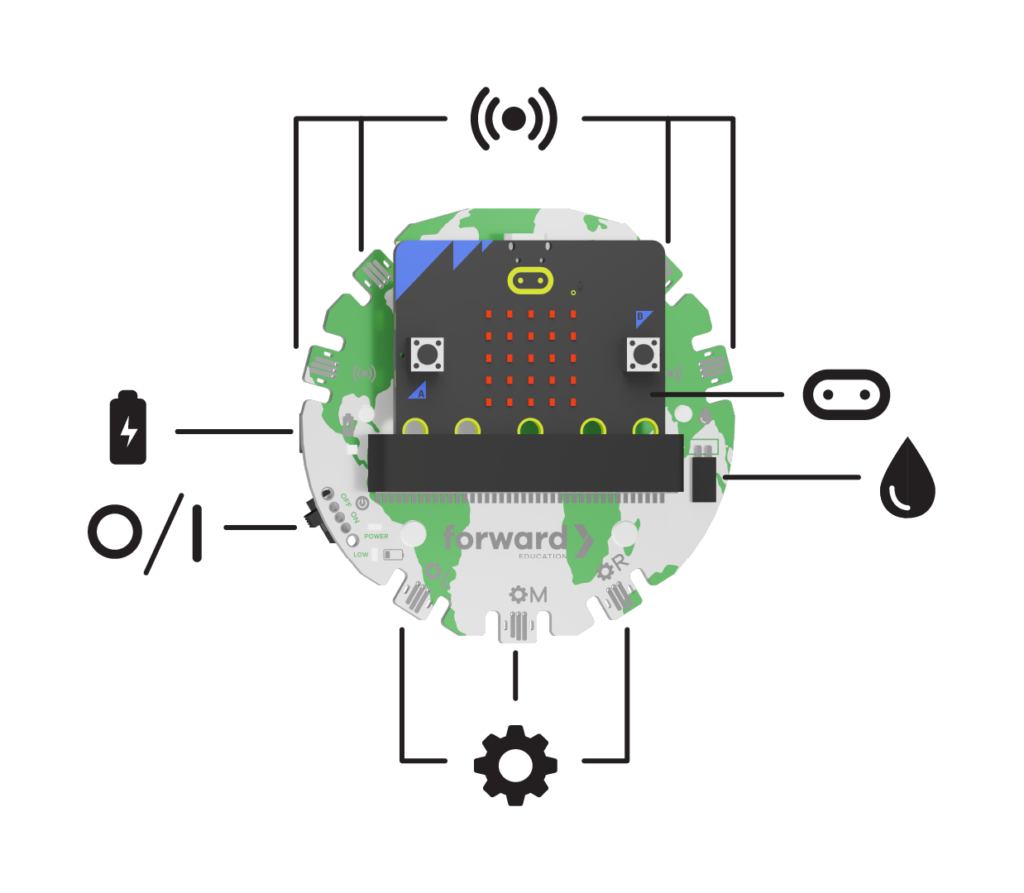
Plug the pump into the 💧 pump port on the breakout board, with the red power wire on the positive (+) side of the pump port.
MakeCode Extension
Each time you use this component, you’ll need to add the extension to your MakeCode project.

Create a new MakeCode File, and select the Extensions drawer from the toolbar.
Add one of the extensions below:

Using parts from more than one Forward Education Kit? Add this extension to your project instead!
Search for all-fwd-blocks by Forward Education, and add it to your project.

Search for fwd-edu by Forward Education, and add it to your project.
Motors Blocks

From the toolbar, select the Motors drawer, and scroll to the Pump category.
The blocks within this category are used to control the motor output on the peristaltic pump.
Pump Is On
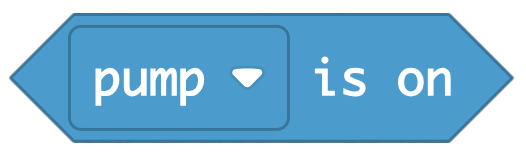
A boolean block, which returns true or false based on the status of the pump.
- True = Pump is on
- False = Pump is off
Run Pump for Value (ms)
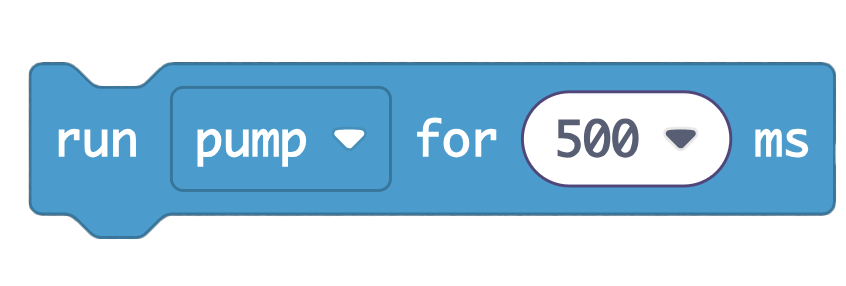
A command block, which turns on the pump for a specific length of time in milliseconds.
Click the “500” dropdown to select from the following options:
- 100 ms
- 200 ms
- 500 ms
- 1 second
- 2 seconds
- 5 seconds
Turn Pump Off/On

A command block, which turns the pump on or off.
Click the toggle “OFF” to select “ON”.
Related Content
-
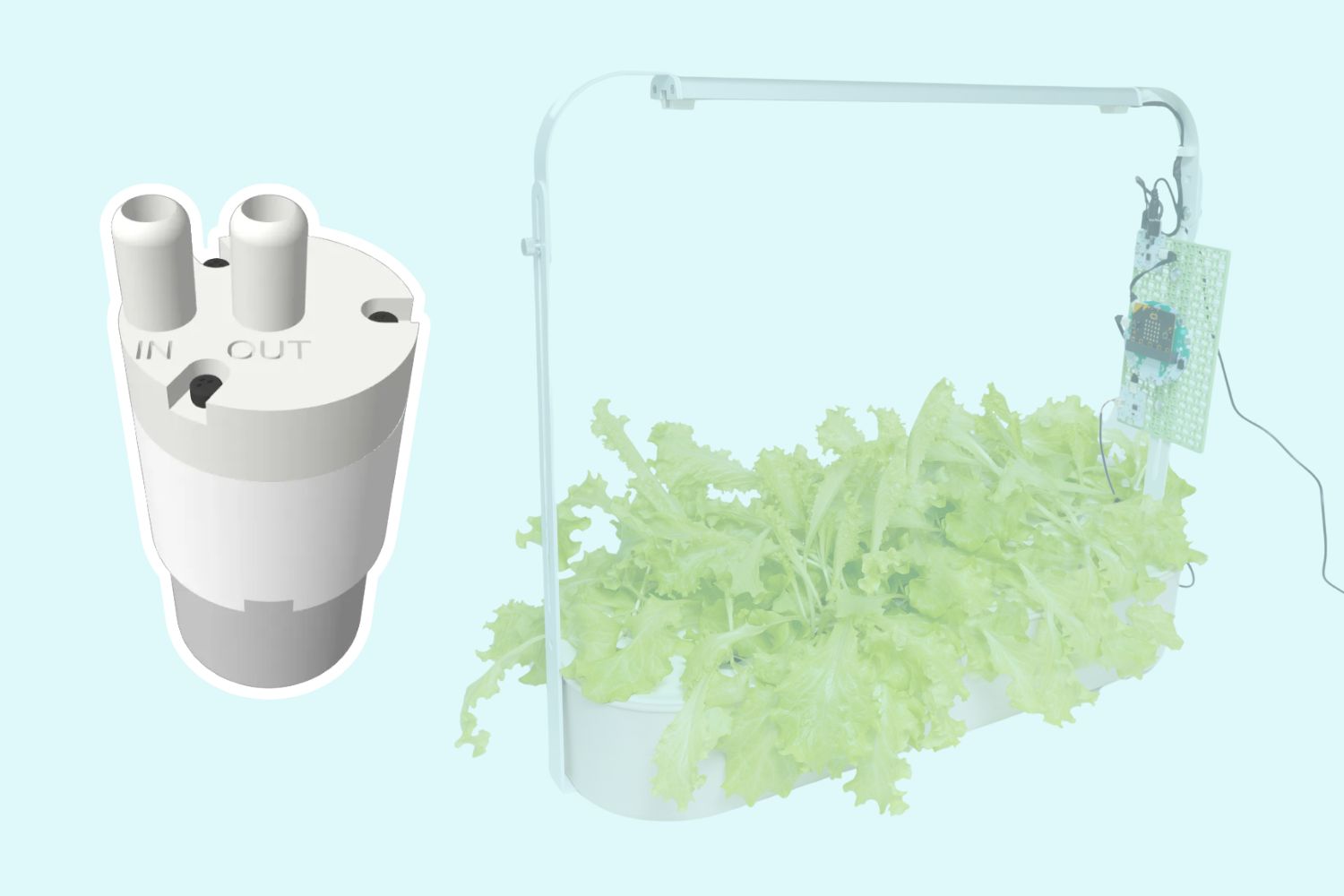
Peristaltic Water Pump
How to connect and code with the Peristaltic Water Pump using the breakout board and micro:bit V2. -
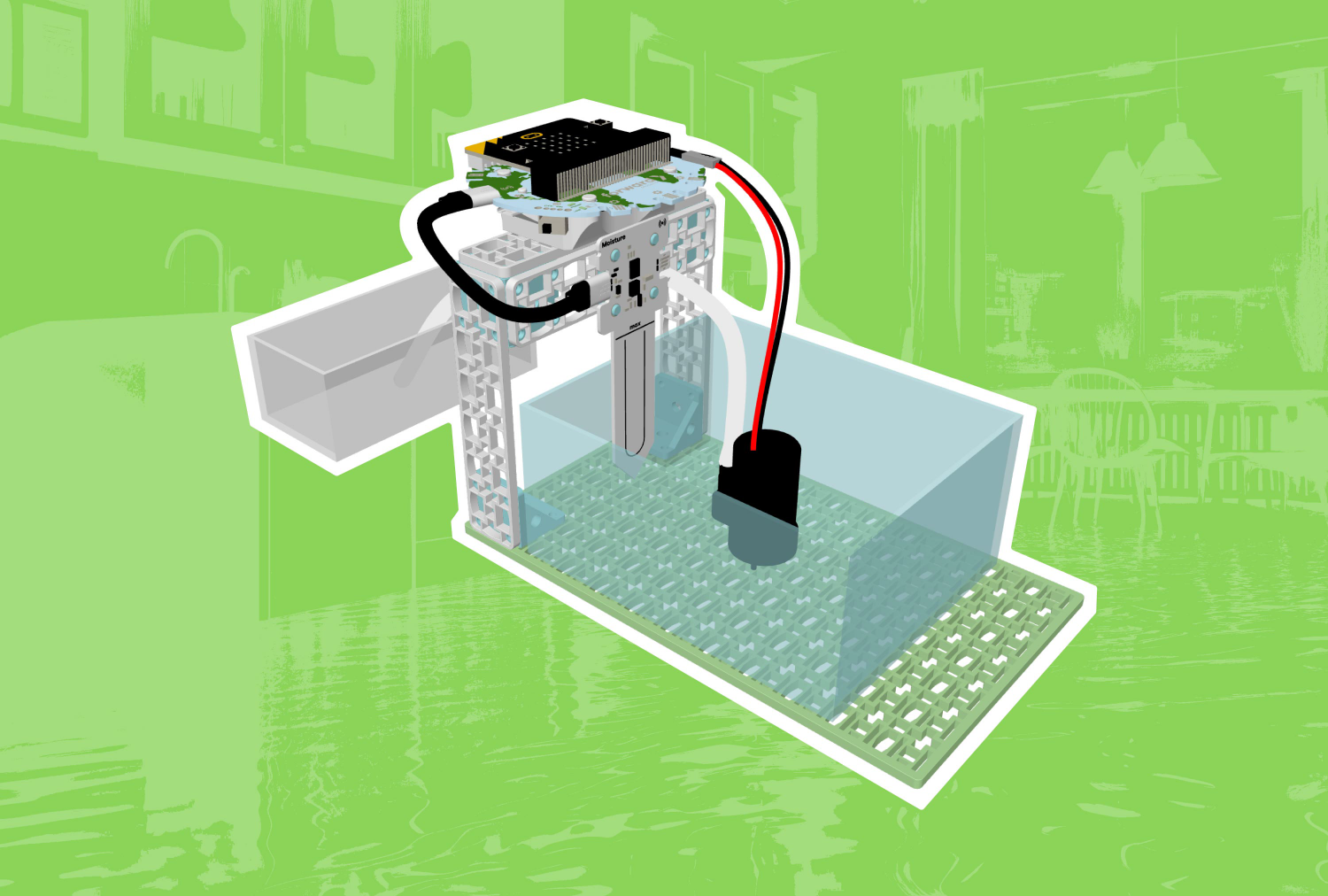
Flood Protection
Learn about the role of sump pumps in disaster relief and build a sump pump to simulate flood protection in the home. -
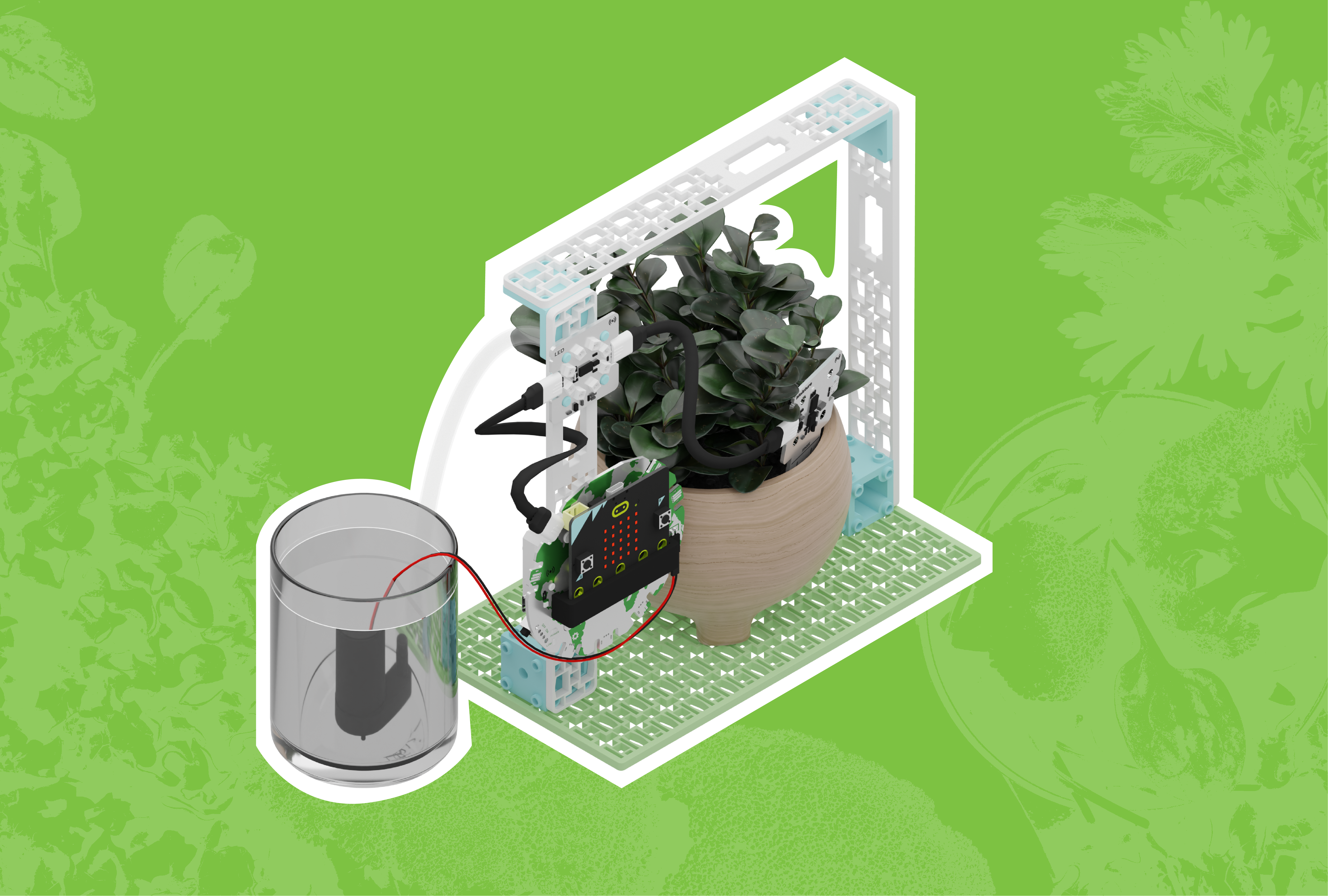
Data-driven Smart Farming
Discover the different types of indoor farming technology and build your own automated watering system!
Feeling Stuck? Explore the Knowledge Base for common questions and troubleshooting tips.
