This Week's Sponsor:

LookAway

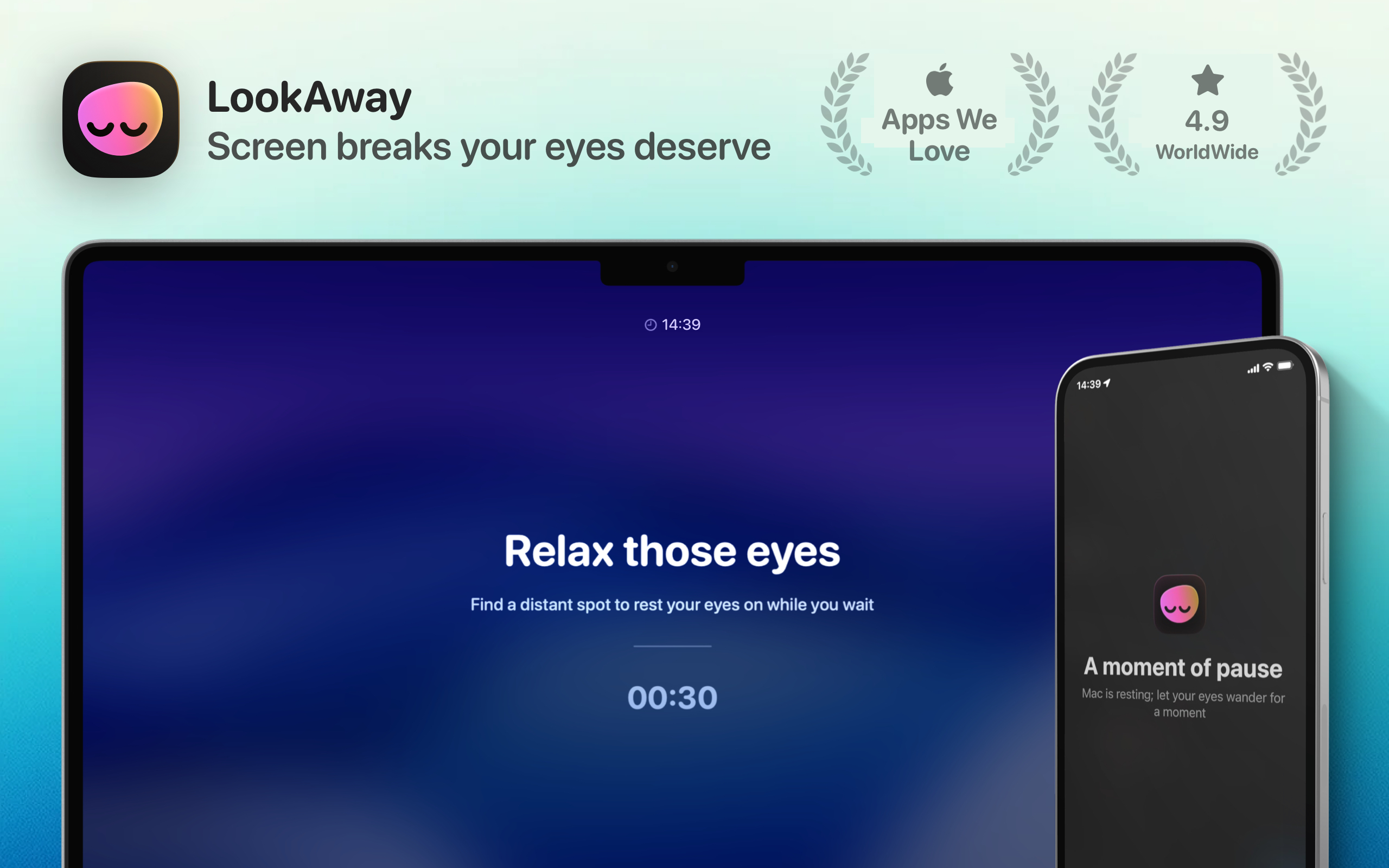
It helps you take regular breaks from your Mac to rest your eyes, without breaking your flow.


Our Favorite Indie Apps for iOS 27, Vol. 2

Image

It’s time to get back to our favorite indie apps that take advantage of Apple’s latest OS features. Today, we’re highlighting: Bear, Gentler Streak, The Outsiders, DoMarks, and Cheatsheet Notes.

Image

Bear

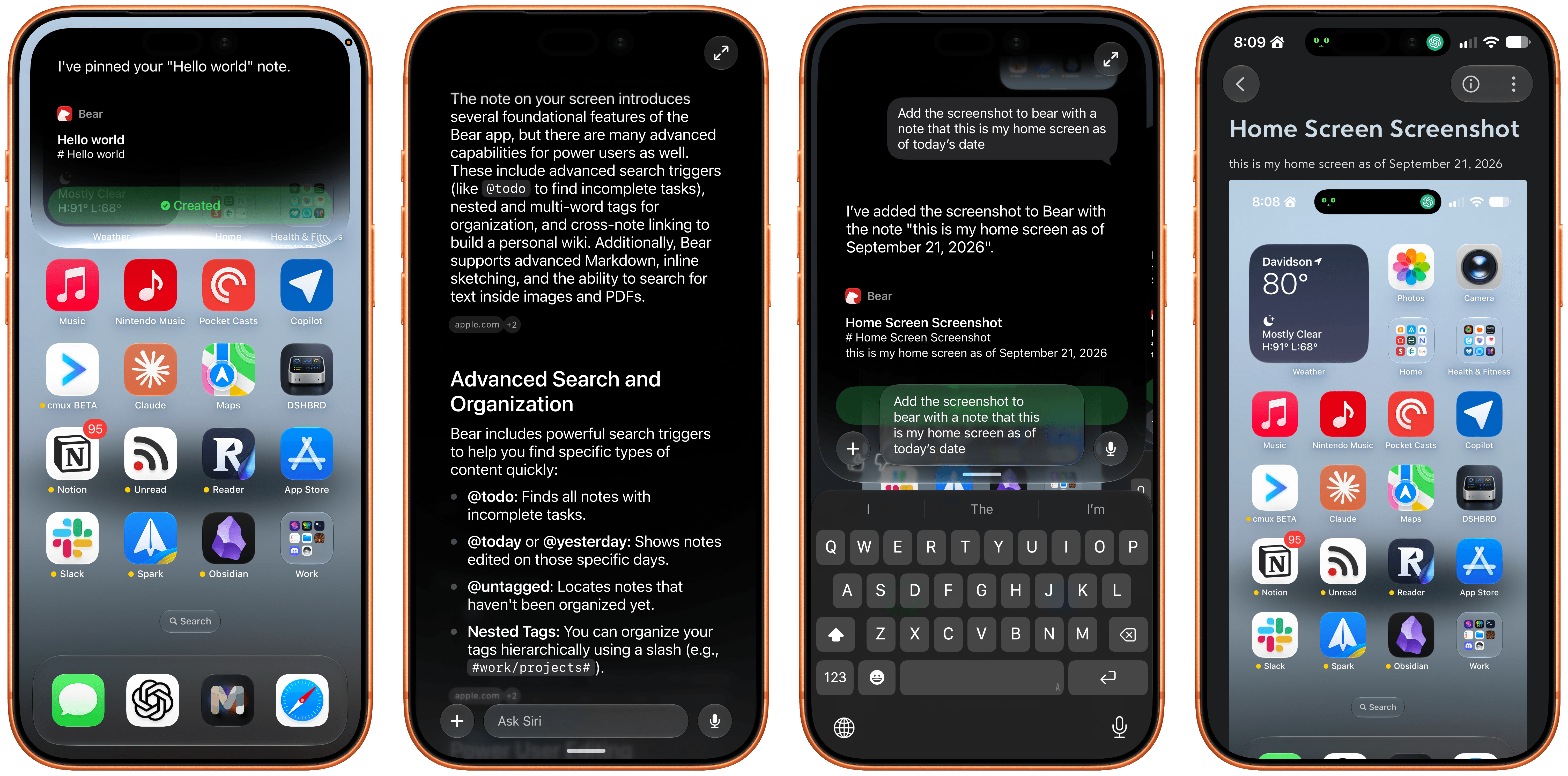
Bear, the note-taking app for iPhone, iPad, Mac, and Apple Watch, just released version 2.10 with several Siri AI features, including actions to:

  • Create a new note
  • Append text to an existing note
  • Append files to a note
  • Pin notes
Image

The app also includes onscreen awareness so Siri knows the content of the note you’re looking at without you telling it.

Bear’s new actions make it a compelling way to dictate notes on the go. Simply invoke Siri and start talking. With the ability to start a new note or append to existing notes, you can get quite a lot done with only your voice. One of my favorite uses is annotating screenshots. I take a screenshot, invoke Siri, and in one go, I can ask it to add a new note with my last photo (the screenshot), give it a title, and add a quick note about it. It’s far easier than walking through those steps manually.

Gentler Streak

Gentler Streak

Gentler Streak

Our iPhones and the Apple Watch can collect and process a lot of health and fitness data for us. My favorite way of making sense of it all is Gentler Streak, which works on the iPhone, iPad, and Apple Watch, making sense of all that data.

One of Gentler Streak’s greatest strengths is its delightful illustrations and clear, meaningful presentation of fitness data. I love browsing my workouts and other fitness data in Gentler Streak, but with the latest release, I’ve come to appreciate the snippets it offers thanks to App Intents, too.
Image

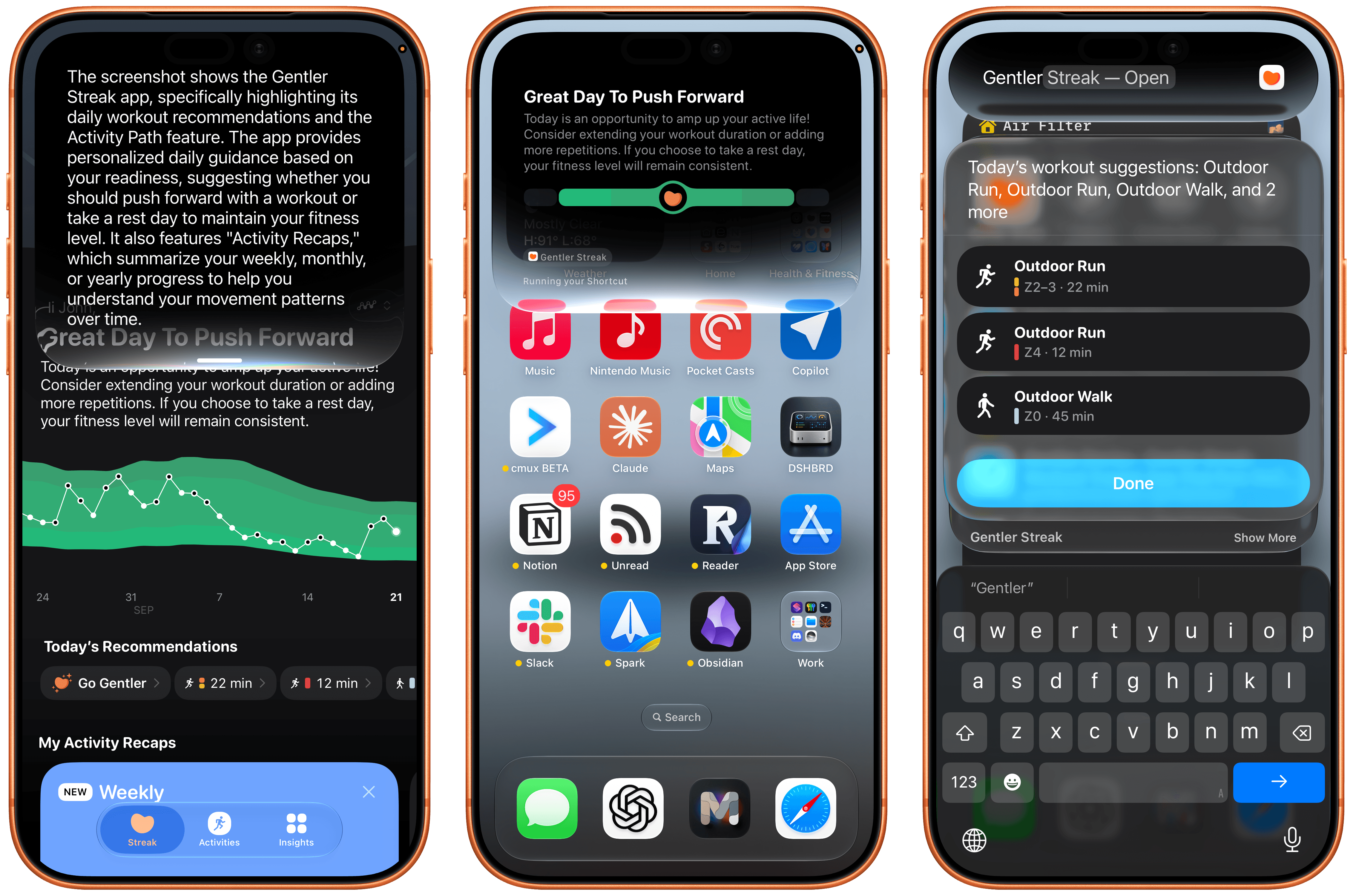
The update lets you access bite-sized snippets of data without opening Gentler Streak, accessing data like today’s workout, your activity status, and suggested activities all from Spotlight or Siri. It’s handy when you’re in a hurry and just want a quick update on something like how well you slept last night. The app also supports onscreen awareness, allowing Siri to explain features of Gentler Streak to you or interpret onscreen data.
The Outsiders

The Outsiders

The Outsiders

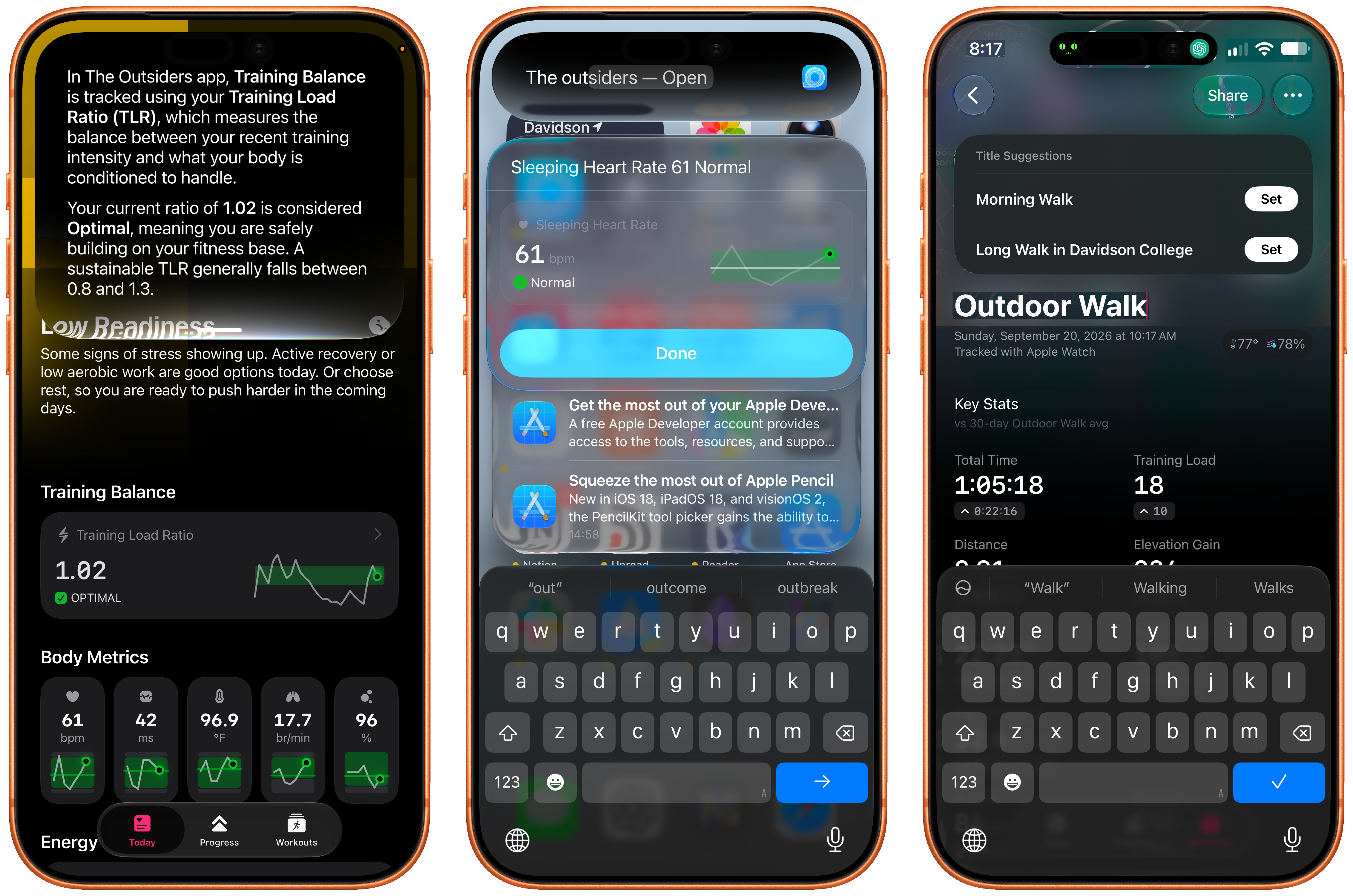
The Outsiders, from the same team as Gentler Streak, is a great complement to it, trading Gentler Streak’s relaxed approach to workouts for a more intense, performance-driven perspective. I’m a big fan of the iPhone app’s colorful design, which, like Gentler Streak, lets you access data like your training readiness, latest workout, body metrics, and sleep data simply by asking for the data “in The Outsiders.” Onscreen awareness allows Siri to explain metrics to you, too.
Image

If you choose to edit a workout’s title, Apple Intelligence kicks in with a suggestion changing something generic like “Evening Workout” into “Evening Commute Through Davidson College,” which sounds much nicer and adds a little hint about where you were and what you did for that workout.
Image

Cheatsheet Notes

I love how Cheatsheet Notes has evolved over the years from a very basic scratchpad to a beautifully designed and focused note-taking app that adopts all of Apple’s latest technologies. The recent update, which is available for the iPhone, iPad, Apple Watch, and Mac (sold separately) is no exception, incorporating all sorts of Siri AI features, as well as new widgets.
Image

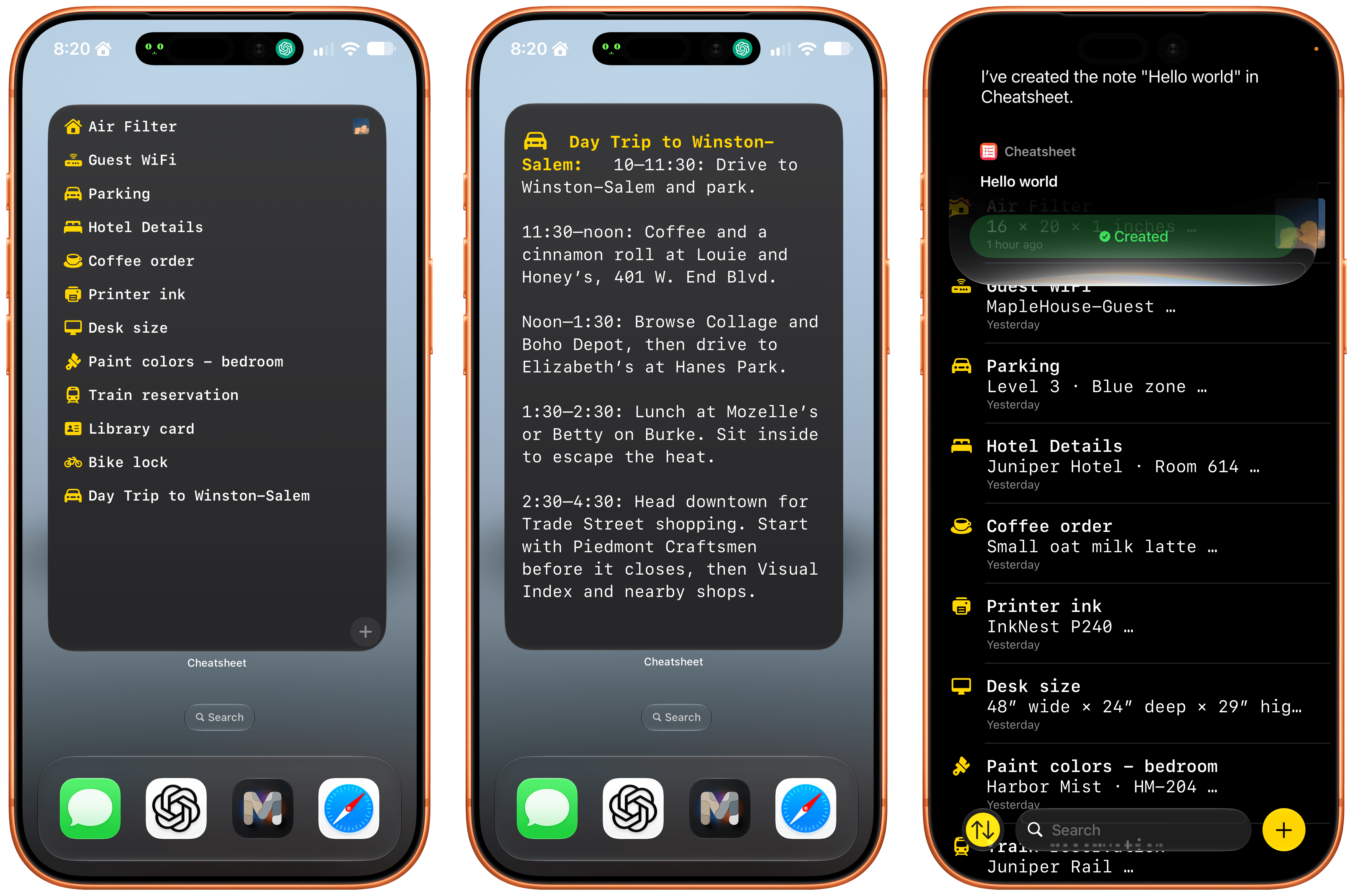
Thanks to Siri AI’s onscreen awareness, you can ask Siri questions about information visible in your notes. You can also append text and images to notes with Siri’s help. The append functionality is especially useful because Cheatsheet is intended for quick notes about things you want to remember, like a parking spot at the airport. Take a quick photo of your parking spot, ask Siri to add it to your Airport Parking note and that’s it.

Cheatsheet has also added extra-large widgets that can display a list of notes, a set of notes tied to action buttons, a shuffling of notes from any folder, or a single note. Of course, the app also supports an extensive list of Shortcuts actions, too.

If you’re looking for a great place to store the sort of information you might otherwise scribble on scraps of paper, check out Cheatsheet Notes. It’s an excellent app and scraps of paper is no way to live.

Image

DoMarks

With the release of Apple’s OS updates, DoMarks reached version 4.0. The app is based on the simple idea that people save links to do something with them later. DoMarks makes that easy by helping you assign an action category to each URL you save whether it’s to buy, read, watch, or do something else with the URL. The app fills a role that’s similar to a read-later app and can be used for reading, but the beauty of it is that what you do with the links you save for later is only limited by your own imagination.
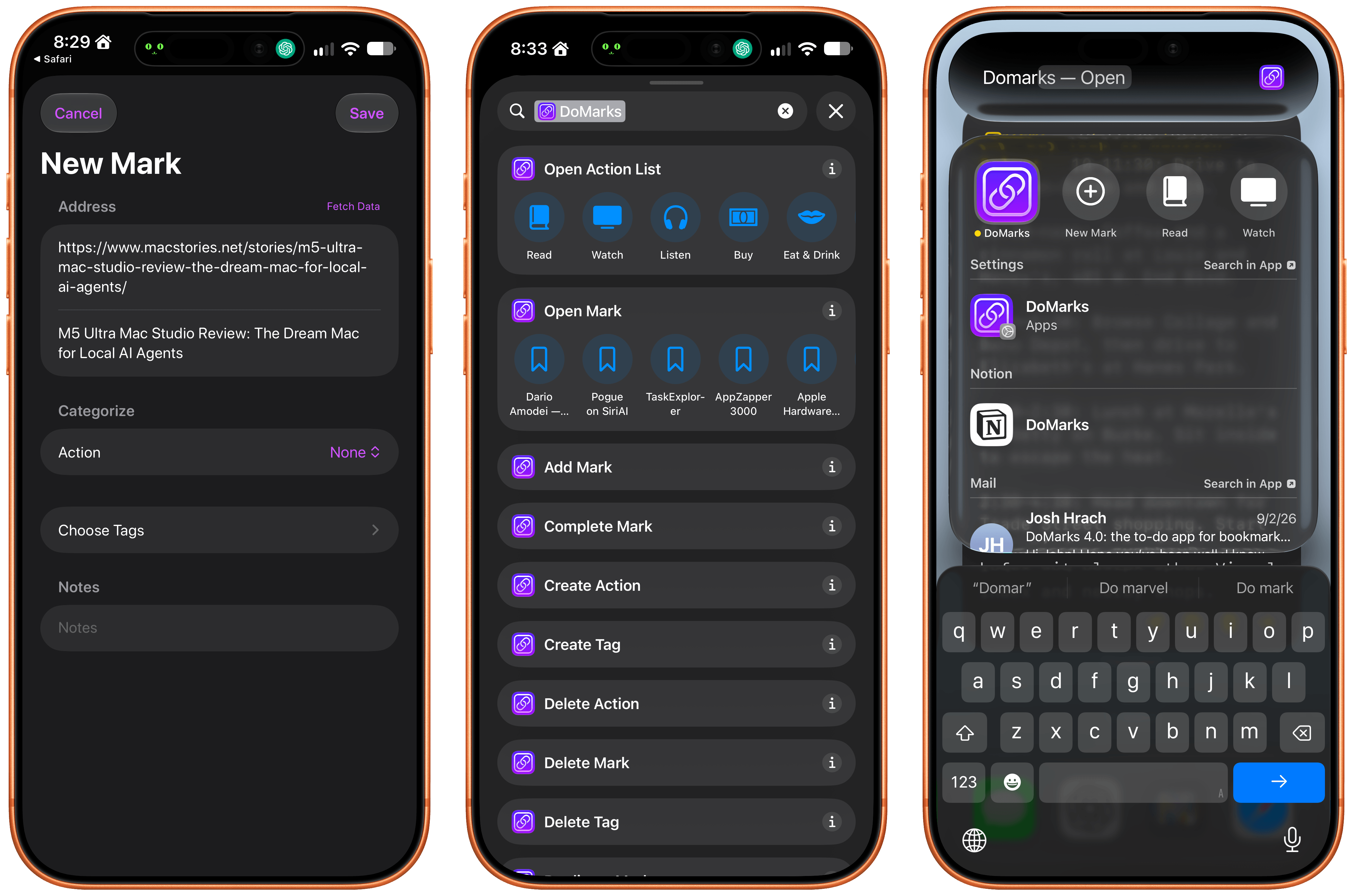
Image

With DoMarks’ Siri AI integration, you can save a webpage from Safari simply by asking Siri to save it to DoMarks. You can also ask Siri to open a link by its name or delete it. DoMarks supports onscreen awareness, allowing you to ask questions about a bookmark, too.

Other actions available via Siri, include keyword searches and opening a bookmark. However my favorite action is “Surprise Me in DoMarks,” which will open one of your saved bookmarks at random in Safari. It’s a great way to rediscover interesting spots on the web that I came across long ago, but didn’t have the time to look at. The app has also added a long list of Shortcuts actions that makes powerful automations possible too.

I’m a link hoarder (shocking, I know), and I’ve always found it hard to know what to do with links for things I want to check out later that aren’t reading material. DoMarks is the perfect way to handle those sorts of links, and now, it’s easier than ever to build your collection of bookmarks with Siri’s help.


Apple Music Hall Opens in Battersea Power Station

Source: Apple.

Source: Apple.

Today, Apple announced the opening of Apple Music Hall, a state-of-the-art live venue in London’s Battersea Power Station. The intimate concert space will offer a unique experience for both artists and fans alike. According to Apple’s press release:

The 600-capacity venue is designed intentionally to close the gap between intimacy and production value and allow for an unprecedented level of creative control. Every seat feels close to the performer, yet the infrastructure offers what an artist requires for an arena tour, with a 38-foot-wide stage that can be reconfigured for traditional front-facing sets or more in-the-round experiences. Additionally, the venue is equipped with a 48-speaker spatial sound system positioned all around the audience. When an artist performs in spatial, it will enable fans to hear that performance in an immersive environment.

In addition, Apple Music Hall will support both traditional video broadcast cameras and iPhone video capture of events.

Source: Apple.

Source: Apple.

The new venue looks amazing. I’d love to see a show there myself someday. Fortunately, Apple will also be livestreaming performances from the hall worldwide, so whether you can get into a Battersea show or not, you’ll have a chance to enjoy the performances. I’d love to see Apple Music Hall become a modern version of MTV Unplugged.


M5 Ultra Mac Studio Review: The Dream Mac for Local AI Agents

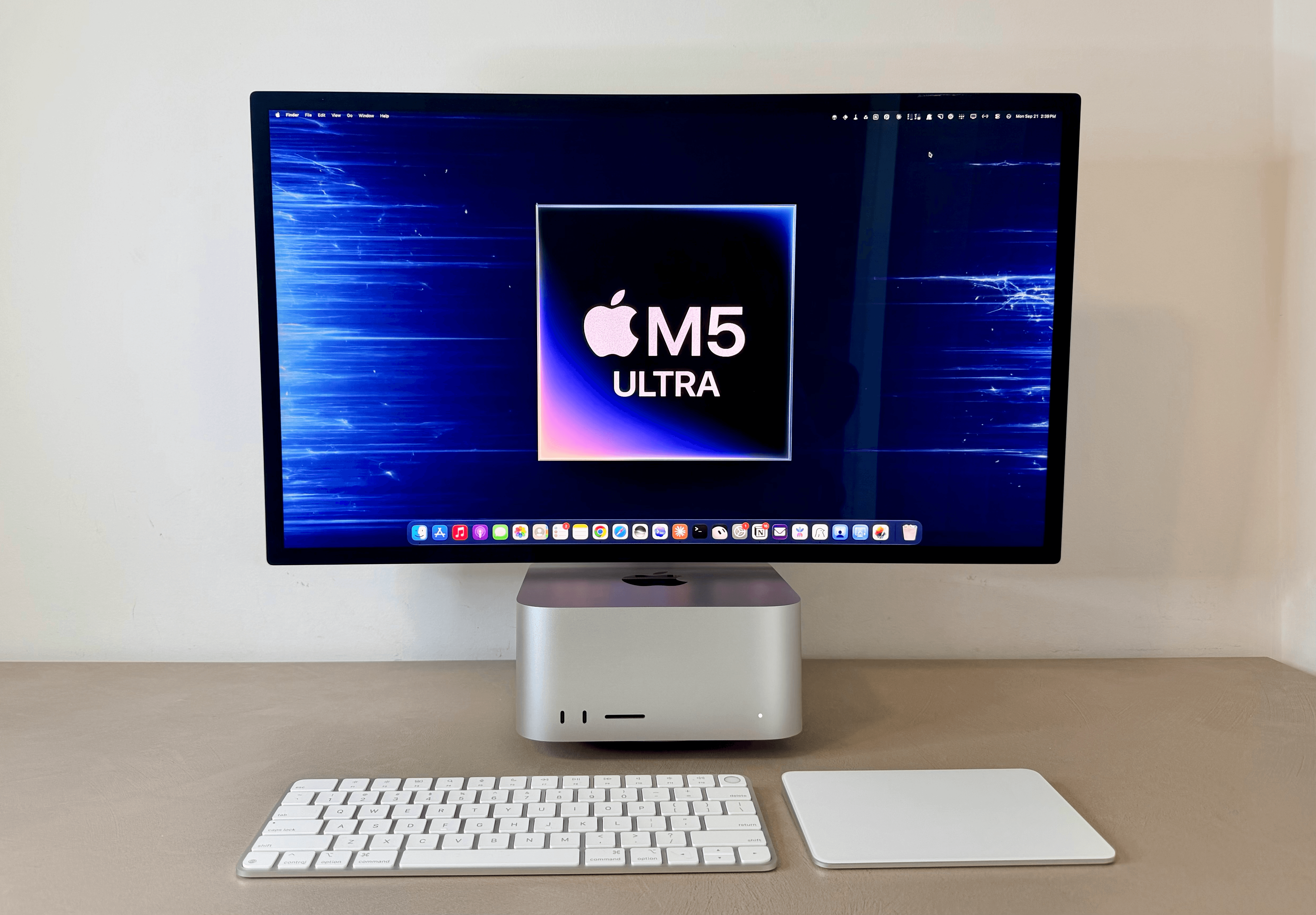
The M5 Ultra Mac Studio.

The M5 Ultra Mac Studio.

For the past few days, I’ve been testing the (currently) top-of-the-line M5 Ultra Mac Studio with 256 GB of RAM.

I’ll cut to the chase: the M5 Ultra Mac Studio is a dream machine for local AI agents. This computer makes it possible to run personal assistants powered by local models with great performance and no additional cloud costs. If you’ve been skeptical of testing OpenClaw or Hermes Agent with local models because they’d never be even remotely near the intelligence and speed of cloud ones, this Mac will change your mind about that.

Since last Thursday, I’ve been comparing this Mac Studio to its predecessor, the M3 Ultra with 512 GB of RAM, as well as my own desktop gaming PC with an RTX 5090 inside. For its size, price, thermal performance – not to mention Apple’s approach to unified memory – the M5 Ultra Mac Studio has fundamentally changed how I think about models running locally and what they can enable now. A 5090, of course, still has an edge over the M5 Ultra thanks to its higher memory bandwidth. But considering the sheer size of my PC build, as well as its heat and noise, I would prefer an M5 Ultra Mac Studio any day. It also happens to be a Mac, with an operating system that looks nice and doesn’t suck, plus a vibrant app ecosystem. (Windows fans, I’m sorry, but Microsoft software will never get my sympathy.)

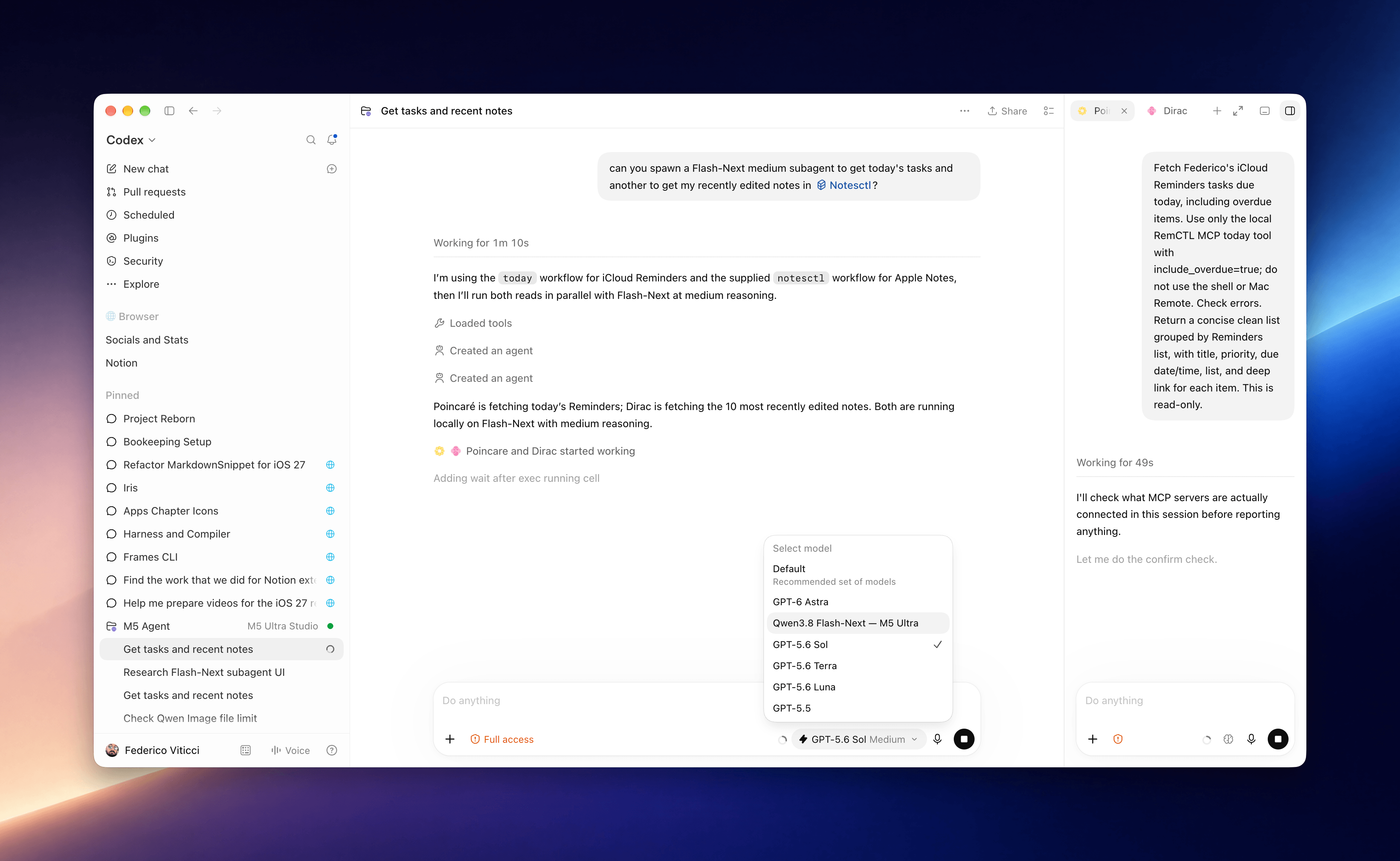
As I’ll explore in this article, running the latest Qwen3.8-Flash-Next model on the M5 Ultra Mac Studio has been so nice and fast, I’ve made it my default in both Open Minis for iOS and Hermes Agent. That’s right: the personal assistants I use the most – more than Siri AI, in fact – are now entirely powered by a model running locally on a Mac Studio. Furthermore, thanks to the M5 Ultra’s faster GPU and higher memory bandwidth, these agents start responding more quickly, stay fast at larger context windows, and can run long, multi-turn loops without slowing to a crawl as the session grows. Because of this, I’ve also been using local models in the Codex app on my Mac – either as main threads or subagents orchestrated by GPT-6 Astra – and I’ve had a great experience doing so.

Local subagents running in Codex on the M5 Ultra Mac Studio.

Local subagents running in Codex on the M5 Ultra Mac Studio.

I should note upfront that I’m not an AI developer by trade: I do not train or fine-tune models. I’m a tinkerer at heart, and I’ve been playing around with local AI models for over a year at this point. This summer, I went all-in on local AI usage for a big project I was working on, which I will explain in the following section.

My goal with this article is to provide you with a mix of two things: numbers and visualizations based on the (many) tests I’ve run over the course of four days, and an explanation of my practical use cases for local AI applied to my workflow and how I get things done for MacStories.

Let’s dive in.

Read more


LookAway: The Screen Breaks Your Eyes Deserve [Sponsor]

Image

Hi, I’m Kushagra, the indie developer behind LookAway.

It’s very easy to get into the flow, lose track of time, and end up sitting for hours in front of a screen. By the end of the day, your eyes are tired and your shoulders are stiff.

That’s exactly what was happening to me. I knew I needed to take more breaks, but remembering to take them was difficult. I tried reminder apps, but they kept interrupting me at the wrong moment, so I had to stop using them.

That’s why I built LookAway – a native break reminder app for macOS with a lot of thought put into when to leave you alone.

LookAway automatically waits during meetings, videos, screen recordings, and more. It also waits for you to finish typing, dragging, or dictating so that you are not interrupted mid-thought. It gives you enough heads-up before a break, so you have time to wrap up. Between breaks, there are also gentle blink and posture reminders to help you check in with yourself.

And finally, there’s LookAway Mirror — a free companion app for iPhone and iPad. When your Mac takes a break, it can also block distracting apps and websites on your phone, so you don’t end up doomscrolling another screen.

I’ve put a lot of care into making LookAway something you’ll want to keep using. I’d love for you to try it. This week, MacStories readers can get LookAway for 30% off with the code MACSTORIES30 when you purchase it directly from the website.

Our thanks to LookAway for sponsoring MacStories this week.


The iPhone 18 Pro Camera: Apple Reference Image and Tyler Stalman’s Review

In the wake of last week’s Surprise and Shine event, Apple published a post on its Security Research blog about Apple Reference Image, a way to verify that a photograph taken with an iPhone hasn’t been altered. As Apple explains, AI offers helpful features like one-touch removal of distractions from an image, but that can make knowing what is real difficult.

This is not a simple problem to address. Modern cameras rely on sophisticated image-processing algorithms to produce the final viewable image, so certifying that an image accurately reflects what a real camera sensor captured requires a chain of trust covering the sensor as well as the computational photography software that interpreted the capture. Industry approaches to this problem, based on the C2PA standard, attach provenance metadata after capture and certify the history of image edits from that point forward. This approach, however, is vulnerable to compromise at any point in the editing chain, and a viewer has no way to detect such a failure. It can also create privacy risks for photographers working in dangerous conditions by tying the image to a public identity, either to a particular device or to an individual.

Apple’s solution is a:

…new, opt-in camera mode lets a photographer create a securely timestamped reference image that accurately reflects what was captured by the iPhone’s camera sensor. Dedicated secure hardware on the device protects the integrity of this reference image, and Private Cloud Compute protects the privacy of the image data during processing.

The entire post is well worth reading because the solution is both clever and a great showcase of what Apple’s control over its chipset and Private Cloud Compute architecture can achieve for its customers. Apple also supports Google DeepMind’s SynthID watermarking technology.

Also, don’t miss Tyler Stalman’s review of the iPhone 18 Pro and Pro Max on YouTube. Tyler always does a fantastic job with his reviews, and this year’s review doesn’t disappoint, covering features like the camera hardware’s new variable aperture and what this year’s software updates mean for iPhone 18 Pro and Pro Max users.


Chance Miller on the Apple Watch Series 12 and Ultra 4

Apple Watch reviews are out and Chance Miller at 9to5Mac has an excellent, in-depth look at both the Series 12 and Ultra 4. One of the things that Chance points out that might not be immediately obvious to many people is that the inclusion of an always-on chip as part of the S11 system on a chip allows Apple to fill meaningful gaps in both Watches’ data collection:

They will capture your heart rate every five seconds, regardless of whether you’re moving or stationary. Having such frequent and accurate heart rate readings unlocks new levels of data and insight.

When measuring your heart rate once every five minutes while stationary, previous Apple Watch models had an inherent blind spot. They either didn’t capture moments where your heart rate increased while not working out, or they captured one or two arbitrary readings somewhere in the middle of those moments.

That always-on component, combined with the Secure Exclave, is what Apple will also use to keep microphone data private and secure for features like Live Rewind and Siri Recap that are coming later this year.

It was these more frequent heart rate and HRV readings, along with the larger, more accurate sensor on the rear of the Apple Watches, that led me to order an Ultra 4. So I was also glad to see this observation from Chance after his first week with the new Watches:

In my one week with the Apple Watch Series 12 and Apple Watch Ultra 4, I’ve found that added data very insightful. I’m learning more about how little things I do throughout the day impact my heart rate. For example, I can visualize the impact of a late afternoon cup of coffee, or the impact of a stressful moment at work.

That’s the sort of feedback that you can act on and the kind of data that I expect developers will be able to use to make even more meaningful apps across the health and wellness spectrum.

Permalink

ChatGPT Is Surprisingly Thorough at Planning Running Routes

Every now and then, I go looking for new running routes to mix things up, which was why I was intrigued by this post by Simon Willison, who gave ChatGPT Work his address and asked it to find 5K and 10K routes, using OpenStreetMap data:

It worked for 27 minutes and produced exactly what I’d asked for, as both an embedded visualization and downloadable GPX file and GeoJSON files. Here’s that 5K route:

I decided to give the same thing a try and was impressed by the results. ChatGPT spent a similar amount of time, poring over OpenStreetMap data, but it didn’t stop there. The model consulted my town’s website to account for road construction and the availability of sidewalks. Then, it visited the county’s website to review maps of greenways that aren’t part of the local road system. The final results were within 100m of exact 5K and 10K routes with notes on where to be careful to verify safe pathways and road crossings.

What I love about this sort of experiment is that it’s not something I’d ever have thought to ask ChatGPT myself. In hindsight, it’s obvious that all the data is there, ready to assemble. However, it just goes to show the many ways that I, and I’m sure many others, are still just scratching the surface of what LLMs make possible.

Permalink

Our Favorite Indie Apps for iOS 27, Vol. 1

Image

With our annual OS reviews out of the way, Federico and I will be covering our favorite indie apps that take advantage of Apple’s latest OS features. We have hundreds to draw from and instead of one big sweeping roundup, we’re going to do a bunch of smaller ones as we work our way through our lists.

To start with, we have six excellent apps that make use of Siri AI, Apple Intelligence, extra-large widgets, and more. There’s a lot of innovation packed into this group, so let’s dive into the details, and check back soon for more roundups.

Image

Things

Cultured Code’s beautiful task manager is no stranger to supporting major Apple OS releases: while the company is keeping quiet on their plans for a possible Things 4 (Things 3 was released in May 2017), for the past nine years Things has regularly received support for new versions of iOS, iPadOS, and macOS on day one. The app’s iOS 27 update is no exception, and it makes for a great demo of some of the new features of Siri AI as well as XL widgets for iPhone. It also serves as an example of the limitations of Siri AI – and not because of Cultured Code.

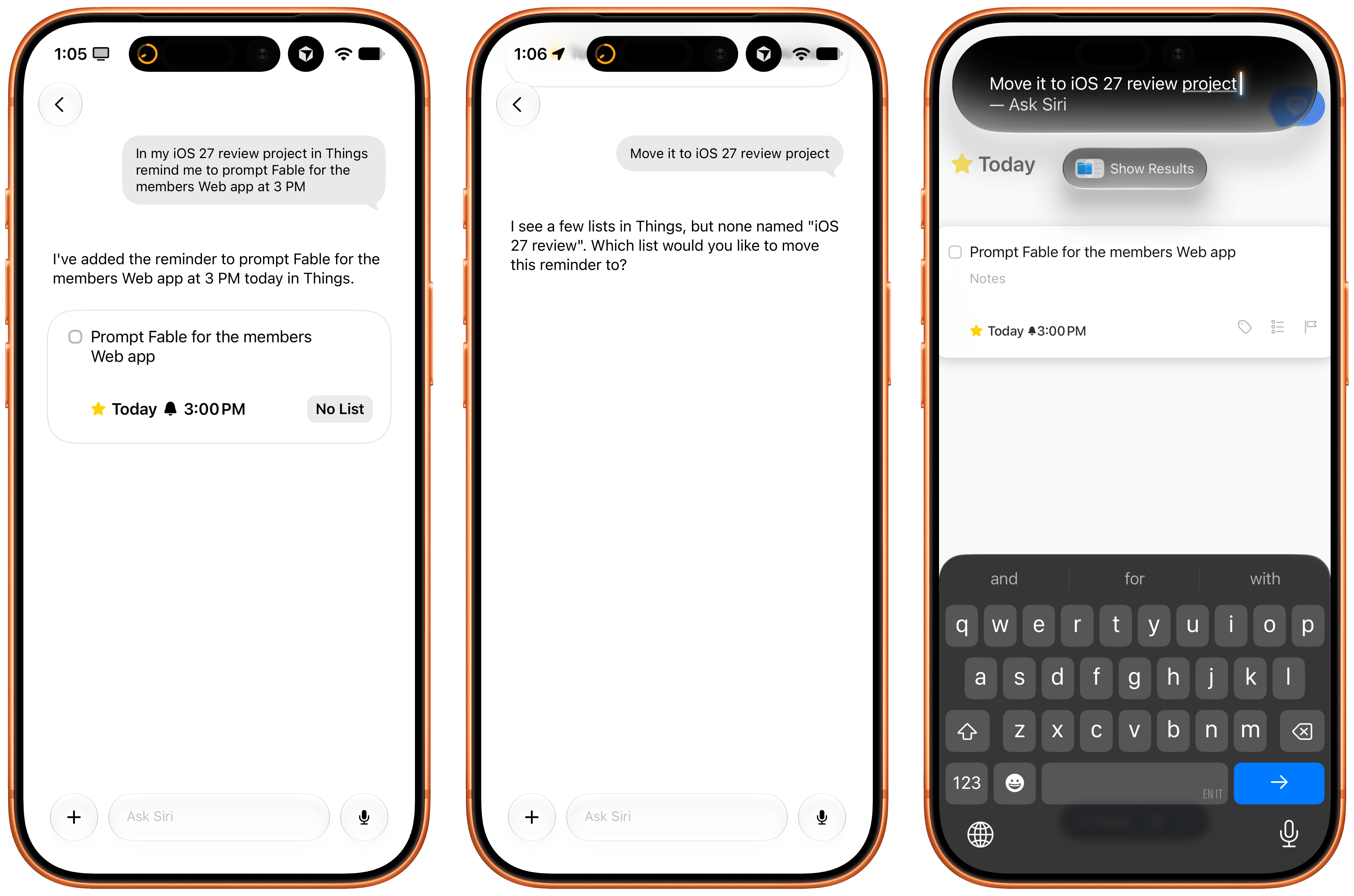
The updated Things app integrates with Siri AI and Spotlight, allowing you to retrieve and open tasks from anywhere on iOS and iPadOS, as well as manage tasks with the assistant using its several input methods. In my tests, Cultured Code’s integration worked well, but Apple’s slow on-device indexing was the problem. Soon after installing the app, I was able to ask Siri to create a reminder, and it prompted me to pick a destination app again because I’d installed a few more task managers since I last confirmed my previous choice. After picking Things, I was able to create a task, which landed in the inbox, and then follow-up with Siri AI by saying “make it due at 3 PM”, and it worked.

Image

The issues I ran into, which are outside of Cultured Code’s control, are due to how long it takes iOS 27 and Siri AI to build an index of the app’s capabilities and data structure. For instance, I created an ‘iOS 27 Review’ list in Things, but, after three hours, Siri AI still can’t find it. As I noted in my review, I believe this is going to be a major challenge for most third-party apps in the short term as users download them, expect them to work with Siri, but the indexing isn’t going quickly enough.

Regardless of Apple’s technical problems, Things’ integration with Siri AI shows the path forward for third-party task managers on iOS. I also recommend reading the developers’ guide on how to prompt Siri AI for the app.

Image

Locally AI

I covered the differences between Apple’s two flavors of local Foundation models (AFM 3 Core and 3 Core Advanced) in yesterday’s review, but there’s no better way to actually take the model for a spin than Locally AI.

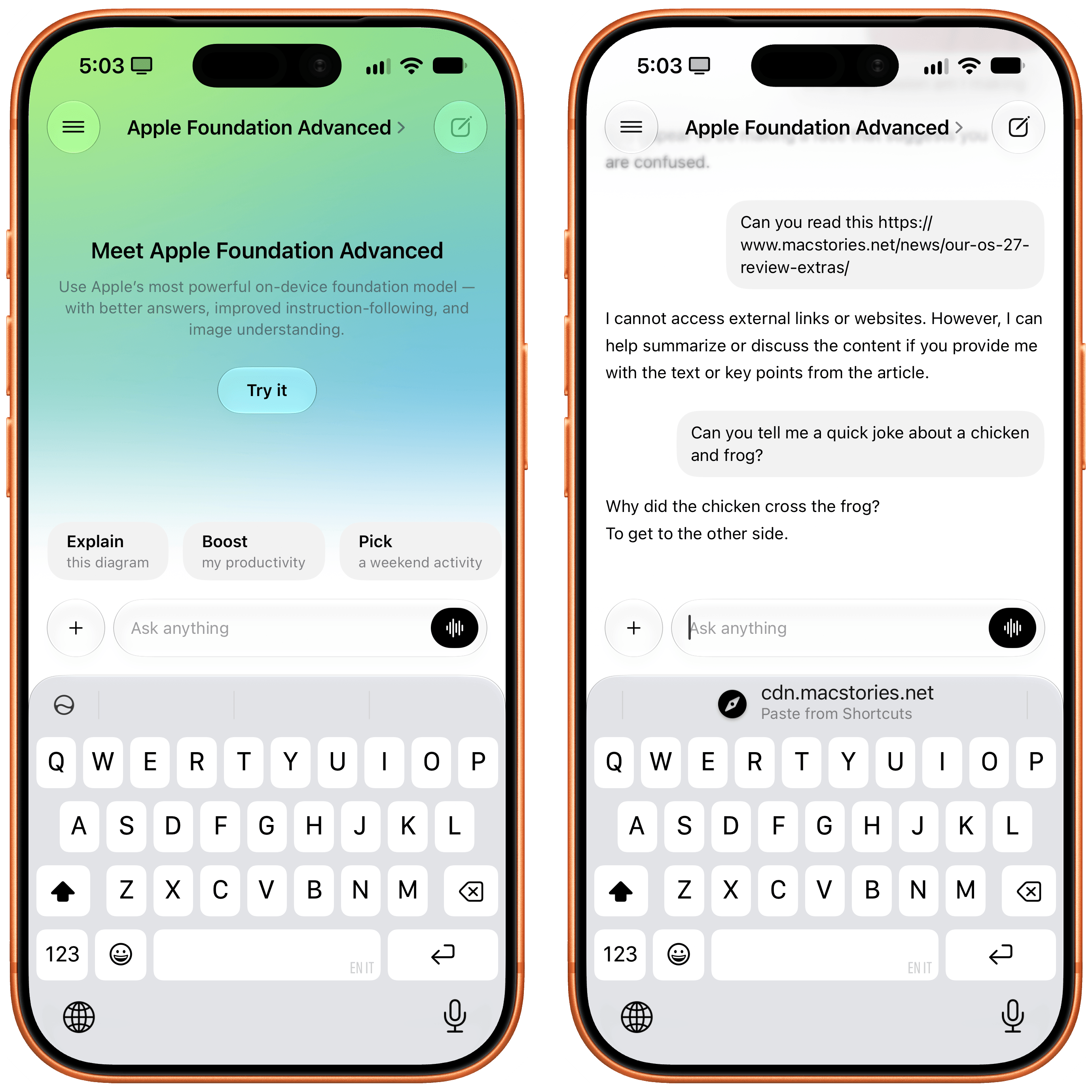
The app, which is now part of the LM Studio family of products and can connect to a remote Mac using LM Link, now offers an ‘Apple Foundation Advanced’ model that, assuming you have a compatible device, lets you prompt Apple’s new on-device model.

Image

A good way to prompt this model is to give it an image: for the first time, a local Foundation model comes with vision capabilities, and I’ve found Core Advanced to be surprisingly strong at describing things like iPhone screenshots, selfies with different facial expressions, and more. Obviously, it comes with limits: Locally AI’s harness doesn’t expose tools to the model, which means it can’t fetch web content and, say, summarize articles for you in the app. Its knowledge and creativity are also quite limited, as you can see from the non-joke it created in the screenshot above.

Still, despite the limitations of the model itself, Locally AI is an excellent utility for running local models on iPhone and iPad, and if you’re curious to see what Apple’s bigger models feels like outside of Siri AI with your own prompts, I recommend checking it out.

Image

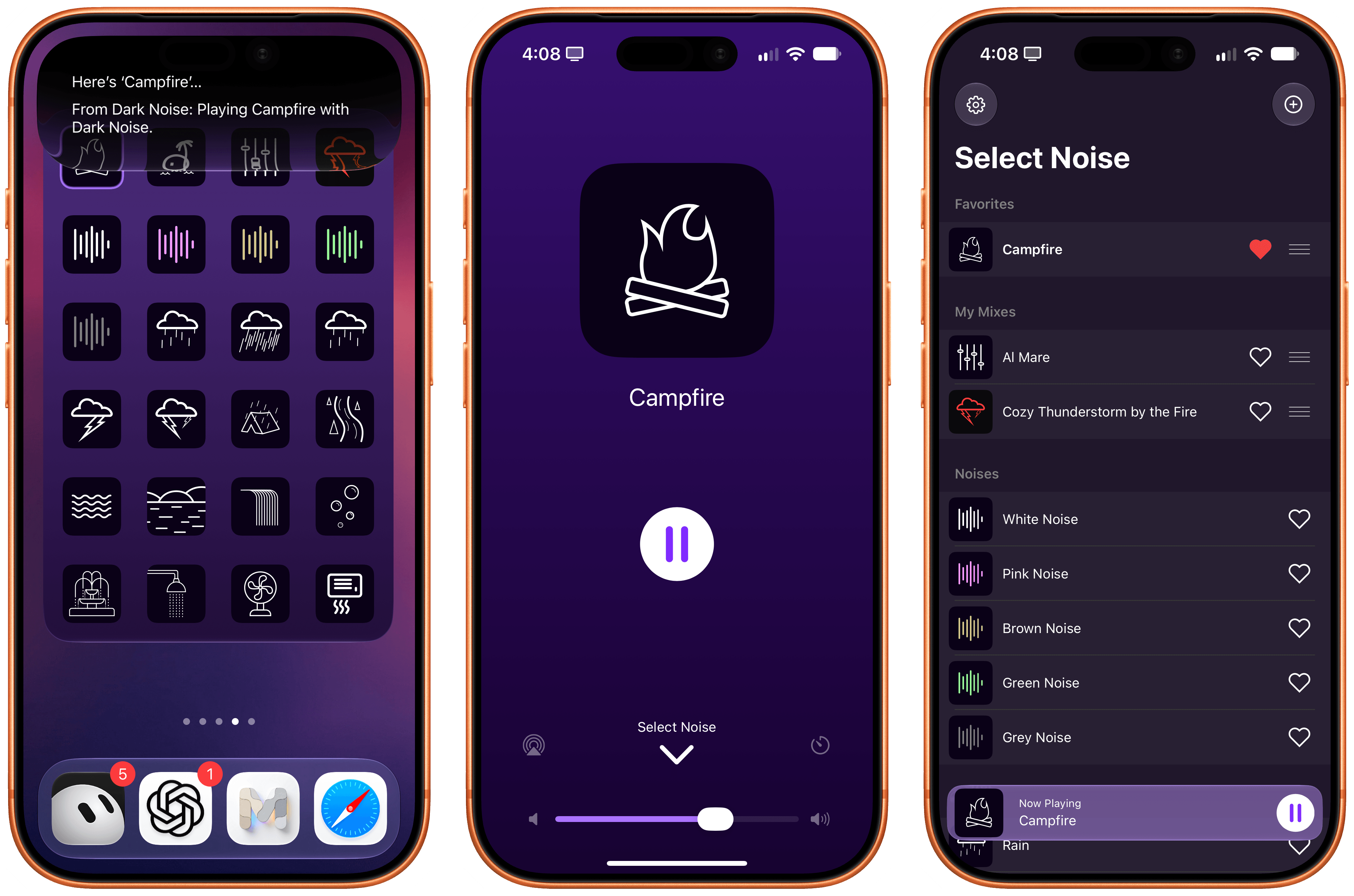
Dark Noise

Charlie Chapman’s Dark Noise has long been my favorite utility to play white noise and other sound effects to relax or focus, and the app has received a substantial update for iOS 27 worth checking out.

First, there’s a good-looking new Liquid Glass player that fluidly morphs on-screen from a mini-player docked at the bottom of the app into a full-screen view that lets you control playback, volume, and set a sleep timer. On the Home Screen, there’s a (customizable) XL portrait widget for iPhone that lets you configure any combination of up to 24 distinct sounds and mixes that you can play with a single tap without opening the app.

Image

As you can imagine, the app also integrates with Siri AI now. Using Apple’s assistant, you can ask to play specific sounds from the app (make sure to add “…from Dark Noise” to your request) and you can also leverage on-screen awareness inside the app itself. While looking at your list of favorites and mixes, for instance, you can say something like “play the second mix”, and since Chapman has properly annotated the app’s views, Siri AI and Dark Noise will know what you mean.

If you, like me, struggle to get work done with music in the background but also do not appreciate complete silence, I recommend installing Dark Noise and creating a few mixes of your own.

Image

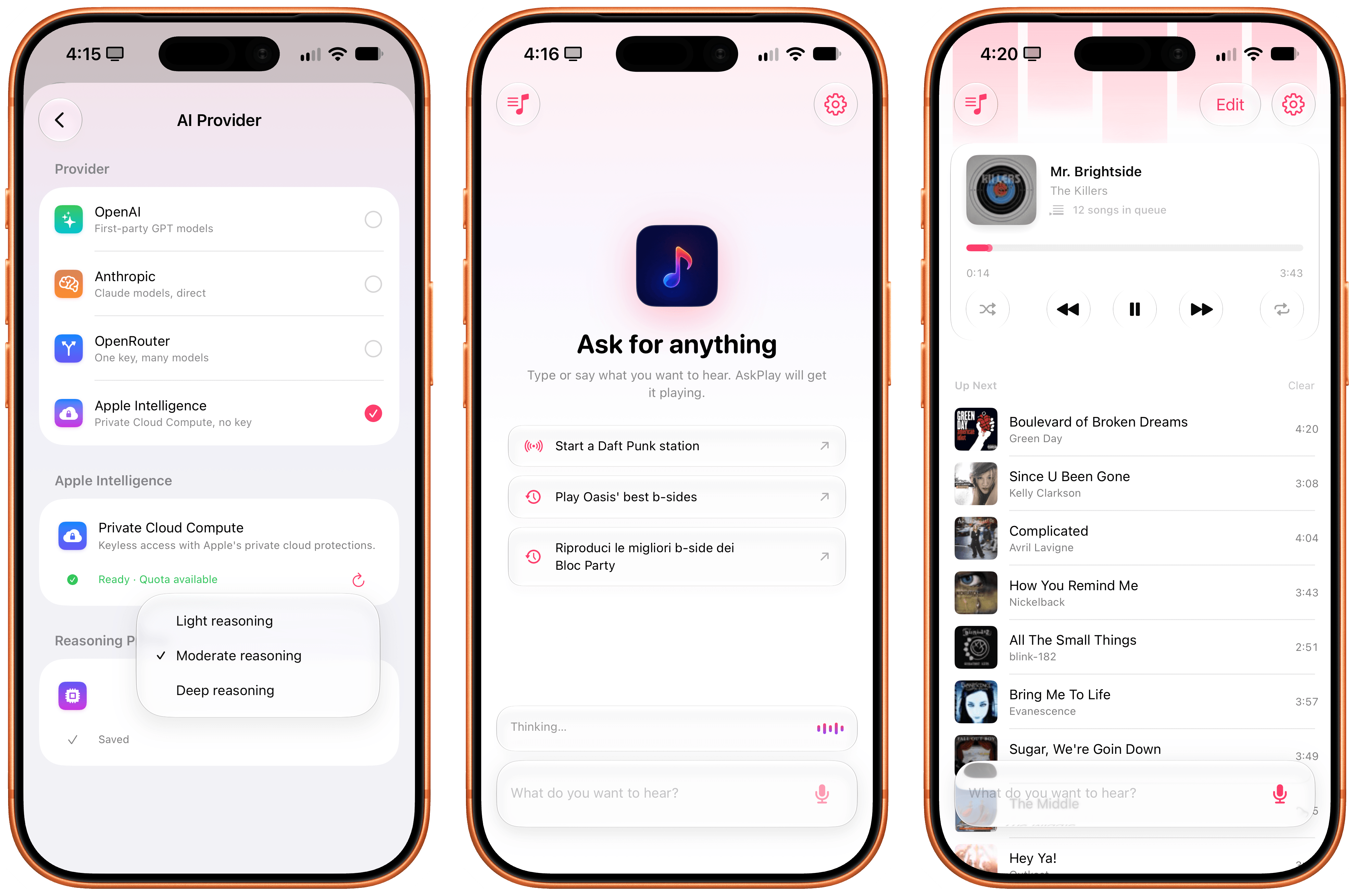
AskPlay

I first covered Francisco Cantu’s AskPlay when it debuted on the Mac earlier this year in the App Radar for Club members, where I wrote:

Created by indie developer Francisco Cantu (a name that should be familiar to longtime MacStories readers!), AskPlay is one of the best new Mac apps I’ve tried in a long time, and we will properly review it on MacStories in the near future. The idea is simple: AskPlay gives you natural language control over Apple Music to play or queue songs. The app, which lives in the menu bar but can also be invoked with a system-wide hotkey, brings up a Spotlight-like floating search box where you can type or say things like, “Queue some ‘90s hip-hop,” or, “Play something like Oasis,” and have an AI carry out the request.

The app can build mixes for a mood or era, start stations, manage the queue (you can ask to move songs up or down), control playback, and add songs to your library or playlists, and it also answers questions such as, “Who sings this?” You can either type your requests or set a voice hotkey that summons the app already listening, pausing your music while you speak. AskPlay is a bring-your-own-key app, so you’ll need an API key from OpenAI, Anthropic, or OpenRouter in addition to an Apple Music subscription (and a subscription to the app itself).

AskPlay is now on iPhone too, and thanks to iOS 27, it’s become one of my favorite showcases of Apple’s Cloud Pro Foundation model running in Private Cloud Compute. Unlike the original version, AskPlay now lets you hand off prompt processing to a reasoning model in the cloud at no cost thanks to Apple’s PCC framework for third-party developers. And not only that, but AskPlay is also the first app I’ve seen that lets you choose between the three reasoning modes supported on PCC: light, moderate, and deep.

Image

In my experience, I’ve had the best results with the PCC model set to “moderate” reasoning. What this means in practice is that with AskPlay for iOS 27, we now have a way to generate Apple Music-based mixes using natural language with a quality that I find superior to Apple Music’s own playlist generation feature.

AskPlay remains one of the best app debuts of the year, and if you want to demo the capabilities of Private Cloud Compute for third-party apps, you should start here.

Image

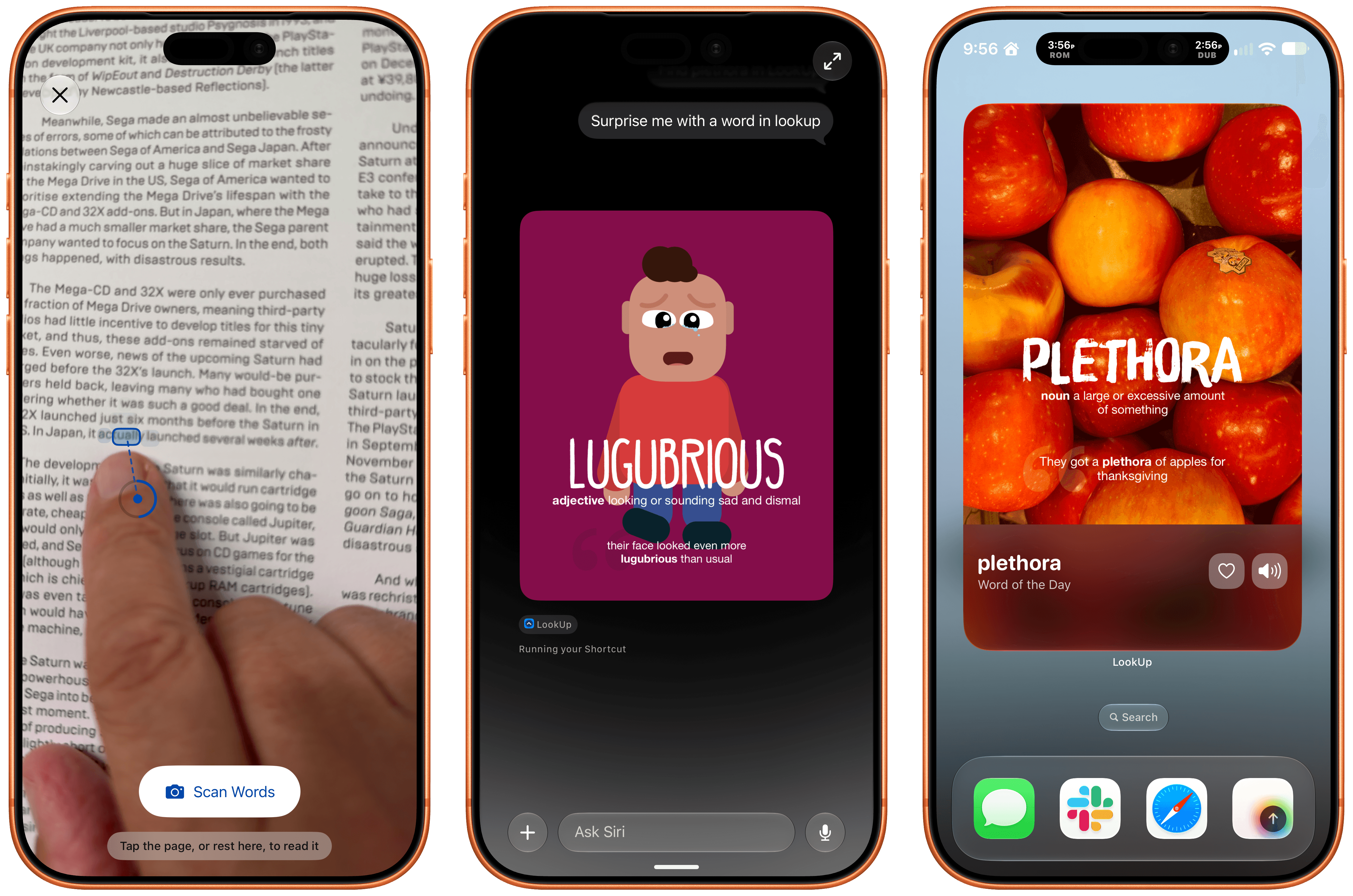
LookUp 13

LookUp 13 from Vidit Bhargava has been released with a wide variety of features that make use of iOS and iPadOS 27. The app, which is available on the iPhone, iPad, Mac, Apple Watch, and Vision Pro, makes great use of Siri AI, allowing you to quickly ask Siri things like “Search the word plethora in LookUp,” which opens the app right to that word. Siri can also be used to find LookUp’s word of the day or a random word.

LookUp 13.

LookUp 13.

Beyond Siri, Vidit has added support for Apple Intelligence in the notes that can be tied to a word and combined Apple’s Foundation Models with the Vision framework and hand-pose tracking to let you scan a printed page for a word. Point at a word and the app’s scan mode uses your device’s camera to see which word you’re pointing at. It took a little practice to figure out the right distance from the camera to the page, but once I got that down, it felt like magic. The same feature can pick out other nearby words that might be difficult for the reader, too.

LookUp 13 also offers a Reading Mode that looks up words you speak as you read. The feature uses a Live Activity that listens to you speak, and returns a definition. Initially I ran into some trouble with Reading Mode, but when I tried again later, it worked every time. Also included in the latest release are interactive flash cards that ask for word definitions that are graded by Private Cloud Compute and new extra-large widgets for the word of the day and a shuffled word of the day.

LookUp is an excellent app. I love how Vidit continues to push the boundaries of Apple’s technologies every year, and while I hit a few rough spots in testing, which struck me as issues with Siri AI, not LookUp, I’m impressed by how much depth LookUp’s new Apple Intelligence features add to the app.

Image

Play

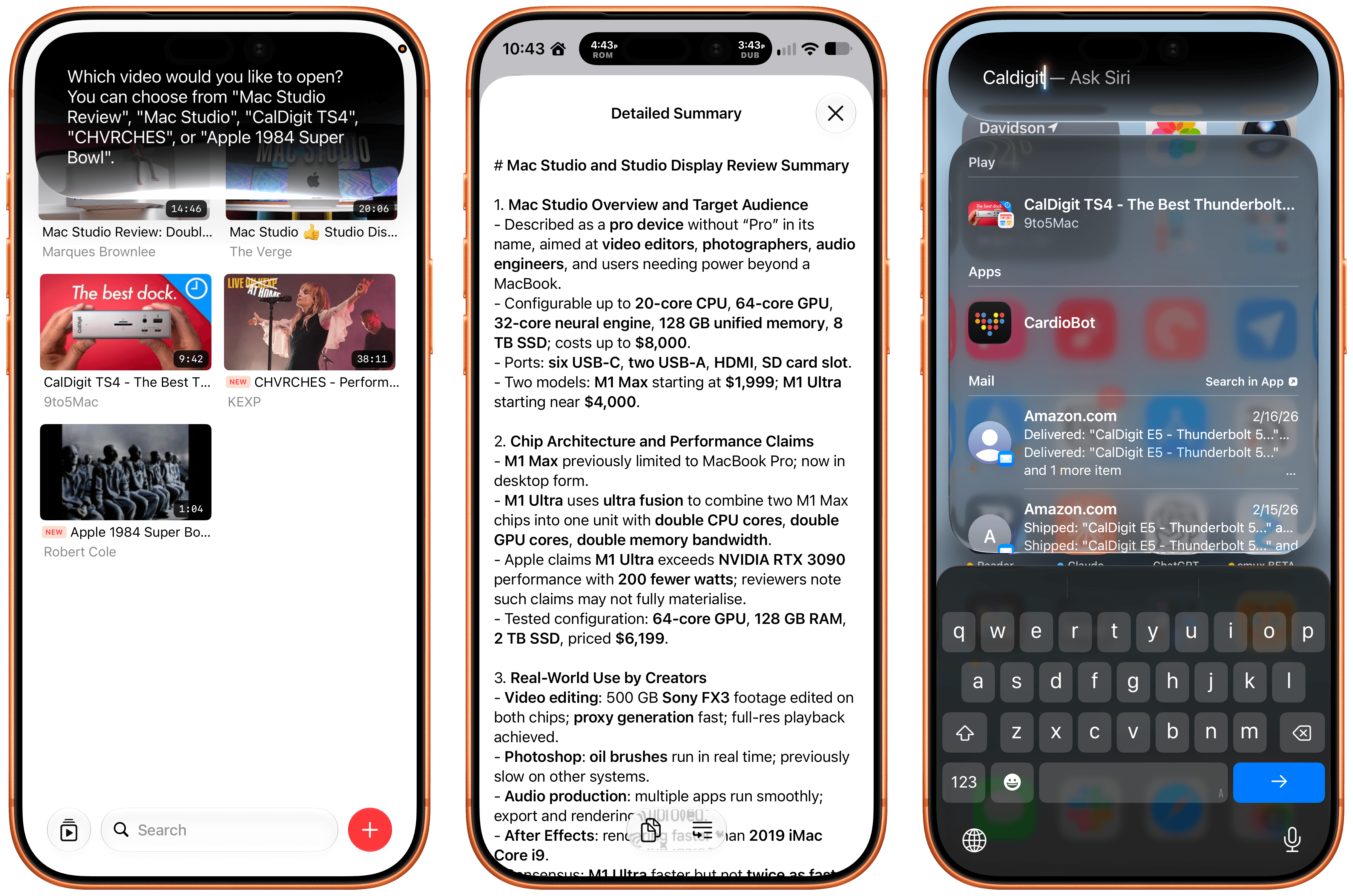
The latest update to Play, the watch-it-later app from Marcos Tanaka that works on the iPhone, iPad, Mac, Vision Pro, and Apple TV, includes a bunch of great touches. There’s a new Channels Inbox for navigating saved videos by source. Play has also added Siri AI support allowing you to search for and open videos. Onscreen content is made available to Siri, so you can do things like ask it to remind you to finish a video later, and it knows what you mean. In my testing, all three features work well.

Image

Also, on an individual video’s detail view, you can use Apple Intelligence to create a summary of a video. There are options ranging from a concise summary to a simple explanation. I ran into a roadblock when I tried to create a summary of a fifteen-year-old YouTube video, but more recent videos all worked well. Apple Intelligence can also suggest tags and icons for videos and lets you ask questions, with the answers drawn from the video’s transcript.

Beyond Siri AI and Apple Intelligence, Play adds an extra large widget, a refreshed Liquid Glass design that I love, and Spotlight search. It’s a fantastic update to my favorite way to save videos for later.