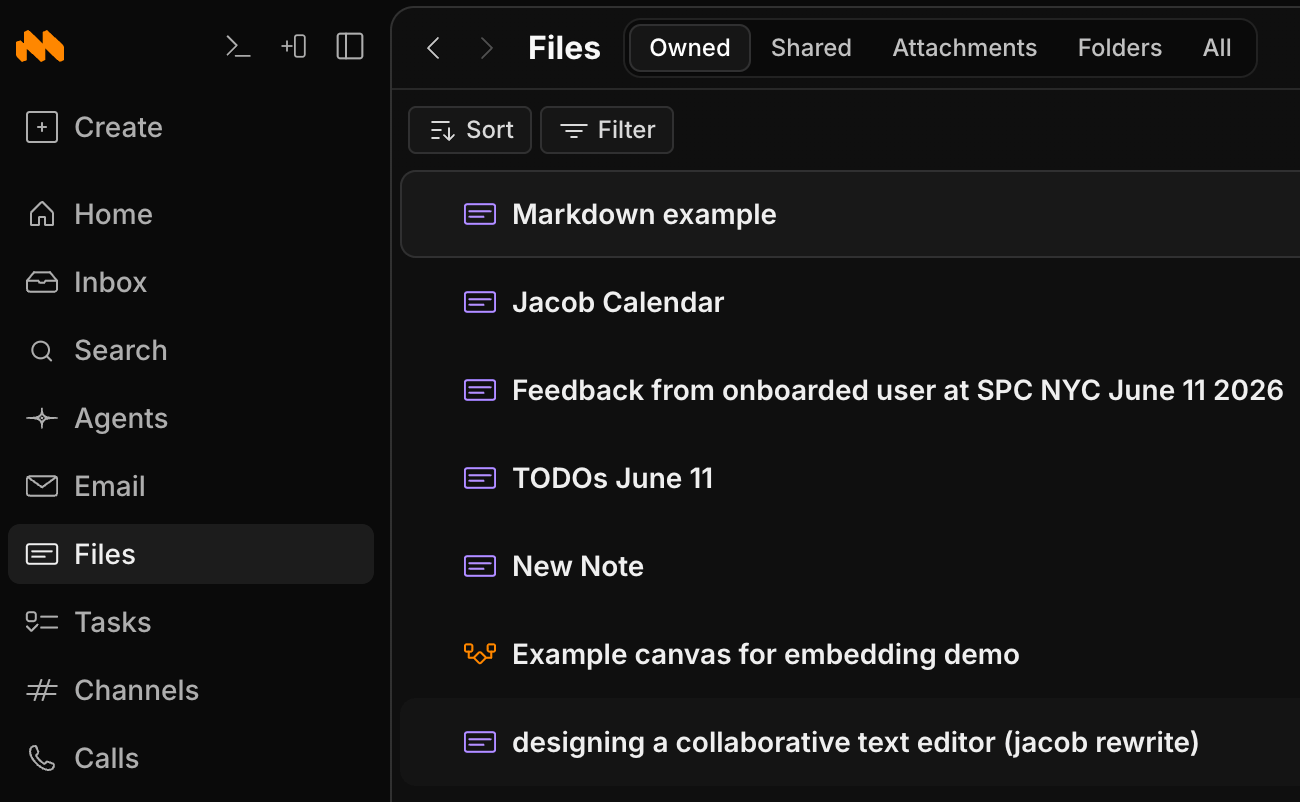
Share or @linking them in a message. To see your documents and docs shared with you, go to “Files”.
To create a new markdown document use shortcut c + d
Editing & formatting
The editor supports the full set of block nodes: paragraphs, Heading 1/2/3, bullet/numbered/checklist lists (with interactive checkboxes), blockquotes, code blocks (Prism syntax highlighting across 15+ languages), tables, dividers, images, videos, and links, plus inline and block math rendered with KaTeX. Inline formatting follows the usual shortcuts: bold (cmd+b), italic (cmd+i), underline (cmd+u), strikethrough (shift+cmd+x), highlight (shift+cmd+h), inline code (cmd+e), plus superscript and subscript. Markdown autoformatting works as you type (#/##/###, -, 1., [], >, ---, and backticks), :shortcode: emoji are supported, blocks can be dragged to reorder, tab/shift+tab indent and outdent, and find & replace (cmd+f) supports regex and replace-one/replace-all. The slash menu (/, or the command menu) inserts any of these: Normal text, Heading 1/2/3, Blockquote, Code block, Bullet/Numbered/Checklist, Task (an inline task with mentions), Image, Video, Link, Equation (/latex or /math), Table (5×3), and Divider. @mentions render in the body as collapsible inline pills. Typing ; opens the snippets menu to insert reusable content.
Outline
Longer documents show an outline on the left edge: a column of dashes, one per heading, that tracks your place as you scroll, with the dash for the section you’re reading highlighted. Hover the outline to expand the full list of headings, and click any heading to jump straight to it. The outline appears once a document has at least three headings and the window is wide enough to fit it, and stays out of the way on mobile and while browsing version history.Tags
Type# in a document — in the title or the body — to open the tag menu. Pick an existing tag or create a new one, choosing its color and whether it’s a personal tag or one shared with your team. Tags render inline as colored pills; click one to see everything else carrying it. Tagging turns a set of documents into a lightweight database: filter your files and search by tag to slice your workspace the way you would in a Notion database. See Properties for how tags fit into the wider property system.
Comments & history
Comments are inline and thread-based, anchored to a text selection. You can reply, resolve and unresolve, draft, and edit or delete your own. Full version history is available via time-travel: browse historical states grouped by user and time, and fork a document at any past version into a new doc.Notifications
@mentioning a person in a document’s body does not notify them. For a person to receive notifications from a document, it must first be shared with them. On the other hand, if you @mention someone in a comment, they will be notified.
Properties
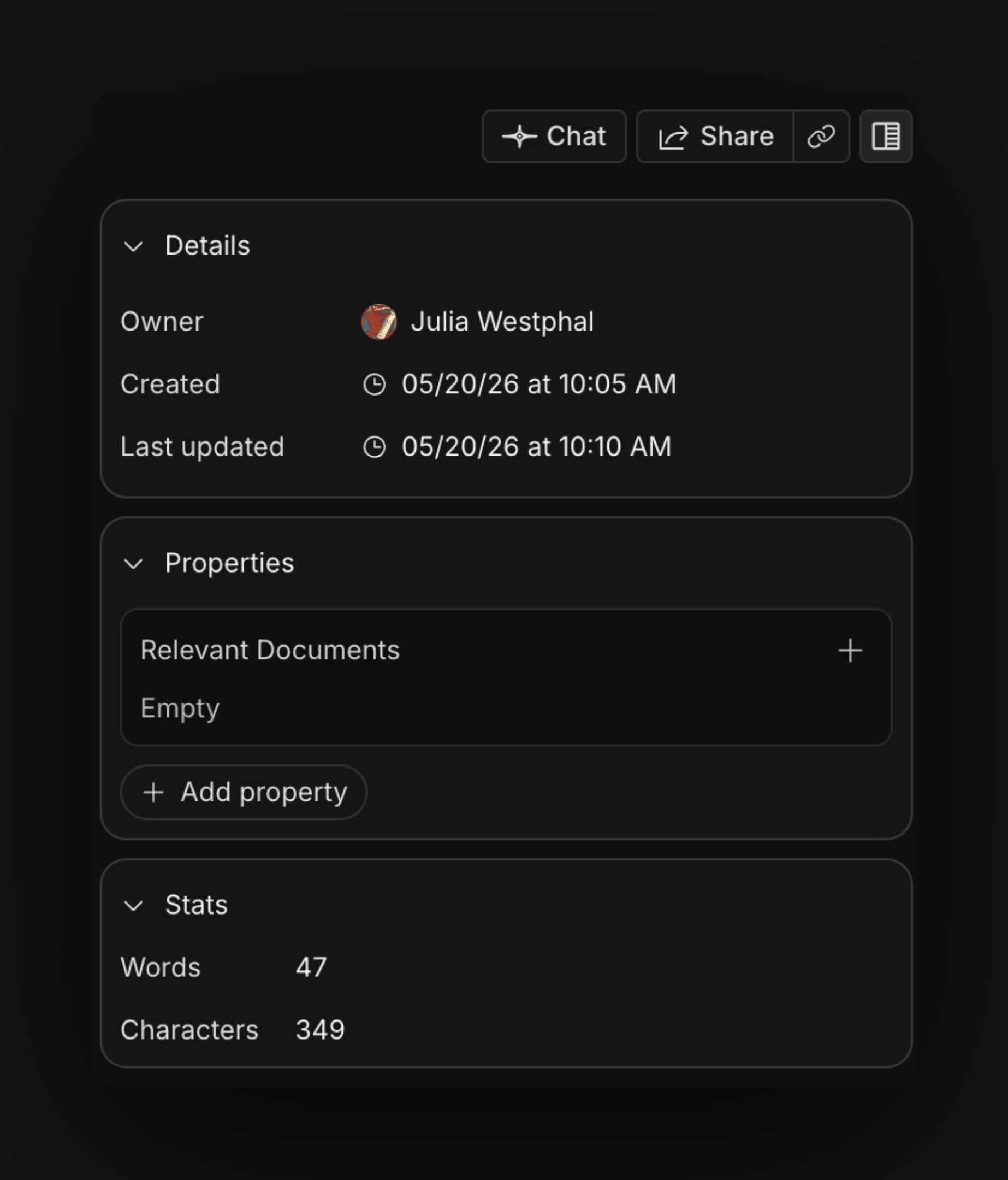
On the right-hand side of your document (or inside the Info panel, depending on your split size) you can see document details (owner, folder, created and updated) as well as properties. Properties let you assign the document, link it to a task, set urgency, and more. You can pin properties so their values render as pills under the title, toggle an optional YAML front-matter display, and see a live word and character count.