

Fix Grammar In Canvas Discussion Board Posts
Your Canvas discussion posts can leave a lasting impression. Clear, grammatically correct writing makes your ideas easier to understand and shows effort. Sloppy grammar, on the other hand, can distract readers and hurt your credibility.
Here’s how to improve your posts:
Transform Any Text, On Any Site, In Seconds
Rephrase, translate, and improve text with one shortcut. Works everywhere you write.
Add to Chrome - It's Free!- Draft in an External Editor: Use tools like Google Docs or Microsoft Word to catch basic grammar errors.
- Proofread Thoroughly: Read aloud, change fonts, or take breaks to spot mistakes.
- Use Canvas Tools: The Rich Content Editor has features like word count and an accessibility checker.
- Fix Formatting Issues: Strip hidden code by pasting plain text into Canvas.
For extra help, tools like BeLikeNative can polish your writing directly in Canvas. This Chrome extension fixes grammar, rephrases awkward sentences, and adjusts tone for academic settings. Plans range from free to $14/month, depending on your usage needs.
Combining thoughtful drafting, proofreading, and smart tools ensures your posts stand out while staying professional and easy to read.
How to Draft and Proofread Before Posting
Writing with clarity and accuracy not only boosts your academic credibility but also keeps your audience engaged. Taking the time to prepare and proofread your work is a crucial step before using tools like BeLikeNative for grammar corrections.
Write Your Post in an External Editor First
Start by drafting your post in tools like Google Docs or Microsoft Word. These platforms offer built-in grammar and spell-check tools that catch basic mistakes automatically. Plus, working in an external editor gives you the freedom to experiment with formatting without the risk of losing your work.
To spot errors more effectively, try changing the text’s appearance. Use a different font, increase the size, or even adjust the background color – this can help your brain catch mistakes you might otherwise miss. Dedicate 30–45 minutes to proofreading, and if possible, take a short break to return with fresh eyes.
Reading your post aloud is another great strategy. This helps you identify awkward phrasing or unclear sentences. As Grammarly suggests: "If you stumble while reading or have to reread a sentence, mark it – that’s a clue that something may be off." For spotting spelling mistakes, read your text backward, word by word. This unusual approach forces you to focus on individual words rather than the overall flow.
Once you’ve refined your draft, you can move on to Canvas’s built-in tools for a final review.
Proofread Using Canvas Rich Content Editor

The Canvas Rich Content Editor includes several features to help you polish your work. For instance, the word count tool at the bottom of the editor ensures you meet discussion requirements, while the Full Screen mode removes distractions, making it easier to focus on proofreading.
Before publishing, use the Accessibility Checker (usually represented by a person icon) to ensure your content is inclusive and accessible for all users, including those who rely on assistive technologies. Canvas also automatically saves drafts as you work, so you can easily pick up where you left off if you navigate away.
Transfer Text to Canvas Without Formatting Problems
Once your draft is ready, transferring it into Canvas requires some care to avoid formatting issues. Copying directly from Word or a webpage can introduce hidden HTML code that disrupts the layout.
To fix this, highlight your text (Ctrl+A/Cmd+A) and click the Clear Formatting button (the italicized "T" with an eraser icon). This removes unwanted code and ensures a clean slate.
For a more foolproof method, save your document as a Plain Text (.txt) file. Open the .txt file, copy the text, and paste it into Canvas. This process strips away hidden formatting entirely. After pasting, use Canvas’s editing tools to manually reapply any necessary elements like headings or bullet points to enhance readability.
sbb-itb-32359dc
Fix Grammar with BeLikeNative
Once you’ve crafted your draft, BeLikeNative steps in to ensure your post is polished and error-free. This tool doesn’t just fix mistakes – it helps refine your writing to meet academic standards. The best part? You don’t need to juggle multiple tabs or external tools. BeLikeNative is a Chrome extension that works directly within your browser. Simply highlight your text, press a shortcut, and watch as it transforms your writing instantly.
This tool is especially helpful for non-native English speakers. It tackles common issues like subject-verb disagreements, awkward phrasing, and tense inconsistencies. For instance, if you write, "The article were interesting, it say that climate change is bad for enviroment", BeLikeNative will flag these errors and suggest: "The article is compelling, as it discusses the adverse impacts of climate change on the environment".
Next, let’s walk through how to install this extension for seamless use with Canvas.
Install the BeLikeNative Chrome Extension
Getting started is quick and simple. Head to the Chrome Web Store, search for "BeLikeNative", and click "Add to Chrome" to install the extension. After installation, pin the extension to your toolbar and log in or create an account via the popup.
Once logged in, open Canvas and navigate to a discussion post editor. Click the BeLikeNative icon to activate it – the extension will automatically detect text fields in Canvas. You can personalize the tool by accessing the extension dashboard. Here, you can select the "Academic" tone under style preferences, enable "Grammar & Style" checks, and set rephrasing to "Formal" mode to ensure your writing aligns with university expectations.
With the extension ready to go, fine-tuning your posts becomes effortless.
Correct Grammar and Rephrase with BeLikeNative
Using BeLikeNative in Canvas couldn’t be easier. As you draft your discussion post in the Rich Content Editor, highlight any text you want to refine and press your custom shortcut. The extension will instantly generate a polished version, copying it to your clipboard for easy pasting back into Canvas.
BeLikeNative is designed to catch common errors, such as run-on sentences, passive voice overuse, and preposition mistakes. For example, it flags "Students should study hard for pass the exam" and suggests "Students should study diligently to pass the exam". You can also adjust the tone to match your audience, switching from casual to formal for graded discussions.
With over 5,000 users and a 4.6/5 rating on the Chrome Web Store from 256 reviews, BeLikeNative has proven its ability to reduce grammar errors by 85% in academic writing . It’s a reliable tool for making your Canvas posts shine.
Pick the Right BeLikeNative Plan
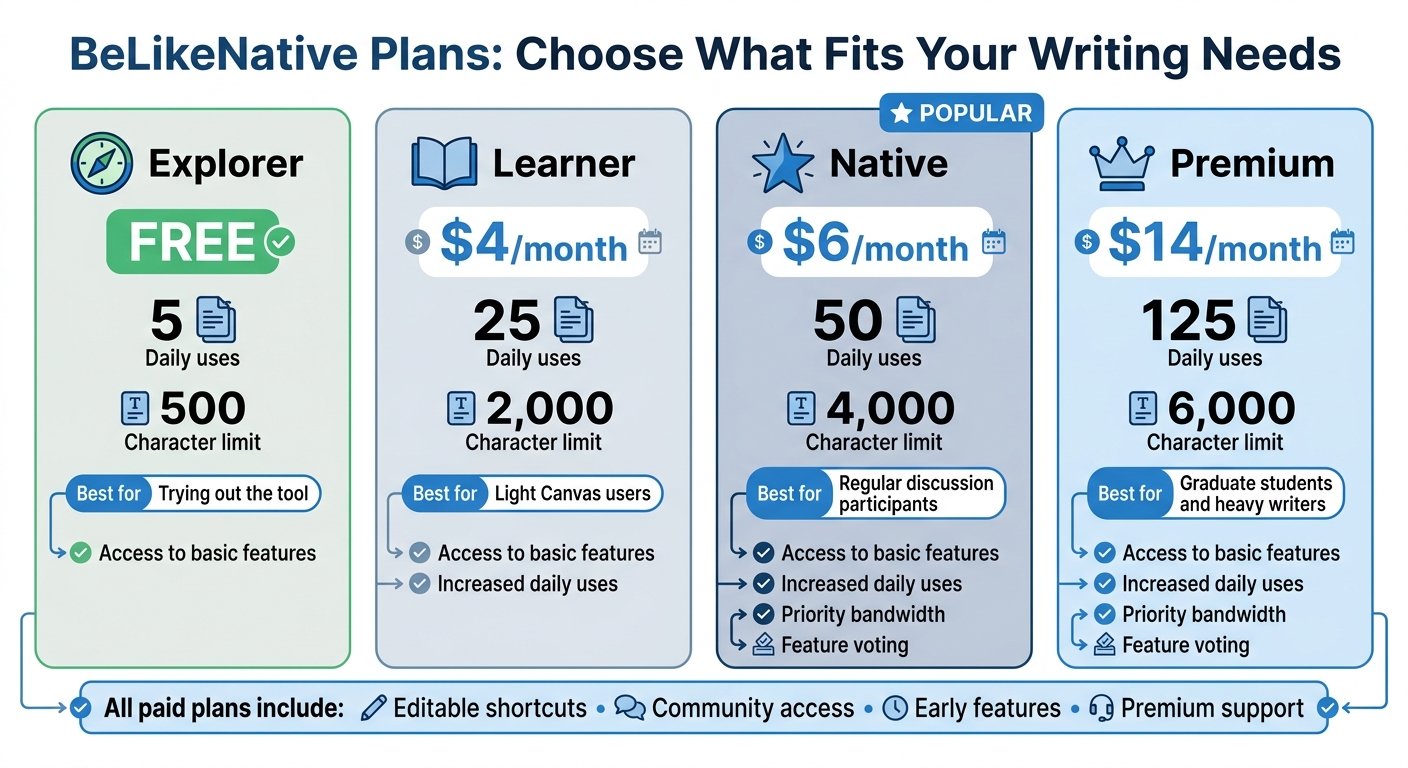
BeLikeNative Pricing Plans Comparison for Canvas Users
Now that you understand how BeLikeNative sharpens your grammar, it’s time to select a plan that matches your writing needs.
BeLikeNative offers four plans, starting with the Explorer plan, which is free. This plan provides basic spelling and grammar corrections but caps usage at 5 times per day with a 500-character limit. It’s great for quick posts but might feel restrictive during active discussion weeks.
For more flexibility, the Learner plan costs $4 per month and allows 25 daily uses with a 2,000-character limit – perfect for light users. If you write more frequently, the Native plan ($6/month) offers 50 daily uses and a 4,000-character limit. For those who write extensively, the Premium plan ($14/month) provides 125 daily uses and a 6,000-character limit, making it ideal for graduate students or heavy writers.
Here’s a quick breakdown of the plans:
| Plan | Monthly Price | Daily Uses | Character Limit | Best For |
|---|---|---|---|---|
| Explorer | Free | 5 | 500 | Trying out the tool |
| Learner | $4/month | 25 | 2,000 | Light Canvas users |
| Native | $6/month | 50 | 4,000 | Regular discussion participants |
| Premium | $14/month | 125 | 6,000 | Graduate students and heavy writers |
All paid plans come with extra perks like editable keyboard shortcuts, access to the BeLikeNative community, early access to new features, and premium support. If you opt for the Native or Premium plans, you’ll also enjoy priority bandwidth and a say in future feature development. These benefits can help you save over an hour each day while increasing productivity by 66%.
If your assignments involve critical or persuasive writing – look for keywords like critique, evaluate, or argue – you’ll likely need the higher character limits offered by the Native or Premium plans. With the right choice, you can ensure your Canvas posts remain polished and uninterrupted.
Conclusion
To make your Canvas posts stand out, combining drafting, thorough proofreading, and smart automated tools is key. With the right approach, your posts can consistently leave a strong impression. This guide has highlighted how external drafting, utilizing the Rich Content Editor, and integrating tools like BeLikeNative can work together to refine your writing.
BeLikeNative is particularly useful, identifying errors across more than 80 languages and enhancing your proofreading efforts. However, as experts remind us, no automated tool can fully substitute the nuanced understanding of a human editor. It’s essential to review every suggestion carefully to ensure it aligns with your intended tone and meaning. Automated tools can occasionally overcorrect or miss subtle details that only a human eye can catch.
The real advantage lies in blending automation with personal oversight. By actively editing, you maintain your unique voice while ensuring your work is technically accurate. Experts suggest this approach helps students:
submit higher-quality written work, enabling faculty to review assignments more efficiently and pay closer attention to the substance of the writing rather than to its readability.
It’s worth noting that Canvas’s built-in spell check only identifies misspelled words, leaving punctuation and grammar errors unchecked. Installing BeLikeNative as a Chrome extension can give you an edge by showing corrections directly in the Rich Content Editor. This eliminates the need to switch between tools and reduces the risk of losing your work.
Choosing the right tools and techniques ensures your Canvas posts reflect professionalism and clarity while showcasing your academic voice. Stay actively engaged in the process, carefully verify suggestions, and let automation enhance – but not replace – your critical thinking.
FAQs
How do I fix weird formatting after pasting into Canvas?
To resolve formatting problems after pasting text into Canvas, try using the "Clear Formatting" button (look for an italicized "T" with an eraser icon). This will strip away any unwanted styles. Another option is to paste the content into a plain text editor, such as Notepad (Windows) or TextEdit (Mac), to remove formatting before transferring it to Canvas. If you’re working with a Word document, convert it to plain text first, then paste it into Canvas. Once the text is in Canvas, you can reformat it as needed.
Does Canvas check grammar or only spelling?
Canvas offers tools to check both spelling and grammar, especially when paired with features like Turnitin‘s e-rater or integrations such as Grammarly and LanguageTool. These tools go beyond basic spell-checking by providing advanced grammar suggestions, ensuring your Canvas posts are polished and easy to understand.
How can I use BeLikeNative in the Canvas editor?
To start using BeLikeNative in the Canvas editor, you’ll need to install the BeLikeNative browser extension. It’s available for popular browsers like Chrome and Firefox. Once installed, open your Canvas course and go to the content you’d like to edit. Click "Edit", and you’ll see the BeLikeNative icon in the Rich Content Editor. Click the icon to activate it and enhance your writing directly within Canvas.
Related Blog Posts
- How To Polish Your Writing With Chrome Ai Extensions
- How To Fix Typos In Slack Before You Hit Send
- Rewrite Sentences To Avoid Plagiarism In Canvas
- How To Fix Grammar In HubSpot CRM Notes
BeLikeNative fixes grammar, rephrases, translates, and simplifies text on any website in 1 second — just highlight and hit a keyboard shortcut. No tab switching. Try it free →


