
Overlay Panels in GenerateBlocks Pro lets you create dynamic overlays such as Pop Ups, Mega Menus, Off-Canvas Panels, Pop Overs, Tooltips, Modal and Non-Modal Windows, Toasters and more.
Getting Started
Accessing and Creating your first Overlay Panel
- Navigate to GenerateBlocks > Overlay Panels in your WordPress admin
- Click Add New to create a new Overlay Panel
- Give your overlay panel a descriptive name
- In the Right Sidebar > Overlay Panel options:
- choose the Overlay Panel Type
- set the options.
- Build your overlay panel in the editor
- Choose a GenerateBlocks Pro pattern to get a kickstart.
- Publish your overlay panel
Admin Overview

- Add New – add a new Overlay Panel. Use dropdown to select a Type in advance
- Manage Categories – open the Category manager
- Overlay Panel Name – click to edit the overlay panel
- Overlay Panel Type
- Category
- Display Condition – the attached Condition. Click to edit or create a condition.
- More Options – Edit Overlay Panel, Set as Draft, Delete Overlay Panel
Overlay Panel Editor
Overlay Panels are built and configured within the Block Editor.
Building Overlay Panels is no different to building a regular page or other post type. To assist with building a panel, a collection of Pop Up and Mega Menu patterns can be found in the Pro Pattern Library.
Configuring the Overlay Panel, involves applying various settings found in the Editor > Right-hand sidebar panel > Overlay Panel tab.

Overlay Panel Types
Before looking at the full list of the panels settings, we will take a closer look at the first option: Overlay Panel Type. There 3 to choose from:
- Standard
- Anchored
- Mega Menu
Each Type provides a different function and have both shared and contextual options found in the Overlay Panel editor right sidebar settings.
Standard Type
The standard overlay panel has an optional backdrop and is positioned relative to the browser viewport.
Example use cases:
- Pop Ups – full screen marketing content for signups and CTAs
- Off Canvas – panels for showing custom UIs such as shop carts or navigation
- Slide In Panels – from any edge of the viewport to show user notices
Anchored Type
The anchored panel is positioned relative to a a chosen element.
Example use cases:
- Pop Over – a custom panel shown on click / hover on a chosen element
- Tooltip – additional information for a hovered / focused element
- Options – create a custom options menu or dropdown.
Mega Menu Type
The mega menu overlay panel allows you to add custom sub menu drop downs to your Navigation.
Requirements:
- The mega menu works with the GenerateBlocks Pro Navigation Block.
- A classic menu is created in Appearance > Menus
Attaching the Mega Menu
Once a mega menu has been built it needs to be attached to the relevant menu item.
- Navigate to Appearance > Menus
- Edit the Menu you’re using
- Edit the Menu Item to attach the mega menu
- In the Mega Menu drop down choose your overlay panel
- Save the Menu

Overlay Panel Options
This sections covers all the various options available to each of the Overlay Panel Tips.
For illustration purpsoses we provide screenshots of the Standard type.


Overlay Panel Type
Select box option to change the Overlay Panel Type, more information on types can be found above.
Category
Choose or add an optional Category. Categories are useful for maintaining sites with lots of overlay panels.
Display Condition
Choose or crate a Condition to control how and where a panel is displayed. This is not to be confused with how an overlay panel may be triggered.
Conditions is a separate feature of GenrateBlocks Pro that can be used in various capacities. It allows you to create various logic rules that can applied to when something is or is not displayed. Such as viewing a Page, or a Post in a specific category to querying when a date has passed or some meta data is present.
You can read more about the GenerateBlocks Pro Conditions here:
No Condition ( default )
No Condition is the default selection. This means the Overlay Panel will be displayed everywhere based upon the rest of the settings. You only need to apply a condition if you want to be more specific on when a panel appears, for example a Pop Up that only appears on Single Posts.
Editing and Adding Conditions on the fly
In the Overlay Panel Options you are able to edit the selected or create new condition:
Choosing either option will allow you to edit the condition without leaving the editor.
Invert condition
The Invert Condition option allows you to flip the selected conditions behaviour and show the overlay panel when the condition is false instead of true.
Trigger Type
Choose what method will invoke the Standard or Anchored Overlay Panel .
- Click
- Hover
- Click or Hover
- Exit Intent
- Percentage Scrolled
set the % of overall screen - Time Delay
set a time in milliseconds after page load - Custom Event
Set the Custom Event name to listen for
Click and Hover Trigger Types
Applies to Standard and Anchored Panel Types
The Click and Hover Trigger types require another element to be interacted with, such as Subscribe Button or Menu Toggle.
Once you have a Overlay Panel with either of these trigger types saved, you can select the block you want to trigger it, and go the blocks Advanced setting panel and set the OVERLAY PANEL TRIGGER.
Exit Intent
Applies to the Standard and Panel Type
The panel is triggered when the user makes an Exit Intent action ie. mouse outside for the browser viewport.
Percentage Scrolled
Applies to the Standard and Panel Type
Trigger the panel after X% scrolled down. the screen.
Time Delay
Applies to the Standard and Panel Type
Trigger the panel after Xms (milliseconds) of loading the page. For Instant Opening set the Time to 1ms
Custom Event
Applies to the Standard and Panel Type
Use a custom Javascript Event to trigger the panel.
EVENT NAME
Enter the custom event name to listen for (e.g., “wc-blocks_added_to_cart”).
Keep Closed Duration (HOURS)
Applies to trigger type: Exit Intent, Percentage Scrolled, Time Delay and Custom Events.
This setting allows you to define how long an automatic overlay panel remains closed after the user has closed it. You can set the closed duration time in hours. This option writes a simple cookie to the client browser.
Current browser session
Setting the Keep Closed Duration value to 0 will prevent the overlay panel to current browser session only. Meaning whilst the site remains open in the browser, the overlay will not re-appear.
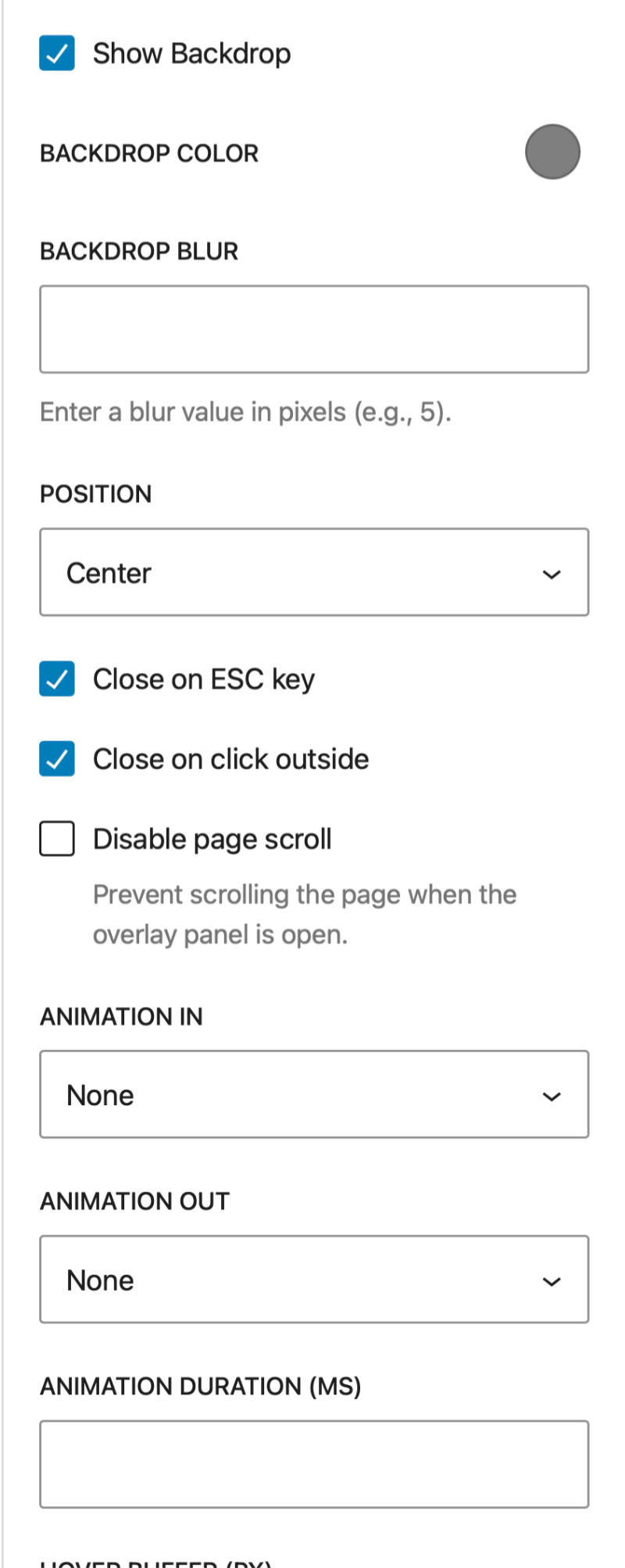
Show Backdrop
Applies to Standard Panel Type Only
A Backdrop can be set to appear behind a Standard Overlay Panel.
Backdrops are useful when you want the overlay panel to command more attention by obscuring the web page behind it.
If a backdrop is enabled you can set its:
- Backdrop color – default:
rgba(0, 0, 0, 0.5) - Backdrop blur – set a blur value in pixels.
Position
Applies to Standard Panel Type Only
Standard Overlay Panels that are not built to occupy the entire screen will position themselves in the center of the screen.
The Position setting allows you to position the overlay content relative to the viewport. You can change the position from Center to any one of the 8 axis points:
- Center (default)
- Top Left, Top Center, Top Right
- Center Left, Center Right
- Bottom Left, Bottom Center, Bottom Right
Close on ESC key
Applies to Standard Panel Type Only
Enable the escape key to close the overlay panel. default: enabled.
Close on click outside
Applies to Standard Panel Type Only
Allow clicking on the backdrop area to close the overlay panel. default: enabled.
Disable Page Scroll
Applies to Standard Panel Type Only
Prevent scrolling the page when the overlay panel is open. default: disabled.
Placement
Applies to Anchored and Mega Menu Panel Types
Anchored and Mega Menu panels are “attached” to a trigger element, such as Info Button or Menu Item.
Placement allows you to set the position of the panel relative to that parent element. You can choose from the following positions.
- Bottom Left (default), Bottom Center, Bottom Right
- Center Left, Center Right
- Top Left, Top Center, Top Right
Position to Parent
Applies to Anchored and Mega Menu Panel Types
This setting changes how the Placement setting works.
If Position to Parent is left blank (default), then the panels placement will be relative to the trigger element.
In many cases a Panel may need to be placed adjacent to another element, for example a Mega Menu that is centred below the navigation ( ie. its Parent container ). To do this we can set the Position To Parent value to a CSS Class that is attached to the parent element.
To Position a Mega Menu relative to the GenerateBlocks Site header use:
.gb-site-header
To Position a Mega Menu relative to the GenerateBlocks Navigation use:
.gb-navigation
Animation
Control the entrance animation of the Overlay Panel.
Animation IN
Select from several Animation entrance options:
- None (default)
- Fade In
- Fade In from a direction
- Slide in from a direction
- Scale In
Animation OUT
Select from several Animation entrance options:
- None (default)
- Fade Out
- Fade Out from a direction
- Slide Out from a direction
- Scale Out
Animation Duration (MS)
Set the animations duration in MS
Animation Distance
Set the distance in any measurement unit (px, rem etc ) for directional animations
Hover Buffer (PX)
Applies to Hover Trigger Types
Create an invisible buffer zone around the Overlay Panel for hover/mouseover detection. This buffer improves the UX of hover triggered panels such as Mega Menus by keeping the panel open until the mouse pointer moves a distance outside the panel.
Width Mode
The Overlay Panel that you build in the editor is wrapped inside a front end parent container. Width Mode allows you to set the parents Width behaviour to Max Content or Full Width.
MAX CONTENT (default)
The overlay panel will size its width to match the block content.
FULL WIDTH
Set the overlay panel width to 100%. Use this option when you need to set the panels block content widths to 100% or a % of the browser viewport.
Data Attribute
Will only show if the site uses SSL.
Get the data attribute for the panel eg.
data-gb-overlay="gb-overlay-47374"
This can be used on other HTML elements to trigger the Overlay Panel.
