


Imagine waking up to find your WordPress website compromised, your data stolen, and your server overwhelmed. This nightmare often stems from a brute force attack, where hackers use automated scripts to guess usernames and passwords until they gain access.
These attacks threaten your site’s security and slow its performance due to the sheer volume of login attempts. Even if you’ve managed to secure your data, server overload can impact the user experience and potentially damage your business reputation.
While brute force attacks can target any platform, WordPress sites are vulnerable due to the vast number of people using them. In this article, we’ll provide actionable steps to safeguard your site from these attacks, ensuring your data and performance remain unaffected.
What is a WordPress brute force attack?
A WordPress brute force attack is a method employed by cybercriminals to gain unauthorized access to a WordPress site by systematically guessing usernames and passwords. Attackers utilize automated scripts or bots to attempt numerous combinations of login credentials until they find the correct one. This type of attack exploits the simplicity of weak passwords and the commonality of default usernames, making it easier for attackers to find a point of entry.
Brute force attacks can lead to severe consequences, including data breaches, loss of sensitive information, and significant downtime for your website. The sheer volume of login attempts can also slow down site performance, impacting user experience and potentially damaging the site’s reputation. Given the popularity of WordPress, which powers over 40% of all websites, these attacks are increasingly prevalent, with millions occurring daily.
Types of brute force attacks
Brute force attacks can be categorized into several types, each employing different strategies to compromise a site’s security:
- Simple attacks: This is the most straightforward form, where attackers use automated tools to try various username and password combinations. They often start with common passwords or default credentials.
- Credential stuffing: In this method, attackers use stolen username and password pairs obtained from previous data breaches. Since many users reuse credentials across multiple sites, this tactic can be highly effective.
- Dictionary attacks: Attackers employ a predefined list of words or phrases (a ‘dictionary’) as potential passwords. This method relies on users selecting weak passwords that can be easily guessed from common word lists.
- Rainbow table attacks: This technique involves using precomputed tables containing hash values for common passwords. Attackers compare the hashes from the database with those in their rainbow tables to quickly find matches without needing to guess each password individually.
- Password spraying: Unlike traditional brute force attacks that target one account with many passwords, password spraying attempts to access multiple accounts using a few common passwords. This approach minimizes the risk of account lockouts and increases the likelihood of success against accounts with weak passwords.
Signs your WordPress site is under a brute force attack
Detecting a brute force attack early can help reduce damage and protect your WordPress site. Here are some signs that your site may be under attack:
- Unusual login activity: If you notice numerous failed login attempts from unfamiliar IP addresses or an unusual number of login attempts within a short period, this could indicate an ongoing brute force attack.
- Slow site performance: A sudden decline in your website’s speed may signal that your server is overwhelmed by excessive login requests. This overload can affect user experience and overall site functionality.
- Server resource depletion: Monitoring your server’s resource usage can reveal abnormal patterns. A spike in CPU or memory usage may suggest that automated scripts are bombarding your login page.
- Unexpected account lockouts: If legitimate users are frequently locked out of their accounts due to too many failed login attempts, it might be a sign that an attacker is trying to gain access using those accounts.
Being vigilant about these signs can help you take proactive measures to secure your WordPress site against brute force attacks.
Top strategies to prevent WordPress brute force attacks
The philosophy behind a brute force attack is similar to that behind breaking and entering a property. If one window is locked, a hacker will look for another way in. Thankfully, there are several methods to block such attacks, and adopting these will cover all potential avenues.
1. Implement a powerful WordPress web application firewall (WAF)
A powerful WordPress firewall serves as a frontline defense against brute force attacks by filtering incoming traffic and blocking malicious requests before they reach your site. Firewalls work by analyzing login attempts and identifying patterns associated with brute force attacks, such as repeated failed logins from the same IP address.
Solid Security offers advanced WAF features that enhance your website’s security posture. With global IP protection, Solid Security can proactively block known malicious IPs and suspicious activity, significantly reducing the risk of unauthorized access. This proactive blocking ensures that even if an attacker tries multiple methods to gain entry, they will be effectively denied access, safeguarding your WordPress site from potential breaches.
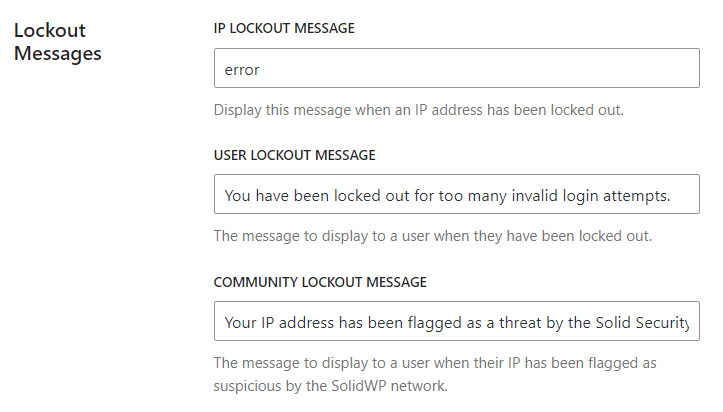
2. Enable intelligent bot protection
In the realm of cybersecurity, not all bots are harmful; some play essential roles in website functionality, such as search engine crawlers. Differentiating between good and bad bots is crucial for maintaining site performance while ensuring security.
Solid Security’s intelligent bot protection uses advanced algorithms to identify and block harmful bots while allowing legitimate ones to access your site. This selective bot blocking helps maintain optimal SEO rankings and overall website performance by ensuring that beneficial traffic is not hindered. By effectively managing bot activity, you can protect your site from malicious attempts without compromising its functionality.
3. Limit login attempts
By default, WordPress does not include a feature to limit the number of login attempts a user can make. Limiting login attempts is an effective way to mitigate brute force attacks by reducing the number of guesses that users are allowed.
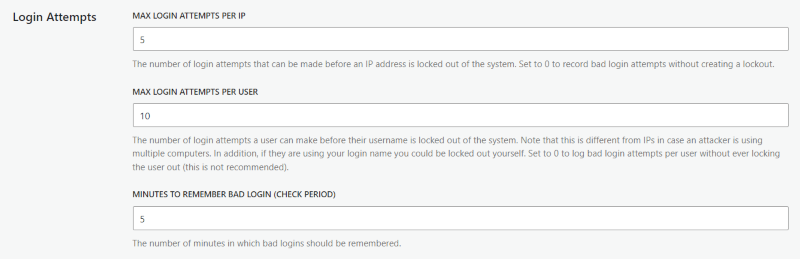
The easiest way to implement this security measure is by using a dedicated plugin. Solid Security lets you set a threshold for the number of login attempts a user can make before being locked out. For example, if a user fails to log in five times, they will be temporarily banned from accessing your site. This significantly reduces the chances of a successful brute force attack on WordPress.
- Go to Security > Settings > Features.
- Click on Firewall, then scroll down to Local Brute Force.
- Click on the drop-down arrow, and you’ll be able to access the screen seen below.
- Remember to click Save once you’ve amended the number of allowed login attempts.
Moreover, Solid Security leverages a brute force protection network that spans over 1 million websites. This network automatically bans IP addresses that have attempted to break into any site within the community. By using this feature, you can preemptively block malicious IPs known for brute force attacks, improving your site’s security even further. You can also implement CAPTCHA through Solid Security to protect legitimate users, without needing an additional plugin.

Download our free guide to brute force attacks for more information.
4. Use Two-Factor Authentication (2FA)
Single-step authentication relies solely on a password to access your WordPress site, making it vulnerable to brute force attacks. Hackers often use automated bots to guess passwords until they gain access.
Adding 2FA to your website login significantly increases security by requiring two forms of verification:
- Something you know, e.g. your password.
- Something you have, e.g. a code from your phone or another device.
This additional layer makes it much harder for attackers to succeed, as they would need both your password and access to your secondary device.
Implementing 2FA on your WordPress site is straightforward with a plugin like Solid Security. You can enforce 2FA for all users or specific roles, reducing the risk of unauthorized access. Solid Security also supports various 2FA methods, including authenticator apps like Google Authenticator and Authy, ensuring flexibility for all users.
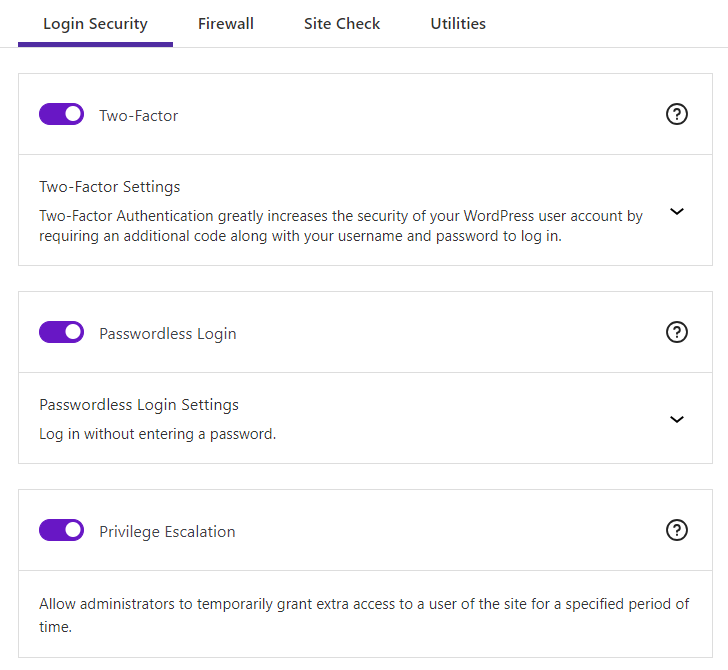
While using a strong password combined with 2FA is an effective way to thwart brute force attacks, moving beyond passwords to more secure methods like passkeys offers even greater protection. Passkeys use public and private key pairs for authentication, removing the need for passwords altogether. You can find more information on this in our comprehensive guide to passkeys.
5. Enforce strong password policies
Brute force attacks exploit the simplicity of guessing usernames and passwords to gain unauthorized access to your WordPress site. By using stronger, more complex passwords, you increase the difficulty for attackers to guess your credentials.
Follow our tips for choosing a secure password:
- Avoid personal information: Never use a version of your own name, username, company name, or website name. These are often the first guesses in a brute force attack.
- Avoid full words: Do not use full words in any language, as these can be discovered using dictionary list attacks.
- Length matters: Short passwords are easier to crack. Aim for passwords that are at least 12 characters long.
- Make them complex: Always use a combination of uppercase and lowercase letters, numbers, and special characters. Complexity makes it much harder for attackers to guess your password.
- Make them unique: Ensure each of your accounts or websites has its own password. This prevents a breach in one account from compromising others.
Tools like Solid Security make it easy to enforce the use of strong passwords on your WordPress site. With just a few clicks, you can:
- Force strong passwords: Site owners can apply strong password rules to specific sets of users, removing any password weak-links.
- Set password expiry dates: A maximum number of days can be set before a password expires and must be changed. This reduces the risk of long-term exposure.
- Prevent reused passwords: Users can be blocked from adopting passwords that have appeared in data breaches tracked by Have I Been Pwned, ensuring compromised passwords are not reused.
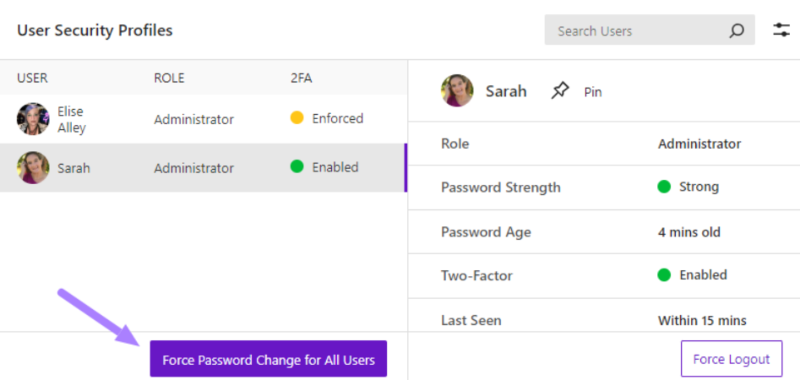
For detailed instructions on setting up these features, refer to our in-depth guide to password requirements.
6. Regular user account management
Regularly reviewing and managing user accounts is vital for maintaining a secure WordPress environment. Over time, user roles may change, or former employees may still have access to sensitive areas of your site, creating potential vulnerabilities. Familiarize yourself with WordPress’s default user roles – Administrator, Editor, Author, Contributor, and Subscriber – and ensure everyone has only the permission level needed.
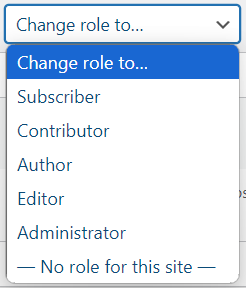
Implementing proper user roles and permissions is essential to ensure that only authorized individuals have access to critical functionalities. Solid Security comes with additional user management features that allow administrators to easily review user accounts, modify roles, and remove unnecessary access. By actively managing user accounts, you can minimize the risk of unauthorized access and enhance the overall security of your WordPress site.
7. Disable XML-RPC (if not needed)
XML-RPC is a protocol that allows users to interact with their WordPress sites remotely through external applications. While it provides convenience for managing content, it also introduces significant security vulnerabilities, particularly through its xmlrpc.php file.
This file has become a target for brute force attacks, where attackers exploit its functionality to send multiple authentication requests in a single call. By utilizing methods like system.multicall, hackers can attempt hundreds or thousands of password combinations simultaneously, increasing their chances of unauthorized access.
Disabling XML-RPC can significantly enhance your site’s security by reducing the attack surface available to cybercriminals. By eliminating the xmlrpc.php file, you make it much more difficult for attackers to automate login attempts. Solid Security provides an easy way to disable XML-RPC, allowing you to turn off this feature without risking compatibility issues with essential plugins.
If you determine that XML-RPC is not needed for your site, you can disable it safely using the following steps:
- Simply navigate to Security > Settings > Advanced in your WordPress dashboard,
- Find the XML-RPC option under API Access, and
- Select Disable XML-RPC.

This straightforward action can protect your site from brute force attacks, DDoS vulnerabilities, and other potential threats associated with this outdated protocol.
8. Keep WordPress core, themes, and plugins updated
“Keeping your WordPress core, themes, and plugins updated is crucial for maintaining security. Updates often include patches for known vulnerabilities that could be exploited in brute force attacks or other malicious activities.”
David G Johnson, Product Owner, SolidWP
While you can manually input updates as they become available, Solid Security simplifies the update process with automatic update features that ensure your site remains current without constant intervention. Adopting best practices for managing updates — such as testing updates in a staging environment before applying them — can further safeguard your website from potential exploits. Regularly updating your components not only enhances security but also improves overall performance and compatibility with new features.
9. Monitor and log security events
Security monitoring is essential for identifying potential threats before they escalate into serious issues. Regularly monitoring security events allows you to detect unusual activity on your WordPress site and respond promptly.
Solid Security offers comprehensive logging and monitoring features that track login attempts, changes in user roles, and other critical events on your site. Understanding how to interpret these security logs enables you to take appropriate action swiftly — whether it’s blocking suspicious IPs or tightening access controls — to maintain the integrity of your WordPress environment. Proactive monitoring helps ensure ongoing protection against brute force attacks and other security threats.
Additional WordPress security best practices
Implementing additional security measures can significantly increase the protection of your WordPress site. Here are some essential practices to consider:
- Regular backups: Frequent backups are critical for data recovery in the event of a cyberattack or data loss. Use a reliable backup solution like Solid Backups to automate the process. Schedule daily backups and store them off-site, such as in cloud storage (Google Drive, Dropbox), to ensure your data remains safe even if your server is compromised.
- SSL implementation: Installing an SSL certificate encrypts data transmitted between your website and its visitors, protecting sensitive information from interception by attackers. This not only improves security but also boosts your site’s credibility and search engine rankings, as Google favors HTTPS sites. Most hosting providers offer free SSL certificates, making it easy to implement.
- File permissions management: Proper file permissions are crucial for safeguarding your WordPress files. Set appropriate permissions — typically 644 for files and 755 for directories — to restrict unauthorized access. Regularly audit these permissions to ensure they remain secure, preventing potential exploits that could compromise your site.
- Security headers implementation: Adding security headers to your website can help protect against various attacks, including Cross-Site Scripting (XSS) and clickjacking. Implementing headers like Content Security Policy (CSP), X-Content-Type-Options, and X-Frame-Options can bolster your site’s defenses by controlling how browsers handle content and scripts.
What to do if your WordPress site has been hacked?
If you suspect that your WordPress site has been hacked, quick action is needed to minimize damage and restore security. Here are immediate steps to take:
- Disconnect your site from the internet by putting it into maintenance mode or temporarily taking it offline.
- Change all passwords associated with your WordPress account, including database passwords and SFTP credentials. Check for any unauthorized user accounts and remove them immediately.
- Use Solid Security’s vulnerability scanning features to identify malicious code or files on your site. If malware is found, you may need to hire a security expert to remove it. After cleaning up the malware, perform a thorough review of all plugins and themes to ensure they are secure and up-to-date.
- Once your site is restored, implement additional security measures to prevent future brute force attacks in WordPress. Regularly update WordPress core, themes, and plugins; enable 2FA; and consider using a WAF for added protection. Additionally, conduct regular backups and monitor user activity to catch any suspicious behavior early on.
Taking these steps will help you recover from a breach while reinforcing your website’s defenses against future threats.
Secure your WordPress site with Solid Security today
Protecting your WordPress site against brute force attacks is crucial for maintaining its security and performance. With the average global cost of a data breach now costing a company $4.45 million, few brands can afford to skimp on their security, and a multi-layered approach is key.
While steps like strong passwords and 2FA are essential, the most effective solution can be found in a powerful plugin like Solid Security. With features including dedicated brute force protection, comprehensive login security, and automated vulnerability scans, Solid Security is the perfect partner in safeguarding your website. Once activated, site owners are freed up to focus on business matters, safe in the knowledge their security is being managed in the background.
Don’t leave your site vulnerable — get started with Solid Security today and fortify your online presence!
Join us for the next Solid Academy Webinar!
Free weekly webinars that will help you master WordPress and increase your business's bottom line.
What is a WordPress Phishing Attack?
Learn how to identify and prevent phishing attacks on WordPress websites.
Kiki SheldonWebsite Protection: 5 Ways to Keep Your Website Safe
Robust website protection is the shield that stands between your business and relentless cyber attacks. Prioritizing website protection enables businesses to fortify defenses to safeguard their online presence and preserve the trust of their customers in the face of ever-evolving cybersecurity threats.
Kiki Sheldon23 Ideas To Grow Your WordPress Business in 2023
WordPress is the most popular website-building platform worldwide, trusted by numerous brands. WordPress enables you to build a user-friendly and highly reliable site, together with tools and plugins to enhance your marketing and work like a lead magnet. All these features make WordPress the platform chosen by more than 43% of businesses globally.
SolidWP Editorial TeamSign up now — Get SolidWP updates and valuable content straight to your inbox
Sign up
Get started with confidence — risk free, guaranteed






