- Video Trimmer
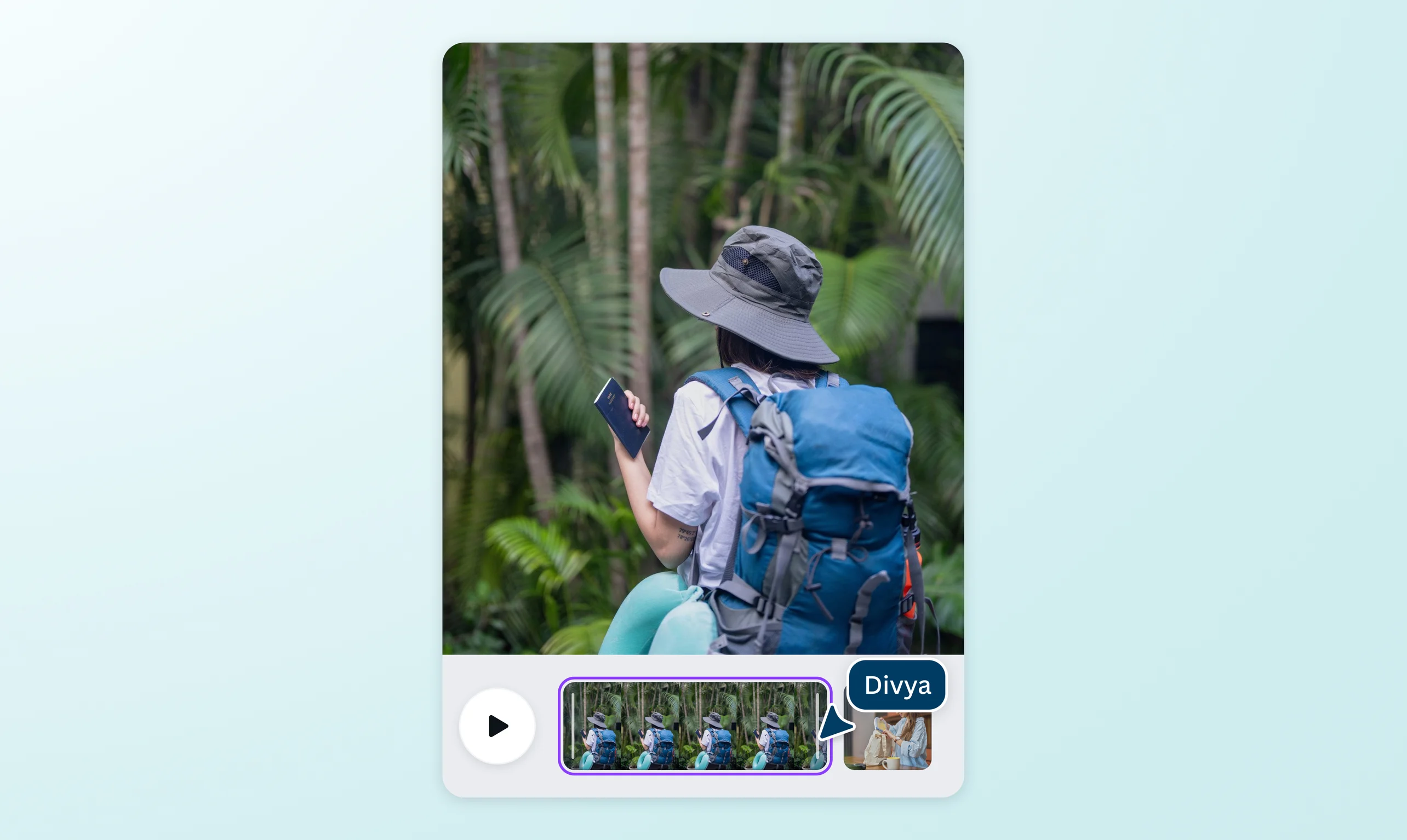

Catch the perfect timing on your clips with Canva’s Video Trimmer
Feature the best moments of your recordings and create a better story timeline for your video project. Trim, split, splice, or cut your videos online with Canva’s video cutter and trimmer for free.
or drop it here
Learn about Canva's upload formats and requirements. See how we use your content in our Privacy Policy.
Try these video editing tools
Convert, edit and more. All the video editing tools you need!
Trim videos online to its right length

Get the perfect length for various video platforms—down to a tenth of a second. Meet the video length limits for TikTok, Instagram Stories, Facebook Stories, and YouTube. Use our free video trimmer to take off the lull during the first and last few seconds of a clip. Plus, you can mute or retain the audio of any newly cut or trimmed video.
Automatically cut your video with Highlights

Capture your video’s best moments without lifting a finger. Powered by AI, Highlights generates short, snappy clips from your footage, pinpointing its best parts for you in seconds. Focus on making your mark and save time on manually editing through dull moments of dead air, grainy scenes, or unnecessary snippets. Polish your storytelling further by adding music(opens in a new tab or window), texts, transitions, and effects — all accessible in the dashboard. You’re sure to hook your audience from beginning to end.
Split and splice your videos

Split your video into multiple parts online, if you want to work on individual sections, or create a new stunning video. You can delete segments, add transitions, merge audio, or even insert a different clip in between. And no matter how many frames you remove, our video editor(opens in a new tab or window) automatically closes the gap on the video timeline. Splicing is a breeze, with our free online video trimmer.
How to trim video online

Frequently Asked Questions
- With our free online video trimmer tool, you can trim and cut video on mobile with ease. Launch our video editor on the device of your choice—whether on iOS or Android—and upload your footage or video clip. Select the video and click the scissors icon to start trimming and cutting the video to your desired length.
Or, click the video timeline and click & slide the handlebars until a double-headed arrow appears. Drag the handlebars until you reach the desired video length or scene.
- When you cut a video, you remove a part of a video or footage. Video editors cut parts of footage to reduce the video length, remove unnecessary scenes to make sure all the scenes tie up beautifully with the rest of the video, or move a section of the footage to another part of the entire video. On the other hand, trimming a video means removing just the start or end of a video or footage.
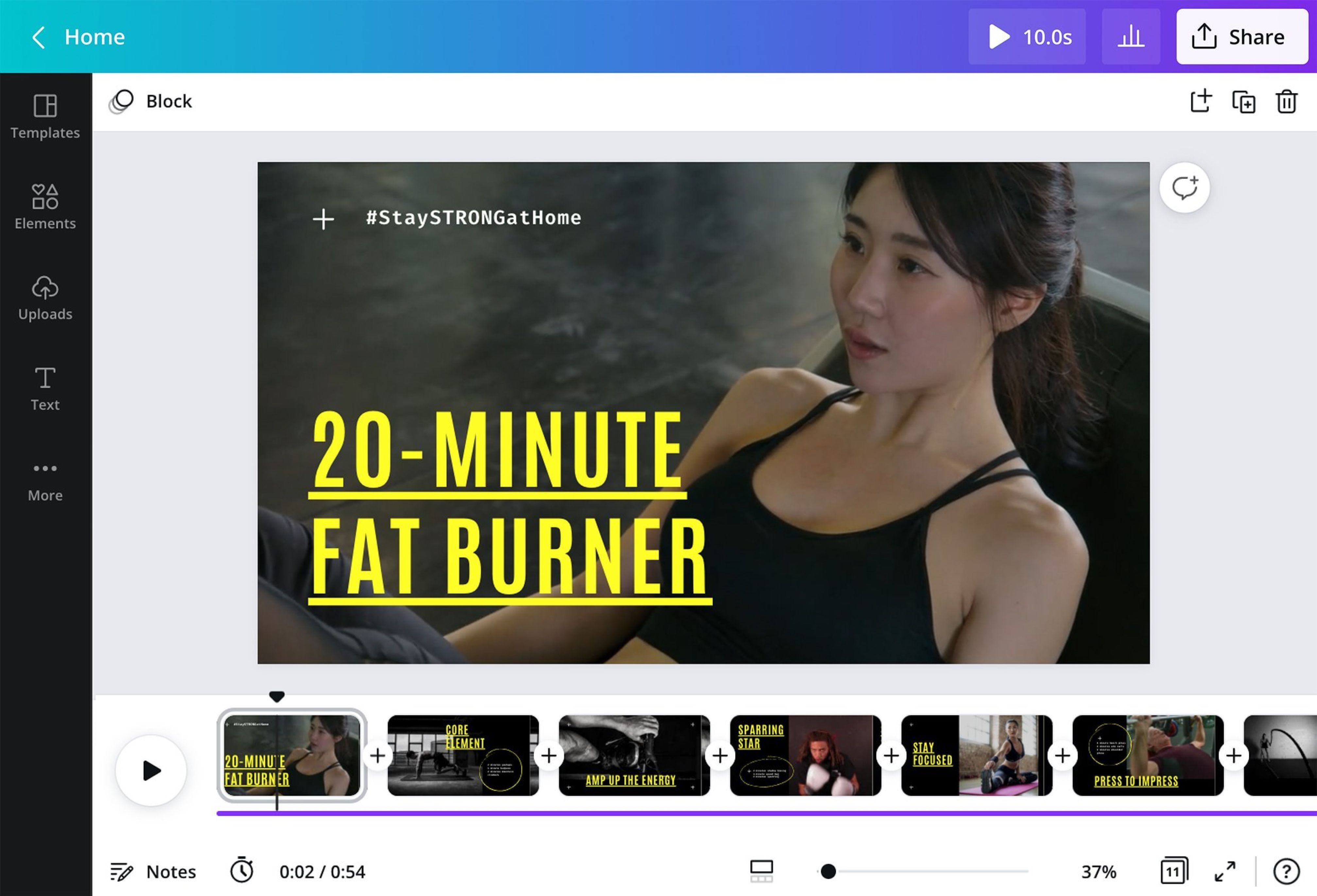
- Cut out any part of a video online into sections by right-clicking the timeline and selecting Split. Then, delete every section you want to remove from the video. The remaining ones will automatically merge and leave no gaps on the timeline, but you can apply transitions to smoothen the flow. Click the plus (+) icon between the spliced sections and select Add Transition.
- It’s super easy to stitch multiple clips together on our editor. Simply upload your videos and drag-and-drop them to the timeline in order. You can add transitions by clicking the plus (+) icon between the clips.
- With our free online video editor, cut and merge multiple video files efficiently. Upload the clips then drag and drop them to the timeline in order. To trim videos online for free, click the element and drag its edges. When you use our video cutter, your clips automatically merge. No gaps on the timeline! You can personalize your videos with more design elements after.
- No, your video will retain the same video quality. Trimming or cutting video using our free video trimmer tool will not affect your video’s quality.

@navneet4
