
How to Create a Subdomain: A Step-by-Step Guide
This article was assisted with AI. We may include links to partners.
Creating a subdomain involves adding a new DNS record through your domain registrar. The process is straightforward: log into your domain provider's account, navigate to the DNS management section, and add a new record. You'll typically use an A record to point the subdomain to a server's IP address or a CNAME record to point it to another domain name, using a prefix like blog or shop.
What Is a Subdomain and Why Use One?

Think of your main website as a house. A subdomain is like a separate workshop in the backyard—it's part of the same property (yourwebsite.com) but serves a distinct function. Instead of buying a new domain, you simply add a prefix, creating addresses like blog.yourwebsite.com or store.yourwebsite.com.
This structure helps you organize different parts of your online presence. For instance, you can run your main business site at yourbrand.com and a dedicated customer help desk at support.yourbrand.com. Each is a unique web address, but they all operate under your primary brand domain.
(If you're new to domains, our guide on what a custom domain is provides a great foundation.)
Actionable Reasons to Use a Subdomain
Subdomains are a practical tool for organizing a growing online presence without buying and managing multiple domains. Here are some common, real-world applications:
- Staging Environment: Use
staging.yourwebsite.comto test new designs or features privately before making them live on your main site. - E-commerce Store: Set up
shop.yourwebsite.comto host your online store on a specialized platform, keeping it separate from your main informational site. - Client Portals: Offer a secure login area for customers at a clean, professional address like
clients.yourwebsite.com. - Connecting to Third-Party Services: Point a subdomain to an external service. For example, you can link
book.yourwebsite.comto a platform like the Solo AI Website Creator.
Common Subdomain Use Cases
This table breaks down popular subdomain prefixes and their typical functions to help you choose the right one for your needs.
| Subdomain Prefix | Common Use Case | Example |
|---|---|---|
blog |
Hosting a company blog or content hub. | blog.example.com |
shop / store |
Running an e-commerce platform separate from the main site. | shop.example.com |
help / support |
Creating a dedicated customer support portal or knowledge base. | support.example.com |
app |
Hosting a web application or software-as-a-service (SaaS). | app.example.com |
staging |
A private environment for testing website changes. | staging.example.com |
api |
Providing access to an Application Programming Interface. | api.example.com |
mail |
Configuring custom email services. | mail.example.com |
book / events |
Linking to a booking system or event registration platform. | book.example.com |
Using subdomains brings order to your digital footprint, making navigation easier for both you and your visitors.
Actionable Tip: Subdomains give you organizational power. Use them to create distinct online experiences for different audiences or functions, all while reinforcing your main brand identity.
This guide provides the exact steps for configuring DNS records on popular platforms like GoDaddy and Cloudflare.
How to Prepare for Subdomain Creation
Before editing your DNS settings, have your domain registrar login credentials ready. Whether you use GoDaddy, Namecheap, or another provider, you will need access to its DNS management panel.
Choose The Right DNS Record
Pointing a subdomain requires choosing between an A Record and a CNAME Record. Each serves a specific function:
- A Record (Address Record): Connects your subdomain to a specific IP address (e.g., 192.0.2.1). Use this when your hosting provider gives you a static IP.
- CNAME Record (Canonical Name): Points your subdomain to another domain name. This is ideal for connecting to platforms like the Solo AI Website Creator, as they manage the underlying IP address for you.
For most use cases, a CNAME is more flexible because you won't need to update it if the server's IP address changes.
Name Your Subdomain and Set the TTL
Select a short, descriptive name that tells visitors and search engines its purpose.
- For functionality: app.yourbrand.com, api.yourbrand.com
- For content: blog.yourbrand.com, events.yourbrand.com
- For audiences: clients.yourbrand.com, partners.yourbrand.com
Next, set the TTL (Time to Live). This setting tells servers how long to cache your DNS information. A low value, like 300 seconds (5 minutes), allows you to see changes quickly during setup. Once your subdomain is working correctly, you can increase the TTL to reduce DNS lookups.
Actionable Tip: A shorter TTL speeds up troubleshooting, so you’re not waiting long for your changes to take effect online.
For more background on domain settings, explore these general domain management resources.
Now that you have chosen a name and record type, it's time to create the subdomain. The process is similar across most domain registrars, but each has a unique interface. Here are the specific steps for GoDaddy, Cloudflare, and Namecheap.
This graphic summarizes the preparation you've already completed.
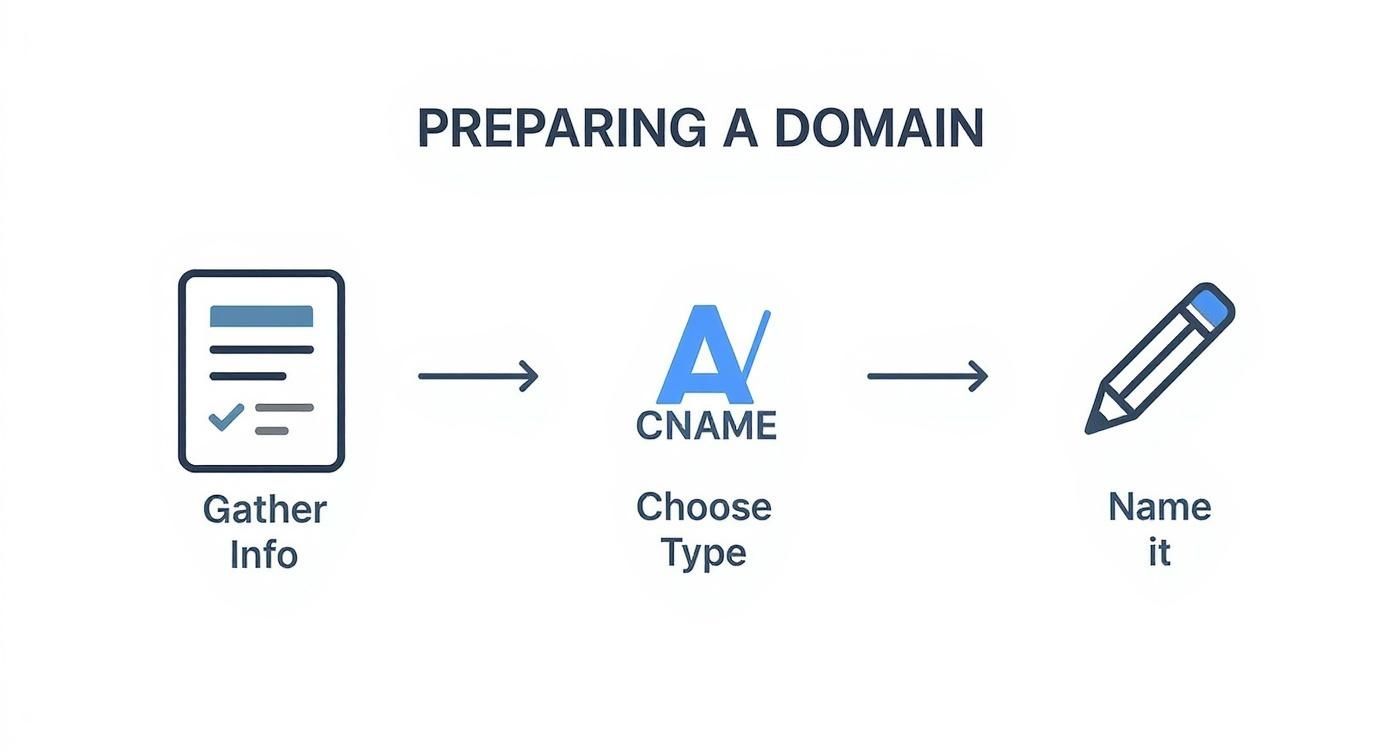
Having your information ready streamlines the process and prevents confusion inside your account's dashboard.
How to Create a Subdomain in GoDaddy
- Log into your GoDaddy account and go to "My Products."
- Find your domain in the list and click the "DNS" button next to it.
- Click the "Add New Record" button to open the form.
- For Type, select
AorCNAME. - In the Name field, enter only the prefix (e.g.,
blogforblog.yourdomain.com). - In the Value field, paste the destination. For an A record, this is the IP address. For a CNAME, it's the target hostname provided by the service you are connecting to.
- Set the TTL (Time to Live). The default is typically 1 hour. For faster updates during setup, you can set a custom TTL of 600 seconds (10 minutes).
- Click "Save." GoDaddy will now begin propagating your new DNS record.
How to Create a Subdomain in Cloudflare
When using Cloudflare, pay close attention to the proxy status (the "orange cloud"), as it affects how your subdomain connects.
- Log into your Cloudflare dashboard, select your domain, and click the "DNS" icon.
- Click the "Add record" button.
- Choose your record Type (
AorCNAME). - In the Name field, enter your subdomain prefix (e.g.,
events). - In the Target (for a CNAME) or IPv4 address (for an A record) field, paste the destination value.
- Set the Proxy status. To use Cloudflare's performance and security features, leave the cloud icon on (orange). If the service you're connecting to requires a direct connection, click the cloud to turn it off ("DNS only").
- Click "Save." Cloudflare's DNS updates are typically live in under a minute.
Actionable Tip: The "orange cloud" proxy can sometimes interfere with domain verification by third-party services. If a platform like the Solo AI Website Creator has trouble connecting to your new subdomain, the first troubleshooting step is to temporarily switch the proxy status to "DNS only."
How to Create a Subdomain in Namecheap
Namecheap offers a straightforward DNS management interface.
- Log into your Namecheap account, go to your "Dashboard," and click the "Manage" button next to your domain.
- Navigate to the "Advanced DNS" tab.
- In the "Host Records" section, click "Add New Record."
- Select the Type:
A RecordorCNAME Record. - In the Host field, type your prefix (e.g.,
staging). - In the Value field, paste the IP address or target hostname.
- Leave the TTL set to "Automatic," which works for most situations.
- Click the green checkmark to save the record.
How to Link Your Subdomain to the Solo AI Website Creator
Connecting your new subdomain to a platform like the Solo AI Website Creator allows you to point a custom URL to your website. The process involves creating a specific DNS record and then verifying the connection within your Solo AI account.
You will need to create a CNAME record, which acts like a forwarding address. The Solo AI Website Creator will provide a unique hostname to use as the "target" for this record.
Adding the CNAME Record
Return to your domain registrar’s DNS settings (GoDaddy, Cloudflare, or Namecheap) and add a new record with these details:
- Type:
CNAME - Host/Name: Your subdomain prefix (e.g.,
shopforshop.mybrand.com). - Value/Target: The unique hostname provided by the Solo AI Website Creator (e.g.,
proxy.soloist.ai). - TTL: Use the default setting (usually 1 hour or "Automatic").
Save the record. Your registrar will now start directing traffic for that subdomain to the Solo AI platform.
Verifying Your Subdomain in Solo AI
After setting up the CNAME record, log into your Solo AI Website Creator account.
- Navigate to your site settings or domain management area.
- Select the option to add a custom domain or subdomain.
- Enter your full subdomain address (e.g.,
shop.mybrand.com) and click "Verify" or "Connect."
Solo AI's system will then scan for the CNAME record you created. Once it detects the record pointing correctly to its hostname, the connection is confirmed, and your website will be live at your custom subdomain.
Actionable Tip: DNS changes are not instant. If verification fails on the first try, wait five minutes and try again. This delay, known as propagation, is normal. If you receive a hostname mismatch error, double-check that the "Value" in your DNS settings is an exact match for what Solo AI provided.
To learn more about building a site, read our guide on how to AI-generate your website with Solo AI.
Verify Propagation and Activate SSL Security
After creating your subdomain, you must wait for the DNS changes to propagate across the internet.

DNS propagation is the process of servers worldwide updating their records with your new information. While most changes are live in under 30 minutes, it can sometimes take up to 24 hours for your new subdomain to be visible everywhere.
How to Check Propagation
Use a free online DNS checker to monitor the progress:
- WhatsMyDNS: Enter your subdomain (e.g.,
blog.yourdomain.com), select the record type (A or CNAME), and watch as servers around the world update. - DNS Checker: Provides a clear list of servers and their update status.
- Google Admin Toolbox: A simple tool to confirm your record is configured correctly.
Once your new record appears consistently across the globe, the next step is to secure it.
How to Enable SSL
An SSL certificate encrypts the connection between your subdomain and its visitors, displaying the padlock icon in the browser address bar. This is essential for user trust and security.
- At Your Registrar (GoDaddy, Namecheap): Many registrars offer an "Auto-SSL" feature in the domain management panel. Find your new subdomain in the SSL section and click a button like "Enable Auto-SSL."
- Through Cloudflare: If you use Cloudflare for DNS, go to the SSL/TLS tab and click on Edge Certificates. Ensure "Always Use HTTPS" is toggled on to force a secure connection.
- Inside the Solo AI Website Creator: SSL activation is built-in. Log into your Solo AI dashboard, go to Settings, and click the Security tab. Find your subdomain and click "Activate" to enable free, automatic SSL.
After activation, open a new private browser window and visit your subdomain. You should see https:// and the padlock icon.
For more information, read our guide on website security best practices.
How to Fix a Broken Padlock
If you encounter security warnings, check for these common issues:
- Mixed Content Warnings: This means the page is loading over secure HTTPS, but some elements (like images) are linked via an insecure
http://URL. Update all asset URLs to usehttps://. - Certificate Mismatch Errors: This typically means your A or CNAME record does not exactly match the domain the SSL certificate was issued for. Double-check for typos in your DNS settings.
- Certificate Is Still Issuing: Some providers take 15-30 minutes to generate and install a new SSL certificate. Wait a bit and check again.
- Timeout Errors (502): If you see a server error, DNS propagation may not be complete. Give it more time before troubleshooting your server settings.
Actionable Tip: A broken padlock is almost always caused by a mixed content issue or an SSL certificate that has not been properly installed for that specific subdomain.
How to Fix Common Subdomain Problems
Even with a correct setup, issues can arise. Here are solutions to the most common problems when connecting a subdomain to the Solo AI Website Creator.
- No DNS resolution
- Incorrect record type
- TTL propagation delays
- Redirect loops
- SSL certificate failures
Diagnosing No DNS Resolution
If your subdomain doesn't load at all, the DNS record may not have published correctly.
What to Check:
- The Host field exactly matches your prefix.
- The record type is correctly set to CNAME or A.
- Your domain’s nameservers are pointing to the correct provider.
How to Fix:
- Delete and recreate the DNS record in your registrar's panel.
- Save the changes and wait at least 60 seconds.
- Use a propagation checker to verify the update.
Actionable Tip: Clear your browser cache and local DNS cache before retesting to ensure you are not seeing outdated information.
Correcting the Record Type
Using the wrong record type will prevent the connection from working.
Signs of an Incorrect Record Type:
- Your platform's dashboard flags a mismatch error.
- Visitors see a “site not found” page.
How to Fix:
- Remove the incorrect DNS entry.
- Add a CNAME record if pointing to a hostname or an A record if pointing to an IP address.
- Lower the TTL to 300 seconds to speed up testing.
For example, shop.yourdomain.com requires a CNAME record when linking to the Solo AI Website Creator.
Resolving TTL Propagation Delays
A high TTL value can cache outdated settings, slowing down your fixes.
What to Do:
- Check the TTL value in your DNS dashboard.
- If it is higher than 300 seconds, lower it during testing.
Once the subdomain is working, you can raise the TTL back to its original value.
Fixing Redirect Loops
A redirect loop occurs when a browser is sent back and forth between URLs, causing an error.
Signs of a Redirect Loop:
- The browser displays a "too many redirects" error.
- A ping test alternates between your subdomain and another domain.
How to Fix:
- Remove any conflicting forwarding rules at your registrar or in Cloudflare.
- Ensure your subdomain points directly to the target service.
Actionable Tip: Temporarily disable any proxy or routing features (like Cloudflare's orange cloud) to isolate the conflict.
Troubleshooting SSL Certificate Failures
An invalid SSL certificate will cause security warnings in browsers.
Error Clues:
- Browser errors like
NET::ERR_CERT_COMMON_NAME_INVALID. - Your SSL panel reports a certificate mismatch.
- Mixed content warnings appear in the browser's developer console.
How to Fix:
- Confirm your DNS record's value exactly matches what the Solo AI Website Creator provided.
- Re-issue the SSL certificate or toggle the Auto-SSL setting off and on.
- Wait at least 15 minutes for the certificate to provision before testing.
Actionable Tip: Verifying the spelling of your CNAME record and ensuring the correct record type is used resolves the vast majority of common subdomain setup issues.
Frequently Asked Questions About Subdomains
Here are answers to the most common questions about creating and managing subdomains.
What is DNS propagation and how long does it take?
DNS propagation is the time it takes for DNS servers across the globe to update with your new record. When you create or change a DNS record, the update is not instant.
Most changes propagate within 30 minutes to a few hours. In rare cases, it can take up to 24 hours. If your subdomain isn't working immediately, it is likely due to this normal delay.
Actionable Tip: Be patient. A delay in propagation does not mean you have made a mistake. Use a DNS checker tool to monitor the update's progress worldwide.
How many subdomains can I create?
Most domain registrars allow you to create a virtually unlimited number of subdomains. This enables you to organize every part of your business with a unique, branded URL. For example, you can set up:
shop.yourbrand.comfor an e-commerce store.blog.yourbrand.comfor your content.clients.yourbrand.comfor a private customer portal.api.yourbrand.comfor developer resources.
Each of these can point to a different server or platform, helping you maintain a clean and organized digital presence.
Are subdomains or subfolders better for SEO?
Search engines typically treat subdomains (e.g., blog.yourbrand.com) as separate websites from your main domain, whereas subfolders (e.g., yourbrand.com/blog) are seen as part of the main site.
This is not a disadvantage; it is a strategic choice. Using a subdomain allows you to build a highly focused site for a specific topic or audience without diluting the SEO of your main domain. To help search engines find your new subdomain, submit its sitemap to Google Search Console and link to it from your main website.
Can I host my subdomain with a different provider?
Yes. It is a standard practice to point a subdomain to an external service like the Solo AI Website Creator while your main domain is hosted elsewhere.
This is done by creating a CNAME record in your DNS settings. The platform you are connecting to will provide a hostname (e.g., proxy.soloist.ai). You simply paste that hostname into the "Value" or "Target" field of your new CNAME record to establish the connection.
Ready to put your new subdomain to work? With the Solo AI Website Creator, you can launch a professional website on your custom subdomain in just a few minutes, with no coding needed. Start building your free website today!
