
 Liquid Web
 If you’re considering virtualizing SQL Server deployments, you might wonder if it’s the right choice. Wouldn’t a traditional setup be better? After all, Microsoft SQL Server is a high-performance database management system.
And then there’s the fact that SQL Server virtualization is not all roses and no thorns. It can greatly benefit your business. But without proper configuration, it can cause more harm than good.
That’s why we’ve created this guide.
We’ll show you why you should virtualize SQL Server and reveal some common challenges you may likely encounter. To help you overcome them, we’ll provide expert tips you should follow. And if you’re set to choose a virtual machine provider, you’ll also find directions in this guide.
Ready? Let’s get started.
- What is SQL Server virtualization?
- Why virtualize SQL Server?
- Challenges of virtualizing SQL Server
- SQL Server virtualization: Best practices
- Factors to consider when selecting a VM provider
- Final thoughts: SQL Server virtualization — a beginner’s guide
Key points
- Virtualizing SQL Server ensures high availability, but it comes with its own set of challenges.
- Capturing resource utilization baseline information can help you determine which SQL Server instances you should virtualize.
- You can configure the virtual machine to hot-add memory or CPU without shutting it down or restarting it.
- Older servers aren’t powerful enough to run SQL Server virtual instances and may not support second-level address translation (SLAT).
- Choose a virtual server with easy scaling, simplified management, and robust security measures.
What is SQL Server virtualization?
SQL Server virtualization means deploying SQL Server in a virtual environment. Because SQL Server is resource-intensive, virtualization requires a large amount of processing and memory power.
Due to its complex steps, SQL Server virtualization also requires specialized expertise. Not having sufficient expertise can drive up expenses and increase the likelihood of a costly breach.
That’s because you’ll likely encounter configuration issues that can degrade performance or sabotage your security efforts. In either case, you may need to hire an external team.
Virtualization platforms such as Microsoft’s Hyper-V and VMware vSphere are making waves for their high performance. If you’re not sure which virtualization platform to choose, these are a great start.
Why virtualize SQL Server?
Let’s consider some of the reasons why you should virtualize SQL Server.
High availability
Downtime is costly in terms of money lost due to reputational damage, missed sales, and the like. In fact, recent Pingdom research reveals that one hour of downtime can cost you more than $9,000.
Here’s the good news: SQL Server includes built-in availability features such as failover cluster instances and database mirroring, both of which improve uptime.
Furthermore, with VMware vSphere, you’ll get access to vSphere Fault Tolerance (FT), which lets you protect a virtual machine from a physical host failure without any data loss.
Disaster recovery
SQL Server comes with a replication feature you can use to duplicate the primary database — the replica would be the secondary database.
You can then synchronize changes between the two, so if one fails, the other serves as a backup system.
With virtualization, it’s easier to take snapshots of your SQL Server instances, which can be quickly restored in the event of a disaster. You can also automate disaster recovery processes, which enable you to bounce back without significant disruptions.
Scalability
While rightsizing is essential when deploying SQL virtual machines, you can still scale in response to increased demand.
For example, you can scale up using available resources from other virtual machines and scale down to reduce costs.
Server consolidation
Another key benefit of moving from a physical to a virtual deployment is server consolidation. You’ll run fewer servers, which requires fewer human resources to manage server tasks.
The result? You get to save both server hardware and administrative costs, which means you’re getting more value for fewer bucks.
Challenges of virtualizing SQL Server
Now that you know the benefits of virtualizing SQL Server, let’s explore the main challenges you should be aware of.
Resource contention
When virtualizing SQL Server, you might experience resource contention, which occurs when several VMs compete for the same resources, such as CPU, memory, and disk I/O.
With CPU contention, for example, there’s a higher demand for more CPU than is physically available. If the demand for processing power exceeds the available capacity, it can lead to high latency and performance issues.
Server licensing expenses
Licensing SQL Server can be expensive. So, to optimize cost, you need to learn about licensing requirements before migrating to a virtualized environment.
For instance, Microsoft requires a minimum of four core licenses with every VM, regardless of the number of virtual CPUs. This results in higher licensing costs, especially for small workloads that may not require up to four cores.
High memory usage
SQL Server typically consumes a lot of memory. This can weigh down the operating system, leaving insufficient memory for other applications running on the virtual machine.
For this reason, VMware recommends choosing the “max server memory” option, which ensures you never run out of memory.
Migration complexities
Migrating SQL Server to a virtualized environment brings about its own complexities — you may need to change the version of SQL Server to ensure compatibility with your operating system.
You’ll also have to determine the best method of migration (e.g., lift and shift). But it doesn’t end there. After a smooth migration, you’ll need to perform regular health checks to make sure everything is functioning properly.
SQL Server virtualization: Best practices
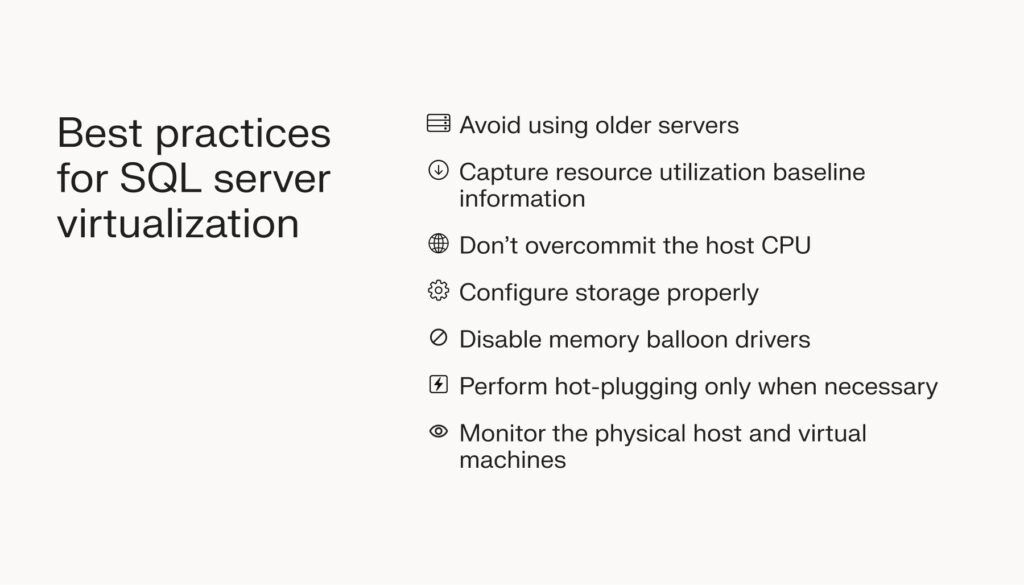
Adhering to these SQL Server virtualization best practices can help you optimize performance and cut down on cost:
Avoid using older servers
Due to their outdated components, older servers typically lack the processing power of multi-core processors like Intel Xeon Gold 6226R. Furthermore, they might not support second-level address translation (SLAT), wherein the CPU maintains the virtualization host’s physical memory and the virtual memory used by the virtual machines.
If the CPU doesn’t perform this memory mapping, the hypervisor will be forced to do so, decreasing the VM’s performance. To achieve better performance, ensure the hardware supports SLAT when creating SQL Server VMs.
Capture resource utilization baseline information
Capturing resource utilization baseline information of existing SQL Server deployments can help you determine which SQL Server instances you should virtualize. You can collect this data using VMware Capacity Planner or a third-party tool.
Here’s an extra tip to keep in mind: Collect this data over a period long enough to understand how SQL Server is used within your organization.
Don’t overcommit the host CPU
VMware recommends that the total number of virtual CPUs (vCPUs) assigned to all the virtual machines shouldn’t exceed the total number of physical cores available on the host.
Say the server includes eight physical CPU cores. In this case, the vCPUs you create for the VMs should be no more than eight on the vSphere host. In other words, reserve one physical core for every vCPU.
You should also avoid memory overcommitment at the ESXi host level. This means that the memory you allocate to the VMs shouldn’t exceed the amount available on the physical server.
Configure storage properly
SQL Server is usually I/O heavy, meaning that improper storage configuration can degrade its performance.
This is especially important if you want to consolidate multiple virtual machines with SQL on a single ESXi host.
Proper storage configuration is also essential for non-virtualized SQL Server deployments (i.e., physical databases) since it ensures smooth operations and allows you to recover lost data.
Disable memory balloon drivers
Ballon drivers allow the host OS to reclaim memory from the guest OS without any disruptions.
However, when designing SQL Server for performance, the goal is to prevent paging, which means you’ll need to disable the hypervisor’s ability to reclaim memory from the guest OS.
You can do so by setting the memory reservation of the virtual machine to the size of the provisioned memory.
Perform hot-plugging only when necessary
There are some exceptions like when you’re unable to predict memory consumption patterns easily. In this case, hot-plugging makes perfect sense.
Monitor the physical host and virtual machines
Even after you’ve virtualized SQL Server, you still need to handle continuous tasks. You’ll need to monitor the VMs and the physical host to detect vulnerabilities and take corrective measures before they escalate.
Also, when you actively monitor your SQL server environment, you’ll receive real-time alerts whenever an error occurs or if a malicious actor tries to break in. This helps you resolve problems quickly.
If you’re ready to get the most out of SQL Server virtualization, you’ll find various performance monitoring tools available for use. Microsoft’s System Center Operations Manager (SCOM) is one such tool. SolarWinds SQL Sentry is another. SolarWinds SQL Sentry can work on both Hyper-V and VMware.
Factors to consider when selecting a VM provider

Choosing a VM provider requires you to consider certain key factors:
- Scalability: The host of your choice should allow you to scale computing resources according to your needs. With Liquid Web’s private cloud, you can scale resources like vCPUs and RAM in response to increased demand and increase the number of virtual machines without incurring additional expenses.
- Security: Security remains a top concern for many businesses. A good VM host provides robust security measures and stays up to date on the latest cyberthreats. The constantly changing nature of threats is one of the top three challenges businesses face. Ensure the host offers monitoring capabilities, as this will help you spot potential security issues before they become major problems.
- Simplified management: With Liquid Web, you’ll get access to VMware vCenter, which allows you to manage your ESXi hosts and all their virtual machines easily. In short, you’ll gain complete visibility into your SQL Server environment.
- Transparent pricing: The best hosting providers offer clear pricing without hidden costs. This supports more accurate budgeting and lets you avoid unexpected costs. Liquid Web uses a simple resource-based pricing model with no per-VM fees.
- Hardware specs: As mentioned earlier, SQL Server virtualization requires the latest hardware to run smoothly. So, when selecting a host, inquire about the specifications of the server hardware. They should also allow you to choose your preferred operating system (e.g., Linux and Windows).
Final thoughts: SQL server virtualization — a beginner’s guide
If you want to reap all the benefits of SQL Server virtualization, you’ll need to capture resource utilization baseline information, use SLAT-supported hardware, and properly configure your server.
But, at the very foundation, you’ll need a cloud provider with a secure hosting infrastructure and a high-availability support team.
Here’s where Liquid Web comes in. Our plans include high-performance NetApp SAN storage and reliable infrastructure, which guarantee 100% uptime for business-critical workflows.
Plus, we’ll manage the entire virtual data center so you can focus on optimizing your applications for better performance.
Check out Liquid Web private cloud powered by VMware to get started.
