Adding Files and Folders in cPanel
cPanel offers a secure File Manager tool. Learn how to add files and folders in this tutorial for enhanced security.
cPanel provides you with the File Manager tool that is more secure than using SFTP or FTP. Our article Using the File Manager in cPanel outlines the different things you can do within it to manage your sites. This tutorial will walk you through how to add files and folders in File Manager. To learn how to upload files, see our article Uploading public_html Files in cPanel.
Add a File
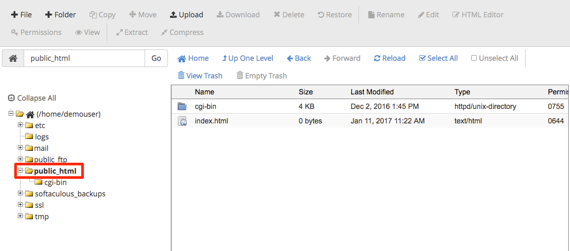
- Make sure you are in the public_html directory. This allows the files and folders you create to be viewable on your website.

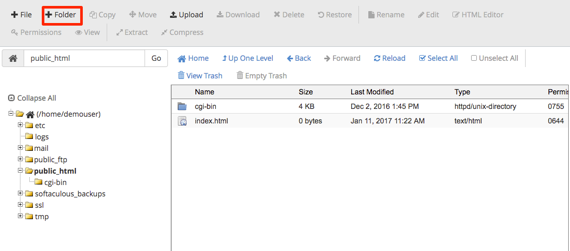
- Click the + sign next to File in the tool bar at the top of the File Manager home page.

- A pop-up will appear asking you to name the file.
Note:
You need to name the file correctly for it to work, examples are: index.html, file.txt, file.php . If they are not saved this way, you will be unable to view them on your site or edit them in the code editor. 
- Click Create New File.
- The file will now show in the file list and you can edit the html or code. If you have an html file already created and want to upload it, see our article Uploading public_html Files in cPanel.




Add a Folder
- Click the + sign next to Folder in the tool bar at the top of the File Manager home page.
- A pop-up will appear asking you to name the folder. A folder is different than a file, it does not need a .html, .php or other indicator.
- Click Create New Folder to create the folder in your public_html list.
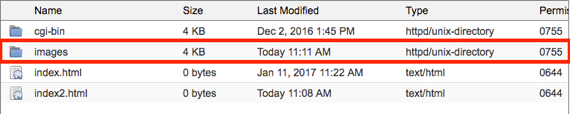
- The folder will now show and you can upload images, documents or other files into it.