Create a Support Case
Liquid Web knows that our customers take their web hosting seriously and expect quick, knowledgeable service from a team member that is familiar with their hosting needs. No matter if you have a Cloud VPS, dedicated server, Cloud Site, or other server offering, we’re here for you. It is our personal mission to be available 24 hours a day, 7 days a week, 365 days a year to save the day.
This tutorial will walk you through the steps of creating a support case (formerly “ticket”) and following up on it. You can create a case from the portal found at my.liquidweb.com
And you can follow up on your cases and respond:
Create a Case from my.liquidweb.com
In our new customer account portal, we’ve made every effort to make opening a case as simple as possible.
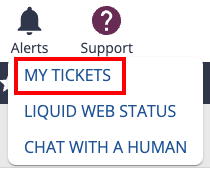
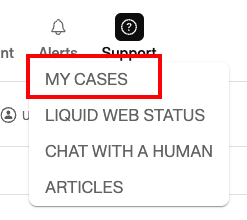
- Once you’ve logged in to my.liquidweb.com, just go to the Support icon in the upper right corner of the screen and choose My Cases from the drop-down menu.

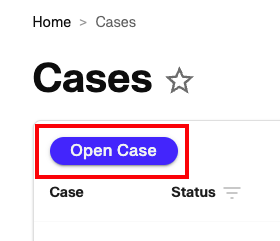
- This will open the Cases page where you can view your current case. To open a new case, click the Open Case button.

- Enter the Subject of your case (typically a brief statement of the issue).
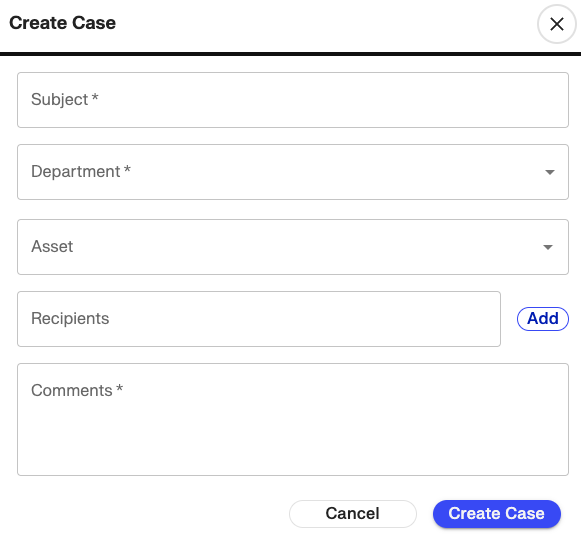
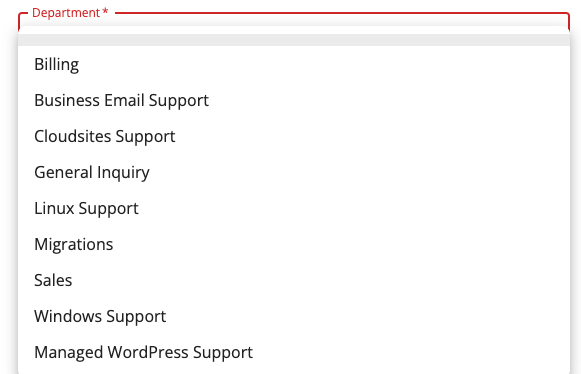
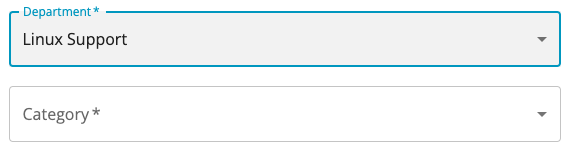
- Use the drop-down menu under Department to select the best team to work on your issue.

- If you select General Inquiry, Linux Support, or Windows Support you will also be asked to select a Category.
- If you wish to specify which server you need help with, you can choose an Asset from the drop-down menu.

- Add any additional recipients you would like to include on the case (such as developers, coworkers, etc.)

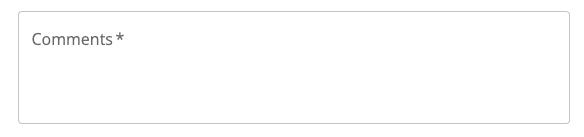
- Enter a complete description of your issue in the Comments section.

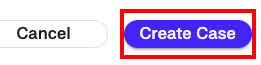
- Click Create Case to open the case with our Support Team. Or click Cancel to close the windows without creating a case.
Communicating with Support
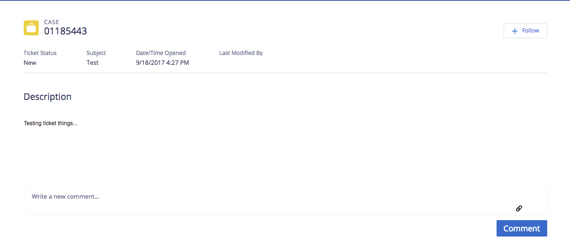
- Once you submit your support case, the Case detail page will show your case, the status, subject and description you submitted.

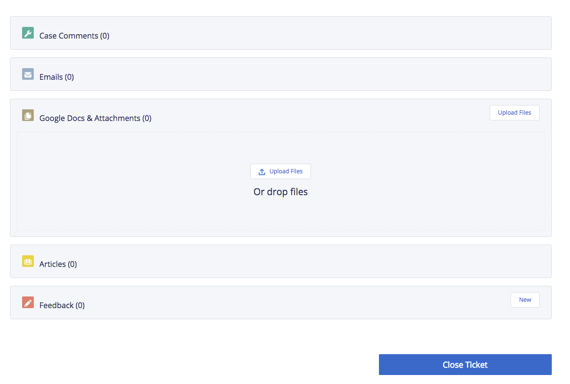
- Any additional comments, emails, attachments, articles and feedback can be found on this page.

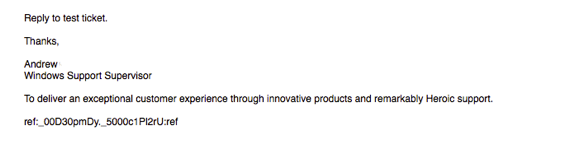
- You will receive an email from the Support Technician to notify you that your case has been received and is being worked on.

Tracking Your Support Case in my.liquidweb.com
You can track the status of your support case from the Cases page in your Liquid Web account. Click on My Cases under the Support tab at the top right of the screen.