

Editing Code and HTML in cPanel
Edit HTML and code within cPanel's File Manager. Easily create or modify files and directories for your website, using your preferred text editor.
While you can use any text editor you like (Sublime, Notepad++, and Vim are a few examples), you have the ability to edit html and code within cPanel using the File Manager. You can use the File Manager to create or edit files and directories within your website.
- First, upload or create the file you want to edit using the File Manager utility.
Warning:
If the document you are creating or editing is to be seen from your website, make sure that your file is uploaded into the public_html directory. 
- Next, highlight the file and click on either Edit for files (php, script files, etc) or HTML Editor (for html files) at the top of the page.

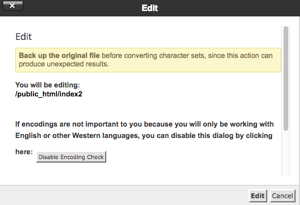
- A pop-up will appear reminding you to backup the file first. If it is a file that already contains code, this is a best practice to make sure you have a file to revert to in case your new code does not work as intended. You can see how to take a manual backup in our article Taking a Manual Backup in cPanel.

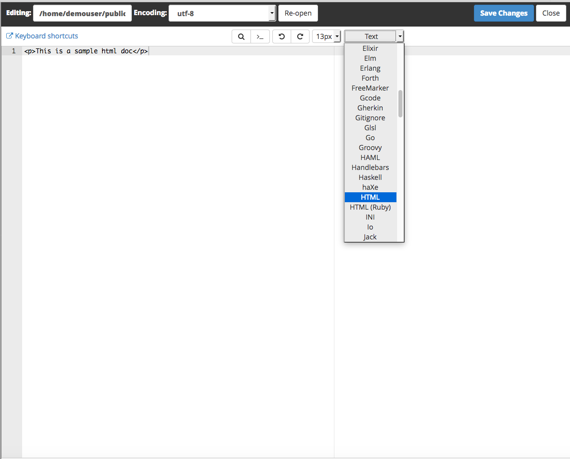
- Once you click Edit in the pop-up, you will be directed to an editing screen where you can begin code input or changes.
Note:
If you create a file without a .html or .php in the file name, you can select the language you will be editing in with the drop down menu at the upper center of the editing screen. 
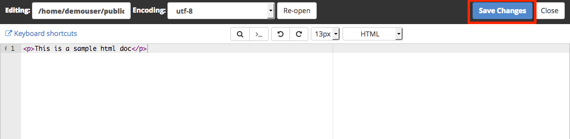
- Once you have completed your document, click Save Changes. A success message will show at the bottom of the page.

- To close the editor, click Close in the upper right hand corner of the editor. You will be redirected to the File Manager home page.


Note: |
| Liquid Web Support does not include content management, coding or designing for your websites. We may also direct you to a better resource for your issue, such as Plugin Developer, Designer, Software Author etc. You can read more about our covered services in our articles Linux Scope of Support and Management and Support Levels |
