i-board
 i-board is a multiple instagram account management app, it helps you to login to multiple instagram accounts from your iOS or Android device and do various instagram activities like follow, unfollow,comment,like, scheduling posts etc. Its a a very powerful instagram marketing automation app.
Features:
Multi accounts manager: You can manage your multiple instagram accounts and easily switch between accounts without logging in again and again
Feeds view: You can check your all updates in this section, long press to save images in external source.
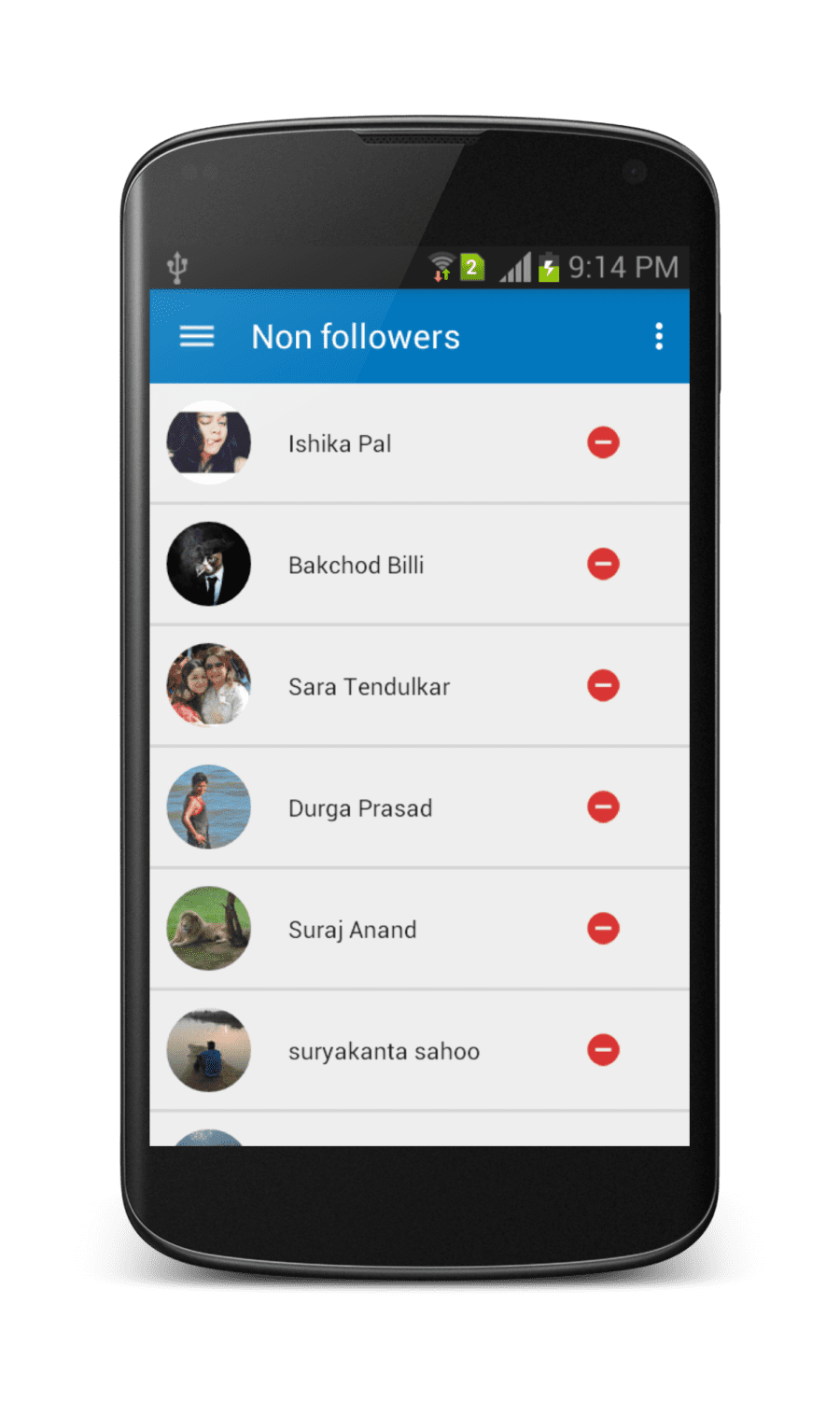
Follows: You can see list of user whom you are following.NonFollowers: You can check who are all not following you on instagram
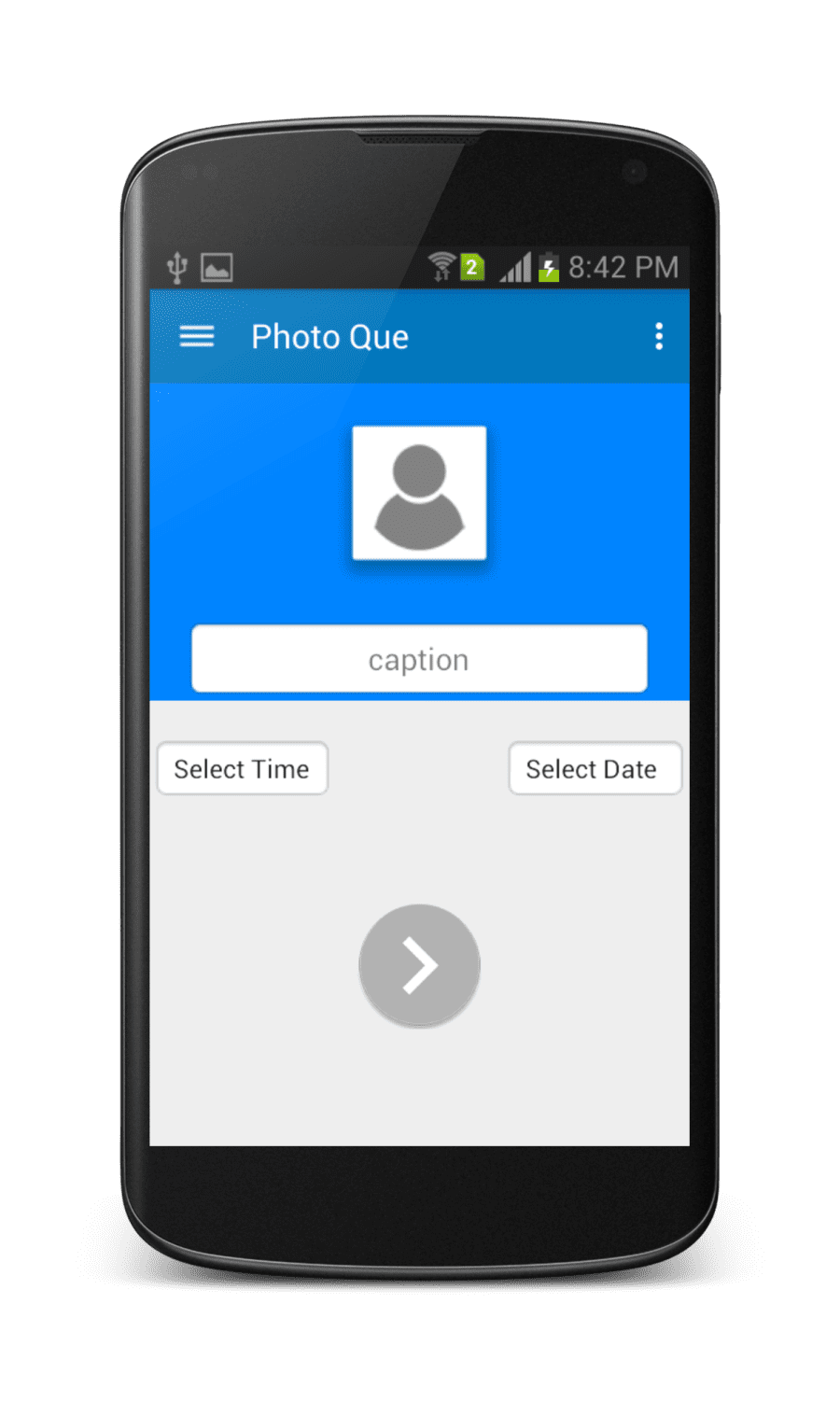
Photo Que: upload photo, set time and date, sit back and relax , iboard will remind you to upload it on instagram on one tap.
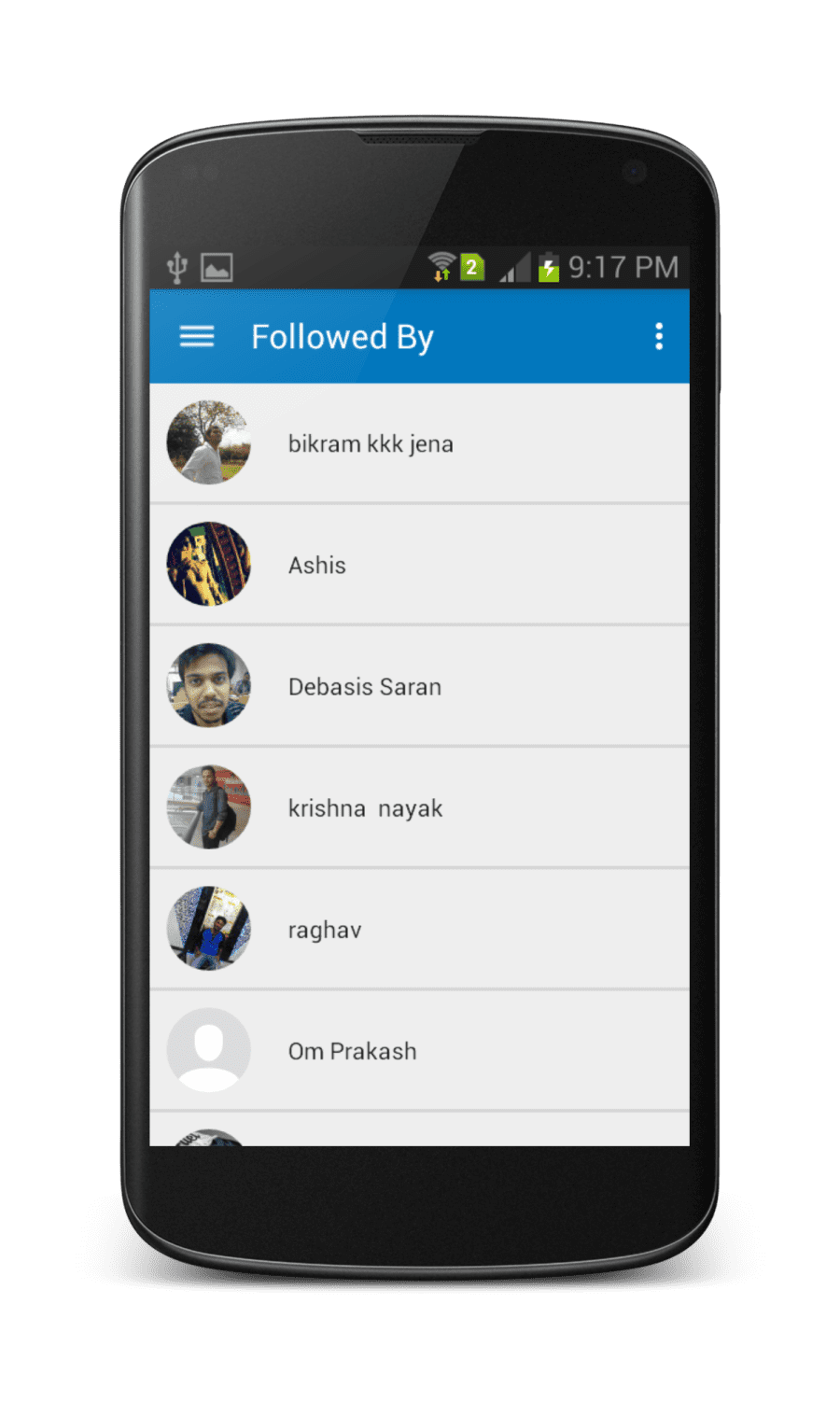
Followed By: Tired of tracking followers from different accounts, one tap to switch between account and check the list of recent followers in all your instagram accounts.
Fans: Check the list of users who follows you but you are not following them. Yes it is not same algorithm which instagarm shows followed-by list.

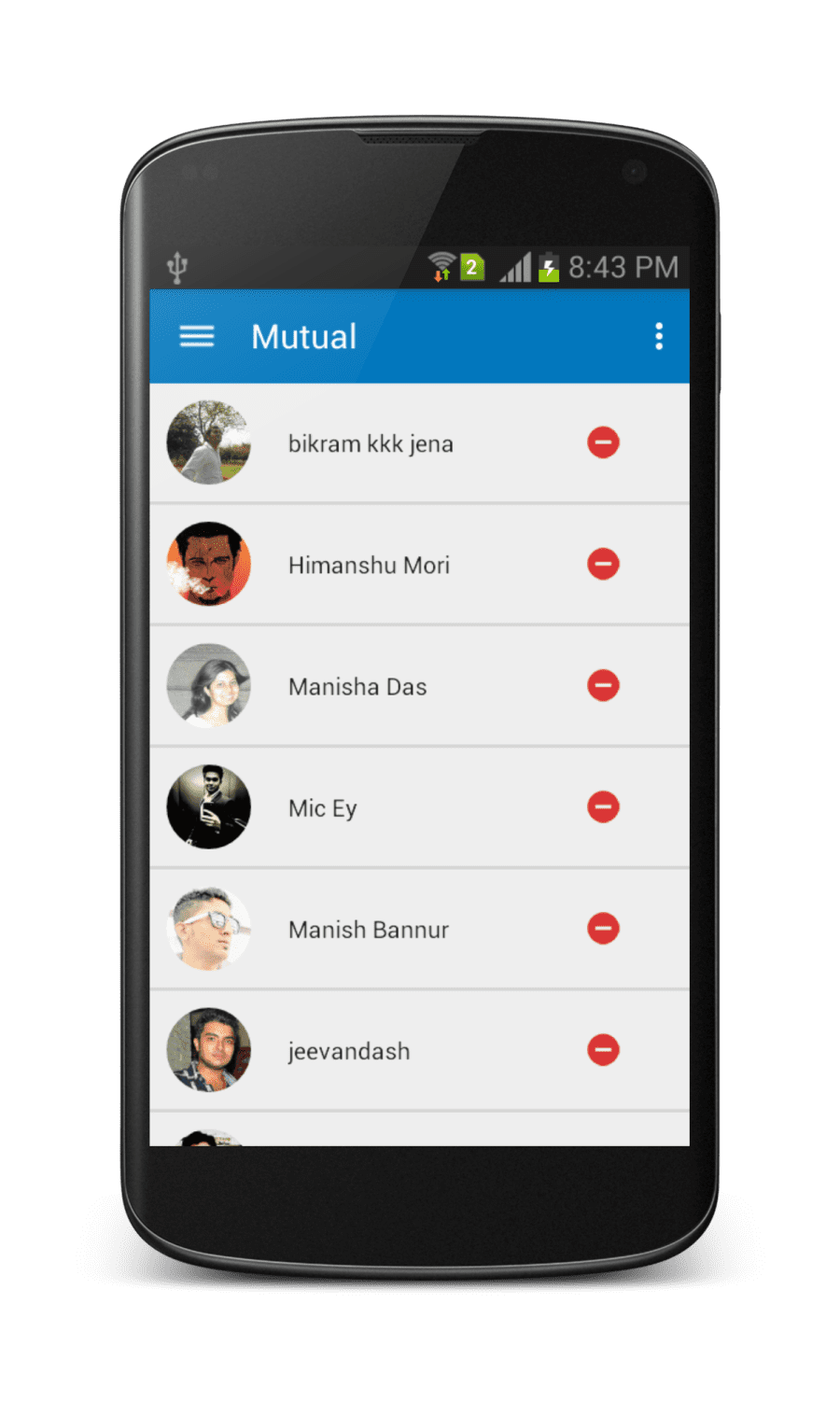
Mutual: Find out who all follows you as well as you are following them.
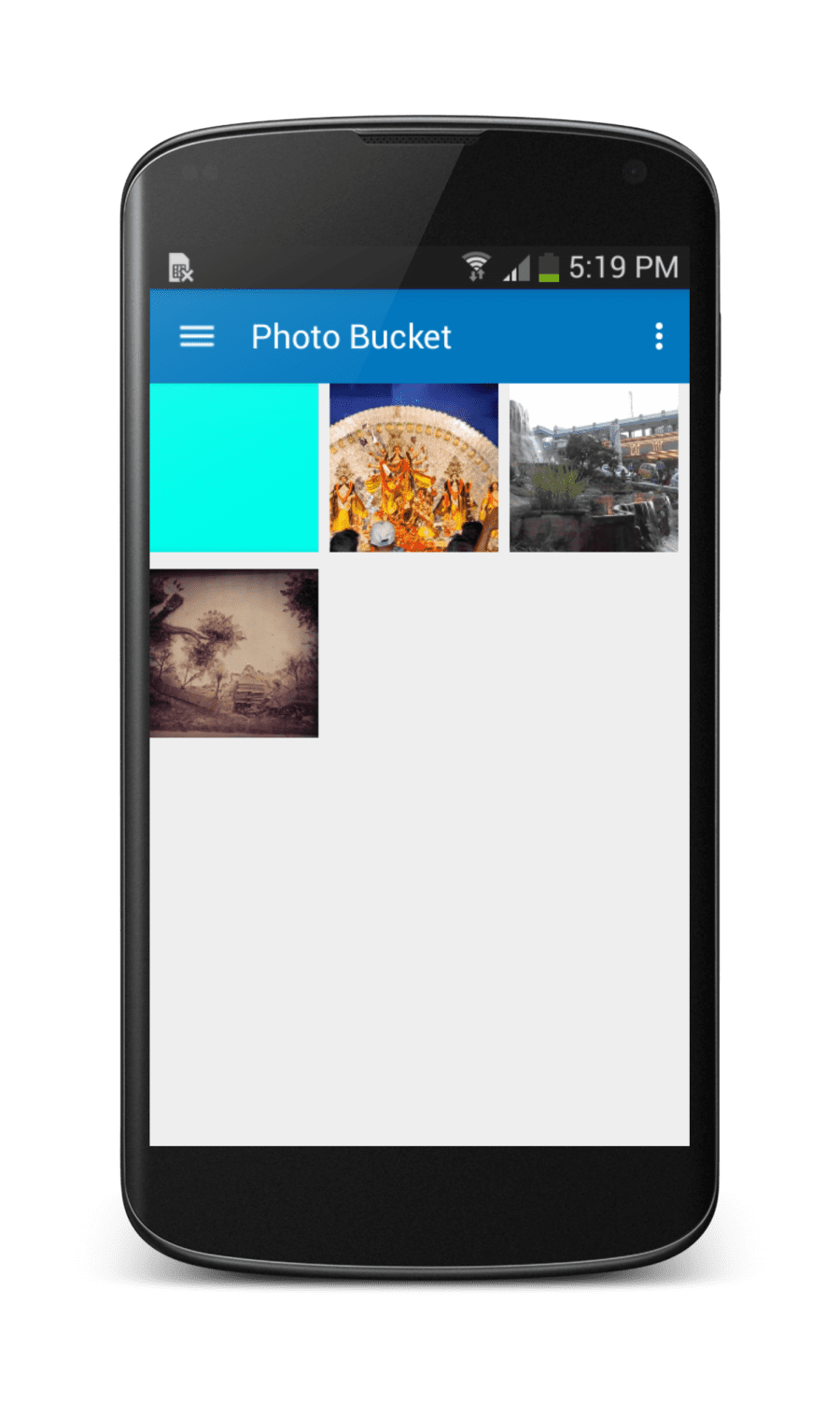
PhotoBucket: See your own media files
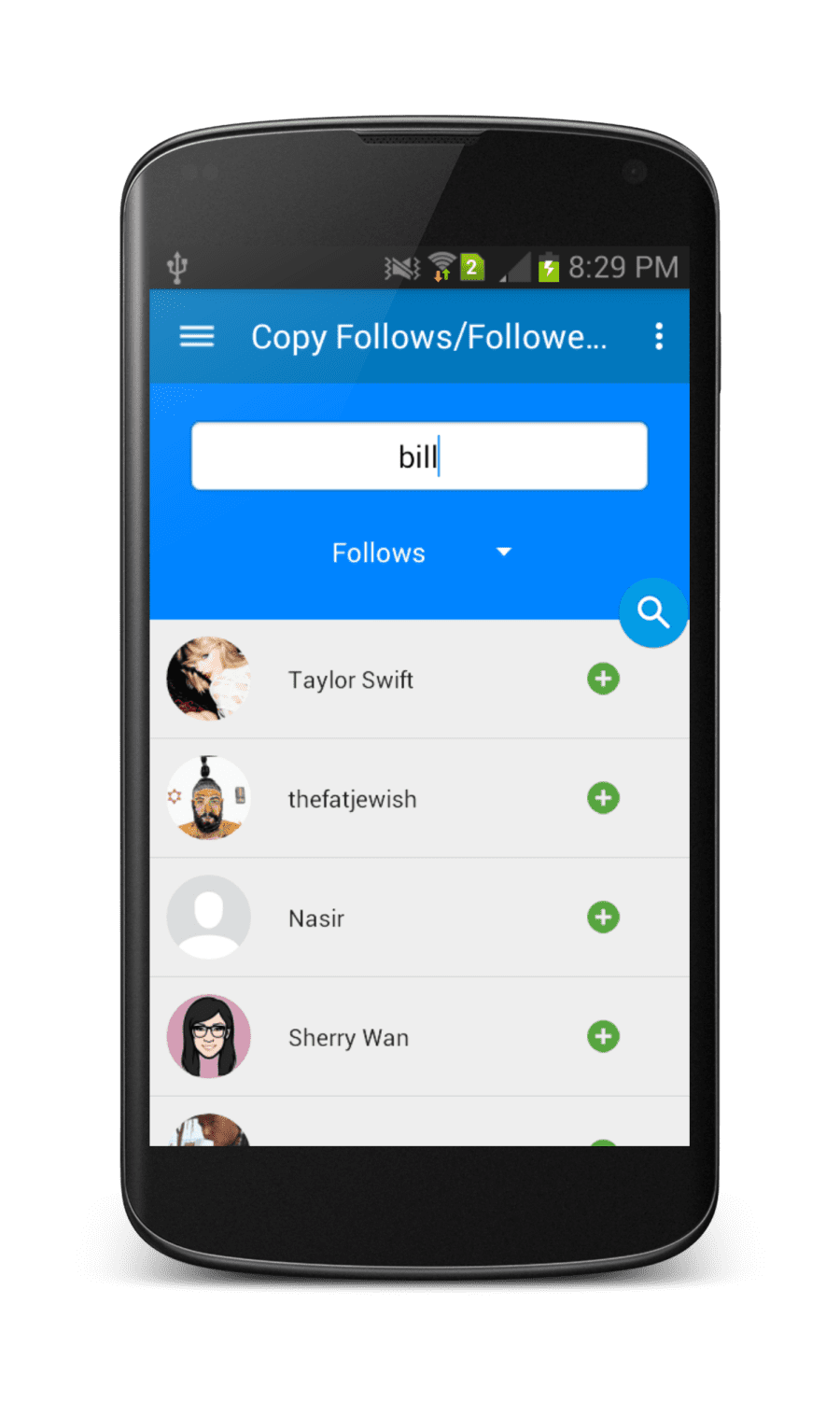
CopyFollowers/Follwed-by: Search any user by typing username and get all his/her followers and follwed-by list, then copy to your list by just typing on follow button.

Installation guide for android:
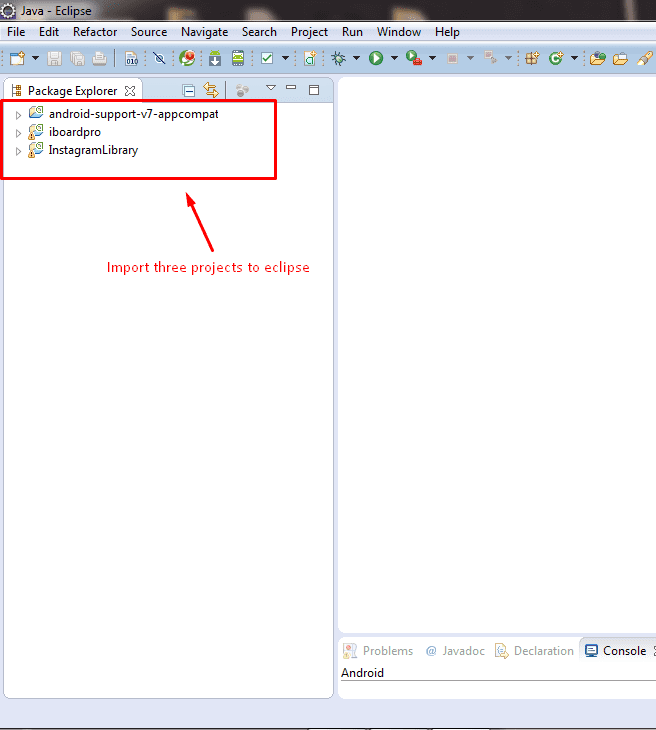
The easiest way to build is to install Android IDE, Once installed, then you can import the project into Android Studio:
- Open File
- Import Project
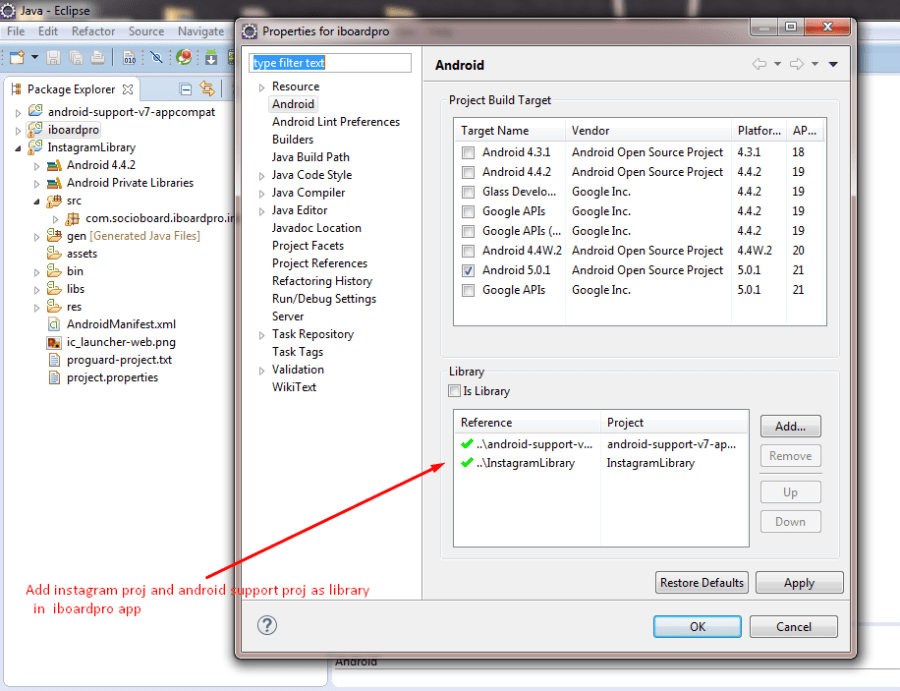
- Select iboardpro, instagram library and android support library.
- Click OK.
After building the project while running on your device ,you might find that your device doesn't let you install your build if you already have the version from Google Play installed. This is standard Android security as it it won't let you directly replace an app that's been signed with a different key. Manually uninstall iboardpro from your device and you will then be able to install your own built version.
Installation guide for iOS:
- Extract the downloaded i-boardpro.zip file.
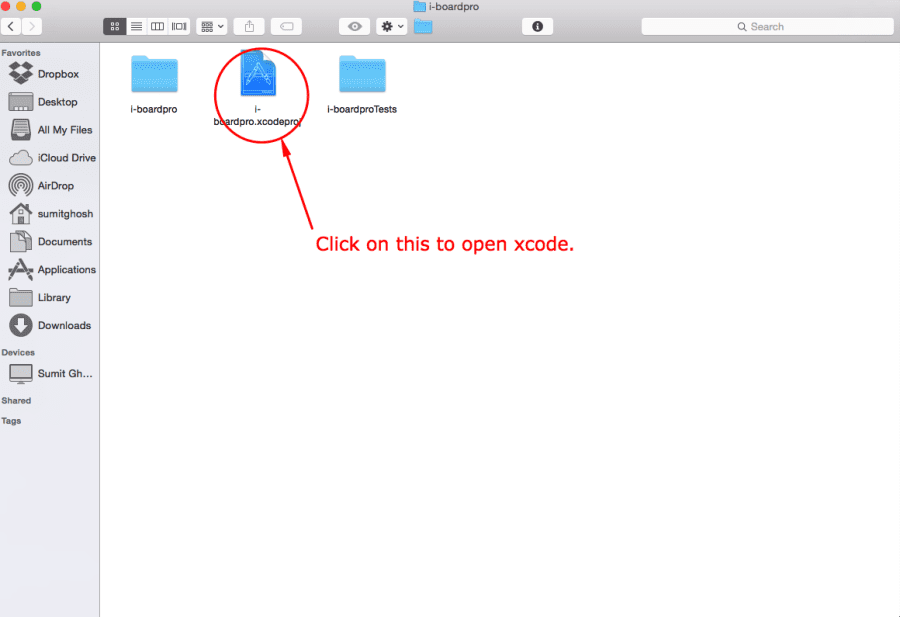
- Open the i-boardpro folder,you will find i-boardpro.xcodeProject file and double click on that folder to open Xcode.
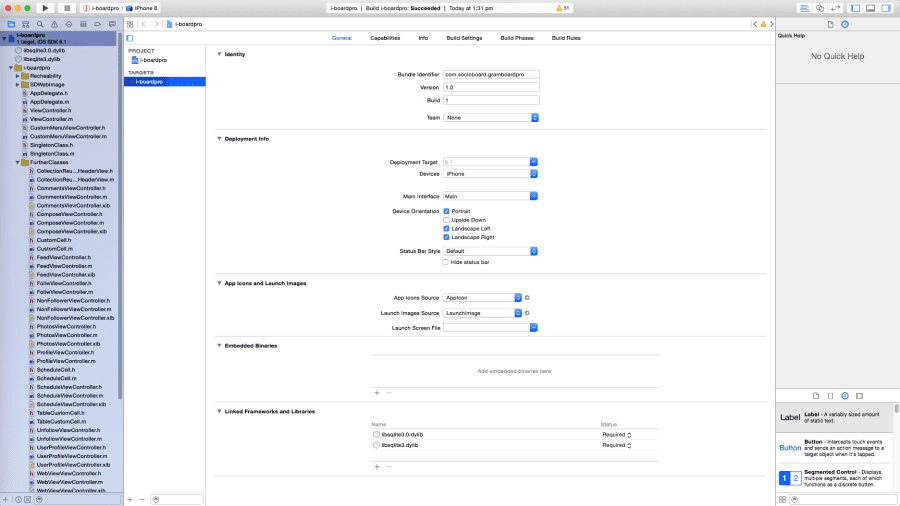
- Click on project file from Project navigator and click on the i-boardpro under the Targets.
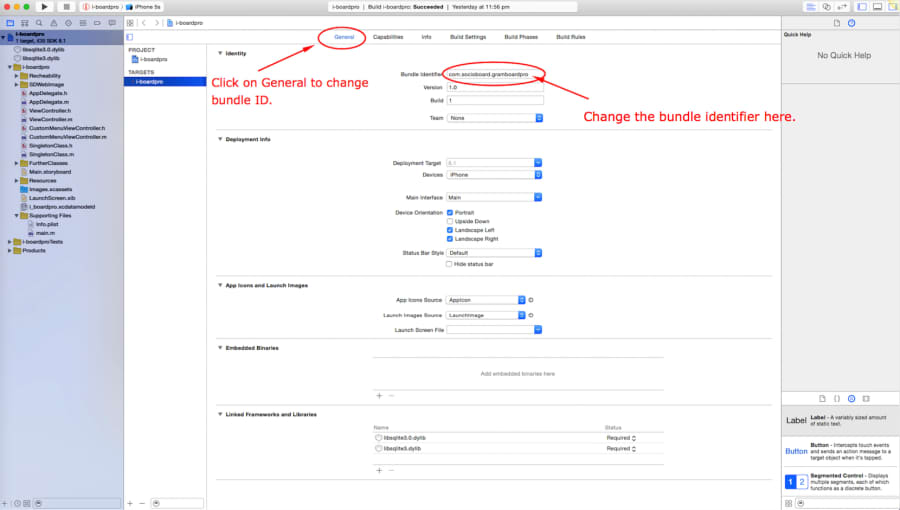
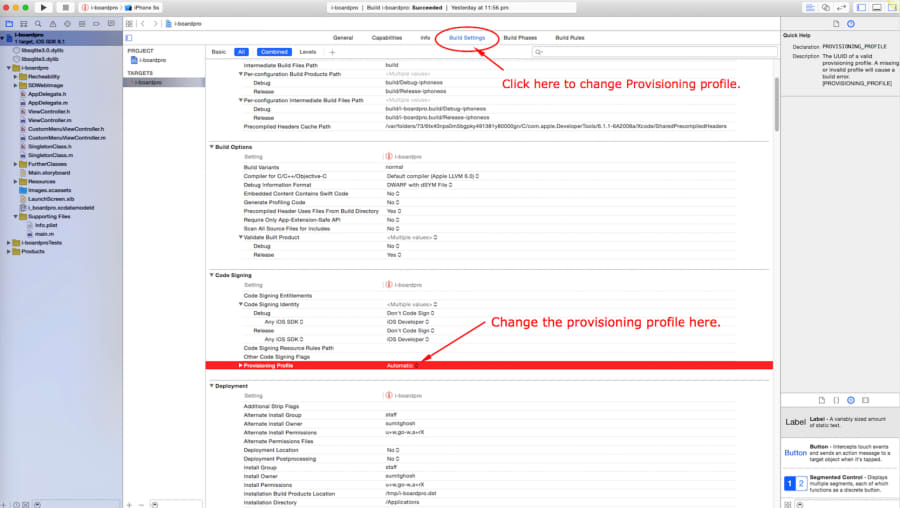
- Click on General , set the proper Bundle Identifier and go to Build settings menu, change Provisioning profile under Code Signing.
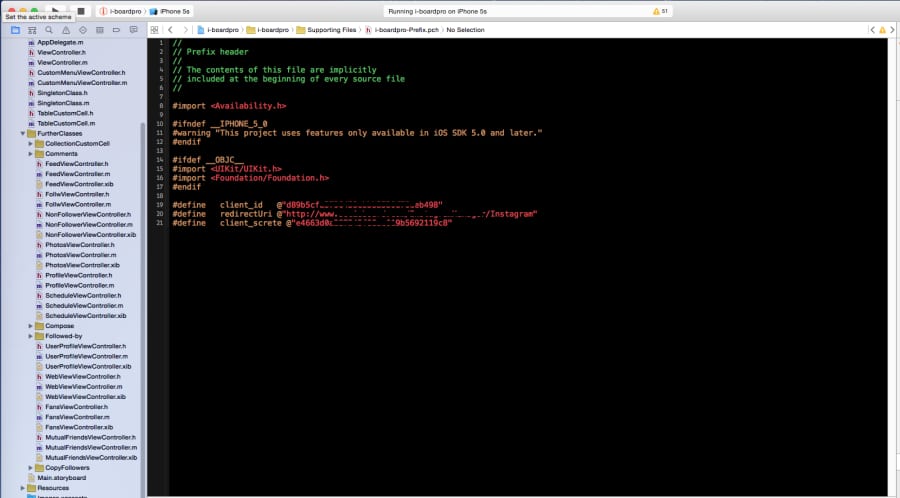
- Go to webViewViewController and set the client_id,redirectUrl and client_secrete.
- Build and run the application.
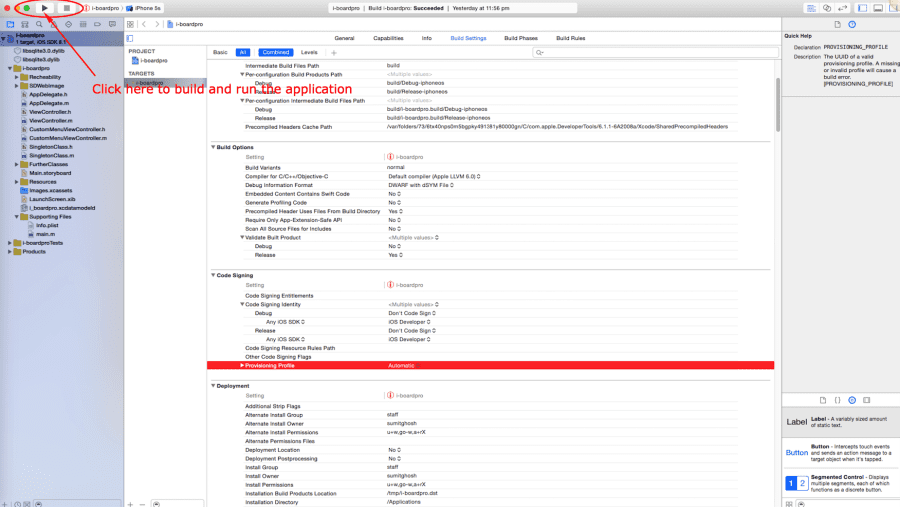
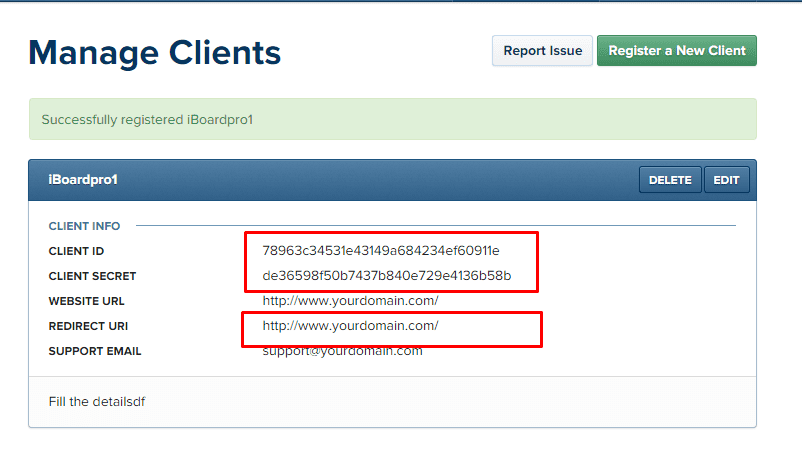
Guide to create app in Instagram developer console:
- Go to https://instagram.com/developer/
- Click on Manage clients
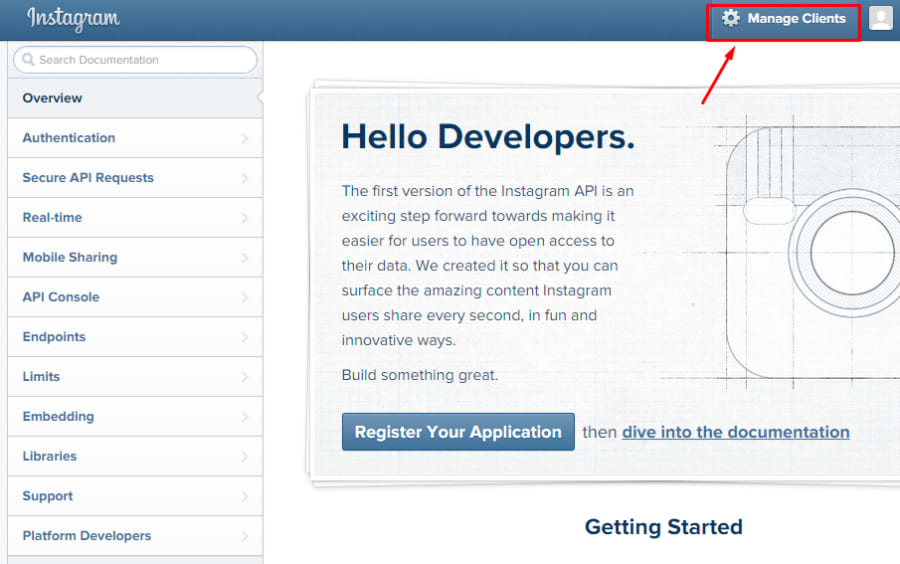
- Click on "Register new Client"
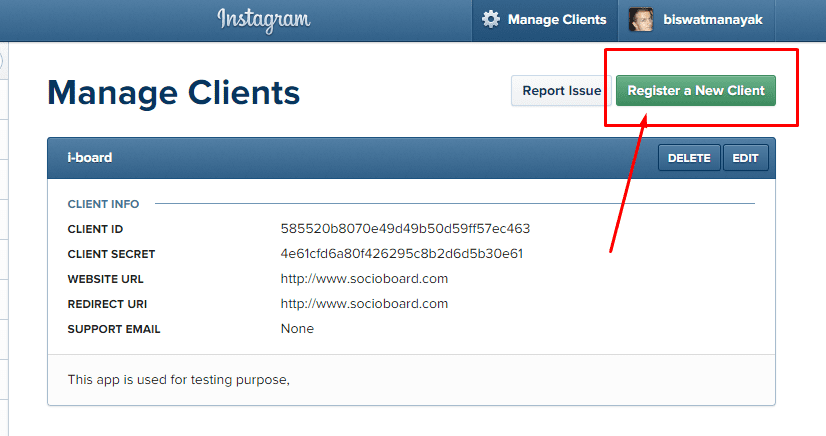
- Fill the dtails of your application in given form and click on register.
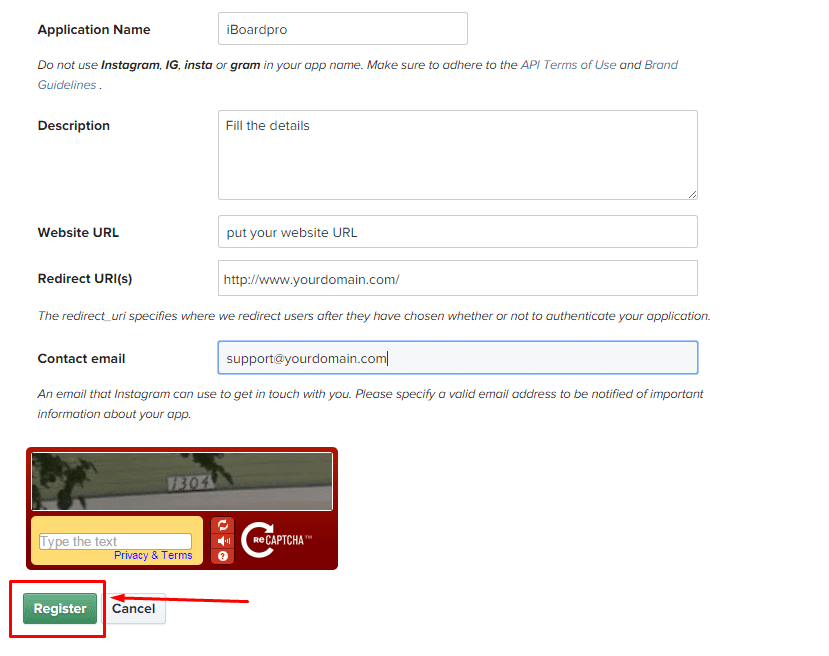
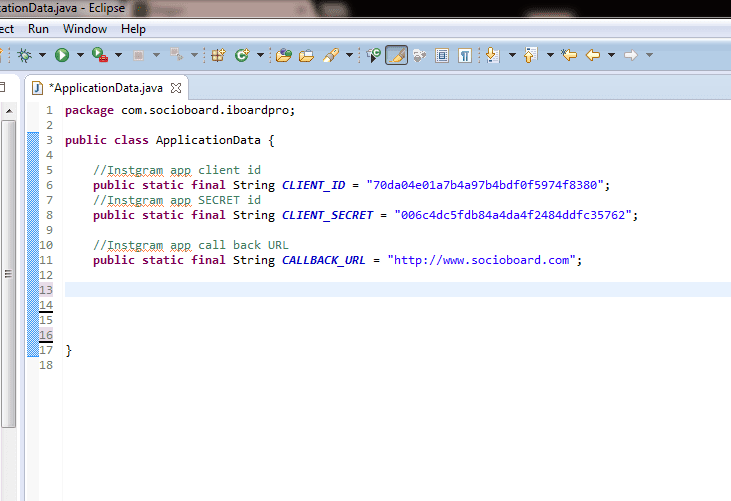
- Copy client id,client-secret and redirect url and paste it in ApplicationData.java file inside android application.
For android
 For ios


Log in or sign up for Devpost to join the conversation.