

Using the MAD (Malicious Activity Detection) Interface
About Using the MAD (Malicious Activity Detection) Interface
On Windows Servers, Liquid Web offers free software to assist with brute force attack prevention. We call this software MAD (Malicious Activity Detection). MAD works in the background on your server, monitoring attempts to login to various services and blacklisting IPs that fail too many login attempts over a specified period of time. While MAD has been available for some time, Liquid Web has recently released a graphical user interface that can be used by our customers to easily manage this useful software.
| NOTE: |
|---|
| If you don’t currently have MAD installed on your server, you can contact our Windows Support team to have the software installed. |
To use the MAD Graphical User Interface to manage the MAD service on your server:
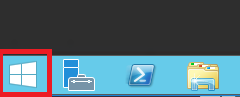
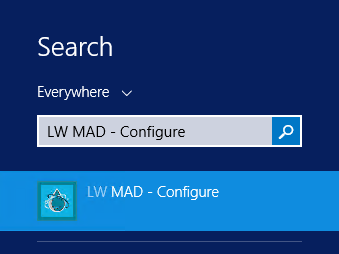
- Open LW MAD – Configure by clicking on the Start Menu and typing “LW MAD”
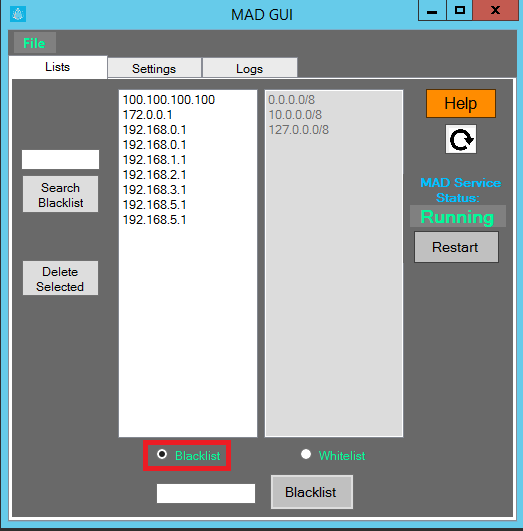
- Click on LW MAD – Configure. This will bring up the lists view in the MAD interface.

Adding/Removing an IP from the Blacklist
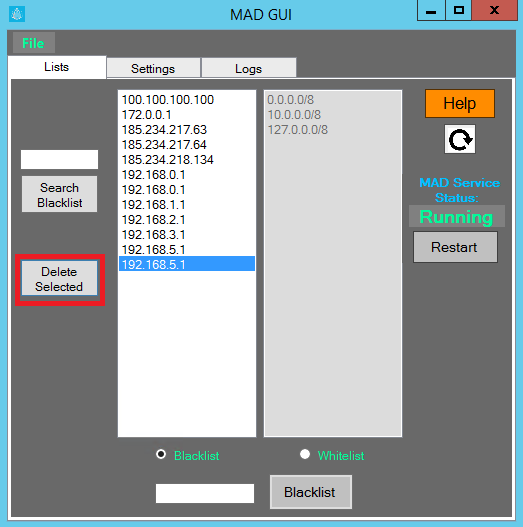
- Click the radio button next to Blacklist.
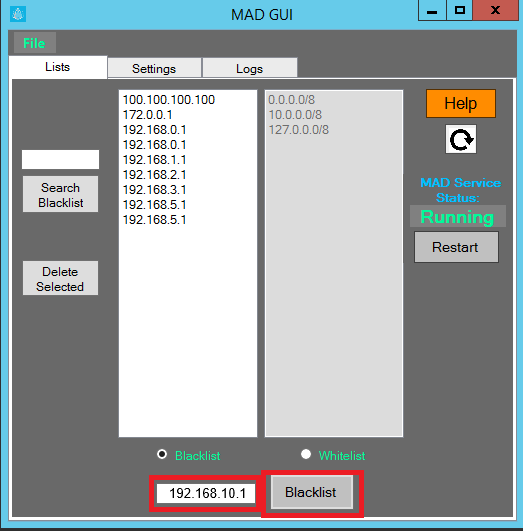
- To block an IP address, enter it into the field next to the Blacklist button and click the button. This will add the IP address to the blacklist and restart MAD (to apply the change).
- To Remove an IP from the blacklist, click the IP in the list and click Delete Selected (you can also use ctrl, alt, or shift to select multiple IPs). Then click Yes to confirm.
Adding/Removing an IP from the Whitelist
You can prevent an IP from being blocked by MAD (your home IP address or the office IP address of your developer, for instance) by using the Whitelist.
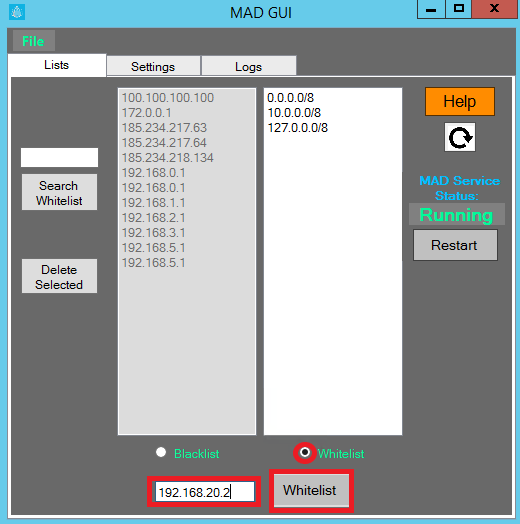
- To Add an IP to the Whitelist, click the radio button next to Whitelist and enter the IP in the box next the Whitelist button, then click the Whitelist button. This will add the IP to the Whitelist (and restart MAD to apply the change).
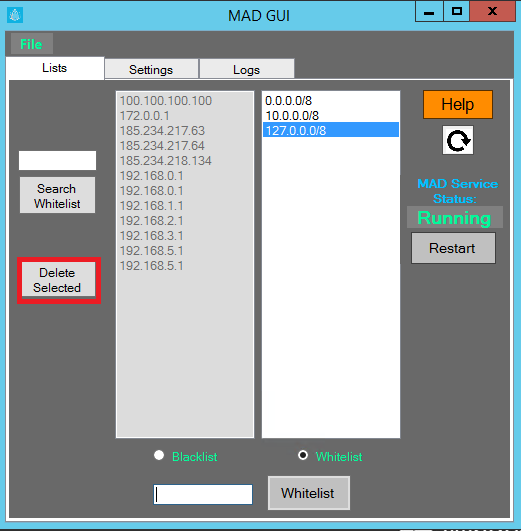
- To Remove an IP from the Whitelist (so that MAD can block it again), select the IP from the list and click Delete Selected (you can also use ctrl, alt, or shift to select multiple IPs).Then click Yes to confirm.
Additional Options
You can manually restart the MAD service at any time by clicking the Restart button. Settings can be adjusted in the Settings tab. Here you can adjust which services are protected, how many failed attempts are required to create a temporary block (Block Threshold), and how long temporary blocks are retained (Retention, listed in seconds). You can also restore default settings if you want to revert all changes.
Finally, there is a Logs tab where you can view all recent activity within MAD (IPs that have been blocked or blocks that have been removed).
