Magento logs — how to enable system error logging in Magento 1

Optimize your website by enabling system error logging in Magento 1. Follow our guide to generate Magento logs and investigate errors efficiently.
Get fast, reliable hosting for WordPress
Power your site with the industry’s fastest, most optimized WordPress hosting
It is possible to configure Magento to generate system logs and exception logs upon any error. This is most useful as a way to investigate issues during development, but less practical for live stores for anything other than short-term use.
ATTENTION: Enable the logging feature only for as long as necessary. If left enabled for a prolonged period, these logs will occupy significant disk space and slow down your site.
 Read Magento 1 vs Magento 2: Should You Stay or Should You Go?
This method stores system and exception logs in Magento’s var/log/ directory.
- Log in to your Magento Admin Panel. From the dashboard, select System > Configuration.
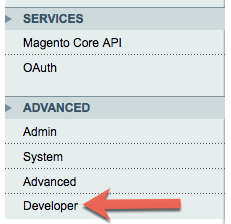
- Scroll to the ADVANCED section, then click Developer.

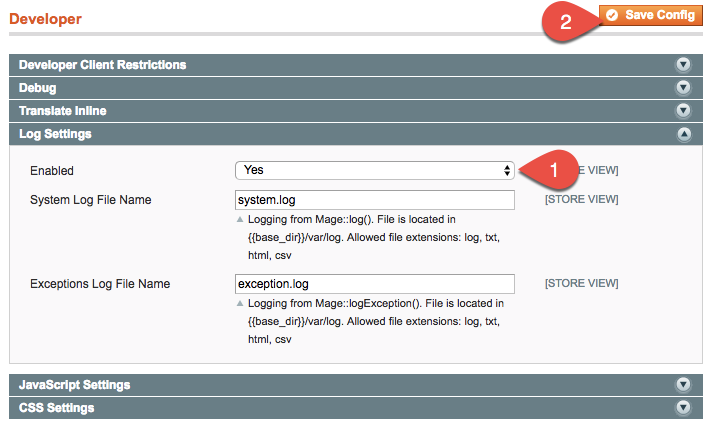
- Expand the Log Settings section. In the Enabled drop-down list, select Yes. If desired, change the default settings for System Log File Name and Exceptions Log File Name. Click Save Config when ready.

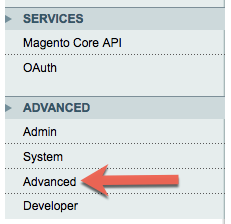
- Return to the ADVANCED section, then click System.
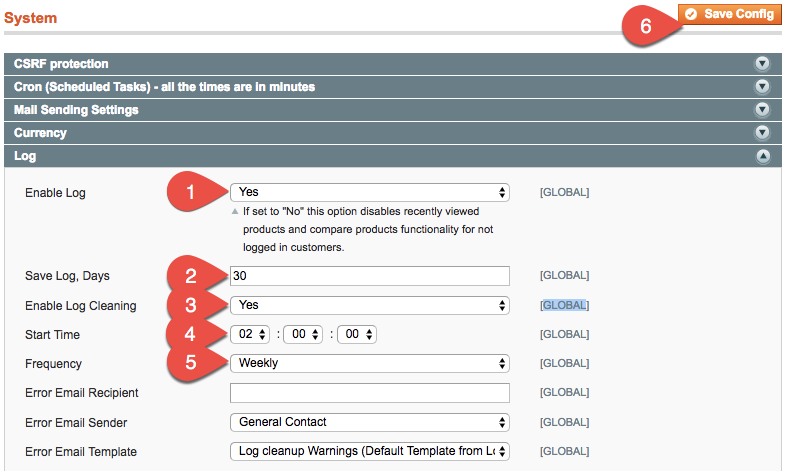
- Expand the Log section, then:
- From the Enable Log drop-down list, select Yes.
- In the Save Log, Days field, enter 30.
- From the Enable Log Cleaning drop-down list, select Yes.
- In the Start Time drop-down lists, set a start time well within your slowest business hours.
- In the Frequency drop-down list, select Weekly.
- Click Save Config when ready.

- From the Enable Log drop-down list, select Yes.
For 24-hour assistance any day of the year, contact our support team by email or through your Client Portal.
Additional resources
What is managed WordPress hosting? →
Get details and decide if managed WordPress hosting is right for you.
Must-have web development plugins to create WordPress websites at scale →
Explore the best web development plugins to enhance functionality, improve performance, and streamline your WordPress site.
A complete guide to WordPress shortcodes →
Shortcodes make life easier. Learn how to get started!

