◦ Comprehensive security
◦ 24/7 support
WordPress Guide → Build → Button Shortcode
WordPress button shortcode: How to add a button to your site

Buttons are essential for guiding visitors to take action—click a link, submit a form, download a file. But WordPress doesn’t include a built-in button shortcode, which can make adding buttons outside the Block Editor more challenging.
Let’s walk through how button shortcodes work in WordPress, how to create them manually or with plugins, and how to customize them with different styles, links, and behaviors.
Get fast, reliable hosting for WordPress
Power your site with the industry’s fastest, most optimized WordPress hosting
What is a button shortcode in WordPress?
Shortcodes in WordPress are small code snippets wrapped in square brackets, like
WordPress itself doesn’t include a default [button] shortcode, but many themes or plugins add their own. A button shortcode is essentially a way to insert a styled clickable button anywhere shortcodes are supported—even inside Classic Editor posts, sidebar widgets, or template files.
You might want to use a button shortcode if:
- You’re still using the Classic Editor.
- You want to add buttons in widget areas.
- You need reusable buttons with consistent styling.
- You’re using a theme or builder that supports shortcodes over blocks.
How to create a button shortcode manually
If you want full control or don’t want to install a plugin, you can add your own shortcode to create customizable buttons.
Step 1: Add the shortcode to your theme or custom plugin
Open your theme’s functions.php file (or a custom plugin) and add the following code:
function custom_button_shortcode($atts) {
$atts = shortcode_atts([
‘text’ => ‘Click Me’,
‘url’ => ‘#’,
‘target’ => ‘_self’,
‘class’ => ‘custom-button’
], $atts, ‘mybutton’);
return ‘<a href=”‘ . esc_url($atts[‘url’]) . ‘” target=”‘ . esc_attr($atts[‘target’]) . ‘” class=”‘ . esc_attr($atts[‘class’]) . ‘”>’ . esc_html($atts[‘text’]) . ‘</a>’;
}
add_shortcode(‘mybutton’, ‘custom_button_shortcode’);
This code creates a [mybutton] shortcode that accepts the following attributes:
- text: the button label
- url: the destination link
- target: _self or _blank
- class: a CSS class for styling
Step 2: Use the shortcode in a post or widget
After adding the code, you can use the shortcode like this:
[mybutton text=”Buy Now” url=”https://example.com” target=”_blank” class=”blue-button”]
You can paste this into a Classic Editor post, a shortcode block, or a widget.
Customize your shortcode button with CSS
To style your button, add custom CSS targeting the class you set in the shortcode.
For example, in the WordPress Customizer under Appearance > Customize > Additional CSS, you might add:
.blue-button {
background-color: #0073aa;
color: #fff;
padding: 10px 20px;
text-decoration: none;
border-radius: 4px;
display: inline-block;
transition: background-color 0.3s ease;
}
.blue-button:hover {
background-color: #005f8d;
}
You can create multiple styles by using different class names like .green-button, .cta-button, etc.
Use a plugin to add button shortcodes (no code required)
Prefer to skip the code? Several plugins let you insert buttons with shortcodes using a visual interface.
Shortcodes Ultimate

Shortcodes Ultimate adds a library of shortcodes, including a flexible button shortcode.
To use it:
- Install and activate the plugin from Plugins > Add New.
- In the post editor, click the “Insert Shortcode” button.
- Choose “Button” and customize the label, link, size, colors, and alignment.
- The plugin inserts the shortcode for you (e.g., [su_button]).
You can also reuse these shortcodes in sidebars, reusable blocks, and template parts.
MaxButtons
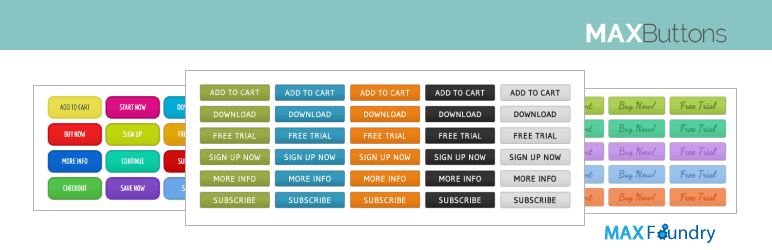
MaxButtons gives you a visual drag-and-drop button builder.
To use it:
- Install and activate MaxButtons.
- Go to MaxButtons > Add New.
- Customize the button’s size, font, colors, hover effects, and URL.
- Save the button and copy the generated shortcode.
- Paste it anywhere in your content.
MaxButtons is ideal if you want consistent branding across dozens of buttons.
Add buttons with Popup Maker
Popup Maker is best known for its popups, but it also includes a useful [popup_trigger] shortcode that acts like a button to open a popup.
This is perfect for:
- Newsletter opt-ins
- Product promos
- Form popups
After setting up your popup, use the shortcode like:
[popup_trigger id=”123″ tag=”button”]Join the Newsletter[/popup_trigger]
The id corresponds to your popup, and you can change tag=”button” to a or div depending on your styling.
Best practices for button shortcodes
Creating a button is easy, but making it effective takes a few extra steps:
- Use action-focused text (e.g., “Download Report”, not “Click Here”).
- Make sure your button stands out with good color contrast.
- Keep sizes and spacing consistent across buttons.
- Use target=”_blank” carefully to avoid disorienting users.
- Add aria-label attributes if screen reader clarity is important.
Alternatives to shortcode buttons
You don’t have to use shortcodes for buttons. Other options include:
- Block Editor (Gutenberg): Use the native Buttons block with full styling tools.
- HTML: Insert <a> tags with custom classes.
- Page builders: Tools like Elementor or Beaver Builder offer built-in button modules.
Use shortcodes when you need to repeat buttons, place them in sidebars or widgets, or maintain styling across a site.
Next steps for using WordPress button shortcodes
Button shortcodes offer a flexible way to add clickable actions anywhere on your WordPress site—without being limited by the Block Editor. They’re especially useful for themes, older sites, or advanced layouts.
To get started, try building your own shortcode or explore a plugin like Shortcodes Ultimate or MaxButtons to create polished buttons with no code required.
Ready to upgrade your WordPress experience? Professional hosting improves speeds, security, and reliability for a website and a brand that people find engaging and trustworthy.
Don’t want to deal with server management and maintenance? Our fully managed hosting for WordPress is the best in the industry. Our team are not only server IT experts, but WordPress hosting experts as well. Your server couldn’t be in better hands.
Click through below to explore all of our hosting for WordPress options, or chat with a WordPress expert right now to get answers and advice.
Additional resources
How to build a WordPress site →
A complete beginner’s guide that covers 9 key steps to a successful launch
The WordPress category page: a complete guide →
Discover effective methods to create and customize category pages in WordPress for better content organization.
How to use WordPress Gutenberg blocks →
A complete beginner’s guide to Gutenberg blocks
