◦ Comprehensive security
◦ 24/7 support
WordPress Guide → Pages → Duplicate Page or Post
How to duplicate WordPress pages (while avoiding SEO issues)

If you are building or redesigning your site, you’re probably looking for quick ways to duplicate a page in WordPress. This will retain page templates, images, and SEO data you’ve already worked on. It’s a real time saver.
When it comes to the look, feel, and overall design of your site – that can be work. Luckily, WordPress has plugins for pretty much everything – and they’ll make your site-building a lot easier. We’ll cover some of the most popular WordPress plugins and methods for duplicating pages.
These methods can also be used for posts and custom post types. Here’s how you do it fast and easy with Yoast Duplicate Post, Duplicate Page, and directly in WordPress admin.
Get fast, reliable hosting for WordPress
Power your site with the industry’s fastest, most optimized WordPress hosting
Why would I want to duplicate a page?
There are a lot of reasons you might need to duplicate a page, post, or product. You might want to simply save some time. You might want to test a plugin on a specific page before committing to it.
If it’s a product page where many of the options and assets are the same, it’s a lot quicker to duplicate a WordPress page rather than build it from scratch. It’s also a lot easier to ensure all your pages have a consistent look and branding.
Another reason you might want to duplicate a WordPress page is if you have a number of changes to make to an existing product, but want to have a backup copy. That way, if anything affects performance or causes aesthetic issues, it doesn’t affect your actual page.
Whatever your reason for wanting to duplicate WordPress pages or posts, there are some really quick, simple ways to achieve that. Keep reading to learn how to duplicate pages in WordPress.
SEO considerations for duplicate pages
While duplicating pages can save time, it’s important to be mindful of SEO. Creating multiple pages with similar or identical content can lead to keyword conflict, where two or more pages compete for the same search terms.
This can confuse search engines, dilute your page authority, and potentially lower your rankings for targeted keywords. To avoid these issues, always update titles, meta descriptions, and on-page content after duplicating a page. Consider setting canonical tags or using noindex where appropriate to signal to search engines which version should be prioritized in the search results.
Method 1: How to install and activate Yoast Duplicate Post
Yoast Duplicate Post is a popular and reliable plugin designed specifically for duplicating posts and pages in WordPress with just a few clicks. This method is especially useful for users who frequently need to clone content, such as bloggers, marketers, or website administrators managing large sites.
The plugin makes it easy to create an exact copy of any page or post, including all its settings, content, and metadata. If you want a hassle-free way to duplicate content without worrying about missing details, Yoast Duplicate Post is a great choice.
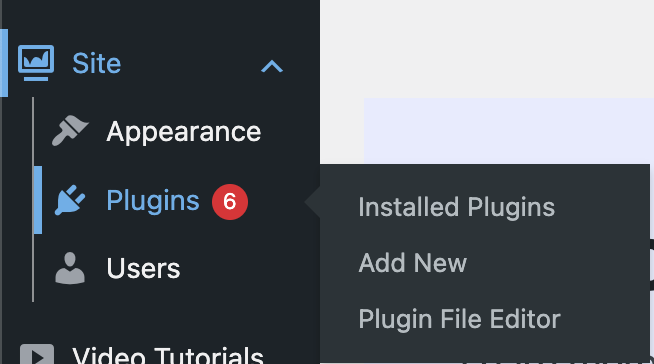
Installation works the same way for any WordPress plugin. Navigate to your wp-admin and go to:
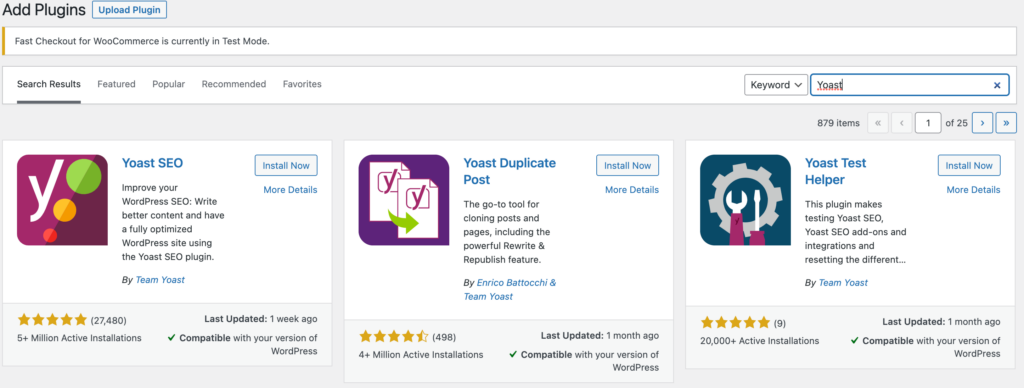
Run a search for “Yoast Duplicate Post,” click “Install.”
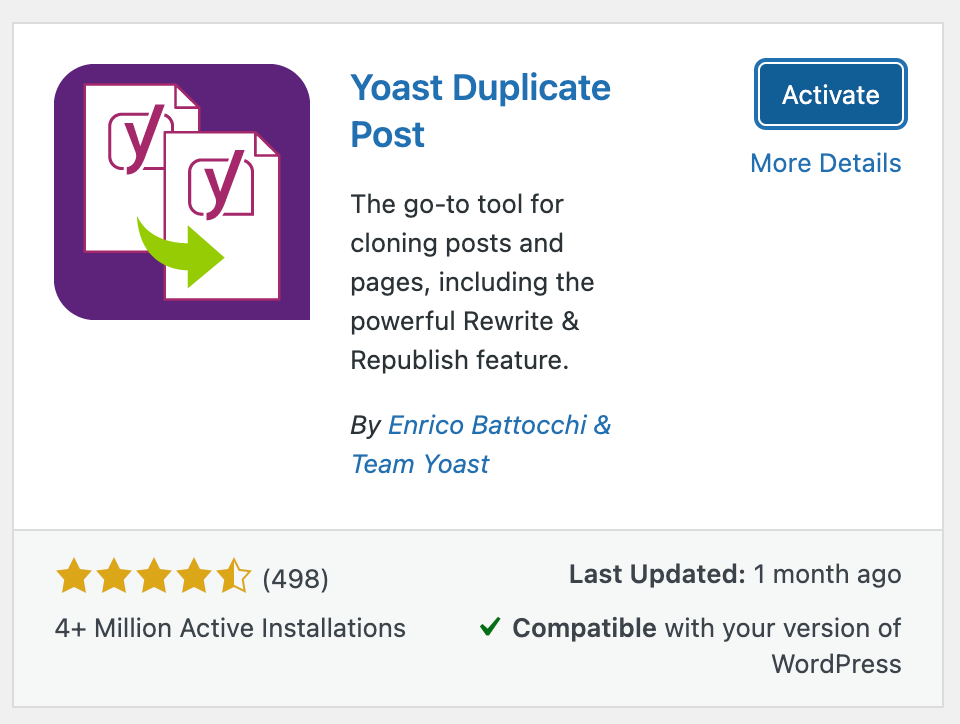
When it has finished installing, click “Activate.”
How to use Yoast Duplicate Post
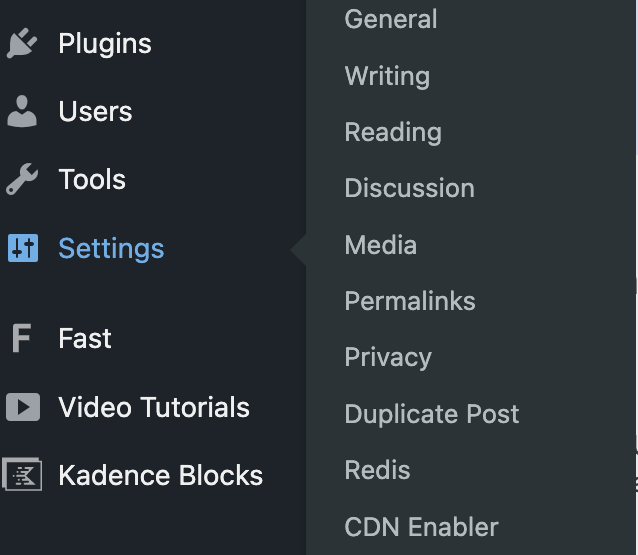
Once you have installed and activated the Yoast Duplicate Post plugin, you’ll see a new sub menu item in settings within wp-admin.
Settings -> Duplicate Post
Yoast Duplicate Post plugin supports page, posts, and a number of custom post types. You can also use the plugin to duplicate products and coupons in WooCommerce.
Your settings will have three tabs: What To Copy, Permissions, and Display.
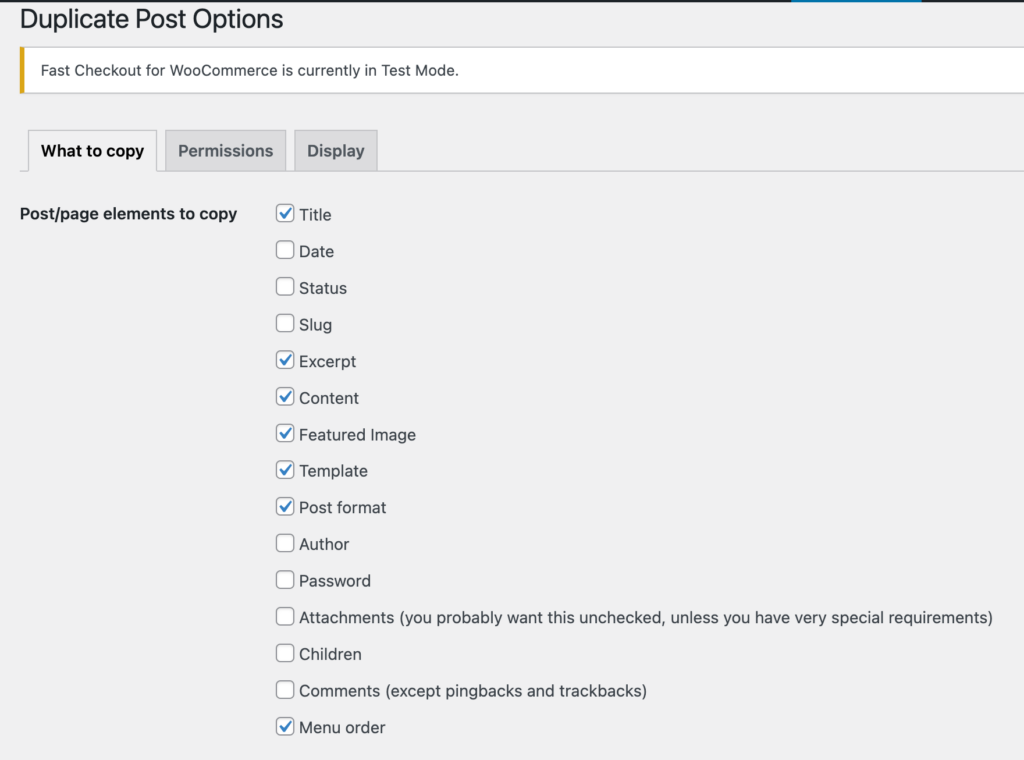
Choosing which elements to copy
Once you have Yoast Duplicate Post set up, you’ll want to include all of the post types you might need to duplicate on your site.
Here, you can restrict metafields from being copied by listing them and separating them with commas.
You can also choose what to call your duplicate pages and posts and whether it is appended at the beginning or end of your page title, for example “Copy of Page 1” or “Page 1 Dupe.” You can always make changes later to individual pages and posts.
Setting permission for duplicated posts and pages
Settings > Duplicate Post > Permissions
The permissions tab will allow you to grant duplication abilities to various user roles. You can select who is able to clone posts and even which types of posts they can clone.
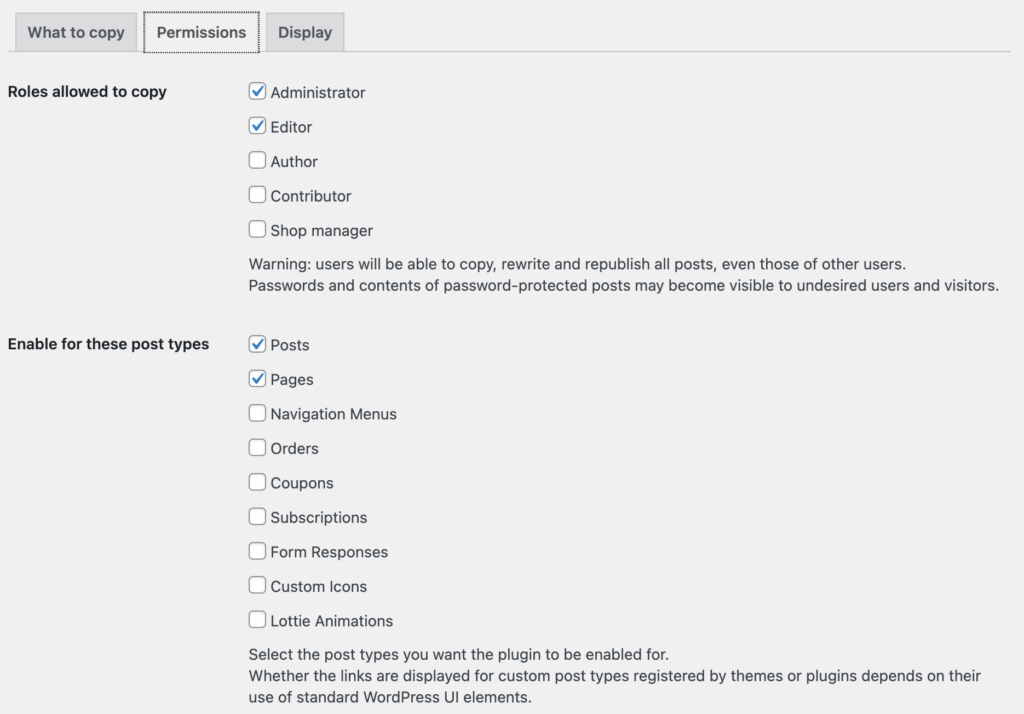
Want your content team to be able to clone posts but not pages? You got it! There are more advanced settings as well.
Choosing display options for duplication
Where do you want the cloning options to show up? The Display tab can help with that.
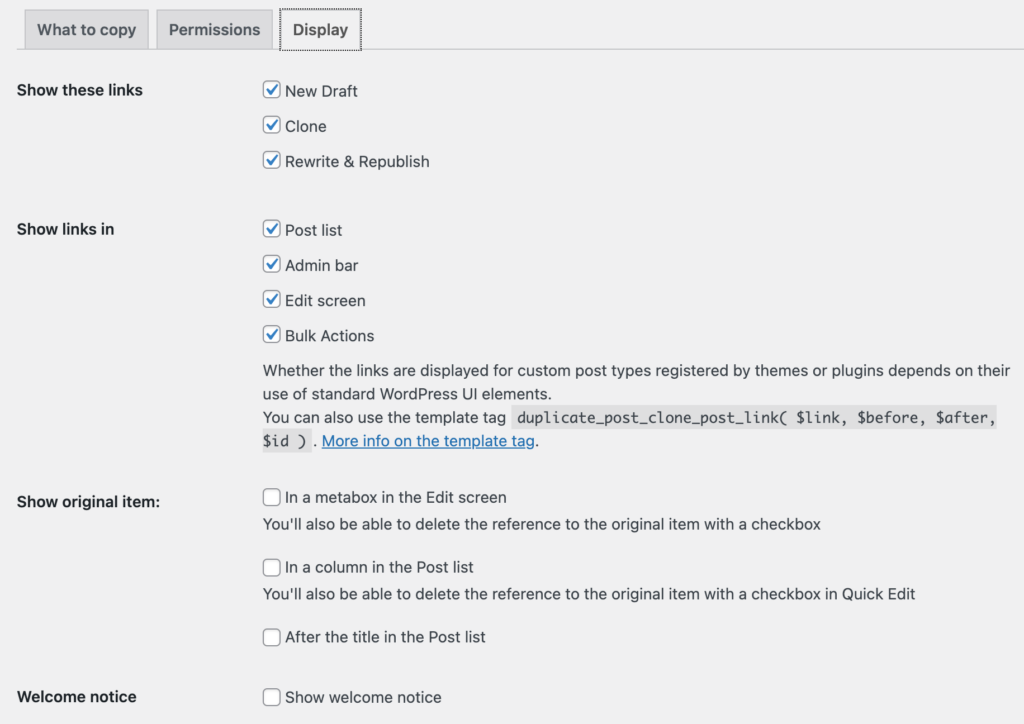
You can restrict duplication in bulk and have it show up on posts. All your options for display will appear here.
But, how do you actually go about creating a duplicate page or post in WordPress?
Clone your post or page
Back in the wp-admin, navigate to Pages.
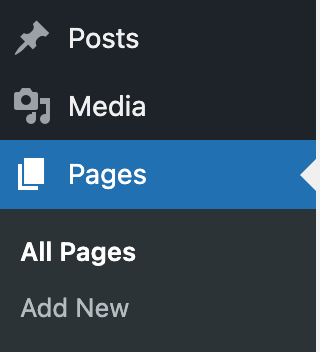
You can select any of your pages and select “Clone” – or select multiple pages and perform a bulk action.
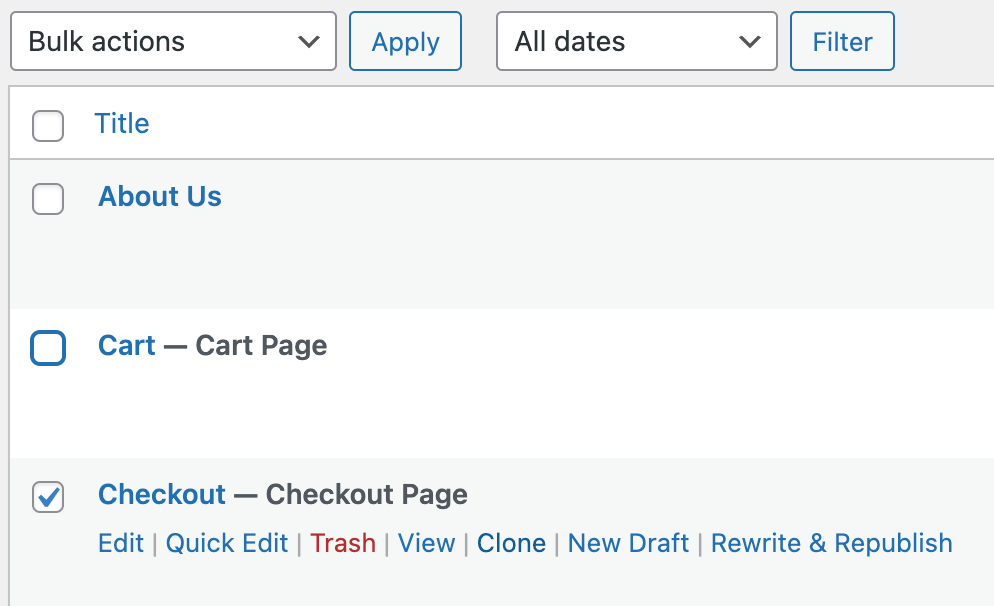
The clone option will show up for posts, products, and any other post types you have on your site – as well as any post types you’ve enabled in the Yoast Duplicate Post plugin settings.
The Yoast Duplicate Post plugin also includes a number of filters and actions. You can read about them here.
Some of the available filters include custom fields that you might not want to be copied when creating a duplicate. It’s also possible to alter custom fields after a duplicate post or page is cloned.
Method 2: How to install and activate Duplicate Page
Looking for another option? You can also use Duplicate Page to do some of the same tasks. It’s a lot more pared down, but if all you need to do is duplicate posts or pages without worrying about all those extra options, it’s a really easy way to get that done.
This tool is ideal for users who want a quick, no-fuss solution to duplicate content, whether you’re building landing pages, testing new layouts, or updating old content. With Duplicate Page, you can clone your content in seconds, saving time and reducing the risk of errors that can happen with manual duplication. It’s perfect for anyone looking for efficiency and simplicity in their WordPress workflow.
Go to:
Plugins > Add New
Then search for Duplicate Page and you will find the plugin. It’s the blue one on the left.
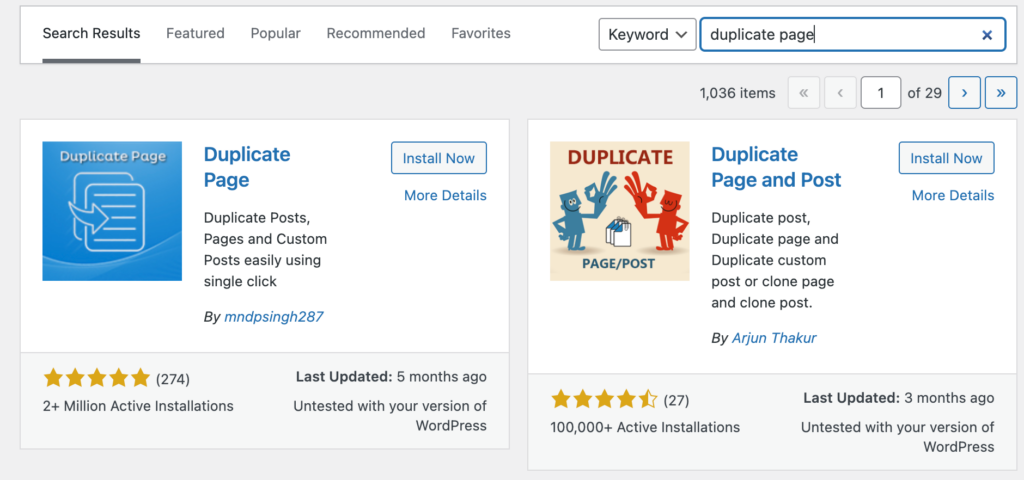
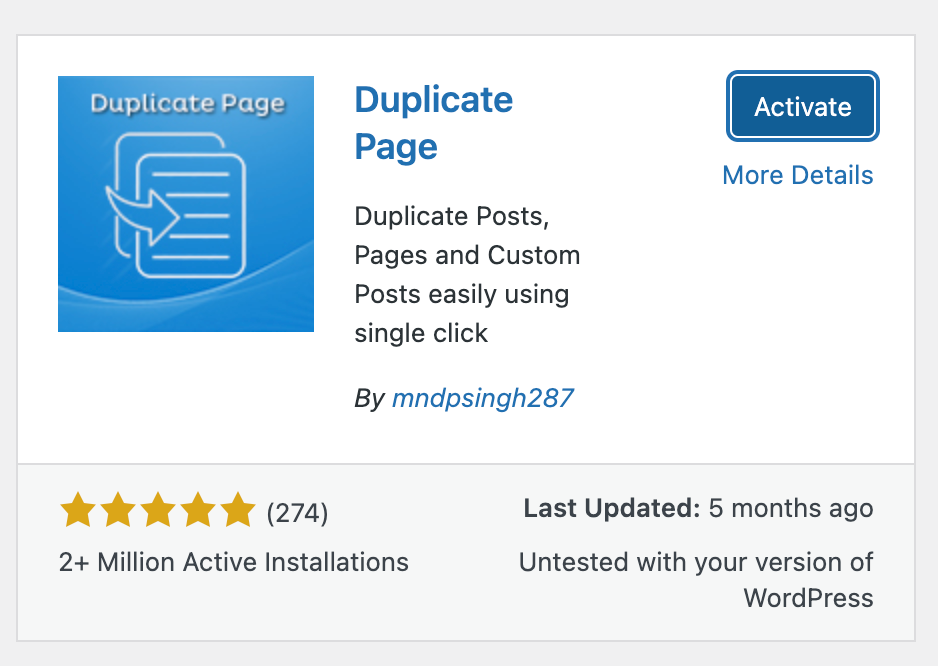
Click Install, then Activate, as you would have with Yoast Duplicate Post.
How to use Duplicate Page
The Duplicate Page plugin will add a new sub menu item. Go to:
Settings > Duplicate Page
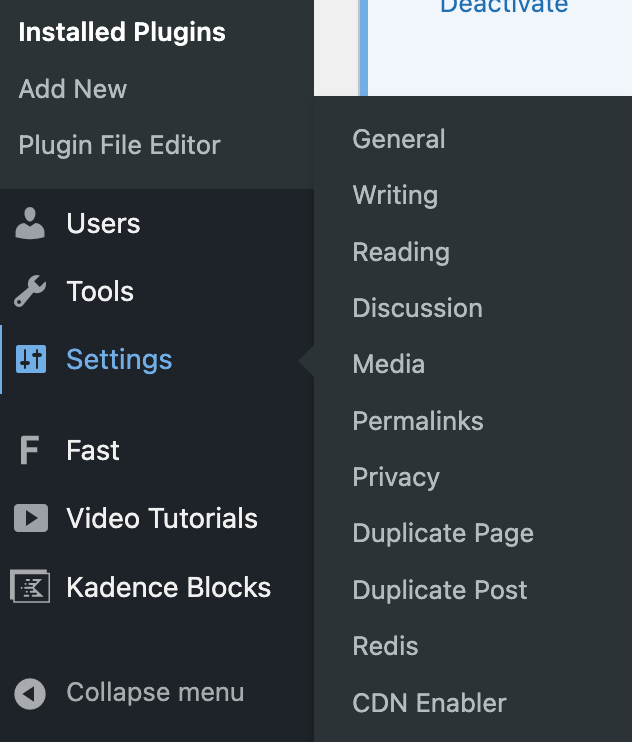
Here, you can select which editor you’d like to use (classic, Gutenberg, etc.), the status the duplicate post will have upon duplication (draft, published, etc.), what page you get redirected to after duplication, and the page suffix.
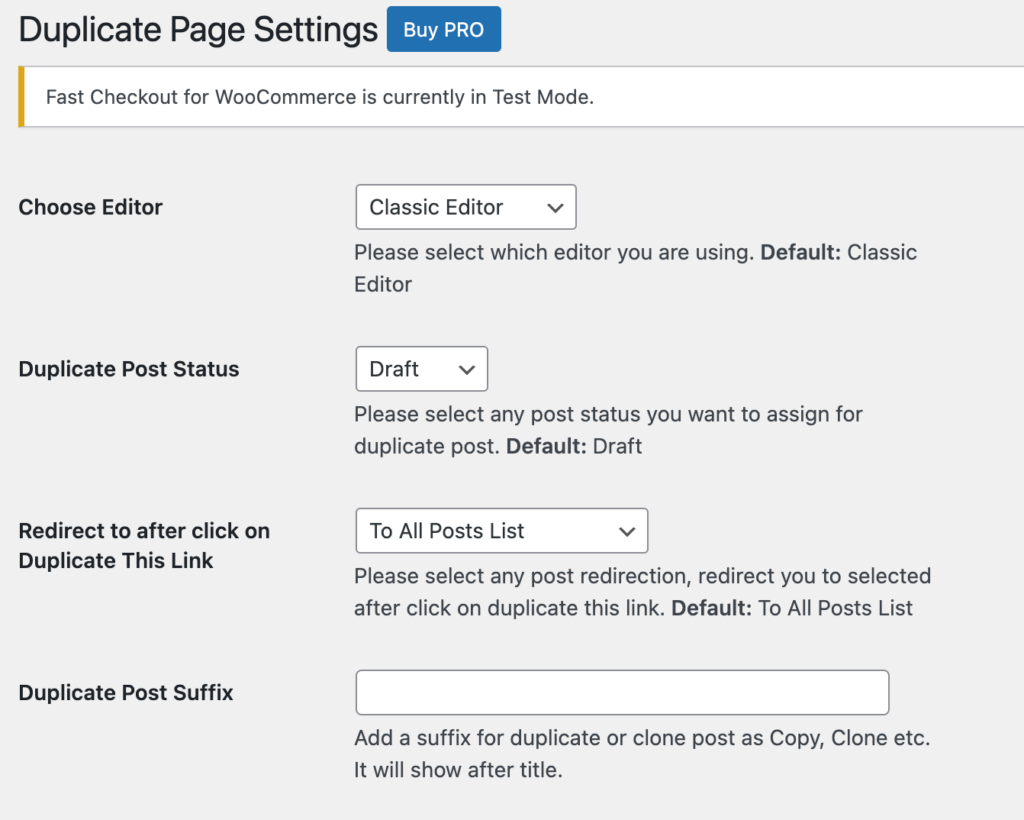
When you return to your Pages or Posts page, you’ll have the ability to duplicate your pages and posts.

Now you’ll be able to click “Duplicate This” and have a duplicate in no time: literally! It’s instant.
Method 3: Duplication by copy and pasting
Copying and pasting content is the most straightforward way to duplicate a WordPress page without relying on plugins. This method is well-suited for users who only need to duplicate a page occasionally or who prefer not to install additional plugins on their site.
It gives you complete control over what gets copied and allows you to make changes on the fly. While it may require a bit more manual effort, it’s a flexible option for people who want to customize the new page as they go, or those working with minimal WordPress setups.
Start by opening the page you want to duplicate in the WordPress editor. Highlight all the content — text, images, and any blocks or elements — and copy it (Ctrl+C or Command+C). Next, create a new page by navigating to Pages > Add New in your WordPress dashboard. Paste the copied content into the new page’s editor (Ctrl+V or Command+V).
Don’t forget to update the page title, URL slug, and any internal links to reflect the new page’s purpose. This method is straightforward and gives you full control over what gets carried over, but keep in mind that some formatting or custom settings might not transfer perfectly, especially if you’re using a page builder or custom blocks. Always review the new page before publishing to ensure everything looks and works as expected.
You can duplicate a page, but you can’t duplicate great hosting
Whether you’re building a site from scratch or migrating over, Liquid Web is the best option for hosting WordPress sites.
If you’re looking to duplicate success, look no further – Liquid Web fully managed WordPress hosting is faster, provides instant autoscaling, and includes top notch security too.
Check out our fully managed WordPress hosting plans to get started today.
Additional resources
How to use your WordPress admin login page →
How to find, use, and troubleshoot your admin page
Changing your admin password →
The four most popular options for updating your admin password
What is managed WordPress?→
What does it mean and is it right for you? Get all the details on this simplified hosting service
