How To Edit Your Sites’ Overall Look Using Kadence – Nexcess

The Kadence theme helps you change the visual look of your site. In this article, you can learn how to edit the overall look and feel of your site using the customizing options available.
Get fast, reliable hosting for WordPress
Power your site with the industry’s fastest, most optimized WordPress hosting
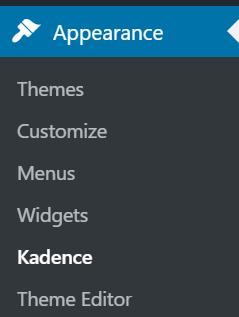
 Within wp-admin you can access all of the Kadence customizer options from the following menu name;
Appearance > Kadence
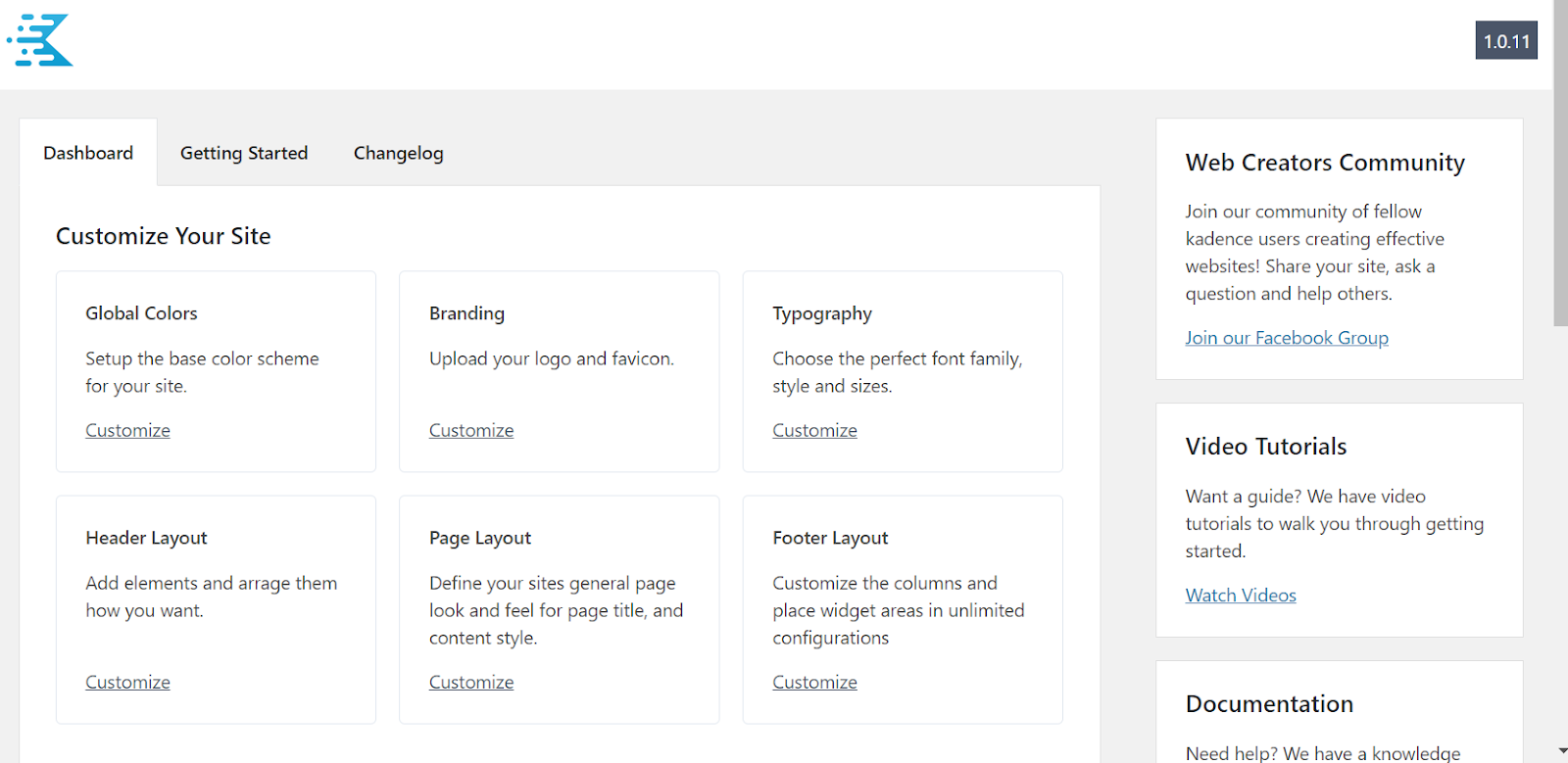
If you go to click any of the options links in the Kadence theme it will take you directly to that section in the customizer. The customizer is easy to use a feature that will allow you to make any changes you need to the look of the site.
One example of using the customizer to change the header options of your site would be all of the top sections of the site. Even within the header customizer section, you can set the logo for the site, what items show in the header. Also, you can set which items show in the desktop version of the site in the header as well as which items show in the mobile version of the header.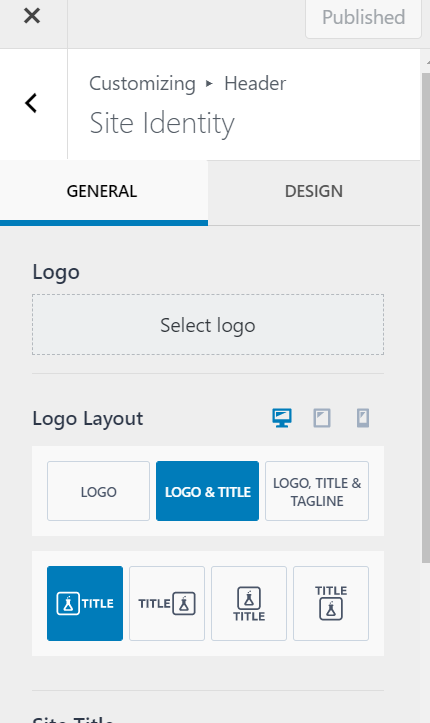
The Kadence theme has many helpful articles that will help you with any questions you might have about how to change the look of the site.
The Kadence theme works with the built-in editor which is known as the block editor. The block editor includes many block options for changing the visual layout of your site. On WP QuickStart sites we also include the Kadence Blocks plugin.
The Kadence theme helps you be able to easily change the visual look of your site if you need to later on.
For 24-hour assistance any day of the year, contact our support team by email or through your Client Portal.
Additional resources
What is managed WordPress hosting? →
Get details and decide if managed WordPress hosting is right for you.
Must-have web development plugins to create WordPress websites at scale →
Explore the best web development plugins to enhance functionality, improve performance, and streamline your WordPress site.
A complete guide to WordPress shortcodes →
Shortcodes make life easier. Learn how to get started!

