

Adding a Domain in Plesk
Manage server settings and individual domains/websites seamlessly in Plesk. Easily add registered domains to begin website development.
You use Plesk to manage server level settings, but you also manage your individual domains and websites right in Plesk. As you register domains, you need to add them to Plesk so you can start building your websites.
- Log into Plesk. If you have never logged into Plesk, read Getting Started with Plesk.
- In Power User view, the Websites & Domains section is your default home page. Click on Add Domain. In Service Provider view, click on Domains under Hosting Services in the left navigation menu. Click on Add Domain.
- Enter your domain’s information:
- Enter your Domain Name.
Domain Registration:
Adding a domain to Plesk is not the same as registering a domain name. You need to register your domain name in your Liquid Web account or with another registrar before your website will appear when you visit your URL. We recommend you register your domain name before adding the domain to Plesk. - Leave the Location of the website’s files as Create a new webspace. Unless you’re an advanced user, having a separate webspace for each domain is a good idea.
- If you have more than one IP address, make sure your IP address is correct.
- Choose a Username and choose and confirm a Password for your domain.

- Enter your Domain Name.
- Click OK.
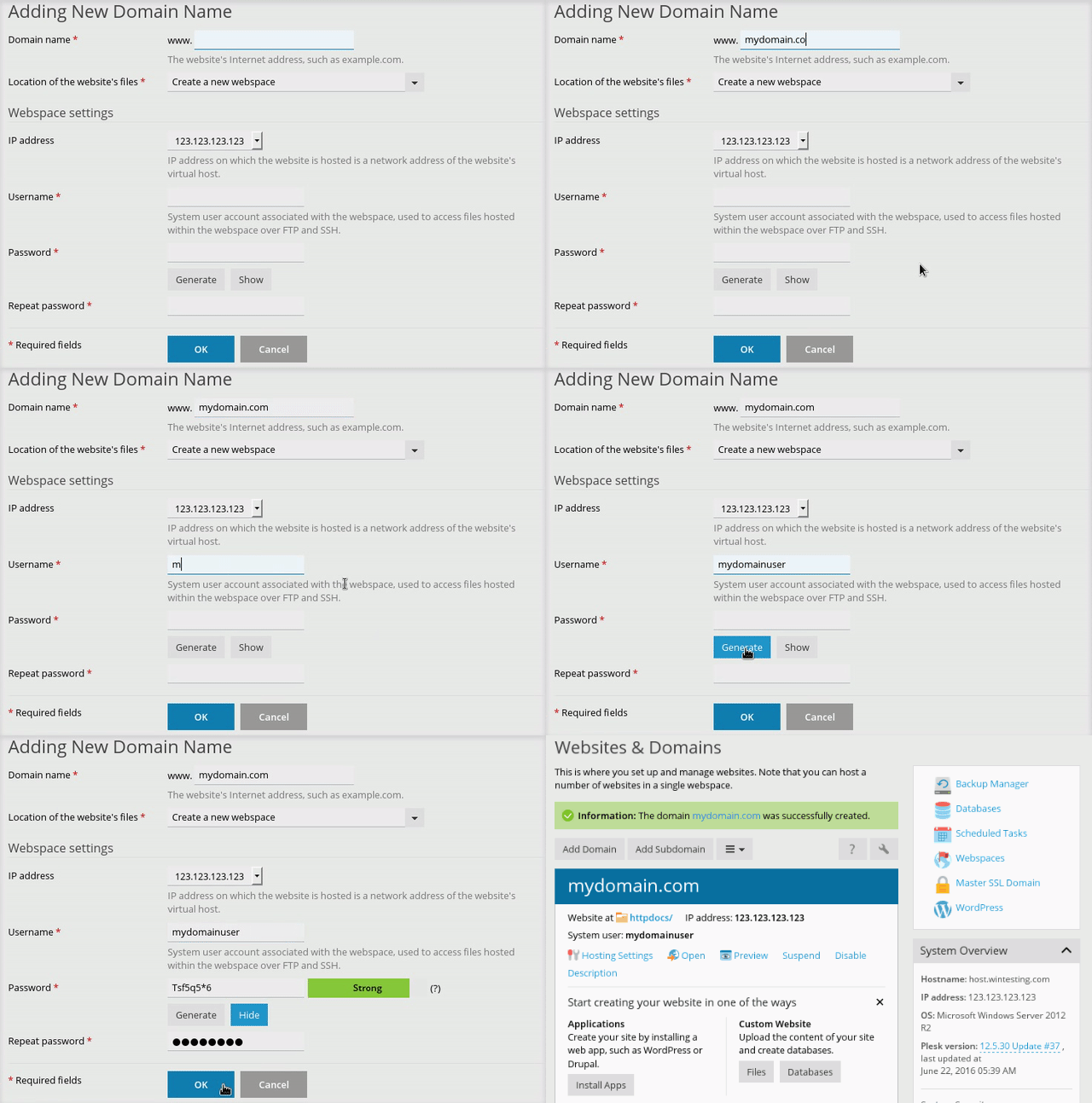
You’ll be able to see your new domain in your Websites & Domains list. If you scroll down the page, you’ll be able to see any other domains you’ve created, too.
