Adding a User in Plesk
Plesk empowers server and domain control. Create users with custom permissions, restricting them to specific domains.
Plesk lets you extensively control your server and domains. One of the ways you can do this is by creating new users with specific permissions. Each new user can also be limited to working on a specific domain.
- Log into Plesk. If you haven’t logged into Plesk before, read our article on Getting Started with Plesk.
Note:
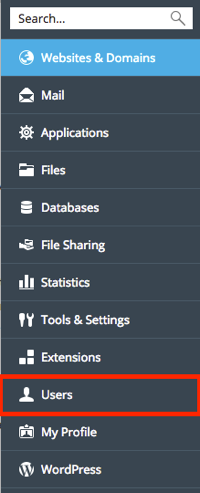
If you are in Power User view, click on Users in the navigation menu on the left hand side of the site.

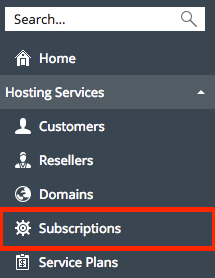
- In the menu on the left hand side of the page, click on Subscriptions under the Hosting Services section.

- Click on the domain you are adding the user to, and select the Users tab.

- In the menu on the left hand side of the page, click on Subscriptions under the Hosting Services section.
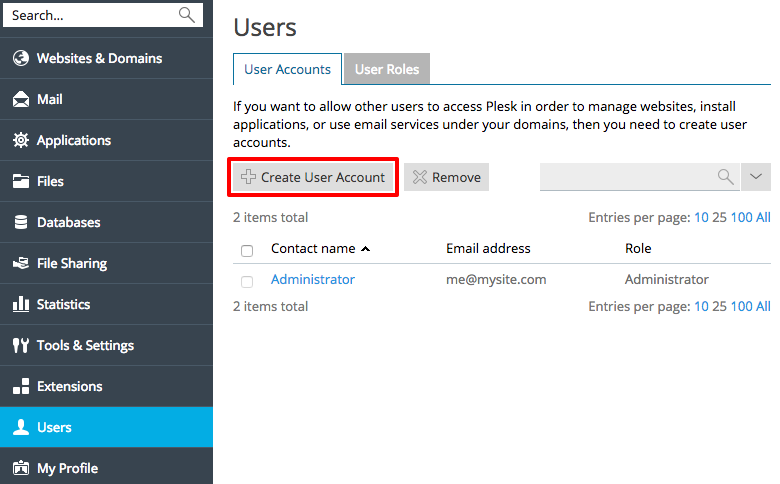
- Click Create User Account.

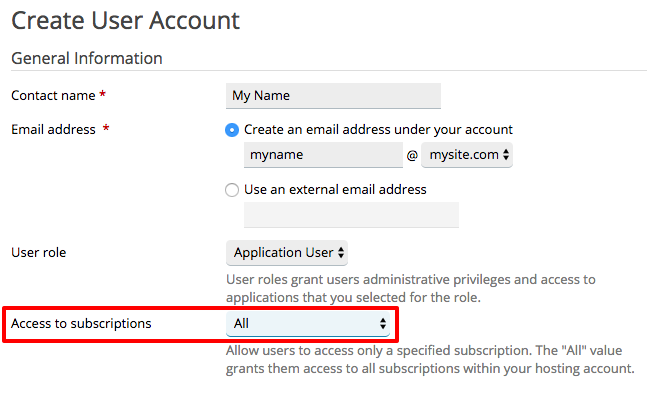
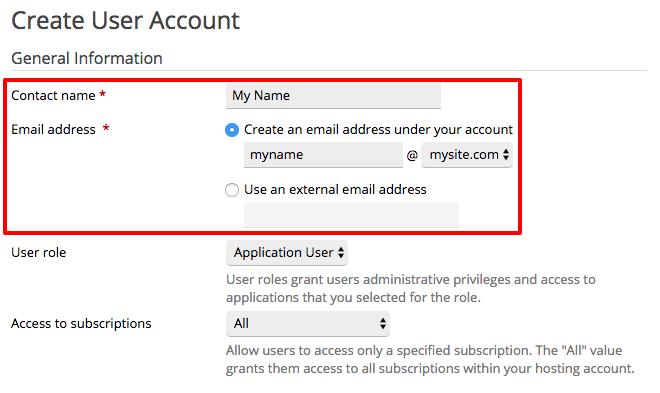
- Fill in the Contact Name for your new user. Then, create an Email Address for your new user or have their Plesk-related alerts sent to an external email address.

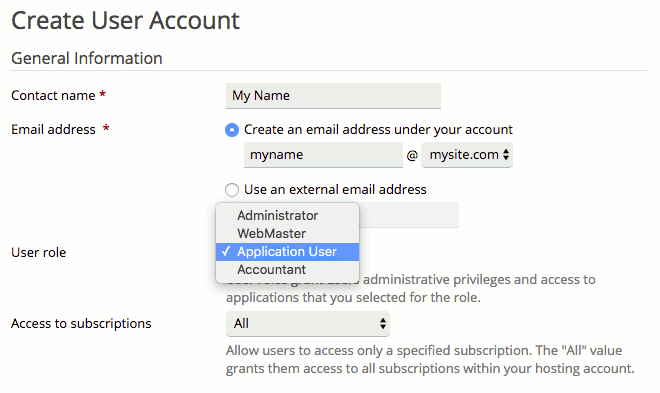
- Choose a User Role. Plesk has four default user roles with different permissions. But, you can change user role permissions by clicking on User Roles in the Users section of Plesk. You can also create custom roles. The default user roles are:
- Administrators can edit all the settings and content on the domain. This is not a server administrator account.
- Webmasters can edit most settings on a domain, but cannot edit users or roles and cannot publish files to show on your domain.
- Application Users can only access the applications you give them permission to access. For example, you can give an Application User access to WordPress, which would then show up in their Plesk account.
- Accountants can see subscription details and current hosting resources, but they can’t change any settings or domains.

- Then, choose the subscription you want the user to be able to access. Remember that subscriptions are designated areas where users can work on certain domains. If you want your user to be able to see every domain on your server, change this to All.
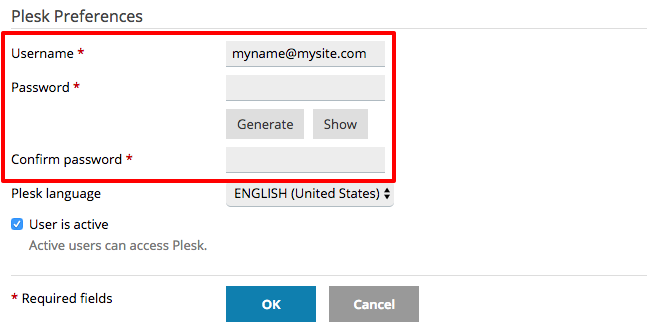
- Choose a Username and choose and confirm a Password for your Plesk user (Always use strong passwords. If you need more information about creating a strong password, see Best Practice: Creating a Secure Password. You can also use the Generate button to have Plesk create a password for you). Click OK to finish creating the new user account.