

Creating a User Account/Domain in Interworx Web Panel
Now that you’ve logged in to your InterWorx Web Panel server as the administrator, it’s time to create your first user account/domain. If you need help logging in, see Logging into InterWorx Web Panel. Creating a domain (or website) allows you to publish content to that domain and share it on the Internet. When you create a domain, you do so by creating a new user who has permission to manage that domain.
- Log in to your InterWorx Server as the administrator (see Logging into InterWorx Web Panel).
- Click on the SiteWorx menu item on the left side of the screen, then click Accounts.
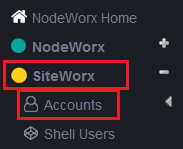
- Click on Add SiteWorx Account to open the new user creation screen.

- Enter the domain name (or website URL) without the www before the name (for example, use example.com rather than www.example.com).

- If your server has more than one IP address, select the IP address you would like the domain to use (the primary IP address is selected by default and is the typical configuration).

- Enter a Nickname for the account to manage the domain.

- Enter an email address to be used by this account. This address will be used for important notifications about the domain or to retrieve the password at a later time.
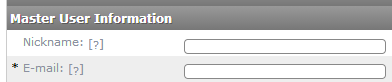
- Enter and confirm a strong password for the account. NOTE: InterWorx can recommend a strong password using a random generator. You can use this password by clicking Generate, or use your own password by entering and confirming the password in the boxes provided. See Best Practice: Creating a Secure Password.

- Select the Package you would like assigned to the domain. You can also modify many of the Package settings under the Package Options section. To learn more about limiting access to resources using Packages, see Creating Account Packages in InterWorx Web Panel.
- Finally, click on Save to create the domain and user account.
That’s it! You’ve created your first domain and user account. You can now login using the new account to upload content and manage the domain for your InterWorx dedicated server, or cloud server.
