

Deleting a Cloud VPS Image
Having an image of your server comes in handy when you want to replicate a production environment, but what happens when an image has aged and is no longer relevant to your needs? You'll need to remove older images to manage your costs and keep your account relevant. Deleting a Cloud VPS image is simple and can be done from the same location that you created the image.
Having an image of your server comes in handy when you want to replicate a production environment, but what happens when an image has aged and is no longer relevant to your needs? You’ll need to remove older images to manage your costs and keep your account relevant. Deleting a Cloud VPS image is simple and can be done from the same location that you created the image.
Warning: |
| Deleting a Cloud VPS image cannot be undone! Make sure that you have copies of any important data that might exist on the image before deleting it. |
- In your Liquid Web account, click on My Servers, then select the server with the image you want to delete by clicking on the server’s name. This will open your server details page.
- On the server details page, click the Backups & Images tab.

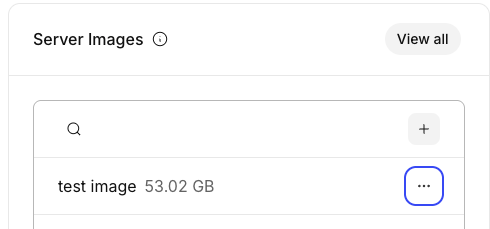
- Scroll down to the Server Images block to select an image that you have saved from one of your servers.

- Click the three dot menu to the right of the image you want to delete, then click Delete image from the drop down menu.

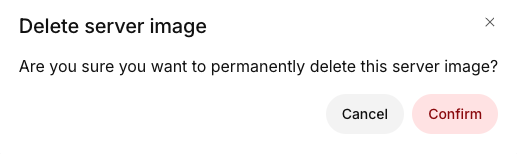
- Click Delete to confirm that you want to permanently delete the selected image. This cannot be undone.



That’s it! You’ve successfully deleted the image from your account.
