

Creating a Cloud VPS Image
Creating a server image is invaluable for replicating your live server in staging and development. Learn how to make and utilize it effectively!
Having an image of your server comes in handy when you want to build a staging and development environment that matches the live server you’re using for your creative and business ventures. Using an image as a backup is not the optimal way of restoring your server (for more information, see our articles on creating a backup and restoring a server). So, let’s take a look at creating an image and then learn how to use that image to your best advantage!
Warning: |
| Using a previous image of your current server will erase all your current data from your server and any changes made after the date of the image creation will be lost. If you are looking to restore back to a more recent date, please see Restoring Your Cloud VPS From a Backup for more information. |
- In your Liquid Web account, click on My Servers, then select the server you want to create the backup for by clicking on the server name. This will open your server dashboard page.


- On the server details page, click the Backups & Images tab.

- On the right hand side of the screen, you’ll see the most recent image and the total images for the server. Click the plus sign to begin the process of creating a new image.

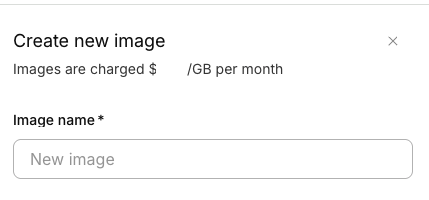
- Type the name of the new image you want to create in the Image Name section and click Create Image.
Note:
Each image created is charged by the GB. Pricing has been taken out of this tutorial, as all pricing is subject to change. For current pricing, please log into your Liquid Web account to view the charge under the Image tab. 
- Once completed, the new image will show in the listing under Server Images in your Backups and Images tab.


If you need to restore your server from an image, see our article Restoring a Cloud VPS from an Image to find out how!
