

Optimize Apache for Performance and Resource Usage
This article covers Apache settings that influence performance and system resource allocation. We’ll explore how to optimize Apache and provide example configurations tailored for different Liquid Web Managed Hosting products.
Quick primer on website performance
It’s common to think that Apache is the primary factor in website performance, but in reality, it plays a relatively minor role in how quickly a webpage loads in your browser. Most of the server-side processing time is dedicated to PHP and MySQL. Even then, the time spent serving the request is a fraction of the total time spent within the web browser itself.
To illustrate this point, let’s look at an example from a large wiki website. The chart below, generated by NewRelic, shows the server response times. You’ll notice that the server typically responds in under 100 milliseconds (0.100 seconds). During idle periods, PHP takes about 68ms to complete, and MySQL responds in approximately 10ms.
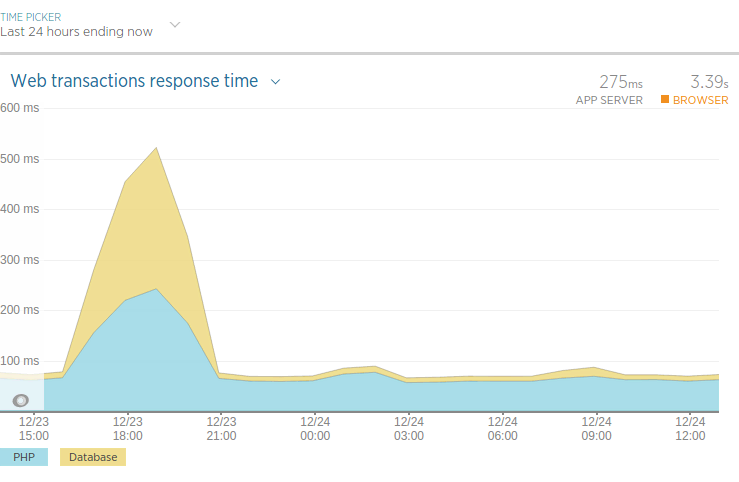
You won’t find a distinct section for Apache’s response time here because its contribution would be an infinitesimally small slice of the PHP processing time. Even if you could make Apache ten times faster, you would only shave off 1ms or 2ms from the overall 100ms response time. The wiki in this example is highly optimized, yet you might still observe “load spikes.” These spikes are primarily caused by MySQL during peak times, as PHP’s speed is dependent on MySQL’s response. Apache is largely out of this equation because, when it comes to overall performance, its direct impact is minimal.
So, from this example, we’ve established that a small VPS can generate a response for a wiki page in under 100ms. This includes Apache handling the HTTP request, passing it to FCGI for PHP processing (which then communicates with MySQL), and finally, Apache sending the response back to the browser.
Now, let’s consider how long it takes for that page to fully load in a browser:
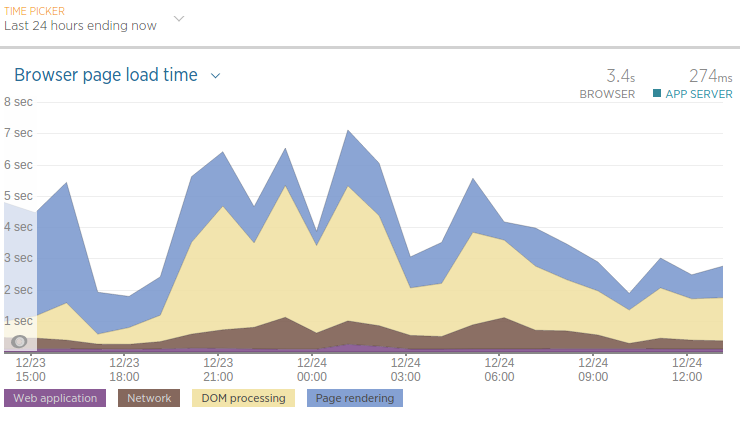
As you can see, the page load time can vary significantly, but generally, a page will fully load in about 3 seconds. This makes that 100ms server response time seem less impactful, doesn’t it? You might think you can optimize Apache to make it faster, but you’d be wrong. Even if you could make Apache, PHP, and MySQL all respond in 1ms instead of 100ms, you’d only shave off a tenth of a second from the total page load time because the vast majority of the time is spent off the server.
Almost all the time it takes to load a website is spent traveling across the network and rendering within the client’s browser. What about server load spikes affecting page loading time? For the most part, the server’s load average remains well under 0.30, indicating stable performance.
The main takeaway here is that website response times are influenced by many factors, but server-side processing is generally not the biggest one. And within server-side processing, PHP and MySQL demand far more time than Apache. So, don’t over-invest your optimization efforts in Apache!
Apache tuning overview
Let’s be clear from the start: Apache typically doesn’t need extensive optimization, and it’s already quite fast with default settings. Apache’s primary role is to handle HTTP requests from clients (usually web browsers) and deliver the requested resources. The time it takes Apache to fetch resources or pass requests to other services is very small. Even if you could make Apache 100% faster, you’d only gain a few milliseconds per request.
Generally, the most effective ways to “optimize” Apache for performance are:
- Reduce Apache’s workload by using FCGI or PHP-FPM: These handlers offload PHP processing, significantly freeing up Apache resources. If your server uses DSO or SuPHP, switching to FCGI or PHP-FPM should be your first step. While DSO and SuPHP are reliable, FCGI and PHP-FPM offer substantial performance improvements and reduced resource usage.
- Keep your software up to date: As of this writing, Apache 2.4 is the latest stable version. The Multi-Processing Module (MPM) used by Apache can also affect performance. Typically,
Eventis the best MPM to use unless compatibility issues requirePrefork.
In short: Using FCGI/PHP-FPM as the PHP handler with Apache 2.4 and the Event MPM is as optimized as Apache gets (especially for Fully Managed environments). The best optimization for Apache is to offload PHP handling. If Apache is older than version 2.4 or uses SuPHP as a handler, it is not optimized and will not be.
The only Apache directives that truly matter are MaxRequestWorkers (or MaxClients in older Apache versions). Apache Event consumes very little RAM when idle and is excellent at self-regulation, killing idle processes and creating new ones as needed. If your server runs Apache 2.4 with Event, you don’t need to worry about Apache performance optimization; the focus should be on setting resource limits based on your server’s available RAM.
Apache generally uses very few resources because it primarily acts as a proxy between your browser and the rest of your application (PHP code, which typically interacts with MySQL). An average Event process uses about 14MB of RAM. On an idle server, you’ll typically see 3 to 6 Event processes running, totaling around 60MB of RAM. Even on a busy 2GB VPS, Apache will use about 100MB, or roughly 5% of the server’s total RAM.
In contrast, an average PHP process can use anywhere from 32MB to 128MB of RAM. Often, a single PHP process consumes more RAM than all Apache processes combined. The only exception is if Apache runs with mod_php (DSO), where PHP runs inside the Apache process. This setup is not recommended as it can quickly exhaust RAM and lead to Out-Of-Memory (OOM) errors if misconfigured. Therefore, we’ll focus on Apache Event with FCGI (or PHP-FPM). If your server isn’t using Event and FCGI/PHP-FPM, it’s not optimized. If it is, it is optimized. It’s that simple. To learn more about the various PHP handlers, see our article here.
Configuration settings that WON’T optimize Apache
You might notice that directives like StartServers or MinSpareServers aren’t emphasized for optimization. That’s because these settings typically don’t matter much for overall performance. The most critical configuration changes involve limiting the number of concurrent PHP processes. However, we’ll still cover some of these “less impactful” directives to ensure a comprehensive understanding of how Apache works.
Timeout (prefork, worker, event)
This directive defines the amount of time Apache will wait for I/O operations. A value of 60 seconds is generally more than sufficient. Most websites load in approximately 3 to 5 seconds. If Apache is waiting 60 seconds for PHP to finish, you have significant underlying issues. Raising this value will likely not help. While it might assist a client viewing a site over a very slow 56K modem taking 60 seconds to load a page, the real problem lies with the client’s connection. This setting may occasionally need adjustment but is not considered an optimization.
TimeOut 60If your server reports “timeout errors” or “timeout exceeded,” odds are Apache is not the bottleneck; it’s likely waiting for PHP to finish processing, which, in turn, might be waiting on a slow MySQL query. The point is, Apache can only operate as fast as the slowest link in the chain, and that’s usually not Apache itself.
This Timeout directive applies to:
- Reading data from the client (time to receive a TCP packet).
- Writing data to the client (time to wait for packet acknowledgment).
- For
mod_cgi, the time to wait for a CGI script’s output. - For
mod_proxy, the default timeout value unlessProxyTimeoutis set.
StartServers (prefork, worker, event)
Prefork defaults to 5 StartServers on startup, while Event and Worker default to 3. Remember, this value is merely a starting point. Apache will create more processes if needed. Setting this value too high will result in many idle child processes and threads, which Apache will eventually kill off anyway.
## Prefork ##
StartServers 5

## Event and Worker ##
StartServers 3
MinSpareThreads (worker, event)
Worker and Event use a default MinSpareThreads of 75 and manage idle threads across the entire server. If there aren’t enough idle threads, child processes are created until the number of idle threads exceeds the configured value. Each child process defaults to 25 threads, and the limit for child processes is set to 16 (ServerLimit). Initially, Apache Event and Worker start with 3 child processes, totaling 75 threads. If any of those threads become busy, Apache will spawn a new process with 25 more threads. If the previously busy thread becomes idle and no other threads are busy, the fourth child process will be automatically terminated, and Apache will revert to 3 child processes.
MinSpareThreads 75Apache Event is very efficient at terminating unneeded processes and spawning new ones when required. Spawning a new child process is not resource-intensive and won’t cripple a server if it happens occasionally. While fine-tuning this value might make sense in specific scenarios, generally, you won’t need to change it.
MaxSpareThreads (worker, event)
This directive sets the maximum number of idle threads. For Worker, the default is MaxSpareThreads 250. This MPM manages idle threads on a server-wide basis. If there are too many idle threads, child processes are terminated until the number of idle threads falls below this value. You should generally not need to change this.
MaxSpareThreads 250ThreadsPerChild (worker, event)
This value determines the number of threads running under each Apache process. Worker and Event can spawn up to 16 processes, each with 25 threads, for a total of 400 threads (or MaxClients/MaxRequestWorkers). For most websites, this limit is more than sufficient. Modifying this value requires updating other directives as well. Unless you understand what those are and why you would change this setting, don’t worry about it. ThreadsPerChild can be increased from 25 up to 64 if necessary. For example, if you need 432 MaxRequestWorkers, you would raise this value from 25 to 27 (27×16=432).
ThreadsPerChild 25ThreadLimit (worker, event)
This directive sets the maximum possible value that ThreadsPerChild can be raised to. If you try to change ThreadsPerChild to 65, you will encounter an error unless you first update this setting to 65. This directive often causes confusion and makes things more complicated than necessary. This limit allows for up to 1024 MaxRequestWorkers/MaxClients. Most servers won’t see this type of traffic, so you shouldn’t often reach this limit.
ThreadLimit 64Configuration settings that optimize resource usage
MaxRequestWorkers / MaxClients (prefork, worker, event)
The MaxRequestWorkers directive sets the limit on the number of simultaneous requests that Apache will serve. Any connection attempts exceeding the MaxRequestWorkers limit will typically be queued. Once a child process becomes free after completing a different request, the queued connection will then be serviced.
MaxRequestWorkers 400 = (ServerLimit 16 x ThreadsPerChild 25)If your server uses suphp, you must ensure MaxRequestWorkers does not exceed a value that would cause the server to run out of memory (OOM). Ideally, we recommend changing the handler from SuPHP to FCGI whenever possible.
Let’s use a 2GB VPS as an example. A 2GB VPS typically has about 1779MB of RAM. We’ll allocate approximately 128MB for MySQL and another 256MB for cPanel and the operating system. This leaves us with roughly 1.4 GB that we can dedicate to Apache and PHP without exceeding our physical RAM limit. It’s acceptable to slightly exceed the RAM limit by a few MB; Linux will swap out the least-used memory pages to disk to free up RAM, and small amounts of swapping won’t cripple a server.
Now that we have a target for resource usage, we need to determine the average memory consumption of a PHP process on the server. To plan for the worst-case scenario and prevent the server from going OOM, we’ll use the php_memory_limit value from php.ini. While not every PHP process will necessarily use its full allocated memory, assuming the worst allows us to set a safe limit.
php -i | grep memory_limitMaxRequestWorkers and SuPHP
If you are using suPHP, you must restrict the maximum number of Apache processes, which, in turn, limits the number of PHP processes. This is not optimal, which is why we recommend using Apache Event and FCGI. Unlike FCGI, SuPHP does not have its own process manager, so Apache effectively “babysits” PHP.
- If using
SuPHPandphp_memory_limitis 32MB:
(640MB / 32MB) = 20 MaxRequestWorkers - If using
SuPHPandphp_memory_limitis 64MB:
(640MB / 64MB) = 10 MaxRequestWorkers
MaxRequestWorkers and FCGI/FPM (preferred)
If you use FCGI, you can leave Apache settings largely untouched and instead focus on limiting the maximum processes for FCGI. Even if Apache has 300 active threads, they won’t consume much RAM independently. Any requests for additional PHP processing will wait a few milliseconds in a queue until a currently running PHP process completes, and then the next queued request will be handled. This configuration allows Apache to continue handling requests even if PHP is maxed out, and it prevents PHP from causing an OOM error on the server since it’s capped at 640MB of memory.
- If using FCGI and
php_memory_limitis 32MB:
400 MaxRequestWorkers with 20 FcgidMaxProcesses - If using FCGI and
php_memory_limitis 64MB:
400 MaxRequestWorkers with 10 FcgidMaxProcesses
Apache optimization settings that truly help
While many Apache settings exist, some truly stand out in helping your website perform better and reduce server load. These are crucial for a smooth user experience and efficient resource usage.
Keep-Alive connections for faster loading
The Keep-Alive feature allows your website to send multiple requests (like images, CSS, and JavaScript files) over a single connection instead of opening a new one for each item. Think of it like a persistent conversation between your browser and the server. This can significantly speed up how quickly pages load, especially for sites with many elements, by reducing the time spent setting up new connections. We always recommend keeping KeepAlive On for optimal performance.
KeepAlive On
KeepAliveTimeout 2
If you ever encounter issues with Keep-Alive, it’s almost always a sign that your Apache setup isn’t using the modern Event Multi-Processing Module (MPM). With Event (Apache 2.4 and newer), Keep-Alive is managed very efficiently and is unlikely to cause problems.
Compress your website with mod_deflate
The mod_deflate module compresses your website’s content (like text, HTML, CSS, and JavaScript) before it’s sent to your visitors’ browsers. This is like zipping a large file before sending it – it reduces the amount of data that needs to travel across the internet. Less data means faster load times for your visitors! While compression uses a little more server CPU, modern CPUs handle this with ease, and the benefits for website speed far outweigh the minimal overhead.
You can enable mod_deflate for your entire website or for specific parts using an .htaccess file. Here’s a common configuration you can add to your .htaccess file to compress typical text-based content:
<IfModule mod_deflate.c>
    AddOutputFilterByType DEFLATE text/text text/html text/plain text/xml text/css text/javascript application/javascript
</IfModule>Always remember to check your website after making .htaccess changes to ensure everything is working correctly.
Boost speed with browser caching (mod_expires)
mod_expires is a powerful tool that enables browser caching. This means that after a visitor loads your website for the first time, their browser stores certain static files (like images, stylesheets, and scripts) locally. The next time they visit, or navigate to another page on your site, their browser can load these files directly from their own computer instead of downloading them again from your server.
This dramatically improves website response times and reduces the load on your server, as less data needs to be transferred. It’s a win-win for both your visitors and your server!
Here’s an example of how you can configure mod_expires in your .htaccess file:
ExpiresActive On
ExpiresDefault "access plus 1 seconds"
ExpiresByType image/x-icon "access plus 1 year"
ExpiresByType image/jpeg "access plus 1 year"
ExpiresByType image/png "access plus 1 year"
ExpiresByType image/gif "access plus 1 year"
ExpiresByType application/x-shockwave-flash "access plus 1 year"
ExpiresByType text/css "access plus 604800 seconds"
ExpiresByType text/javascript "access plus 1 month"
ExpiresByType application/x-javascript "access plus 1 month"
ExpiresByType text/html "access plus 600 seconds"
ExpiresByType application/xhtml+xml "access plus 600 seconds"
Important Note about Caching: While browser caching is fantastic for speed, it’s vital to understand its implications. If you update a static file (like an image or a CSS file) but keep the same filename, visitors might not see the changes immediately because their browser is still using the cached old version. They would need to clear their browser cache manually.
Failure to inform your users about browser caching can lead to confusion if website updates are not immediately visible, requiring manual cache clearing by visitors to see the latest content. This awareness is a key factor in how their site functions for returning visitors.
For more information, you can explore resources on web caching best practices with the help of your developers.
Settings that help with page speed
In addition to the above Apache configurations, enabling gzip compression through your website’s .htaccess file is another highly effective way to improve page speed by caching and compressing content.
Apache and PHP example
If Apache is serving 100 requests for a static helloworld.html page, it won’t consume much RAM. However, if Apache is serving a lot of PHP requests, you must ensure FCGI or PHP-FPM is configured correctly. If a server has 2GB of RAM and a single PHP process uses about 64MB of RAM, the server can concurrently serve a maximum of 20 PHP processes. You must reserve some RAM for cPanel, MySQL, and Apache, but generally, it’s a good idea to enforce a hard limit on PHP memory usage.
What happens if you configure Apache Event to allow up to 400 concurrent connections and FCGI to allow up to 10 PHP processes? If 10 people simultaneously load your WordPress blog, Apache will handle the initial requests, send any requests for .php files to FCGI for PHP code execution. Meanwhile, Apache will serve any static resources back to the browser, and once PHP finishes, it will send that back as well.
Let’s say that while all 10 PHP processes are running, someone else visits an all-HTML site on the server with no PHP. Apache will happily serve those requests even though the PHP processes are at the limit.
If you use Apache Prefork with SuPHP, the situation is quite different! Because Apache controls PHP processing directly, you would have to set MaxRequestWorkers to 10, which limits PHP processes to 10 at once. Now, if 10 people visit my WordPress blog and someone else tries to view the all-HTML site, that person will have to wait because both Apache and PHP are maxed out at 10 processes. This illustrates why it’s crucial to use Apache Event with FCGI or a similar PHP backend like PHP-FPM.
Apache best practices
Use Apache 2.4 Event
Prefork is an older MPM, and Worker is the predecessor to Event. That leaves Event as the recommended choice. If you are running Apache 2.4+ and using the Event MPM, congratulations, you’ve optimized Apache!
Apache is running out of connections (needs more RAM)
If Apache is reaching MaxClients or MaxRequestWorkers, you have two options:
- If your server has memory to spare:
Divide the available memory by the average PHP process size and increaseMaxRequestWorkersby that amount. If you still need more connections, upgrading your server with additional RAM is recommended. - If your server has reached its memory capacity: It’s crucial to avoid increasing
MaxClientsorMaxRequestWorkerswithout adding more RAM. Doing so can quickly lead to the server running out of memory, causing instability and potential downtime for your website. If existing processes cannot be optimized or stopped to free up sufficient memory, the most effective solution for continued growth and stability is often to upgrade your server’s RAM.
A server either has memory to spare or it doesn’t. You cannot “optimize” Apache to give you more RAM. Increasing Apache and PHP limits without additional RAM will lead to a downed website and a frozen server.
As your website grows, it’s natural for its resource demands to increase, sometimes requiring a server upgrade. Ultimately, understanding your server’s resource limitations and upgrading RAM when necessary are paramount to maintaining a high-performing website.
A quick note about IfModule statements
With Apache 2 servers, you will often see optimization directives enclosed in an IfModule statement, like the examples below:
<IfModule prefork.c>
    StartServers 10
    MaxClients 250
    MinSpareServers 10
    MaxSpareServers 20
    MaxRequestsPerChild 500
</IfModule>
<IfModule worker.c>
    StartServers 2
    ServerLimit 16
    ThreadsPerChild 25
    MaxClients 150
    MinSpareThreads 25
    MaxSpareThreads 75
    MaxRequestsPerChild 500
</IfModule>
These IfModule statements are not strictly necessary for Apache to process the optimization values. They exist so you can include both Prefork and Worker optimizations in the same configuration file simultaneously, which is common in some non-cPanel Apache installations. Whether to place Apache optimizations within an IfModule statement is entirely at your discretion.
However, placing MPM-specific directives directly in httpd.conf without surrounding them by the IfModule statement when a different MPM is active will cause Apache to throw errors on restart. In such cases, simply comment out or remove the incorrect values.
cPanel overwriting MPM Worker/Event optimizations
When setting optimizations within WHM, remember that Prefork is the only MPM for which WHM properly configures settings. WHM sets ServerLimit == MaxClients. To correctly implement Event and Worker optimizations, you should place them within pre_virtualhost_global.conf.
We recommend running an httpd status command to get Apache’s scoreboard before making changes, and then again after a STOP and START of Apache (Apache does not update ServerLimit or MaxClients with a graceful restart).
After a full stop and start, confirm that Apache’s scoreboard looks better. If the server was previously configured with Prefork optimizations, the Apache scoreboard metrics might indicate higher resource consumption. After correctly implementing Event/Worker optimizations, these metrics should appear significantly more efficient, reflecting a smaller resource footprint, unless the server is provisioned with substantial resources.
The file to modify is: /etc/apache2/conf.d/includes/pre_virtualhost_global.conf
For your server’s stability, please exercise caution when modifying this file. Incorrect changes can lead to unexpected server behavior, including potential downtime that would occur during an apache service restart. If you are uncertain about any modifications, we highly recommend consulting our support team for expert assistance.
Conclusion
While Apache plays a crucial role in serving web content, its direct impact on overall website performance is often overstated. The most significant gains come from optimizing PHP and MySQL, as these are typically the most resource-intensive components of your web application. By employing modern Apache configurations like the Event MPM, utilizing external PHP handlers such as FCGI or PHP-FPM, and implementing client-side optimizations like mod_deflate and mod_expires, you can ensure Apache efficiently handles requests and contributes positively to your site’s speed. Ultimately, understanding your server’s resource limitations and upgrading RAM when necessary are paramount to maintaining a high-performing website.
