

Preparing to Resize Your Windows Cloud VPS
One of the most significant advantages of virtual servers is the ability to resize them up or down as your business needs change. Generally, resizing works seamlessly and only requires a few minutes of downtime. However, there may be times when you want to be sure that a resize works as smoothly as possible (maybe before a big product launch) or a resize attempt has failed. In these cases, there are steps you can take to make the resize of your Windows Cloud VPS go more smoothly.
Never Partition!
While server managers in the past often partitioned hard drives for various reasons, you should absolutely not partition the drive of your virtual server. There are no real benefits achieved by partitioning and you will almost surely cause resizes, backups, and even images to fail if you partition. Because the parent server only recognizes the drive as a single entity, partitioning the drive will make everything in the partition unreadable to the parent server.
If you already partitioned the drive, you’ll need to remove the data from the partitioned portion and destroy the partition before you attempt to resize or restore an image or backup. If you need assistance with removing a partition from your virtual server, please contact our Support team.
Check for Fragmentation
Even virtual drives can suffer from fragmentation: the breaking up of files and directories into different places on the drive. This fragmentation of data can cause a resize to fail if it is too great. If you are preparing to resize the server, it’s a good idea to check the fragmentation level of the drive and defrag if needed.
- Run a defrag analysis by using the following command in a command prompt on the server.
defrag c: /a
- The server will run a scan of the drive and report the current level of fragmentation.
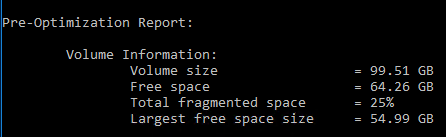
- The report will also include a recommendation to defrag if the level of fragmentation is high enough. If the report recommends defragging the drive, you can do by running the previous command with the /a flag removed.
defrag c:
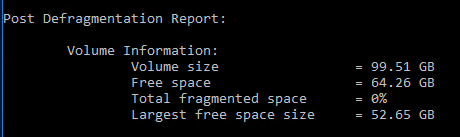
- Once the defrag process completes, the server will report the new level of fragmentation.
File System Structure
Due to the way virtual servers are backed up and imaged, the system file structure is sometimes misaligned. More commonly, the parent server reports a problem with the file system that doesn’t actually exist. Both situations can be resolved by running a checkdisk (chkdsk) command.
- To check for file system structure integrity you can run a read-only chkdsk by opening a command prompt and entering the following command.
chkdsk
- If there are no problems with the file system, you’ll receive a message that no further action is required.

- If the system detects problems, you’ll be notified that issues were identified but not resolved. This is because the file system cannot be modified while the server is running. To fix any issues, you’ll need to run a command that will run the chkdsk when the server restarts. NOTE: This “offline” checkdisk can take time to complete and your server will be unavailable for the entire time that the command is running. It is best to do an offline chkdsk when you expect server traffic to be minimal. To run an offline chkdsk, use the following command.
chkdsk /F
- You should receive the following message from the server.
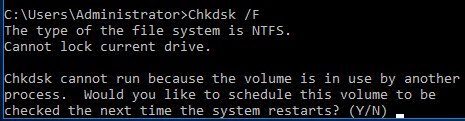
- Type “Y” and press enter. The system will confirm that it will run the chkdsk the next time the server is restarted. You can restart the server immediately, or schedule a restart for a time that is more convenient. For more information on scheduling reboots, see Rebooting a Cloud VPS
Because of the way that virtual servers are managed by a parent operating system, it is sometimes necessary to run an offline chkdsk, even when the file system structure has no issues. The parent server has marked the virtual server as having a problem due to the last image that was taken while the server was in operation. Even though there are no problems, the virtual server will still need to run an offline chkdsk and be rebooted twice to clear this warning flag.
