

Troubleshooting: Failed Cloud Backup
As we learned in our article Creating a Backup of Your Cloud VPS, backups are an essential part of maintaining your server and keeping your business up and running. But what if your backups fail? Getting a notice of a failed backup can feel scary and make you wonder what is going on, but the answer is generally simple and the fix takes just a few steps to resolve a failed backup situation.
Failed Backup Notification
You will receive an email notification letting you know that a backup has failed. The email will contain the server name, what failed (backups) and that it is just a warning.
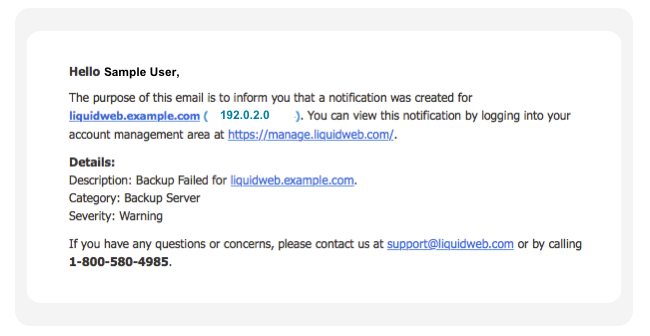
You can also see that the backup failed in the History section of your account.
When you click on the + plus sign in the history section, you can see when the backup failed and at what time. This information will help you when troubleshooting the issue causing the failure.
Why Does This Happen?
The most common reason for a Cloud backup to fail is the snapshot volume being full. The snapshot volume is a logical volume that is created during the backup process. This snapshot volume will store all changes written to disk during the process of your backup. Once the backup is completed, the information stored in the snapshot partition will apply any changes made to your server during the backup process to the backup that was taken, making sure that your backups are the absolute most recent work you’ve done.
The snapshot logical volume created during backups works as a safeguard to keep your backups as current as possible. However, if you are running cPanel backups, cron jobs or other processes that are writing to disk during the Cloud backup process, the snapshot volume can become full and cause the backup to fail. When the snapshot partition fills up, it won’t be able to add the changes made to the server to the backup and will cause it to fail. Below are solutions to keep this from happening in the future.
Troubleshooting Steps:
Step 1. Create an Image
The first step in troubleshooting a failed backup is to create an image from your Liquid Web account. An image is a manual backup of your server as it looks today. It will complete the same process as a backup, see how in our article Creating a Cloud VPS Image. If you can create an image without any issue, this means something is causing the snapshot volume to become full and failing the backup at the time you have it set to run. Follow the next two steps to continue troubleshooting the snapshot volume becoming full and failing your Cloud backup.
Warning: |
| There is an additional charge for images to be stored. They are on a monthly basis and are charged per GB. In order to avoid any additional charges on your account, destroy the image you created to test your backups as soon as the next successful backup has been completed. |
Step 2. Check cPanel Backups
One of the main reasons a Cloud backup will fail is that cPanel backups are trying to run at the same time. Most times customers won’t schedule the backups to complete at the same time, but maybe within a few hours of each other. Backups will take more time as more data and processes are put on your server. This will then cause the two backups to overlap and fill up the snapshot partition. Once that is full, you will receive an email about the failed Cloud backup. The best solution is to change the time of the cPanel backup so that it is further away from the time that the Cloud backup will run. For information on cPanel backups, see our article Configuring cPanel Backups in WHM.
Step 3. Check crons and other disk change processes set to run at the same time
If you have crons making changes to the server or processes like rsync moving files that run during the backup process, the snapshot volume can become full with the changes being made and cause your backup to fail. Changing the time these run to a time further away from the backup will prevent the snapshot volume from becoming full and failing the backup. See information on how to change the timing of a cron in our article Creating a Cron Job in cPanel.
