

Plesk File Manager
While you can manage your website content through an FTP client, Plesk provides a File Manager which lets you add, remove, and edit files securely from any web browser.
The following instructions assume you are logged into Plesk. Our article Getting Started with Plesk can help you if you are not sure how to log in.
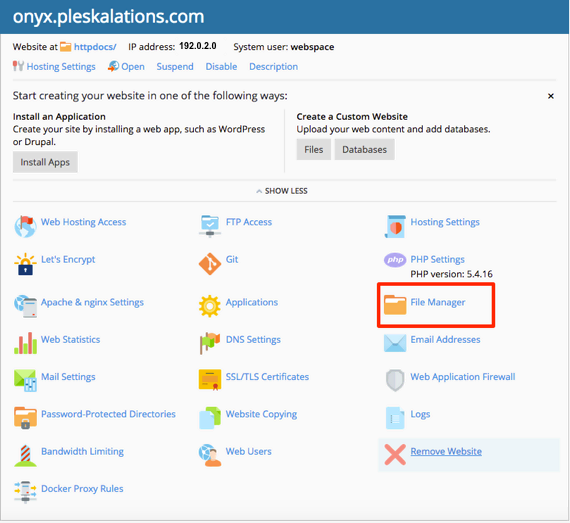
- From the Home page of the Domain you want to work with, click on the File Manager link.

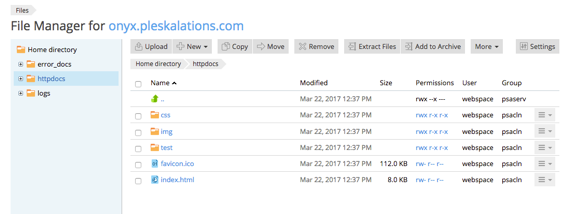
- This will open the File Manager section of Plesk. httpdocs is the public directory that stores all your site documents. Most of the work you will do will be from this directory.

Next, we will take a look at a few of the features in the File Manager.
- At the top of the File Manager section, you will see a Task Bar where you can upload, create, edit, delete and manage your website files.

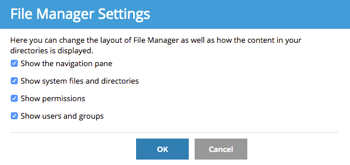
- You can manage the way the Plesk File Manager is displayed by clicking on the Settings button in the Task Bar. A pop-up will appear with the settings.

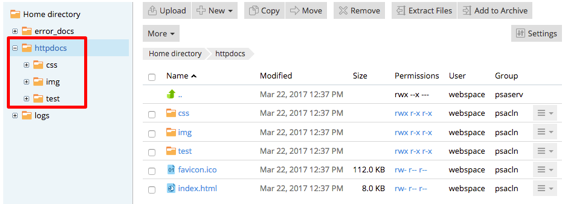
- The files in httpdocs appear to the right of the File Tree, but you can also click the + plus sign and see a drop-down of the file hierarchy.


Now that you have familiarity with the File Manager in Plesk, you can see the articles below to learn how to use the functions in the task bar.
