An IP Address (Internet Protocol Address) is a unique numerical label assigned to each device connected to a computer network that uses the Internet Protocol for communication. It serves two main purposes:
- Identifying a device on the network.
- Locating the device to enable communication with other devices over a network like the Internet.
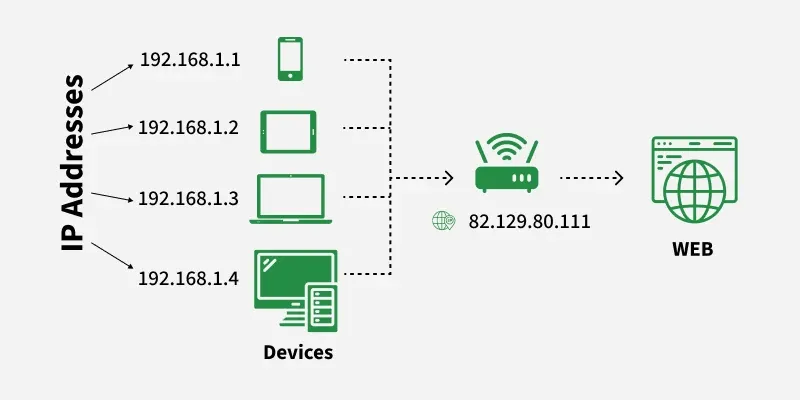 IP Address
Note: In simple terms, an IP address acts like a digital home address, allowing data to be sent and received between devices correctly.
Components of an IP Address
- Network Portion: Identifies the network to which the device belongs.
- Host Portion: Identifies the individual device on the network.
- Subnet Mask (for IPv4): Defines which part of the IP is network and which part is host.
Example: IP 192.168.1.10 with subnet mask 255.255.255.0
Network ID: 192.168.1.0
Host ID: 10
Types of IP Address
IP addresses can be classified in several ways based on their structure, purpose, and the type of network they are used in. Here's a breakdown of the different classifications of IP addresses:
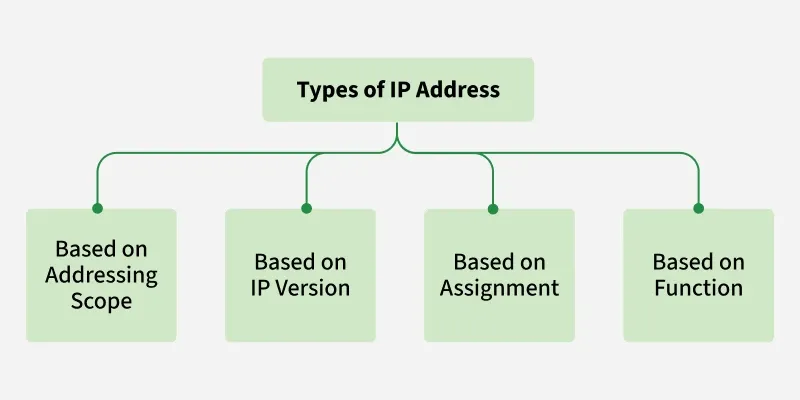 Types of IP Address
1. Based on Addressing Scope (IPv4 vs. IPv6)
1.1 Public IP Addresses
A Public IP address is assigned to every device that directly accesses the internet. This address is unique across the entire internet. Uniqueness & Accessibility are its key characteristics & are assigned by Internet Service Providers. When you connect to the internet through an ISP, your device or router receives a public IP address. These addresses can be static or dynamic.
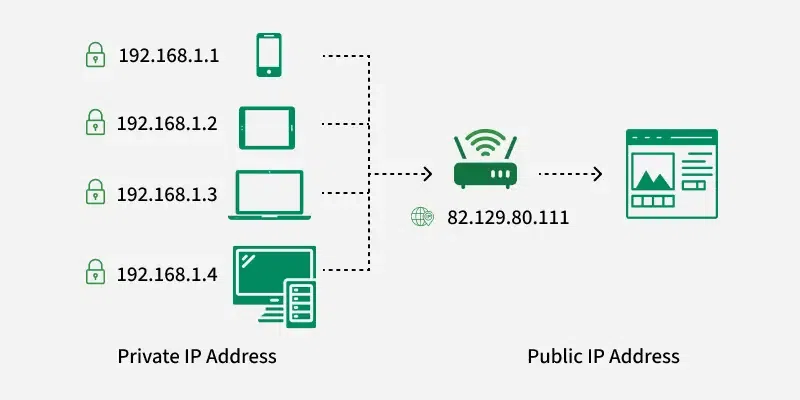 Public v/s Private IP Address
Example Use: If you host a website on your own server at home, your ISP must assign a public IP address to your server so users around the world can access your site.
1.2 Private IP Addresses
Private IP addresses are used within private networks and are not routable on the internet. This means that devices with private IP addresses cannot directly communicate with devices on the internet without a translating mechanism like a router performing Network Address Translation (NAT). These are only required to be unique within their own network & are used for communication between devices within the same network
- Defined ranges for IPv4: 10.0.0.0 to 10.255.255.255, 172.16.0.0 to 172.31.255.255, 192.168.0.0 to 192.168.255.255
- Defined ranges for IPv6: Addresses starting with FD or FC
Example Use: In a typical home network, the router assigns private IP addresses to each device (like smartphones, laptops, smart TVs) from the reserved ranges. These devices use their private IPs to communicate with each other and with the router. The router uses NAT to allow these devices to access the internet using its public IP address.
Read more about Private v/s Public IP addresses
2. Based on IP Version
2.1 IPv4
This is the most common form of IP Address. It consists of four sets of numbers(octets) separated by dots. This format can support over 4 billion unique addresses. Each octet represents eight bits, or a byte, and can take a value from 0 to 255. This range is derived from the possible combinations of eight bits (28 = 256 combinations).
 IPv4 Address Format
Example of IPv4 Address: 192.168.1.1
- 192 is the first octet
- 168 is the second octet
- 1 is the third octet
- 1 is the fourth octet
Note: Each part of the IP address can indicate various aspects of the network configuration, from the network itself to the specific device within that network.
2.2 IPv6:
IPv6 addresses were created to deal with the shortage of IPv4 addresses. They use 128 bits instead of 32, offering a vastly greater number of possible addresses. These addresses are expressed as eight groups of four hexadecimal digits, each group representing 16 bits. The groups are separated by colons.
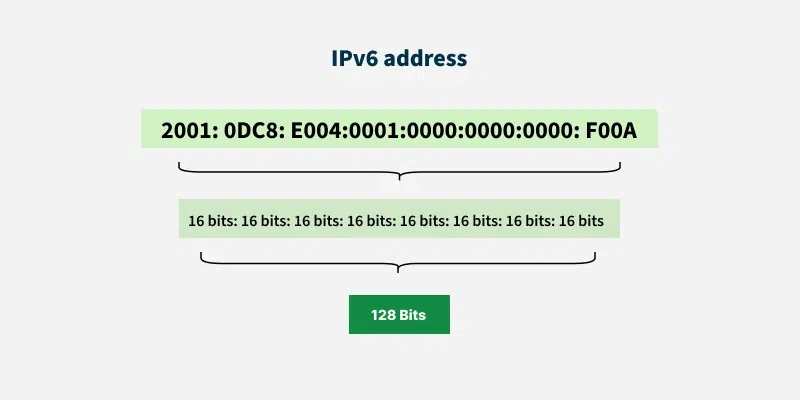 IPv6 Address Format
Example of IPv6 Address: 2001:0db8:85a3:0000:0000:8a2e:0370:7334 Each group (like 2001, 0db8, 85a3, etc.) represents a 16-bit block of the address.
3. Based on Assignment
3.1 Static IP Addresses
- Static IP Addresses are permanently assigned to a device, typically important for servers or devices that need a constant address.
- Reliable for network services that require regular access such as websites, remote management.
3.2 Dynamic IP Addresses:
- Temporarily assigned from a pool of available addresses by the Dynamic Host Configuration Protocol (DHCP).
- Cost-effective and efficient for providers, perfect for consumer devices that do not require permanent addresses.
4. Based on Function
4.1. Unicast Address
In unicast, data is sent from one sender to one specific receiver identified by a unique IP address. It is the most common type of communication used in networks. Its Purpose is One-to-one communication.
- Example: Sending an email or loading a webpage - your computer directly communicates with a specific server.
- Use Case: Regular web browsing, file transfers (FTP), email (SMTP), etc.
4. 2. Broadcast Address
In broadcast, a message is sent from one device to all devices in the same network segment. Every device in the network receives and processes the broadcast message. Its Purpose is One-to-all communication within a network.
- Example: An ARP (Address Resolution Protocol) request uses broadcasting to find a device’s MAC address on the local network.
- Use Case: Network discovery, DHCP requests, ARP queries
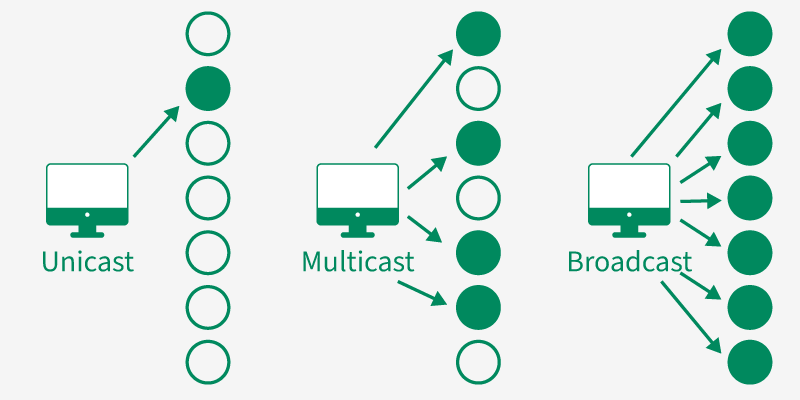 Unicast v/s Multicast v/s Broadcast
Note: Broadcast communication is supported in IPv4, but not in IPv6 (IPv6 replaces it with multicast).
4. 3. Multicast Address
In multicast, data is sent from one source to multiple selected receivers that are part of a multicast group. Only devices that have joined the group will receive the data, making it more efficient than broadcasting. Its Purpose is One-to-many (selected group) communication.
- Example: Streaming live video or online conferencing to a group of users.
- Use Case: IPTV, video conferencing, live streaming
- IPv4 Range:224.0.0.0 to 239.255.255.255
- IPv6 Prefix:FF00::/8
4.4. Anycast Address
In anycast, data is sent from one sender to the nearest receiver (in terms of network distance) among a group of devices sharing the same IP address. Routers determine the closest destination dynamically. Its Purpose is One-to-nearest communication (based on routing distance).
 Anycast
- Example: Content Delivery Networks (CDNs) use anycast to route user requests to the nearest data center.
- Use Case: DNS servers, CDN routing, load balancing
Note: Anycast is primarily used in IPv6, but it can also be implemented in IPv4.
Classes of IPv4 Address
There are around 4.3 billion IPv4 addresses and managing all those addresses without any classification is next to impossible. For easier management and assignment IP addresses are organized in numeric order and divided into the following 5 classes:
| IP Class | Address Range | Maximum number of networks |
|---|
| Class A | 1-126 | 126 (27-2) |
| Class B | 128-191 | 16384 |
| Class C | 192-223 | 2097152 |
| Class D | 224-239 | Reserve for multitasking |
| Class E | 240-254 | Reserved for Research and development |
- Class A (1.0.0.0 to 127.255.255.255): Used for very large networks (like multinational companies). Supports up to 16 million hosts per network.
- Class B (128.0.0.0 to 191.255.255.255): Used for medium-sized networks, such as large organizations. Supports up to 65,000 hosts per network.
- Class C (192.0.0.0 to 223.255.255.255): Used for smaller networks, like small businesses or home networks. Supports up to 254 hosts per network.
- Class D (224.0.0.0 to 239.255.255.255): Reserved for multicast groups (used to send data to multiple devices at once). Not used for traditional devices or networks.
- Class E (240.0.0.0 to 255.255.255.255): Reserved for experimental purposes and future use.
Special IP Addresses
There are also some special-purpose IP addresses that don't follow the usual structure:
- Loopback Address: The loopback address 127.0.0.1 is used to test network connectivity within the same device (i.e., sending data to yourself). Often called "localhost."
- Broadcast Address: The broadcast address allows data to be sent to all devices in a network. For a typical network with the IP range 192.168.1.0/24, the broadcast address would be 192.168.1.255.
- Multicast Address: Used to send data to a group of devices (multicast). For example, 233.0.0.1 is a multicast address.
How Do IP Addresses Work?
An IP address (Internet Protocol address) serves as a unique identifier for every device connected to a network, enabling communication and data exchange across local and global networks. The Internet Protocol governs how data is packaged, addressed, transmitted, routed, and received.
1. Unique Identification
- Every device-such as a computer, smartphone, or server-connected to a network is assigned an IP address.
- This address acts like a digital home address, allowing the device to be uniquely identified within the network.
- Without an IP address, a device cannot send or receive data on the network.
2. Communication Protocol
The Internet Protocol (IP) defines how data is transmitted between devices. When data is sent over a network, it is divided into smaller units called packets. Each packet contains:
- The source IP address (the sender’s device)
- The destination IP address (the receiver’s device)
Note: Routers and switches use these addresses to ensure that each packet reaches its correct destination.
3. Data Routing
When a device sends data to another device on the internet, the following steps occur:
- The data is divided into packets.
- Each packet includes the IP address of its destination.
- Routers examine the destination IP on each packet and determine the best route to forward it.
- Routers communicate with each other to update routing tables and maintain the most efficient paths for data transmission.
Note: This process ensures that packets may take different routes but ultimately arrive at the correct destination, where they are reassembled.
4. LAN and WAN Communication
- Local Area Network (LAN): Within a local network, IP addresses can be assigned statically (manually) or dynamically using DHCP (Dynamic Host Configuration Protocol). Devices within the same LAN can communicate directly using private IP addresses.
- Wide Area Network (WAN): When communicating across different networks, data travels through multiple routers over the internet. Each router independently decides the next hop based on the destination IP address to ensure optimal routing.
5. Network Address Translation (NAT)
- NAT (Network Address Translation) allows multiple devices in a private network to share a single public IP address when accessing the internet.
- Inside the local network, devices use private IPs (e.g., 192.168.x.x).
- The router translates these private IPs into a public IP for outbound communication.
Note: NAT helps conserve the limited number of public IPs and provides an additional security layer by hiding internal network structures from the outside world.
Real World Scenario: Sending an Email from New York to Tokyo
Let's explore how IP addresses work through a real-world example that involves sending an email from one person to another across the globe:
Step 1: Assigning IP Addresses
- Alice in New York has a laptop with a private IP, e.g., 192.168.1.5, assigned by her home router.
- Bob in Tokyo has a computer with a private IP, e.g., 192.168.2.4, assigned by his office router
Step 2: Connecting to the Internet
- Both routers have public IP addresses provided by their ISPs (Internet Service Providers).
- These public IPs are used for all communications over the internet.
Step 3: Sending the Email
- Alice composes an email and clicks "Send."
- Her email client (e.g., Gmail or Outlook) converts the email into data packets that contain: Source IP -> Alice’s public IP (her router’s address) & Destination IP -> Bob’s mail server’s public IP
Step 4: Routing the Packets
- The packets move from Alice’s laptop to her router.
- The router detects that the destination IP is external and forwards the packets to Alice’s ISP.
- The ISP’s routers analyze the destination IP and determine the optimal route.
- Packets travel across several intermediate routers -perhaps through data centers in North America, Europe, and Asia -before reaching Japan.
Step 5: Reaching Bob
- The packets arrive at Bob’s email server’s ISP in Tokyo.
- The server’s router forwards them to Bob’s email server.
- The server reassembles the packets into the original email message.
Step 6: Email Retrieval
- Bob’s computer requests the email from the server using his local IP.
- The server sends the email to Bob’s device, completing the communication.
Note: This illustrates the fundamental role of IP addresses and the complex network of routers involved in even the simplest internet activities like sending an email. Each part of the process depends on the IP address to ensure that data finds its way correctly from sender to receiver, no matter where they are in the world.
How to Look Up IP Addresses?
1. In Windows
- Open the Command Prompt.
- Type ipconfig and press Enter.
- Look for your IP under your network connection.
2. On Mac
- Open System Preferences > Network.
- Select your active connection.
- You’ll see your IP address in the connection details.
3. On iPhone
- Go to Settings > Wi-Fi.
- Tap the (i) icon next to your network.
- Find your IP under "IP Address."
IP Address Security Threats
IP addresses are essential for connecting devices on the internet, but they also come with various security risks. Understanding these threats can help you protect your network and personal information more effectively. Some common IP address security threats are:
- IP Spoofing: Attackers fake a trusted IP address to bypass security and gain unauthorized access.
- DDoS Attacks: Multiple infected systems flood a target with traffic, causing slowdowns or crashes.
- Man-in-the-Middle (MitM): Hackers intercept or alter data between two parties to steal sensitive information.
- Port Scanning: Attackers scan for open ports to find vulnerabilities and exploit system weaknesses.
Note: Protecting against these threats requires strong network security, monitoring, and regular system updates.
How to Protect and Hide Your IP Address
- Use a VPN (Virtual Private Network): A VPN hides your real IP address by routing your internet traffic through a secure VPN server. This masks your identity, encrypts your data, and prevents websites or attackers from tracking your location or online activities.
- Use a Proxy Server: A proxy server acts as an intermediary between your device and the internet. When you send a request, it goes through the proxy, which substitutes its own IP address for yours, helping to conceal your real identity.
- Use the Tor Browser: The Tor network routes your data through multiple volunteer-run servers (nodes), encrypting it at every layer. This makes it extremely difficult for anyone to trace your IP address or monitor your browsing activity.
- Enable a Firewall: A firewall monitors and filters incoming and outgoing network traffic. It blocks suspicious or unauthorized connections, reducing the risk of hackers targeting your device via your IP address.
Explore
Basics of Computer
Application Software
System Software
Networks & Internet Protocols
Programming Languages