Amazon Relational Database Service (RDS) is a fully managed web service that makes it easy to set up, operate, and scale a relational database in the cloud. It provides cost-efficient, resizable capacity for an industry-standard relational database and manages common database administration tasks.
Instead of buying servers, installing the OS, and managing database software manually, RDS automates the heavy lifting provisioning, patching, backup, recovery, failure detection, and repair.
Supported Database Engines
RDS supports six popular database engines:
- Amazon Aurora (AWS-built, high performance)
- PostgreSQL
- MySQL
- MariaDB
- Oracle Database
- Microsoft SQL Server
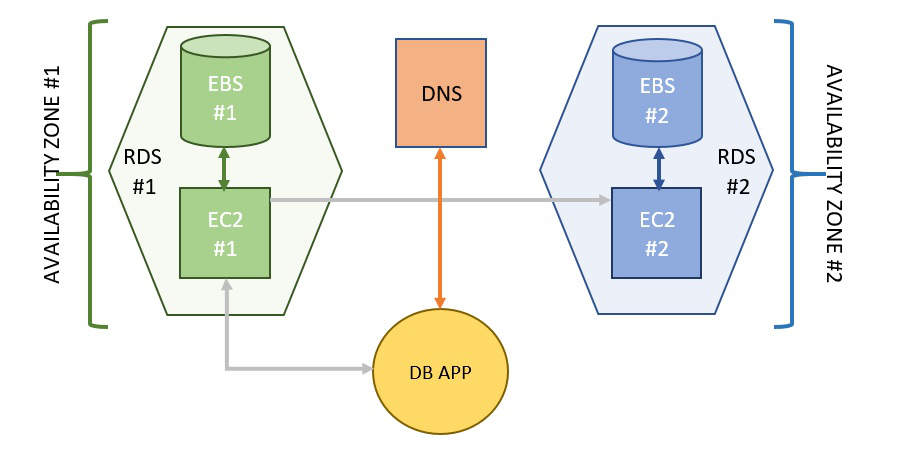
Core Architecture: Multi-AZ vs. Read Replicas
One of the most critical concepts in RDS is the difference between High Availability (Multi-AZ) and Scalability (Read Replicas).
1. Multi-AZ Deployment (High Availability)
- Purpose: Disaster Recovery (DR) and High Availability.
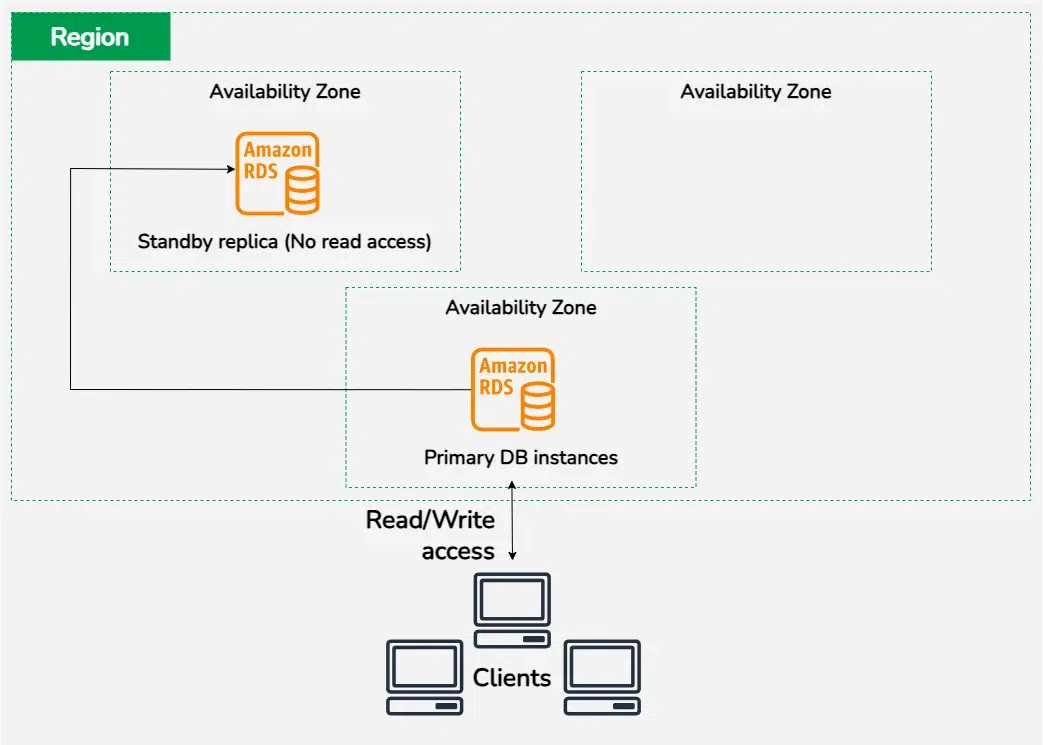
- How it works: RDS automatically provisions a Standby Replica in a different Availability Zone (AZ). Data is synchronously replicated to the standby.
- Failover: If the primary DB fails, RDS automatically fails over to the standby. The endpoint remains the same, so your application doesn't need configuration changes.
- Access: The standby cannot be used for read or write traffic. It is idle until a failure occurs.
2. Read Replicas (Scalability)
- Purpose: Improve performance by offloading read traffic.
- How it works: You create a read-only copy of your database. Data is asynchronously replicated from the primary.
- Access: You can connect to a Read Replica to run queries (e.g., analytics, reporting) to reduce the load on the primary DB.
- Promotion: A Read Replica can be promoted to a standalone database if needed.
The Shared Responsibility Model for RDS
Security and management in RDS are a partnership between you and AWS.
AWS Responsibility (Security OF the Cloud):
- Physical security of data centers.
- Managing the underlying host infrastructure (EC2, EBS).
- Patching the OS and the database software engine.
- Automated backups and snapshots.
Customer Responsibility (Security IN the Cloud):
- Data: Managing the actual data inside the database.
- Encryption: Enabling encryption at rest (KMS) and in transit (SSL).
- Network: Configuring Security Groups (firewalls) to restrict access (e.g., only allow traffic from your App Server on port 3306).
- IAM: Managing who can access the RDS service API.
- Database Users: Creating and managing database users and permissions within the DB engine itself.
Advanced Features
1. RDS Proxy
Many modern applications (especially serverless apps using Lambda) open thousands of database connections, which can crash a traditional database.
- Solution: RDS Proxy sits between your app and the database. It pools and shares established connections, making your database more efficient and resilient to connection surges.
2. Blue/Green Deployments
Updating a database schema or engine version can be risky.
- Solution: RDS Blue/Green Deployments create a staging environment (Green) that mirrors your production environment (Blue). You can upgrade and test the Green environment safely. When ready, you switch over traffic in typically under a minute with no data loss.
3. Storage Auto-Scaling
You don't need to over-provision storage "just in case." RDS can automatically detect when you are running out of free space and increase your storage volume size on the fly with zero downtime.
Understanding AWS Regions, Availability Zones and Multi-AZ Deployments in Amazon RDS.
AWS Regions and Availability Zones
AWS Regions are geographically separated locations that contain multiple Availability Zones. Each region is isolated from the others to ensure geographical redundancy. When you create an RDS instance you select a region which defines where your database physically resides. Availability Zones are distinct data centers within a region each with independent power, cooling and networking. RDS can deploy your databases across multiple AZs to ensure high availability. The image above illustrates Amazon RDS's cross-region replication which helps enhance availability and data durability across regions.
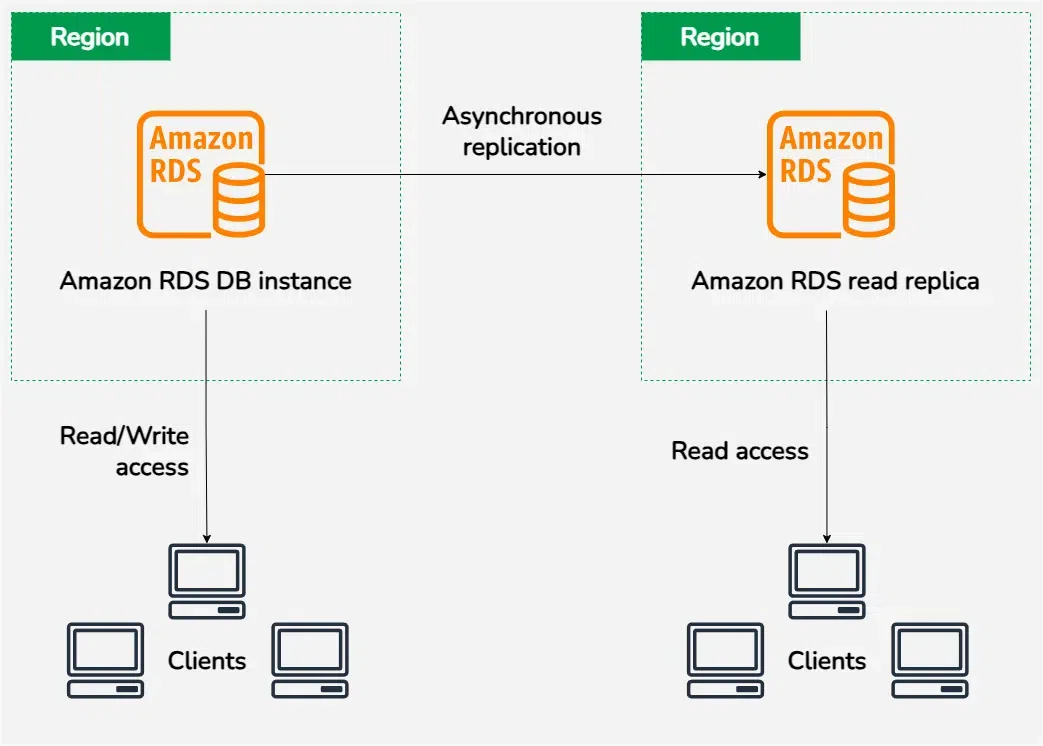
This configuration provides a resilient solution to scale applications globally while ensuring data redundancy and improved fault tolerance
Multi-AZ deployments
In Multi-AZ deployments with Amazon RDS your primary database is automatically replicated to a standby instance in another Availability Zone within the same AWS Region. The primary instance handles read/write access while the standby instance stays in sync for disaster recovery. If the primary instance or its AZ fails RDS automatically switches to the standby instance ensuring minimal downtime. Check the diagram below for a clearer understanding of this setup
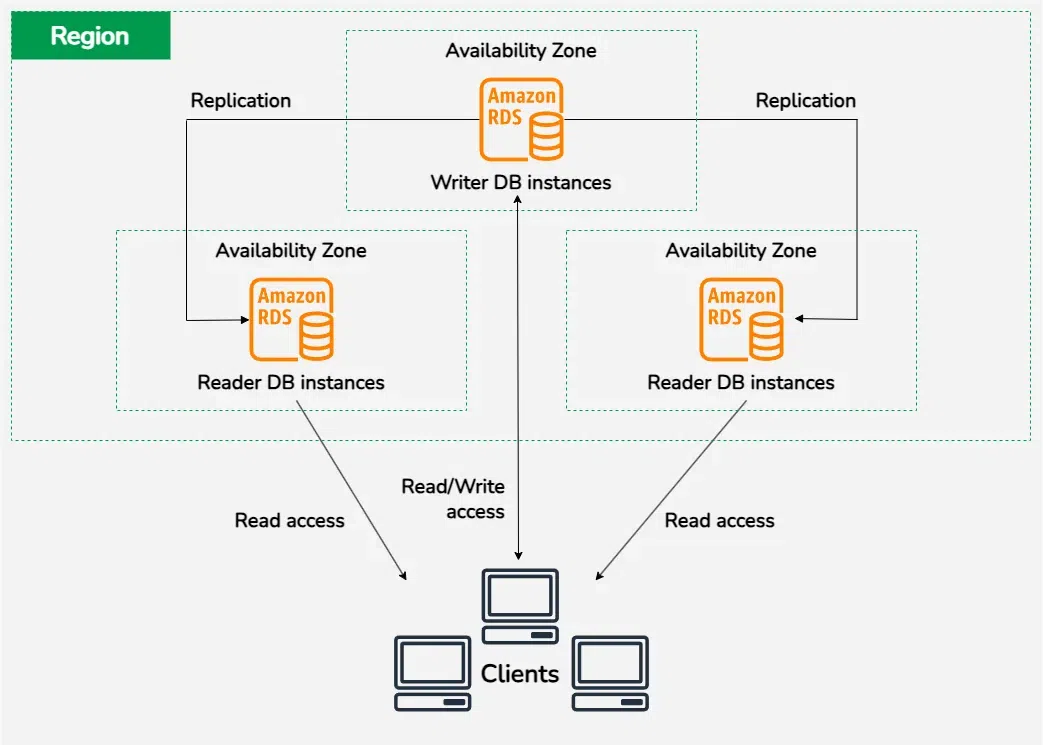
In a Multi-AZ DB cluster deployment, there is one writer DB instance and two reader DB instances spread across three separate Availability Zones within the same AWS Region. The writer instance handles both read and write requests, while the reader instances are dedicated to handling read traffic.
Access control with security groups For RDS DB Instances
Security groups play a crucial role in controlling network access between EC2 instances and RDS DB instances within a VPC. Below Is the Architecture to where its Clearly show how Security Groups configure for EC2 and RDS In VPC

For more information about security groups, Please Refer security groups Creation
Ways to Interact with Amazon RDS
You can interact with Amazon RDS in multiple ways
AWS Management Console
The AWS Management Console provides an easy-to-use web-based interface to manage and monitor your RDS instances including creating databases, managing backups and scaling instances

Command line interface
The AWS CLI enables users to automate tasks by executing commands in scripts. For more information Please Refer to this Configure CLI for RDS
Amazon RDS APIs
Amazon RDS API allows developers to programmatically manage and interact with their RDS instances offering seamless integration into applications and services.
What are the drawbacks of Amazon RDS?
Here are some potential drawbacks of Amazon RDS:
- Limited Customization: Since it's a managed service, customization options for server configuration and software updates are limited compared to self-hosted databases.
- Cost: For large-scale deployments, the cost can increase significantly, especially when using Multi-AZ deployments or higher instance classes.
- Manual Scaling: While scaling is possible, it is not fully automatic like in Amazon Aurora, and it requires manual intervention to adjust based on workload changes.
- Backup and Restore Time: During heavy usage periods, backups and restores can take longer, which may affect database performance.
- Vendor Lock-In: Once integrated deeply with RDS, migrating to other platforms can be complex and time-consuming
Amazon RDS database instances
Amazon RDS database instances are managed virtual servers used to run relational databases in the AWS cloud. Each instance comes pre-configured with the necessary hardware and software resources to support your chosen database engine whether it's MySQL also PostgreSQL, Oracle, SQL Server or MariaDB. RDS handles common tasks like backups also patching and database management allowing you to focus on your applications. You can choose instance sizes based on your performance needs with the option to scale up or down as required. Additionally Multi-AZ deployment options are available to ensure high availability and fault tolerance

Amazon Aurora and Amazon Aurora Serverless vs Amazon RDS
Feature | Amazon Aurora | Amazon Aurora Serverless | Amazon RDS |
|---|
Performance | AWS Aurora is optimized for high performance and scalability | Automatically scales to meet workload demands, performance varies based on usage | AWS RDS offers good performance but may have limitations for extremely high transaction volumes |
Scalability | Automatic storage scaling up to 128 TB | Automatically scales resources up and down based on demand | Manual scaling required for instance and storage resources |
High Availability | Multi-AZ replication for fault tolerance | Multi-AZ replication available, scales with demand | Multi-AZ option available but requires manual setup |
Cost | Pay for provisioned instances and storage | Pay only for the capacity you use making it cost-effective for variable workloads | Cost-effective for smaller workloads but may require manual adjustments for scaling |
Pricing Models
RDS pricing is based on several factors:
- Instance Class: The CPU/RAM capacity (e.g.,
db.t3.micro vs db.r5.large). - Storage: Amount of storage provisioned (GB per month).
- I/O Requests: For magnetic storage (older) or Aurora (specific configurations).
- Backup Storage: You get free backup storage equal to your DB size. Additional backups cost extra.
- Data Transfer: Data transferred OUT of AWS costs money.
Cost Saving Tip: For steady-state production databases, purchase Reserved Instances to save up to 60% compared to On-Demand pricing.
Now, let us look at the AWS Relational Database Service management console.
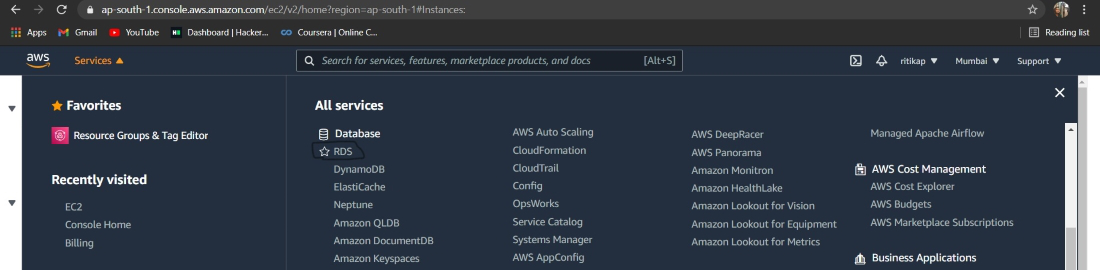
Step 1: To reach, the RDS management console. First login into your AWS account to create AWS free tier account refer to Amazon Web Services (AWS) – Free Tier Account Set up. Once you are directed to the primary screen, at the leftmost part of it, click on "Services". From the long list, look for the sub-heading "Databases" and under it, you will find "RDS". Click on it. Here is the image to refer to.
Step 2: Once you tap on RDS, in a while, you will be able to see the RDS management console. Refer to the image attached ahead for a better understanding.
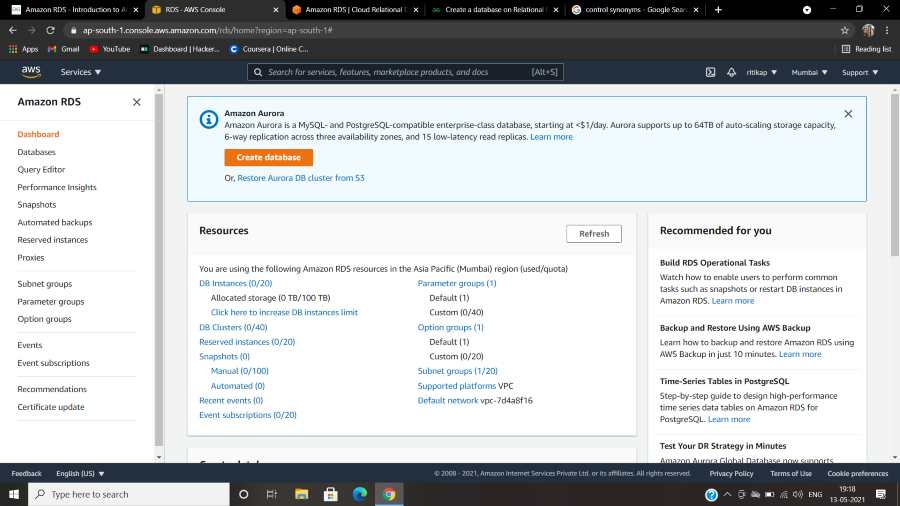
This is what the RDS dashboard looks like. On the left, there is the navigation pane to direct you to all the services under RDS. You can create your database from here, by tapping on the orange box saying, "Create database". For creating a database in RDS follow the linked article.
Explore
DevOps Basics
Version Control
CI & CD
Containerization
Orchestration
Infrastructure as Code (IaC)
Monitoring and Logging
Security in DevOps