Kill Command in Linux with Example
Last Updated :
07 Nov, 2025
The kill command in Linux is used to send signals to processes for managing their execution, typically to terminate them. It can gracefully stop, pause, or forcefully end a process based on the signal sent.
- Located in /bin/kill , it’s a built-in Linux command.
- Sends specific signals to processes using their Process ID (PID).
- By default, it sends the SIGTERM (15) signal to terminate a process.
- Can use other signals like SIGKILL (9) or SIG STOP (19) for different actions.
Signals can be specified in three ways:
Signals can be specified in three ways; they are as follows:
1. By number:
We can specify a signal using a number. For example, we have a PID `1212` and want to send a `SIGKILL` signal to kill this PID. SIGKILL has a signal number of `9` (To find signal numbers run `kill -l` command).
Syntax:
kill -9 1212
2. With SIG prefix (e.g/ -SIGkill)
We can also specify signal using SIG prefix. For example, we need to send a signal `SIGTERM` and PID is `1432`. To just check signal number of `SIGTERM` signal we can use `kill -l` command.
Syntax:
kill -SIGTERM 1432
3. Without SIG prefix:
We can also specify signals without using SIG prefix. For example, if want to send signal `TERM` and PID `1234`. To just check signal number of `TERM` signal we can use `kill -l` command.
Syntax:
kill -TERM 1234
Some Common Signals in kill Command
The table below shows some common signals and their corresponding numbers.
| Signal Name | Signal Number | Description |
|---|
| SIGHUP | 1 | It hangup detected on controlling terminals or death of controlling process. |
| SIGINT | 2 | It interrupts from keyboard. |
| SIGKILL | 9 | It kills signal. |
| SIGTERM | 15 | It terminates signal. |
SIGCONT | 18 | It continue a stopped process. |
SIGSTOP | 19 | It is used to stop or pause a process. |
Basic Syntax of the kill Command in Linux
The basic syntax of the `kill` command is as follows:
Syntax :
kill [signal] <PID>
Here,
- PID: PID defines the Process ID of the target process.
- [signal] = The
kill Command uses signals to control processes. These signals are identified by either a number (like -9, -15) or a name (like -KILL, -TERM, -STOP).
Options in kill Command
There are different types of options used in the kill command.
1. "kill -l"
The 'kill-l' command is used to display all the signals.
Syntax:
kill -l
Output:
.webp) kill -l
kill -lThis output shows all the signals present in the kill command.
2. Find the Process ID
The kill command is used when we know the process ID (PID) of a running process. To use kill, we must first find the PID of the process we want to stop or control. This can be done using commands like ps, pidof, or top.
There are different types of methods to find the procesd ID (PID).
Method 1. Using ps command
by using ps command to know the process ID.
Syntax:
ps
Output:
.webp) ps
psMethod 2. Using top command
The 'top' Command in Linux is a dynamic, real-time utility that provides a detailed overview of system performance. It displays critical information such as CPU usage, memory utilization, process activity, system load averages, and more, making it an essential tool for monitoring and managing system resources efficiently.
Syntax:
top
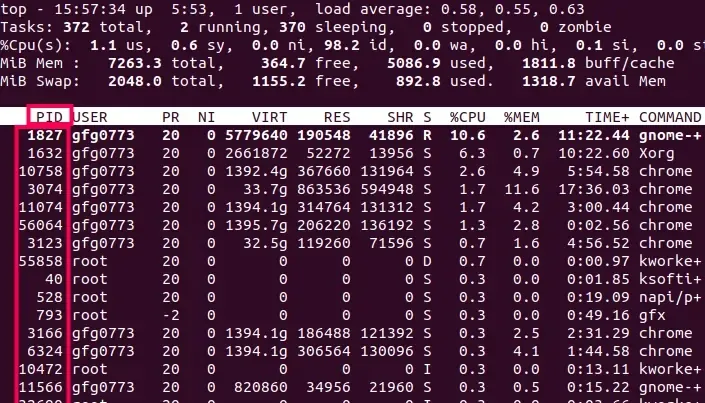
The top command show all the process ID and their Process Name running on the system.
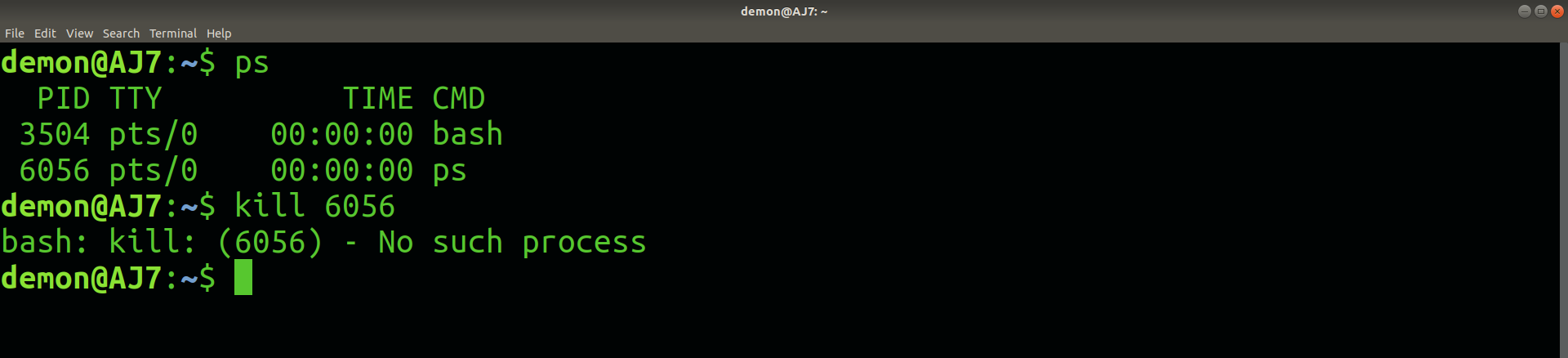
3. Graceful Termination
This option specifies the process ID of the process to be killed.
Syntax:
kill <process ID>
Example:
kill 6056
 4. Force kill
To terminate a process immediately using the signal 'SIGKILL' or signal number '9'.
Syntax:
kill -9 <PID>
Example:
kill -9

This process ID belongs to a text editor, so we forcefully terminated it using kill -9.
5. Pause a Process
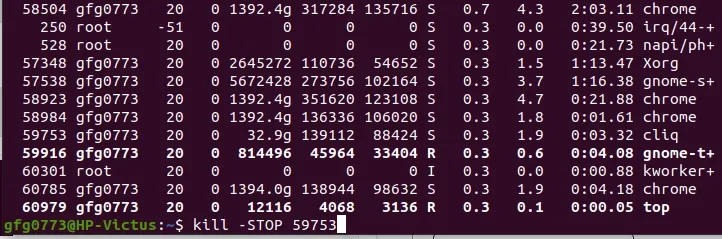
To pause (stop/suspend) a running process without terminating it, you can send it the SIGSTOP signal using the kill command:
Syntax:
kill -STOP <PID>
Example:
kill -STOP 59753
6. Resume a paused process
If you have previously paused a process using kill -STOP, you can resume it by sending the SIGCONT signal.
Syntax:
kill -CONT <PID>
Example:
kill -CONT 59753
Explore
Getting Started with Linux
Installation with Linux
Linux Commands
Linux File System
Linux Kernel
Linux Networking Tools
Linux Process
Linux Firewall
Shell Scripting & Bash Scripting
Linux Administrator System