Split Command in Linux with Examples
Last Updated :
03 Nov, 2025
The split command lets you break a large file into smaller chunks for easier storage, transfer, or analysis. By default it creates 1000-line pieces and auto-names them with alphabetic suffixes like PREFIXaa, PREFIXab (the default prefix is x, but you can choose your own, e.g., split big.log part).
- Set chunk size by lines: split -l 5000 big.log chunk_
- Set chunk size by bytes: split -b 50M video.mp4 vid_
- Use numeric suffixes for natural order: -d (e.g., split -d ... part_)
- Non-destructive: split only reads the file; original stays intact
- Reassemble: cat part_* > merged.file (ensure correct order)
Example
Split file into short files. Assume a file name with name index.txt. Use below split command to break it into pieces.
Command:
split index.txt
Output:

- The file
index.txt is divided into two smaller files named xaa and xab. - By default, each split file contains 1000 lines.
- Since no custom prefix was provided, the split command automatically used the default prefix
x, resulting in the output files being named xaa and xab.
Commonly Used Options of the split Command
Here are some commonly used options in split command
Syntax:
split [options] name_of_file prefix_for_new_files
1. Split File Based on Number of Lines (-l)
This option allows you to divide a file into smaller parts based on a specific number of lines. Each output file will contain the given number of lines.
Example:
split -l 4 index.txt split_file
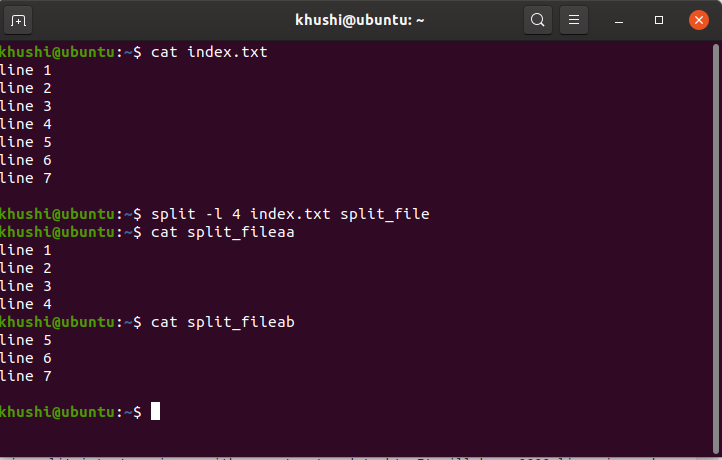
- This will split
index.txt into smaller files (split_fileaa, split_fileab, etc.), each containing 4 lines.
2. Split Command with Verbose Mode (--verbose)
- The
--verbose option displays a message every time a new split file is created. - It helps track the progress during splitting.
Example:
split index.txt -l 4 --verbose

- Shows detailed output like “creating file ‘xaa’” whenever a new split file is made.
Note:
- Here -l 4 is not necessary to use. It is used just for understanding purposes.
3. Split File Based on File Size (-b)
- The
-b option splits a file into smaller chunks based on size (bytes, KB, MB, etc.).
Example:
split -b 16 index.txt index

Splits index.txt into multiple files (indexaa, indexab, etc.), each containing 16 bytes of data.
4. Change the Suffix Length (-a)
- By default, split file suffixes have two characters (like
xaa, xab). - The
-a option lets you customize the suffix length.
Example:
split -l 4 -a 4 index.txt
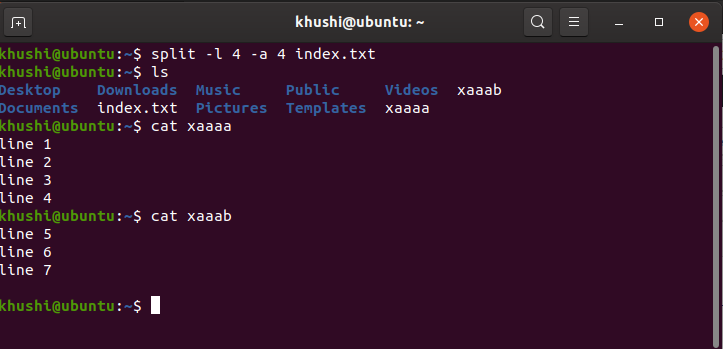
Creates files like xaaaa, xaaab, xaaac, etc. with a 4-character suffix.
5. Create Numeric Suffix Files (-d)
- Normally, split uses alphabetic suffixes (
xaa, xab, etc.). - The
-d option changes them to numeric suffixes (x00, x01, x02, etc.).
Example:
split -l 4 -d index.txt

- Generates files like
x00, x01, x02, etc.
6. Split File into ‘n’ Equal Chunks (-n)
- The
-n option divides a file into a specific number of equal parts.
split -n 3 index.txt

- Divides
index.txt into 3 equal parts, regardless of file size or line count.
7. Customize Output File Prefix
- You can set a custom prefix for your split files using this method.
split -l 4 index.txt split_index_

- Output files will be named like
split_index_aa, split_index_ab, etc.
8. Avoid Zero-Sized Split Files (-e)
- When you split a small file into too many chunks, some files may end up empty.
- The
-e option prevents creation of zero-byte files.
split -l 4 -e index.txt

- Ensures that only files with actual data are created.
9. Split File Equally into Two Parts (-n 2)
- To divide a file evenly into two parts, use
-n 2.
split -n 2 index.txt
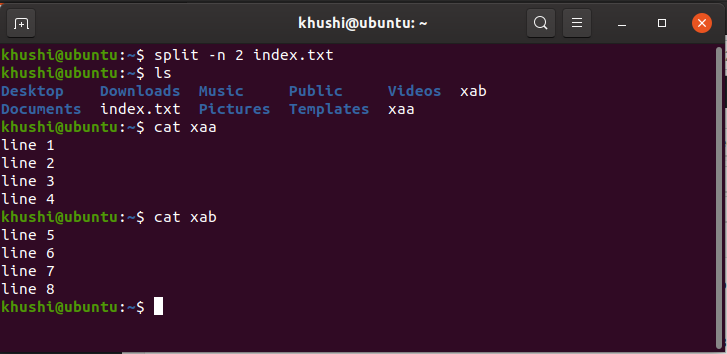
- Creates two equal files from
index.txt.
cut command & Splitting a file vertically in Linux
Explore
Getting Started with Linux
Installation with Linux
Linux Commands
Linux File System
Linux Kernel
Linux Networking Tools
Linux Process
Linux Firewall
Shell Scripting & Bash Scripting
Linux Administrator System