uniq Command in Linux with Examples
Last Updated :
06 Nov, 2025
The uniq command in Linux is used to detect, report, or remove adjacent duplicate lines from a text file or standard input. It helps in cleaning and organizing data by displaying only unique entries or counting repetitions.
- Can display unique lines, repeated lines, or count duplicates using options like -u, -d, and -c.
- Takes input from a file or pipeline and outputs to standard output or another file.
- Usually combined with the sort command for accurate results.
Example
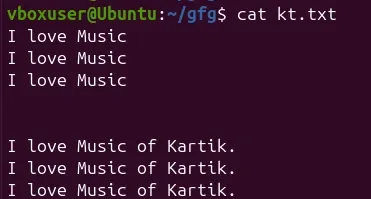
Suppose you have a file named kt.txt containing repeated lines.
Display the file content using:
cat kt.txt
Remove duplicate lines with:
To remove duplicate lines from `kt.txt`, we can use the `uniq` command:
uniq kt.txt
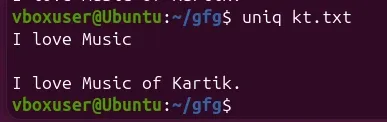
The command filters out adjacent duplicate lines and displays only unique entries on the terminal.
Syntax of uniq Command
The basic syntax of the `uniq` command is:
uniq [OPTIONS] [INPUT_FILE [OUTPUT_FILE]]
Here,
`OPTIONS`: Optional flags that modify the behavior of the `uniq` command.`INPUT_FILE`: The path to the input file containing the text data. If not specified, `uniq` reads from the standard input (usually the keyboard).`OUTPUT_FILE`: The path to the output file where the unique lines will be written. If not specified, `uniq` writes to the standard output (usually the terminal).
Note: uniq isn't able to detect the duplicate lines unless they are adjacent to each other. The content in the file must be therefore sorted before using uniq or you can simply use sort -u instead of uniq command.
Common Options of the uniq Command
Here are some common options that can be used with the `uniq` command:
Example 1: Count Duplicate Lines
Use the -c option to display the count of each line.
uniq -c kt.txt
Displays each line with the number of occurrences prefixed
Customize output format using awk.
sort kt.txt | uniq -c | awk '{print $2 ", " $1}'Prints output as line, count separated by a comma.
Example 3: Display Only Repeated Lines
Use the -d option to print duplicate lines only.
uniq -d kt.txt
 display only duplicate lines
Example 4: Display All Duplicate Lines
Use the -D option to print all occurrences of duplicate lines.
uniq -D kt.txt
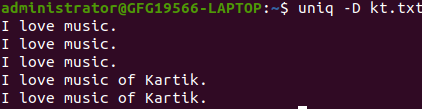 prints all duplicate lines
Example 5: Display Only Unique Lines
Use the -u option to show lines that appear only once.
uniq -u kt.txt
 prints only unique lines
Example 6: Skip First N Fields
Use -f N to skip the first N fields before comparison.
Command:
cat f1.txt
//displaying contents of f1.txt//
1. I love music.
2. I love music.
3. I love music of Kartik.
4. I love music of Kartik
Command:
uniq -f 2 f1.txt
 `-s N` option
Here, -f 2skips the first two fields (numbers and dots).
Example 7: Skip First N Characters
Use -s N to skip the first N characters while comparing.
uniq -s 3 f2.txt
In this example lines same after skipping 3 characters are filtered.
 `-s N` option
Example 8: Limit Comparison to First N Characters
Use -w N to compare only the first N characters of each line.
cat f3.txt
uniq -w 3 f3.txt
Example file
How it is possible?
How it can be done?
How to use it?
As the first 3 characters of all the 3 lines are same that's why uniq treated all these as duplicates and gave output accordingly.
 Using -w option
Example 9: Case-Insensitive Comparison
The `-i` option makes the comparison case-insensitive:
uniq f4.txt
Here lines aren't treated as duplicates with simple use of uniq //now using -i option//
uniq -i f4.txt
Now second line is removed when -i option is used.
 comparison case-insensitive
Example 10: NULL-Terminated Output
Use -z for NULL-terminated output (useful in scripts).
Syntax:
uniq -z file-name
Default output is newline-terminated; -z changes it to NULL termination.
Explore
Getting Started with Linux
Installation with Linux
Linux Commands
Linux File System
Linux Kernel
Linux Networking Tools
Linux Process
Linux Firewall
Shell Scripting & Bash Scripting
Linux Administrator System