ZIP command in Linux with examples
Last Updated :
07 Nov, 2025
In Linux, the zip command compresses one or more files or directories into a single .zip archive file. This saves disk space, keeps data organized, and makes it simple to share or back up files. It's widely used to compress large files for email or cloud storage. Below are some common reasons individuals utilize the zip command:
- To reduce file size and save storage.
- To combine multiple files/folders into one for easier sharing.
- To protect files with passwords (using options).
- Works across platforms-ZIP files open easily on Windows, Linux, and macOS.
Example: unzip command in 'Zip'
unzip will list, test, or extract files from a ZIP archive. The default behavior (with no options) is to extract into the current directory (and sub-directories below it) all files from the specified ZIP archive.
Syntax:
unzip [file_name.zip]
Suppose we have a zip file "name = jayesh_gfg.zip" and we have three text files inside it "name = a.txt, b.txt and c.txt". we have to unzip it in the current directory.
Command and Output:
unzip jayesh_gfg.zip
 Unzip a file
Here, we used `ls` command to display all the files that has be unzipped from the zipped file.
Syntax:
zip [options] archive_name.zip file1 file2 folder/
zip: The command used to create a compressed archive.archive_name.zip: The name of the zip file to create.file1 file2: The files and directories you want to compress into the archive.
Commonly Used zip Command Options in Linux
Below are various examples that demonstrate how we use different zip command options in Linux:
1) `-d` Option in Zip command (Delete a File from Archive)
The -d option allows the removal of a specific file from a zip archive without extracting it.
Syntax:
zip -d [file_name.zip] [files_name]
Suppose we have zip file "name = myfile.zip" and have eight files in it "name = hello1.c, hello2.c, hello3.c, hello4.c, hello5.c, hello6.c, hello7.c, hello8.c ".
We have to delete hello7.c, then...
Command and Output:
zip -d myfile.zip hello7.c
Here,
- First, we have deleted `hello7.c` successfully.
- Then we used "sudo unzip myfile.zip" to unzip the file for confirming that our file is deleted.
- Then we used "ls" to see the file that had been unzipped.
Note: Use `sudo` is you see permission denied error.
 delete a file from zip file
2) `-u` option in Zip command (Update Archive with New Files)
The -u option updates an existing zip archive by adding new files or replacing older versions if modifications exist.
Syntax:
zip -u [file_name.zip] [files_name]
Suppose we have zip file "name= myfile.zip" and we have to add a new file "name = hello9.c" in it.
Command and Output:
zip -u myfile.zip hello9.c
 add a file in zip file
Here,
- we have used `vi` to see that our file is added successfully.
3) `-m` option in Zip command (Move Files into the Archive)
The -m option moves specified files into a zip archive while deleting them from their original location.
Syntax:
zip -m [file_name.zip] [files_name]
Suppose we have zip file "name = myfile.zip" and we have to move files "name = hello1.c, hello2.c, hello3.c, hello4.c, hello5.c, hello6.c, hello8.c, hello9.c " Present in current directory to zip file.
Command and Output:
zip -m myfile.zip *.c
 moved files inside zip file
Here,
- we have used `ls` to see that our files are moved successfully.
4) `-r` option in Zip command (Recursively Zip a Directory)
The -r option compresses an entire directory and its contents recursively into a single archive.
Syntax:
zip -r [file_name.zip] [directory_name]
Suppose we have zip file "name= myfile.zip" and we have to move files "name = hello1.c, hello2.c, hello3.c, hello4.c, hello5.c, hello6.c, hello7.c, hello8.c " present in directory "name= jkj_gfg" to zip file recursively.
Command and Output:
zip -r myfile.zip jkj_gfg/
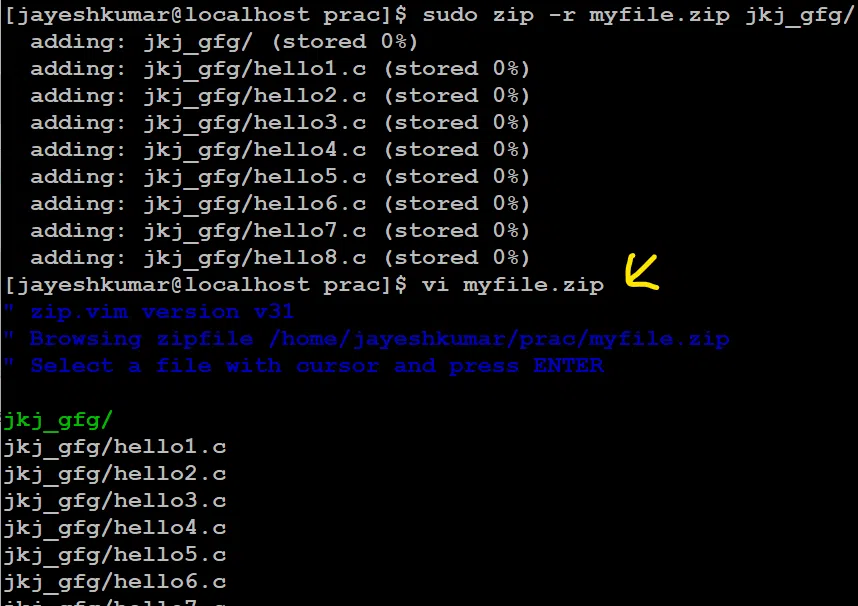 copy file recursively form a directory to a zip file
Here,
- To check files inside "myfile.zip" we can type "vi myfile.zip".
5) `-x` option in Zip command (Exclude Files from Archive)
The -x option excludes specific files from being included in a zip archive during compression.
Syntax:
zip -r [file_name.zip] -x [directory_name]
Suppose we have zip file "name= myfile.zip" and we have to move files "name = hello1.c, hello2.c, hello3.c, hello4.c, hello5.c, hello6.c, hello7.c, hello8.c " present in directory "name= jkj_gfg" to zip file recursively.
Command and Output:
zip -r myfile.zip . -x a.txt
 file copied recursively except one file we mentioned.
Here,
- Here, the -r option is used to recursively add all files and directories in the current directory to the archive, and the. specifies the current directory as the source directory. The -x a.txt option excludes the file "a.txt" from the archive.
- To check files inside "myfile.zip" we can type "vi myfile.zip".
6) `-v` options in Zip command (Verbose Mode)
The -v option enables verbose mode, displaying detailed information about files and compression
Syntax:
zip -v [file_name.zip] [file_name]
If we want to know about all the files with extension ".c"
Command and Output:
zip -v myfile.zip *.c
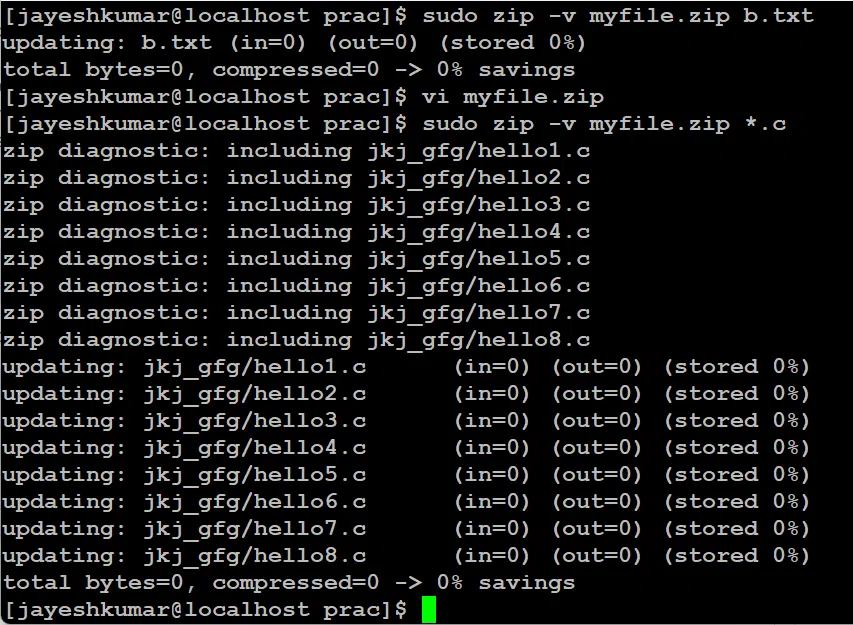 checking information about all files inside zip
Zip Command Options in Linux
Zip offers various options to customize compression, such as updating, excluding, or moving files. Below is a table highlighting essential zip command options in
| Option | What It Does | Example Command |
|---|
-d | Delete a file from zip: Removes specific files from an existing zip archive. | zip -d myfiles.zip notes.txt |
-u | Update the zip file: Replaces or adds files only if they’ve been modified. | zip -u myfiles.zip report.txt |
-m | Move files into zip: Adds files to the zip and deletes them from your system. Use carefully. | zip -m myfiles.zip backup.txt |
-r | Zip folders: Compresses an entire folder and all its contents. | zip -r myproject.zip myfolder/ |
-x | Exclude files: Leaves out certain files or folders when zipping. | zip -r myfiles.zip * -x *.log |
-v | Verbose mode: Shows detailed progress while compressing. | zip -v myfiles.zip sample.txt |
The zip command in Linux provides a versatile and efficient solution for file compression and management. It supports functionalities like recursive directory compression using the -r option, selective file exclusion with -x, file updates via -u, deletion of files from an existing archive through -d, and secure file movement using -m. With -v (verbose mode), users gain real-time visibility into the compression process, while unzip enables straightforward archive extraction.
Explore
Getting Started with Linux
Installation with Linux
Linux Commands
Linux File System
Linux Kernel
Linux Networking Tools
Linux Process
Linux Firewall
Shell Scripting & Bash Scripting
Linux Administrator System