Data Handling in R Programming
Last Updated :
12 Jul, 2025
R programming language is widely used for statistics and data analysis. One of the fundamental tasks when working with data is importing and exporting data from various file formats. R provides a variety of functions to handle different file types, such as CSV files, text files, Excel sheets, and more. Additionally, R offers functions for managing the working directory, making it easier to organize and navigate our project files.
In this article, we'll discuss how to import and export data in R, along with working with directories using functions like getwd(), setwd(), and list.files().
Working with Directories in R
R provides functions to get and set the current working directory, list files, and navigate the file system. These functions help in managing data and scripts effectively.
1. getwd()
The getwd() function returns the current working directory.
getwd()
2. setwd()
The setwd() function allows we to change the working directory by providing the directory path as an argument.
setwd("C:/RExamples")
Alternatively, use double backslashes:
setwd("C:\\RExamples\\")
3. list.files()
The list.files() function lists all files in the current working directory.
list.files()
Importing Files in R
R provides functions to import various file types, such as text files, CSV files, and Excel files. Let’s explore how to import these file formats.
1. Importing Text Files
To import data from a text file, we can use the read.table() function. This function is versatile and can handle different delimiters.
Syntax:
read.table(filename, header = FALSE, sep = "")
- filename: The name of the file to read.
- header: Indicates if the file contains a header row.
- sep: Specifies the delimiter used in the file (e.g., a space, comma, tab).
Example:
We will use TextFileExample.txt text for demonstration.
R
getwd()

data <- read.table("TextFileExample.txt", header = FALSE, sep = " ")

print(data)

print(class(data))
Output:
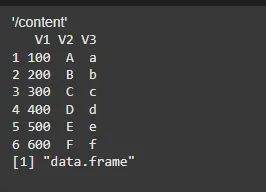 Importing Text Files
2. Importing CSV Files
CSV files can be easily read into R using the read.csv() function. This function is specifically designed to handle CSV files with comma-separated values.
Syntax:
read.csv(filename, header = FALSE, sep = "")
- filename: The name of the file to read.
- header: Indicates if the file contains a header row.
- sep: Specifies the delimiter (for CSV files, this is typically a comma or tab).
Example:
We will use CSVFileExample.csv CSV file for demonstration.
R
getwd()

data <- read.csv("CSVFileExample.csv", header = FALSE, sep = "\t")

print(data)

print(class(data))
Output:
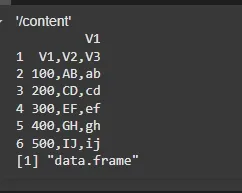 Importing CSV Files
3. Importing Excel Files
To import Excel files, the openxlsx package is used for .xlsx files, while the gdata package is used for .xls files.
Syntax:
read.xlsx(filename, sheetIndex)
Or, alternatively:
read.xlsx(filename, sheetName)
- sheetIndex: The index of the sheet to read.
- sheetName: The name of the sheet to read.
Example:
We will use ExcelExample.xlsx excel file for demonstration.
R
install.packages("openxlsx")
library(openxlsx)

getwd()

data <- read.xlsx("ExcelExample.xlsx", sheet= 1)

print(data)

print(class(data))
Output:
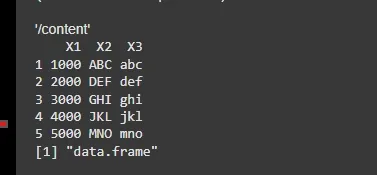 Importing Excel Files
Exporting Files in R
R also provides methods to export data to files. Let's look at a few ways to output data to files.
1. Using the cat() Function
The cat() function is used to output text to the console or redirect the output to a file.
Syntax:
cat(..., file)
- file: The file to which the output should be written.
Example:
R
str = "World"

cat("Hello, ", str, file = "catExample.txt")
Output:
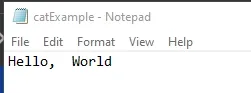 cat() Function
2. Using the sink() Function
The sink() function is used to redirect all output from cat() and print() to a specified file.
Syntax:
sink(filename) # Begins redirecting output to a file
...
sink() # Stops redirecting output
Example:
R
sink("SinkExample.txt")

x <- c(1, 3, 4, 5, 10)
print(mean(x))
print(class(x))
print(median(x))

sink()
Output:
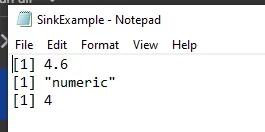 sink() Function
3. Writing to CSV Files
We can use the write.csv() function to export a data frame or matrix to a CSV file.
Syntax:
write.csv(x, file)
- file: The name of the file where the data should be written.
Example:
R
x <- c(1, 3, 4, 5, 10)
y <- c(2, 4, 6, 8, 10)
z <- c(10, 12, 14, 16, 18)

data <- cbind(x, y, z)

write.csv(data, file = "CSVWrite.csv", row.names = FALSE)
Output:
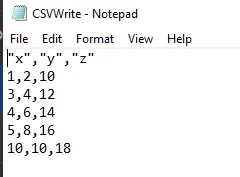 CSV Files
Explore
Introduction
Fundamentals of R
Variables
Input/Output
Control Flow
Functions
Data Structures
Object Oriented Programming
Error Handling
File Handling