

How To Get Google Client ID and Client Secret From Google Developers Console

Google Client ID and Client Secret are credentials you need to connect your application to Google services.
You get them from the Google Developers Console. The process involves creating a project, enabling APIs, and generating OAuth credentials.
In this article, we’ll learn setting up Google Client ID and Client Secret for authentication and authorization when integrating applications with Google services.
Table of Contents
Join 50,000+ beginners & professionals who use Analytify to simplify their Google Analytics!
What Are Google Client ID and Client Secret?
The Google Client ID identifies your application. The Client Secret is a private key that verifies your app’s identity.
Together, they allow your application to authenticate with Google using OAuth 2.0. This is required for plugins like Analytify to connect with Google Analytics.
Quick Overview: All 7 Steps
Here is a summary of everything you will do in this guide:
| Step | Action | What You Do |
|---|---|---|
| Step 1 | Go to Google Developers Console | Log in with your Google account |
| Step 2 | Create a New Project | Give it a meaningful name |
| Step 3 | Enable 5 APIs | Google Analytics, Reporting, Admin, Data, Search Console APIs |
| Step 4 | Set Up OAuth Consent Screen | Set User Type to External, fill in app details |
| Step 5 | Publish the App | Click Publish App and confirm |
| Step 6 | Generate Credentials | Create an OAuth Client ID, copy your Client ID and Secret |
| Step 7 | Configure Analytify | Paste credentials and authenticate with Google |
How to Set Up Google Client ID and Client Secret in the Google Developers Console
To connect any application to Google APIs, you need a Google Client ID and Client Secret.
Let’s see step by step how to do it.
Step 1: Go To Google Developers Console
First, go to the Google Developers Console and log in with your Google Analytics property.
Step 2: Create A New Project
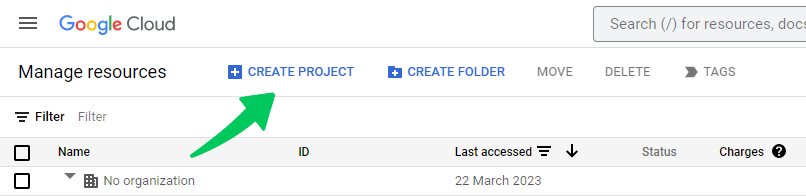
Once logged in, click the Create Project button to create a new project.
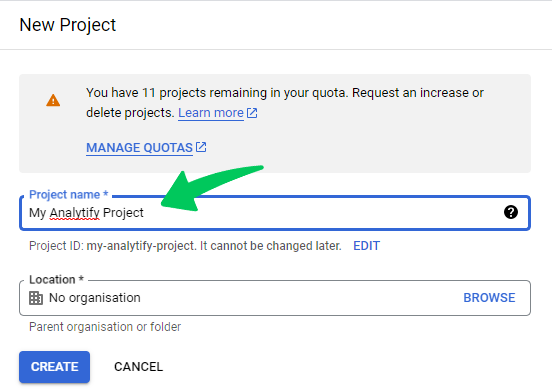
On the next page:
Click Create.
Enter a Project Name you will recognize later.
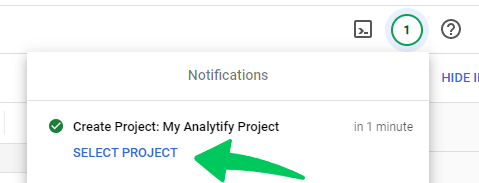
Wait for the notification confirming your project is ready. Then click Select Project to open the dashboard.
Step 3: Enable Required Google Analytics API
You need to enable 5 APIs. This gives your project access to Google Analytics and Search Console data.
Here are the 5 APIs to enable:
| API | What It Does |
|---|---|
| Google Analytics API | Basic access to Google Analytics data |
| Google Analytics Reporting API | Retrieves historical report data |
| Google Analytics Admin API | Manages accounts, permissions, and custom dimensions |
| Google Analytics Data API | Advanced querying across multiple properties |
| Google Search Console API | Pulls search query data, impressions, and click-through rates |
How to enable each API:
Go to APIs and Services in the left menu.
Click Library.
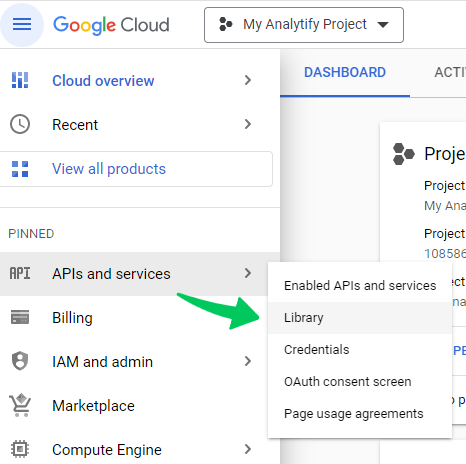
Type Google Analytics API in the search box and click on the result.
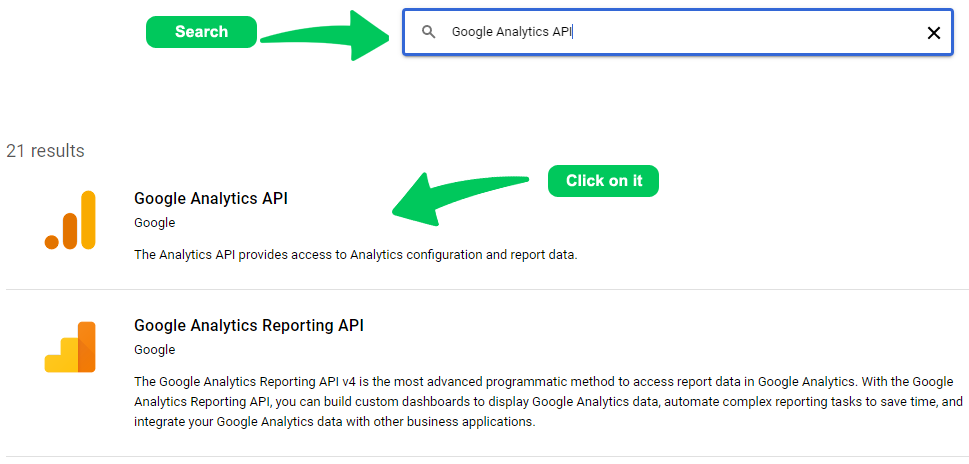
On the next page, click on Enable API button.

Repeat the same steps for “Google Analytics Reporting API.”
Click on Library in the left menu.
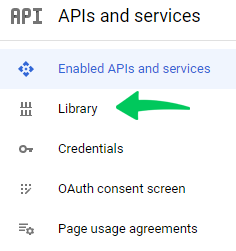
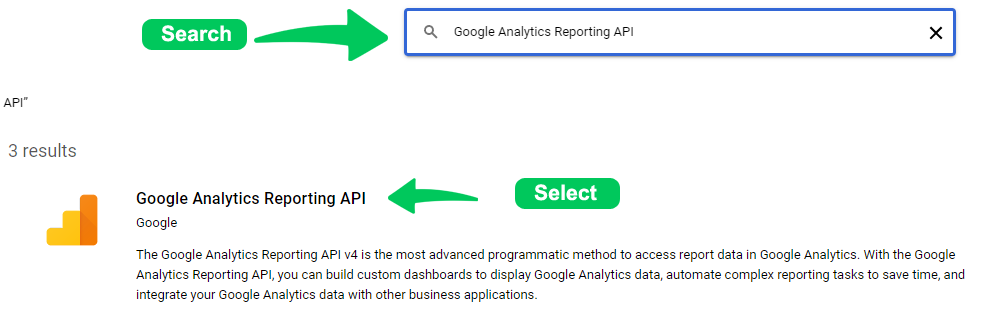
Type “Google Analytics Reporting API” in the search box and click on the result.
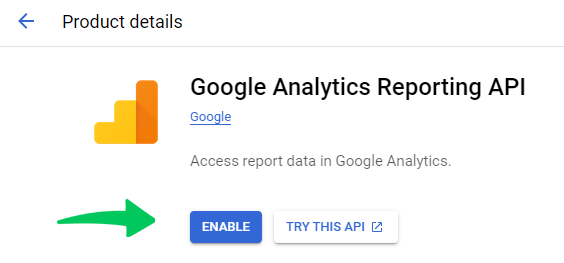
On the next page, click on Enable API button.
Step 4: Set Up the OAuth Consent Screen
Before you can generate the Client ID and Secret, you need to configure the OAuth Consent Screen in the project.
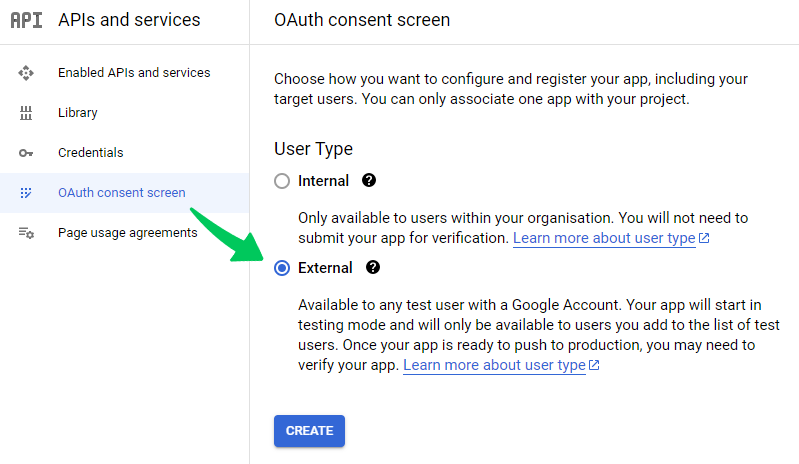
Click the “OAuth consent screen.” On the next page, set the “User Type” to “External” and click Create.
Next, enter all the required details, such as App Name and Support Email, and click Save And Continue.
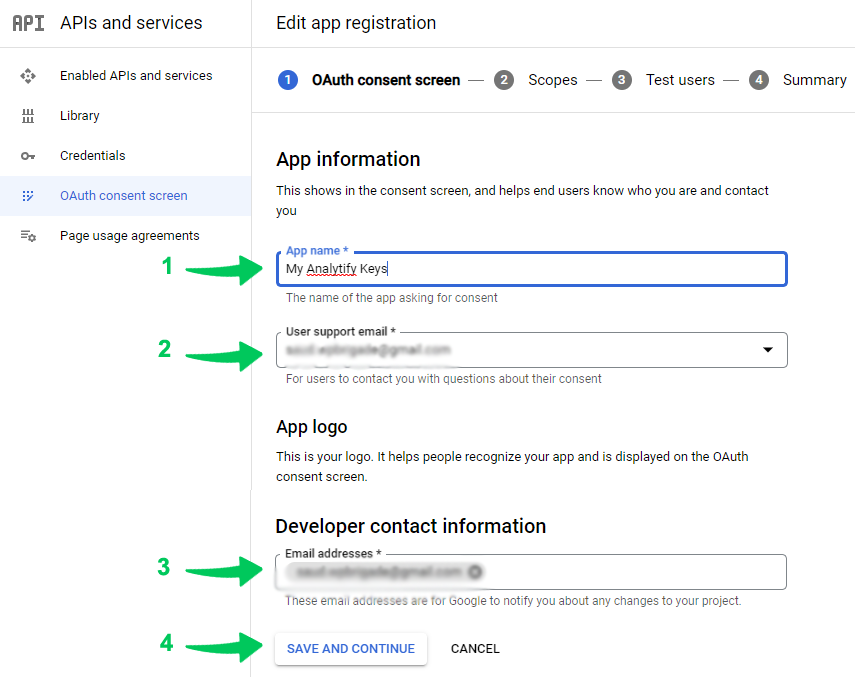
Note: The App domain fields are optional. If you skip them, your app will show an Unverified App warning during login. To remove this warning, fill in your homepage URL, privacy policy link, and terms of service link. Google will then review and verify the app. See the How to Verify the App section below for full steps.
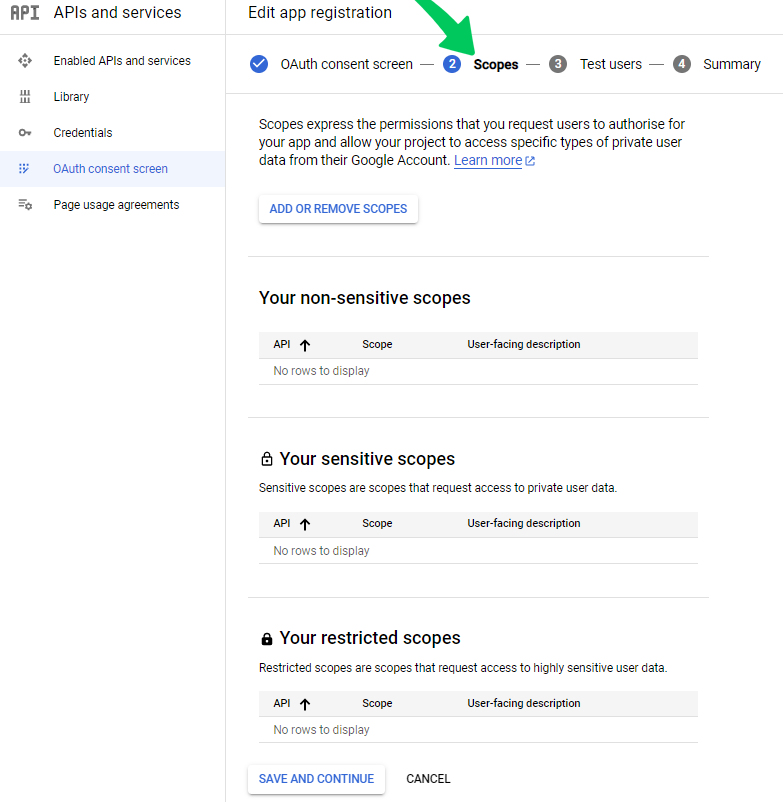
After clicking “Save and Continue,” you will be taken to the Scopes page; you don’t need to change anything here. Just click “Save and Continue.”
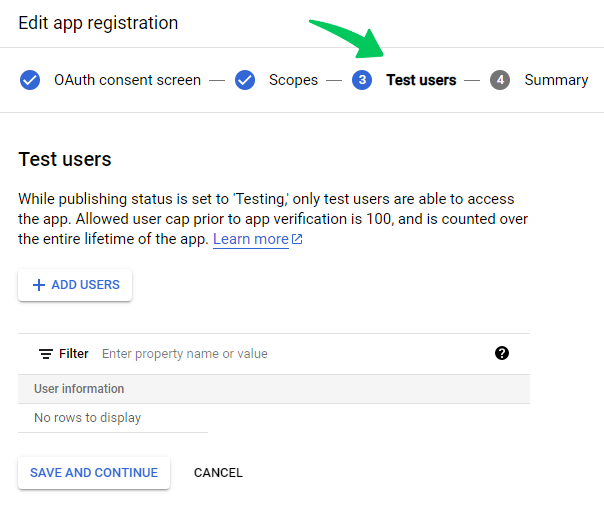
Next, you will see the “Test User” page; you don’t need to change anything here. Just click “Save and Continue.”
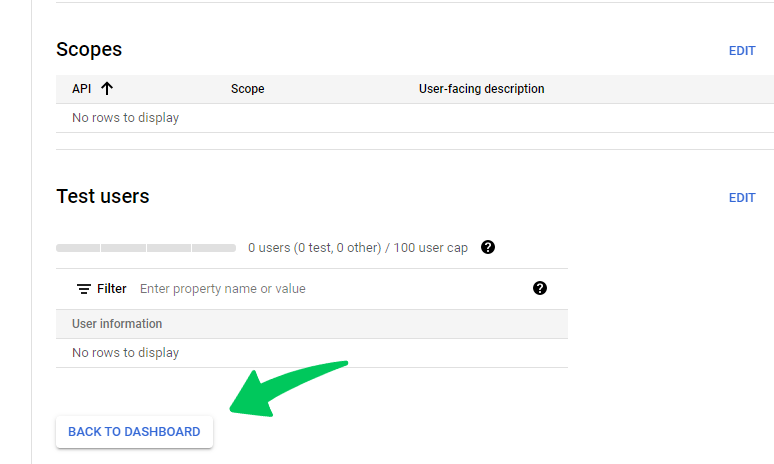
Lastly, click “Back to Dashboard” to return to the “OAuth consent screen” dashboard.
Step 5: Publish the App
The next step is to publish your App. To do this, click on the “Publish APP” button.
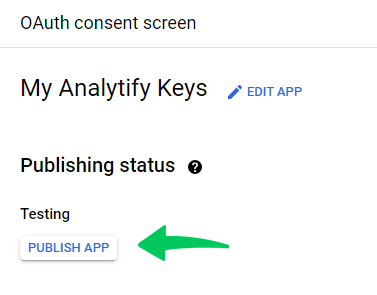
A pop-up will ask for confirmation; click “Confirm.” Your App is now published and ready to use.
Step 6: Generate Credentials
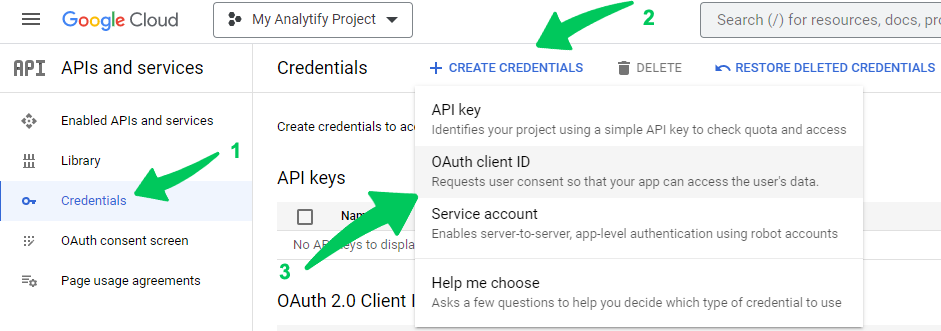
The final step is to generate the Client ID and Secret. To do this, navigate Credentials in the left navigation menu.
On this page, click “Create Credentials” and select “OAuth Client ID”. You will be redirected to the “Create OAuth click ID” page.
On the next page, select “Web Application” and enter your application name in the textbox.
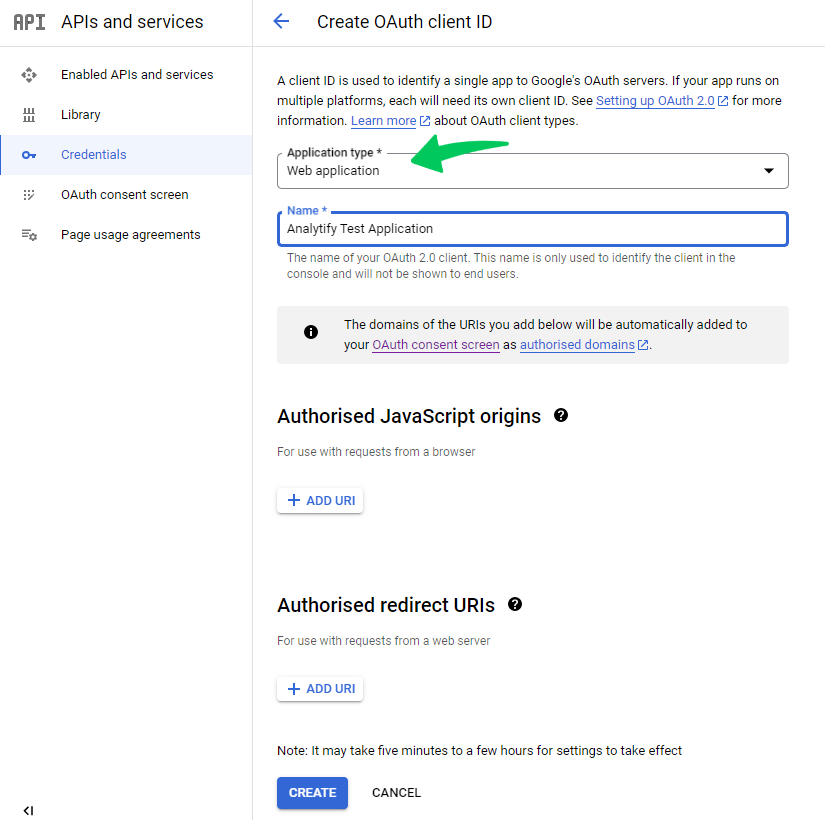
Next, on the same page, you will find the “Authorized redirect URIs” section.
This is where you will paste the redirect URL you got from Analytify >> Settings >> Advanced (tab).
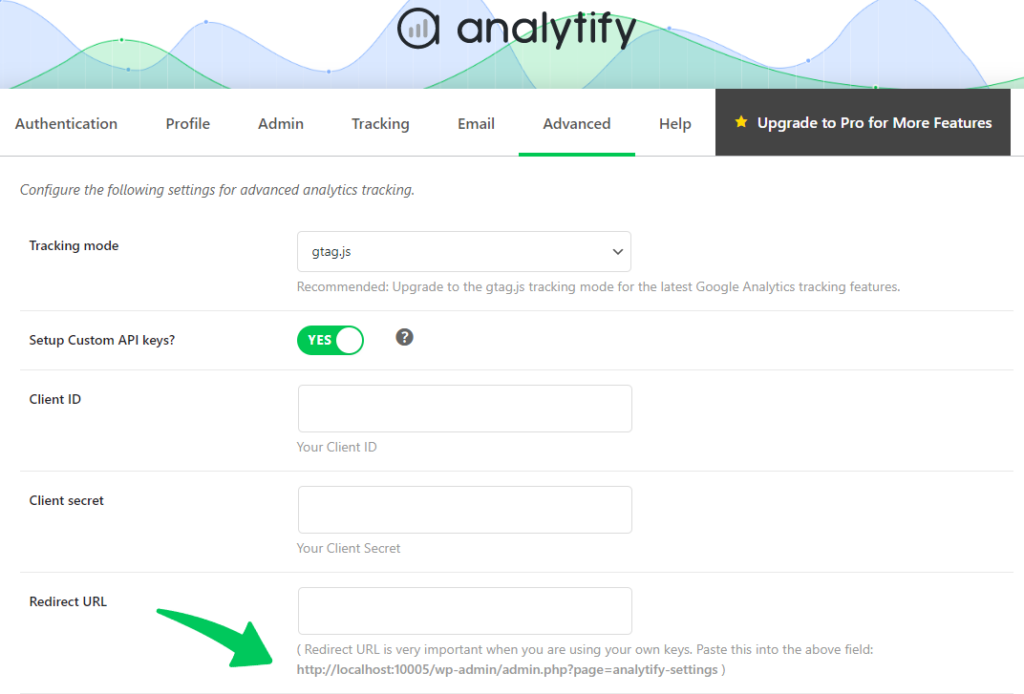
Next, paste the URL in the Authorized Redirect URLs field and click “Create.”
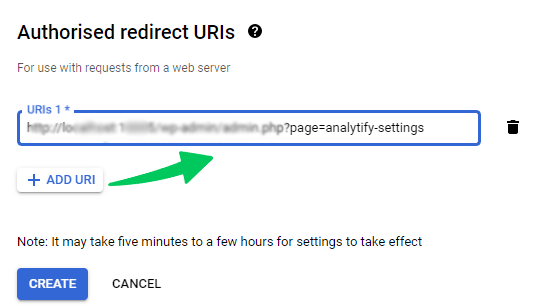
You will now see a pop-up window containing your Client ID and Secret.
Make sure you copy this information somewhere safe and click “OK.”
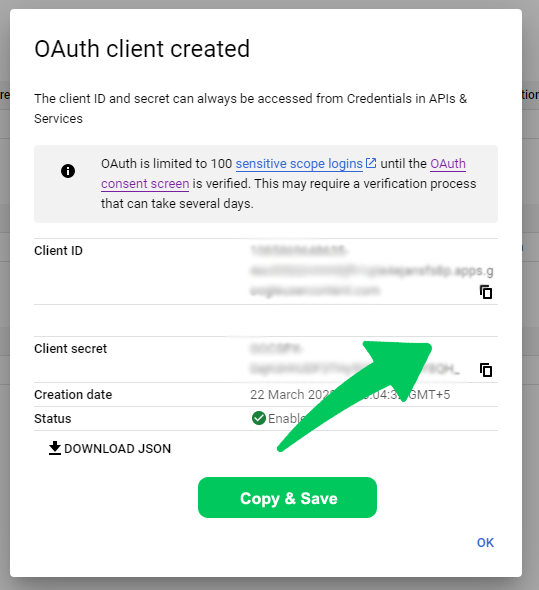
Your Google Developers Console setup is complete.
You can now use the Client ID and Secret in Analytify’s settings to connect your Google Analytics account with your WordPress website.
Let’s see how you can do that in the next step.
Step 7: Configure Analytify Settings
Now that you have your Client ID and Secret, it’s time to configure the Analytify settings.
To do this, go to Analytify >> Settings. Next, Click on the Advanced Tab.
In the Setup Custom API Keys section, paste your Client ID and Client Secret.
Copy the Redirect URL shown below the fields.
Click Save Settings.
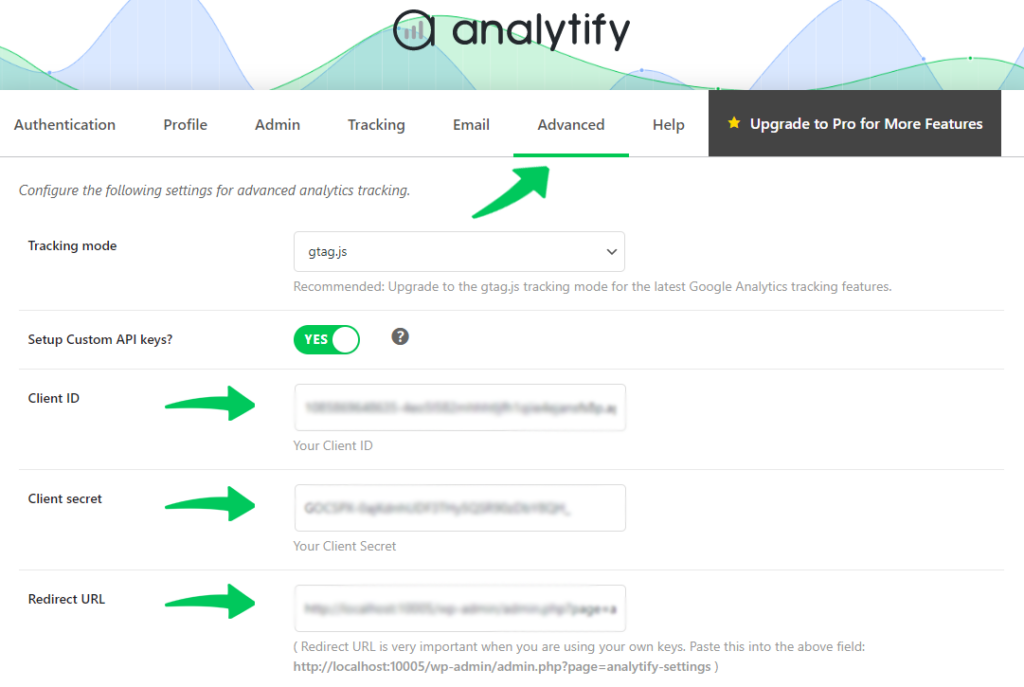
Next, you need to authenticate your Google Analytics Account with Analytify.
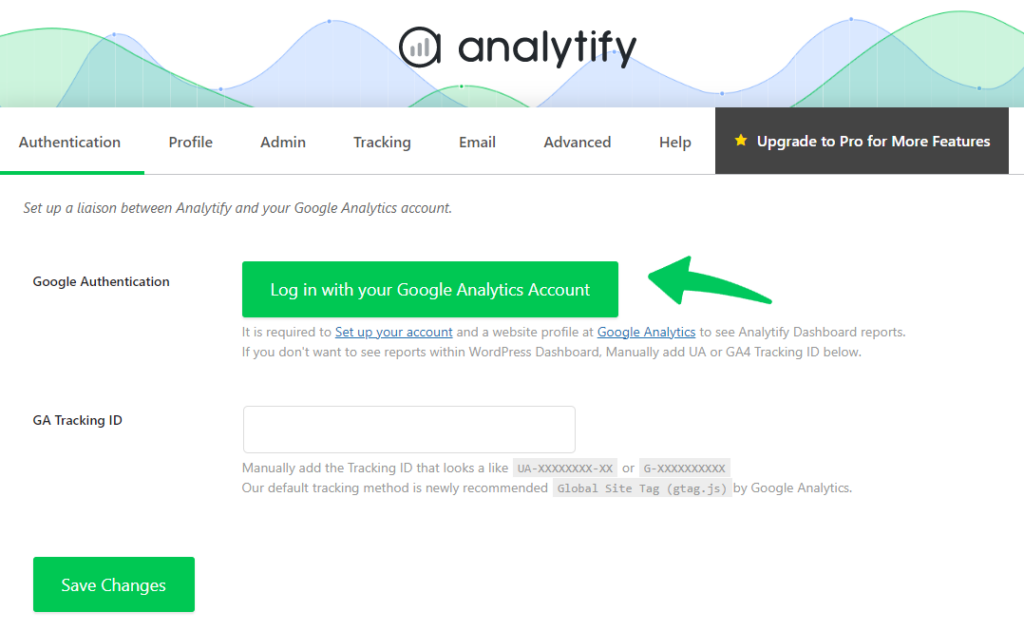
To do this, go to Analytify Settings >> Authentication and click “Log in with your Google Analytics Account.”
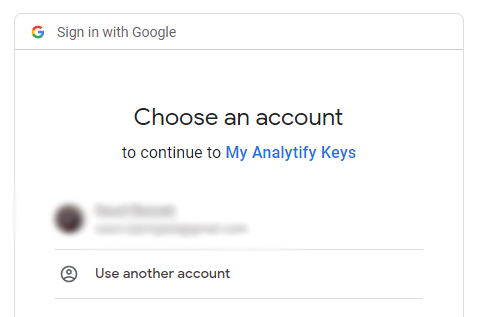
Next, select the Google account linked to your Google Analytics property.
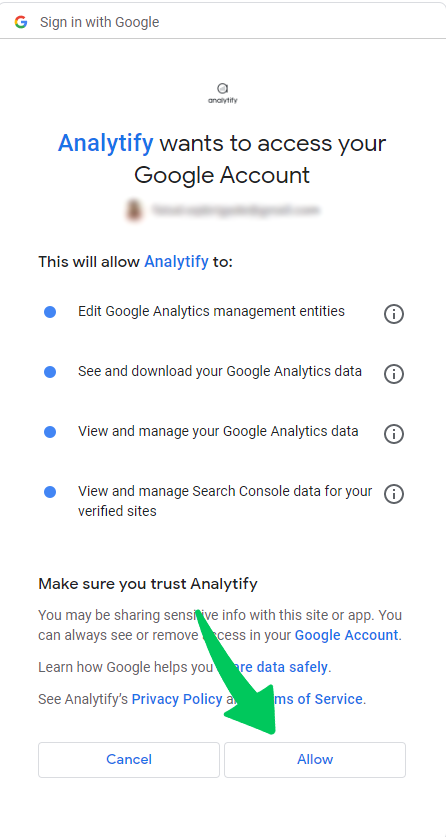
Click Allow when prompted for permissions.
Join 50,000+ beginners & professionals who use Analytify to simplify their Google Analytics!
Your Google Analytics account is now connected to Analytify.
You will be redirected to Analytify >> Profiles.
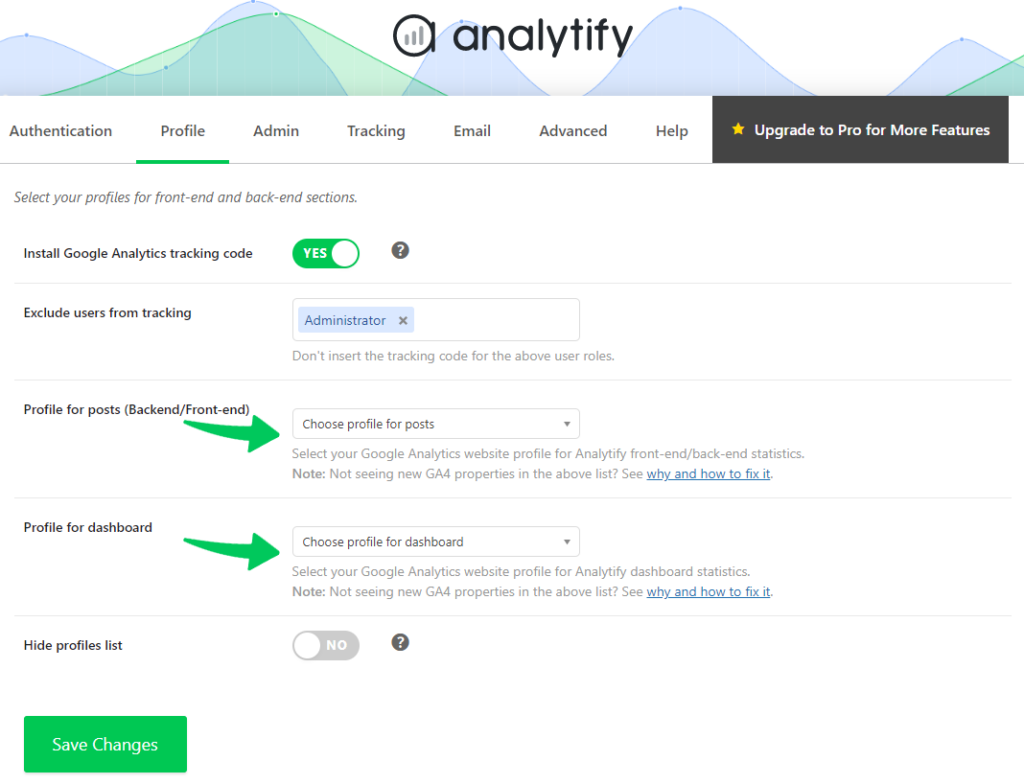
Select your profiles:
- Profiles for posts: used to track user activity on individual posts.
- Profile for dashboard: used to show stats on the Analytify dashboard.
App Verification Warning: What to Do
During login, you may see a This app is not verified warning.
To continue without verifying:
- Click Advanced.
- Click Go to [your domain] (unsafe).
- Click Allow when prompted.
Although you can continue using an “Unverified App,” if you want to verify your App, don’t worry. We have covered this in the next heading.
How to Verify the App
Verifying your app removes the Unverified App warning. It also builds trust with users who log in through your app.
Follow these steps:
Step 1: Open the Google Cloud Platform page. Open the dashboard of the project you just created (the project whose keys you are using in Analytify).
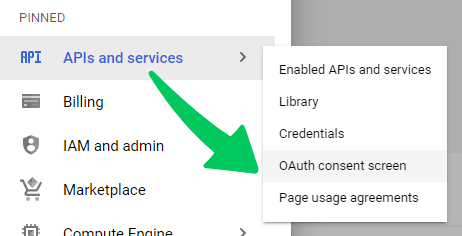
Step 2: Click on the “Hamburger” menu to open the navigation menu. Hover over “APIs & Services” and click “OAuth consent screen”.
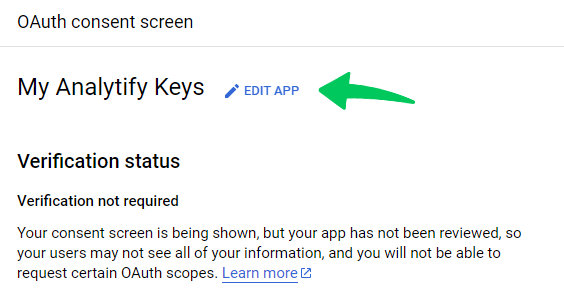
Step 3: Next, click on the “Edit App” link.
Step 4: Fill in all the fields under “App domain”.
- “Application home page”: link to your website’s home page.
- “Application privacy policy link”: the link to the privacy policy page of your website.
- “Application terms of service link”: the link to your website’s terms of service page.
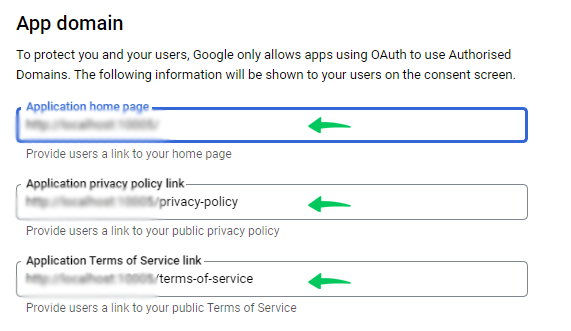
After entering the information and adding the appropriate links, click “Save and Continue.”
Step 5: You will be taken to the “Scopes” page. Just click “Save and Continue.”
Again, click “Save and Continue“ on the “Optional info” page.
Lastly “Back to the Dashboard” button on the “Summary” page.
Note: After you submit, Google’s Trust and Quality team will email you to verify your property ownership through Google Search Console. Verification can take a few days.
Google’s trust and quality team will verify the data on your site and email you once they have verified your app.
Frequently Asked Questions
Why do we need a Google Client ID and Client Secret?
Google Client ID and Client Secret are OAuth credentials. They allow your application to authenticate with Google services securely.
For WordPress plugins like Analytify, they are required to connect your site with Google Analytics without exposing your account password.
How do I get my Google Client ID and Client Secret?
Log in to the Google Developers Console and create a new project. Enable the required Google Analytics APIs. Configure the OAuth Consent Screen and publish your app. Then go to Credentials, create an OAuth Client ID for a Web Application, and copy the Client ID and Client Secret from the pop-up.
What is the difference between Client ID and Client Secret?
The Client ID is a public identifier for your application. The Client Secret is a private key that must be kept secure. Never share your Client Secret publicly or include it in public code.
What happens if my app shows an Unverified App warning?
This warning appears when the App domain fields are empty in your OAuth Consent Screen. You can still use the app by clicking Advanced and proceeding. To remove the warning permanently, fill in your homepage, privacy policy, and terms of service links, then submit for Google verification.
Conclusion
You now have your Google Client ID and Client Secret set up and connected to Analytify.
With this connection, Analytify can pull your Google Analytics data and display it directly inside your WordPress dashboard.
If you run into any issues, leave a comment below, and we will help you out.
You can also check out our guide on How to Migrate to Google Analytics 4 (Step by Step).





Thanks a lot, Adnan. It was really helpful. I’ve tried other steps and almost gave up till I met this. I followed the procedure step by step and it got me the result I needed.
You are welcome, Daniel 🙂
Hello ! i am trying to authenticate using this script:
from pydrive.auth import GoogleAuth
from pydrive.drive import GoogleDrive
gauth = GoogleAuth()
gauth.LoadCredentialsFile(‘client_secrets.json’)
if gauth.credentials is None:
gauth.LocalWebserverAuth()
elif gauth.access_token_expired:
gauth.Refresh()
else:
gauth.Authorize()
gauth.SaveCredentialsFile(“mycreds.txt”)
drive = GoogleDrive(gauth)
but i got this error: KeyError: ‘_module’
how can i fix it ?? thanks !
Impressive! Thanks for the article.
King regards,
Harrell Griffin
I’m getting a similar issue to Mohammad. When I try to authenticate with my own API, it connects to Google, but once I click allow it redirects me back to a 404 page on my site instead of the analytify authentication page.
Hi,
After I configure my own analytics API key in the plugin when I try to login to my google analytics account I get 403 forbidden error.
What is the problem?
Hi,
After I configure my own API key, when I try to login with google analytics account I get 403 Forbidden error.
What is the problem?
I can not understand what to insert into Authorized redirect URI
it is your firebase auth url. check in firebase-> Authentication-> SIGN-IN METHOD-> facebook login, OAuth redirect url
Where can i Get Redirect URI? I can’t find Redirect URI, plz help me..
Where can i get the redirect URI? I can’t find Redirect URI, Plz help me
Redirect URI is your plugin’s settings page.
help a lot ,thanks
Help me please. I used gdata.youtube.service to upload video on youtube channel – i have YOUTUBE_DEVELOPER_KEY
gdata sends me error now. As a solve of this problem i wanted to go for API3 but it tells me to use
CLIENT_SECRETS_FILE = “client_secrets.json”
What is it? A once more new KEY? Or I cen gen it from
YOUTUBE_DEVELOPER_KEY ?
“client_secrets.json” file actually contains the Keys. You will generate this file from the developers console.
Hi
Where do I find the google access code? Your Access Code:
Thanks Allan
In recent update to WP Analytify, You don’t need access code. Simply login with your Google account and you will be connect.
Update your WP Analytify please.
Ok, thanks. How do I update it Adnan!
Just to let you know, that when I t to get short url from inside my blog, it went error, and then I couldn’t access my pages, so had to deactivate the plugin! So hope the updated version works.
🙂
This what I get. Please advise. Thanks!
Fatal error: Uncaught exception ‘Shortify_WP_Google_Service_Exception’ with message ‘Error calling POST https://www.googleapis.com/urlshortener/v1/url: (403) Daily Limit for Unauthenticated Use Exceeded. Continued use requires signup.’ in /home3/becomey1/public_html/wp-content/plugins/wp-shortify/src/Google/Http/REST.php:79 Stack trace: #0 /home3/becomey1/public_html/wp-content/plugins/wp-shortify/src/Google/Http/REST.php(44): Shortify_WP_Google_Http_REST::decodeHttpResponse(Object(Shortify_WP_Google_Http_Request)) #1 /home3/becomey1/public_html/wp-content/plugins/wp-shortify/src/Google/Client.php(503): Shortify_WP_Google_Http_REST::execute(Object(Shortify_WP_Google_Client), Object(Shortify_WP_Google_Http_Request)) #2 /home3/becomey1/public_html/wp-content/plugins/wp-shortify/src/Google/Service/Resource.php(195): Shortify_WP_Google_Client->execute(Object(Shortify_WP_Google_Http_Request)) #3 /home3/becomey1/public_html/wp-content/plugins/wp-shortify/src/Google/Service/Urlshortener.php(136): Shortify_WP_Google_Service_Resou in /home3/becomey1/public_html/wp-content/plugins/wp-shortify/src/Google/Http/REST.php on line 79
You are talking about Shortify not WP Analytify.
Ahhh, so I am. Thanks! 🙂
Will get onto the correct product and try again!
Thanks Adnan
Hi,,
I created oauth for installed application i.e., android correctly, but when i downloaded json file in that client secret key is missing.How do i find it, is google changed their policy? Pls help me to find client secret key.
You should update this tutorial. Google has changed its layout and your instructions do not reflect the actual page.
I am getting a 401 error when requesting “Get your access code”.
Hey @Caio
Yes, I saw that and have update this tutorial. Let me know If it helps ?
I am still getting this 401 message! What am I doing wrong?
Hi,
I just installed the plugin and it looks really great. But I miss the click route people have. Where can I see on a page where people came from and what page they went to after this particular page or post? I can’t find it in the overview.
Thanks for your reply in advance.
Not working! Every time I click ‘Authenticate’, I am taken to http://ideas2live4.com/wp-admin/admin.php?page=analytify-settings
I am asked to enter my API keys BUT there is nowhere to enter those keys! I’ve been going around in circles for 30 minutes. What am I doing wrong???
Hey, you are Premium Customer right ??
You don’t need to enter Keys. Just authenticate and paste the Access code and it should work.
Check this video for Premium customers.