Simple audio playback right from your menu bar

AudiBar lives in your menu bar and handles everything audio without cluttering your desktop. Play files instantly, stream radio, listen to YouTube audio and manage podcasts. All from one lightweight app. No library. No complexity. Just play.

macOS 14.6+ Free 7-day trial One-time purchase Works offline
App Store Screenshot 1 App Store Screenshot 2 App Store Screenshot 3 App Store Screenshot 4

Up Close and Personal

A closer look at AudiBar across its playlist panels and features.

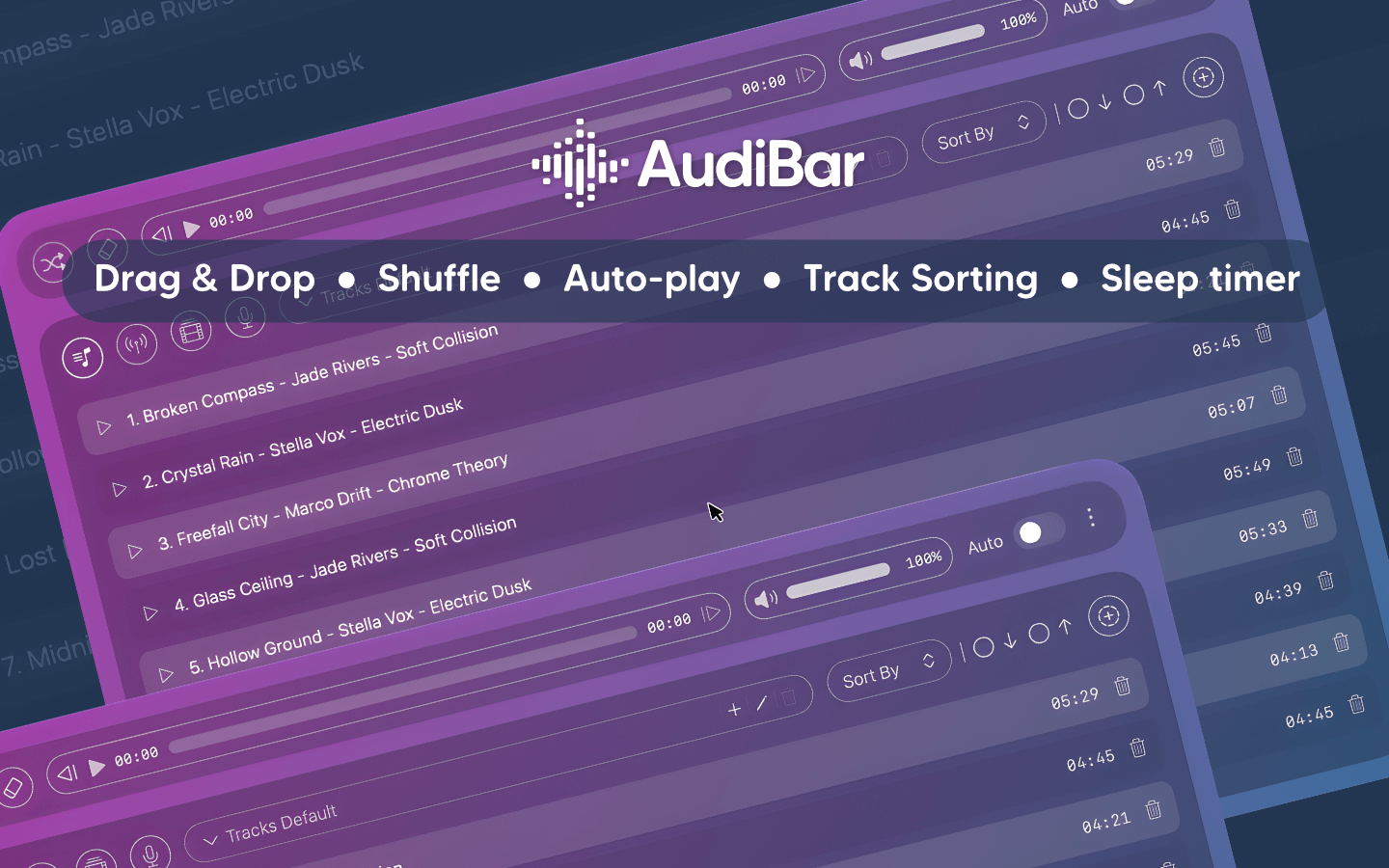
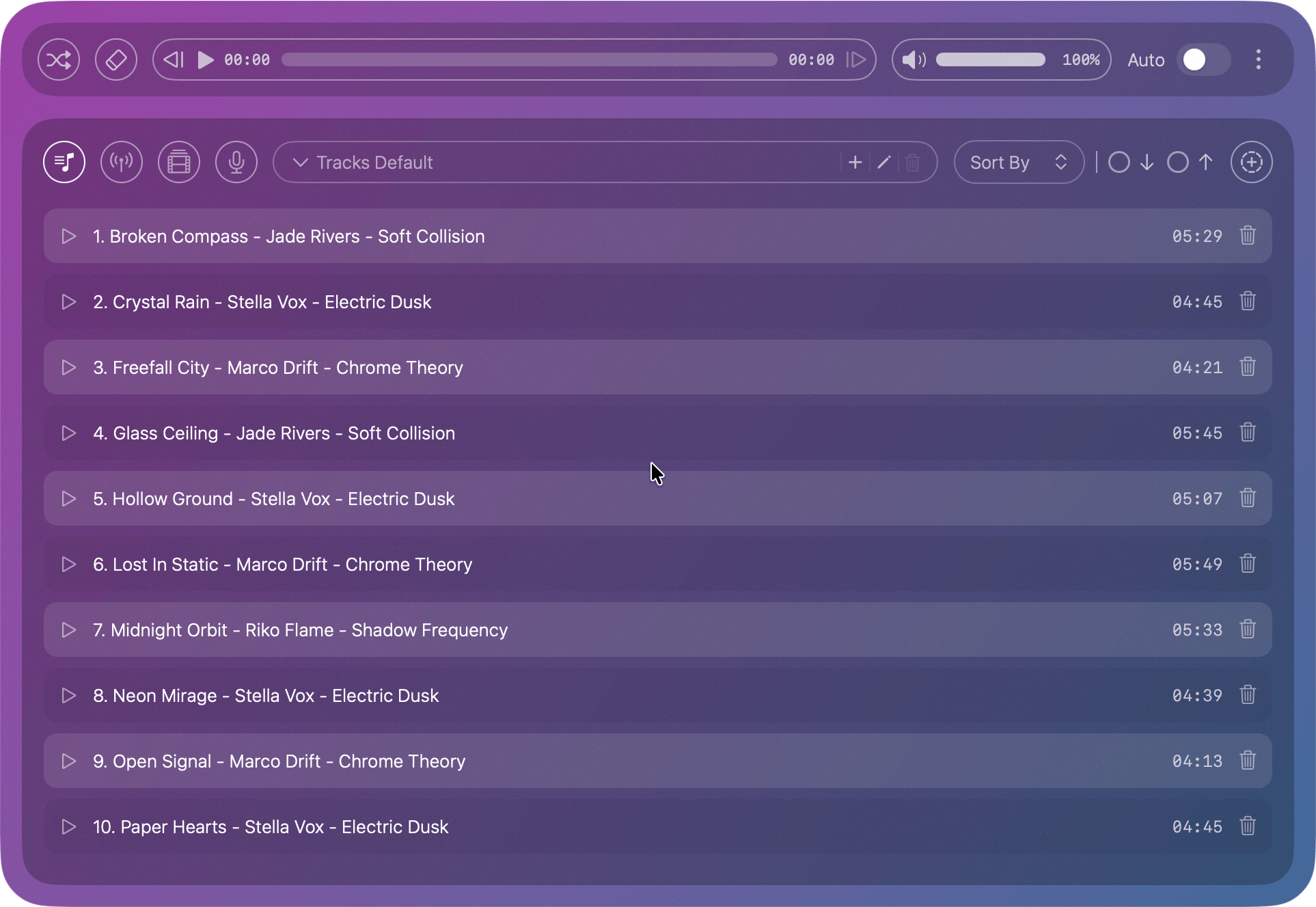
Track Playlist Panel screenshot

Track Playlist Panel

Queue unlimited tracks with drag and drop. Shuffle, auto-play, sort, and set a sleep timer for continuous listening. Free users get a default playlist included.

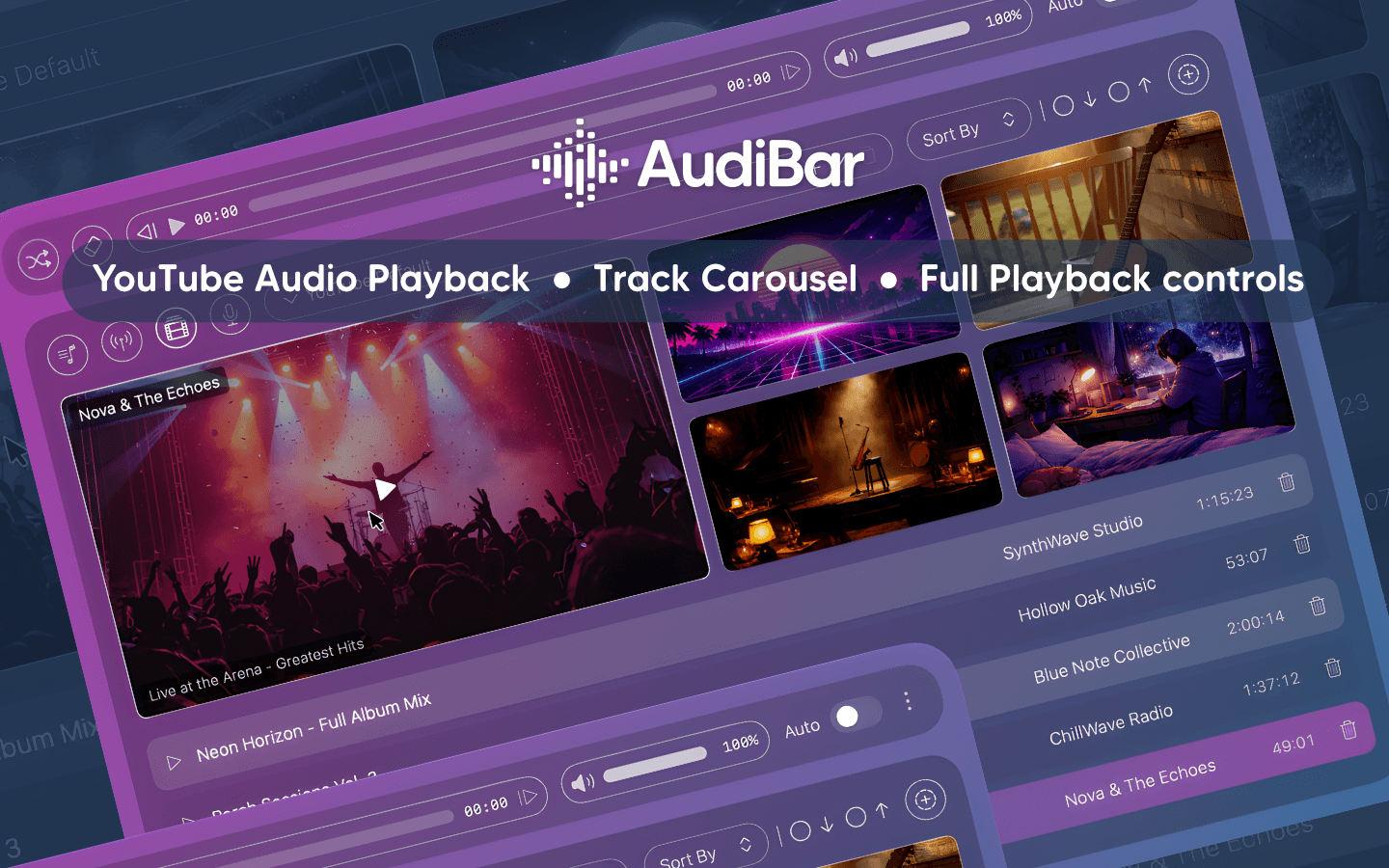
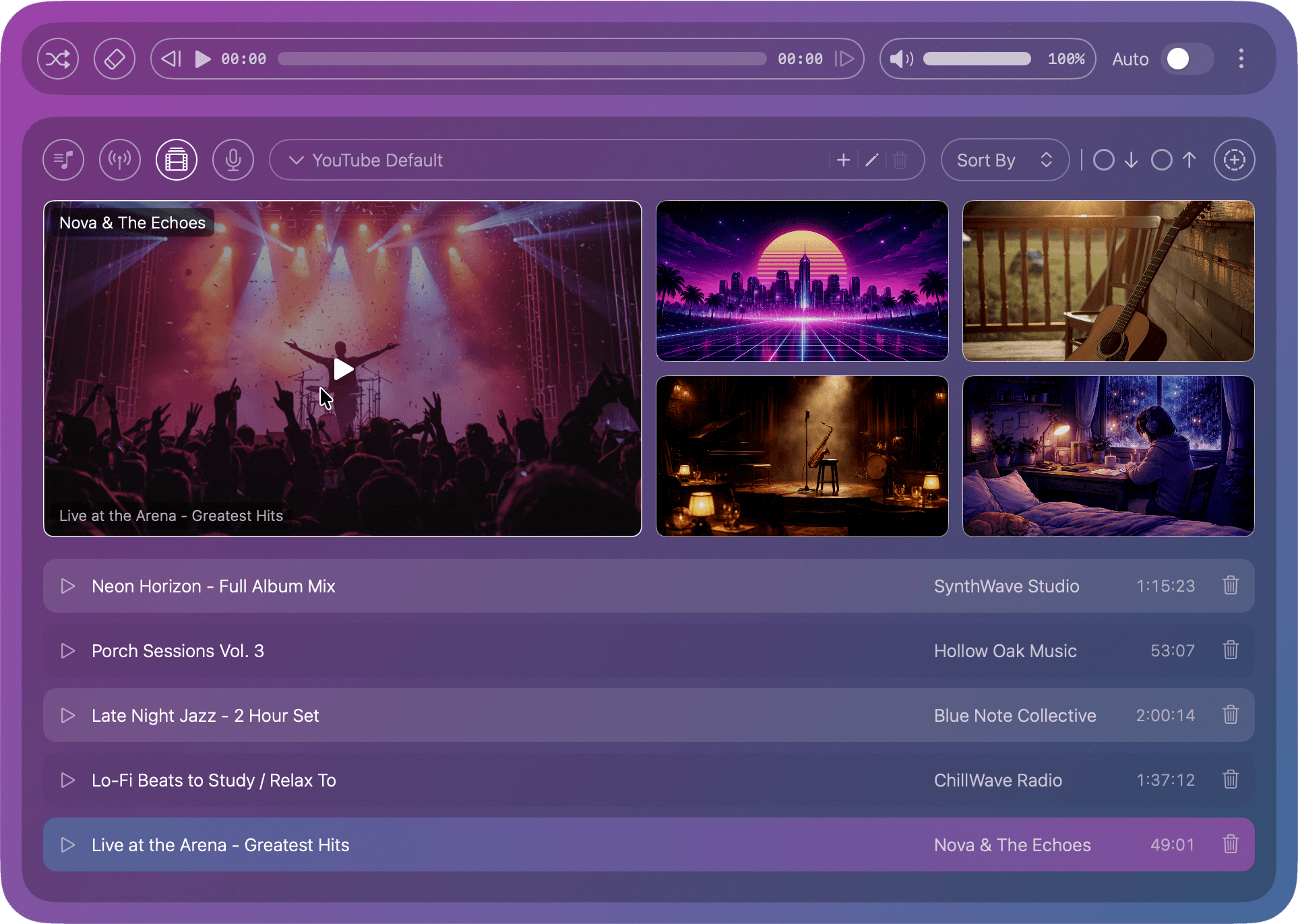
YouTube Playlist Panel screenshot

YouTube Playlist Panel

Paste any YouTube URL to play its audio. Build a queue and browse upcoming tracks in the visual carousel with thumbnails. Full playback controls including seek and speed.

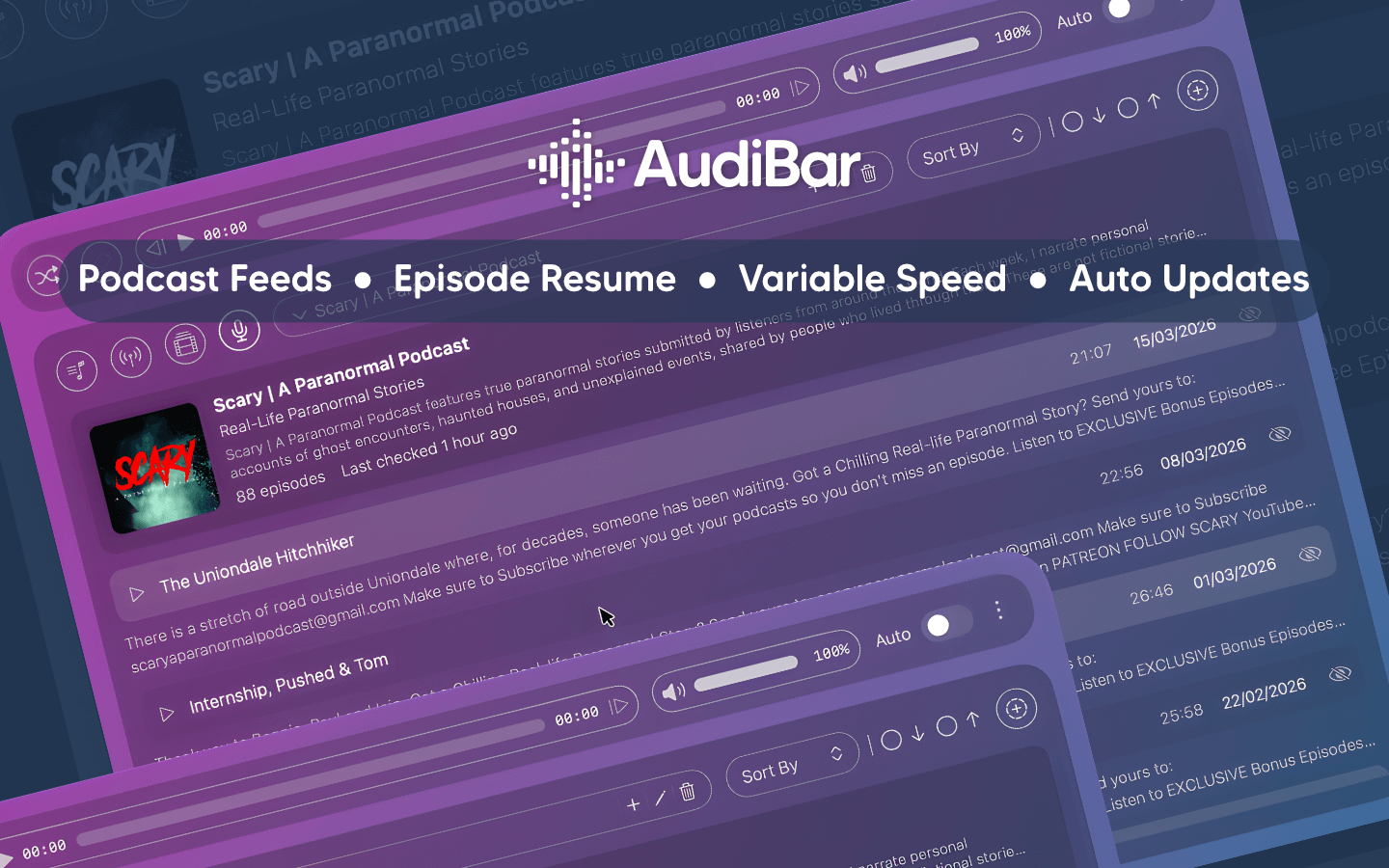
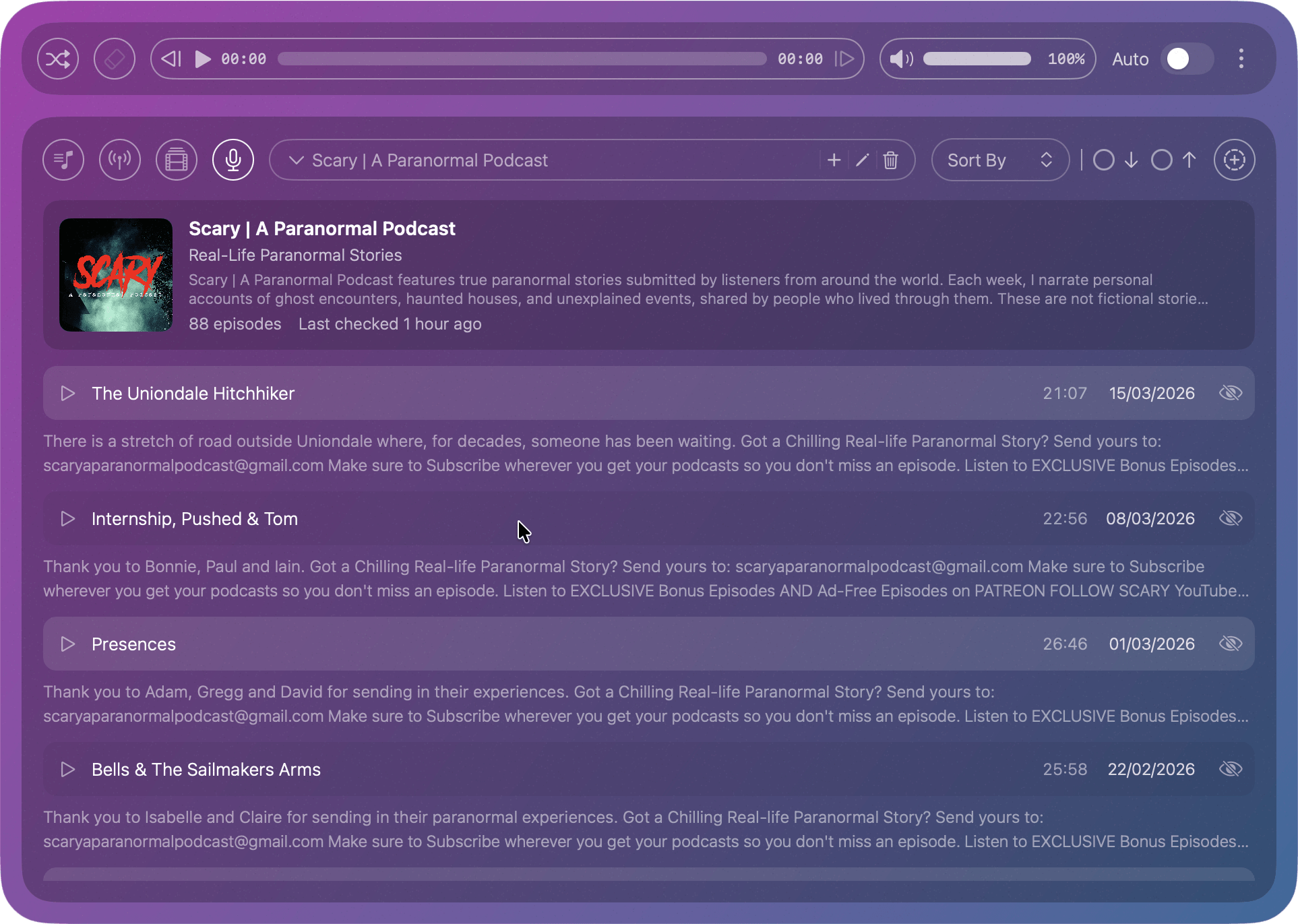
Podcast Panel screenshot

Podcast Panel

Add RSS feeds, browse episodes and resume exactly where you left off. Auto-refreshing feeds with variable speed playback and per-episode position saving.

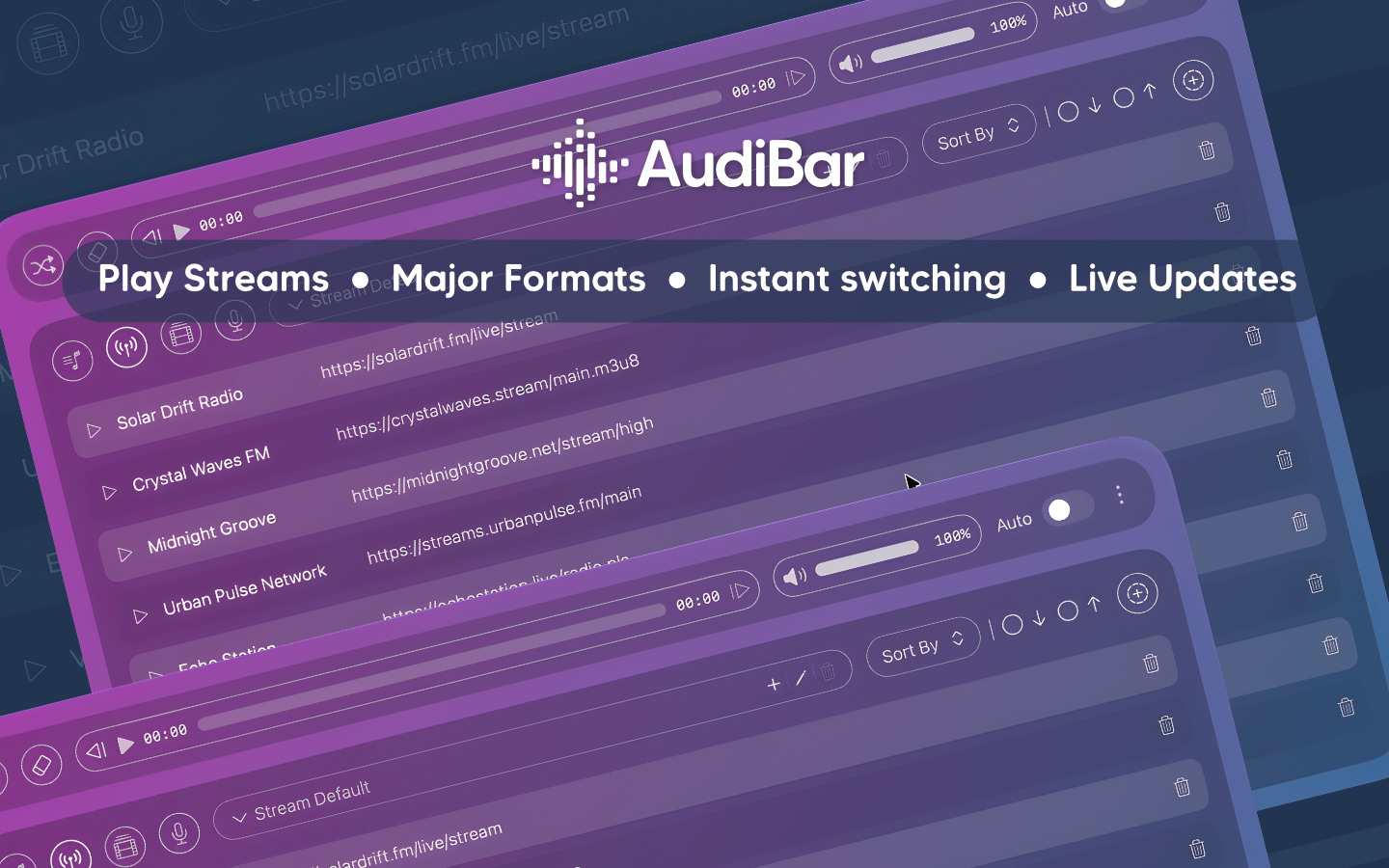
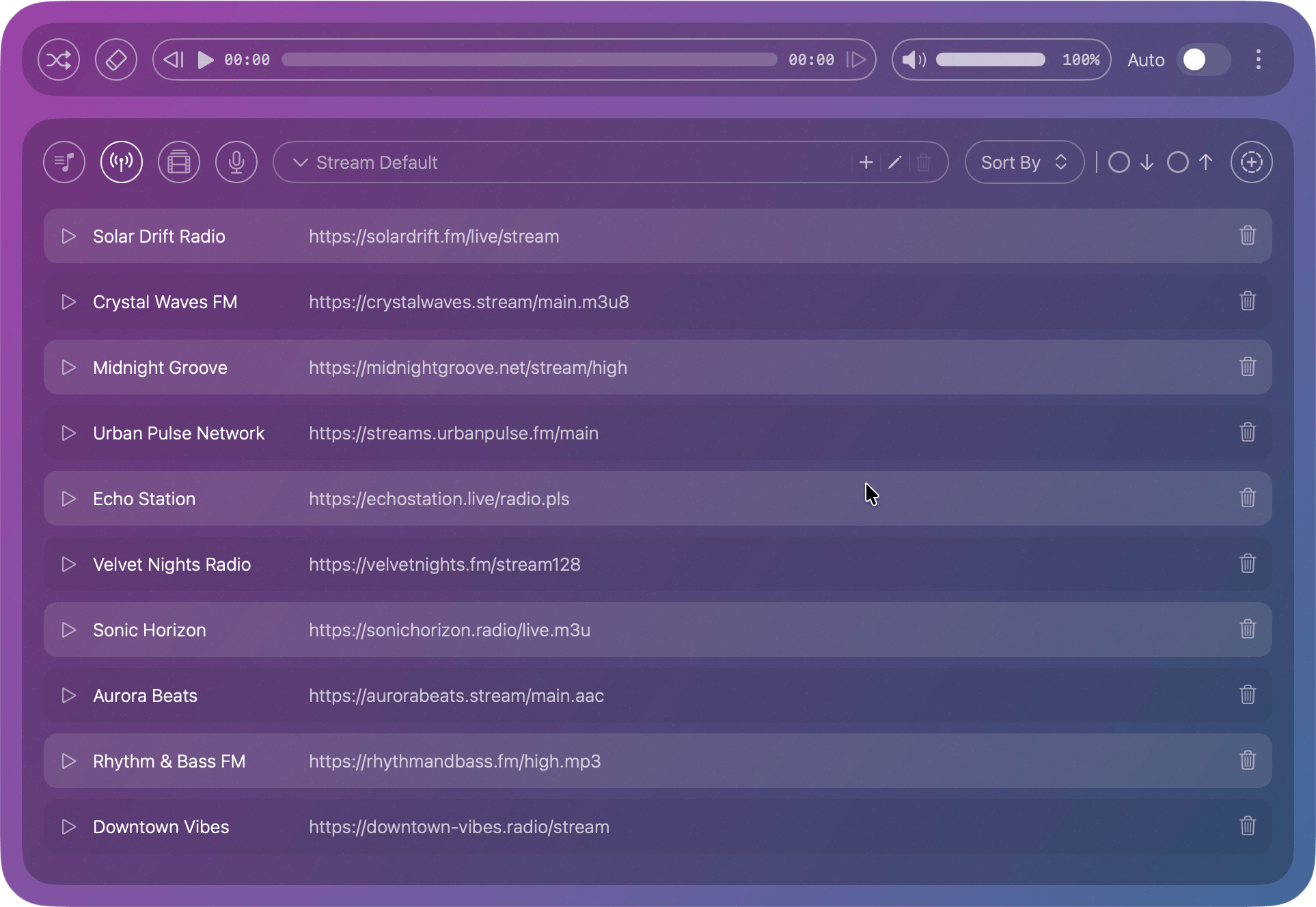
Streaming Panel screenshot

Streaming Panel

Save and manage your favourite radio stations. Supports all major stream formats. Switch between stations instantly from the menu bar.

Playlist Menu screenshot

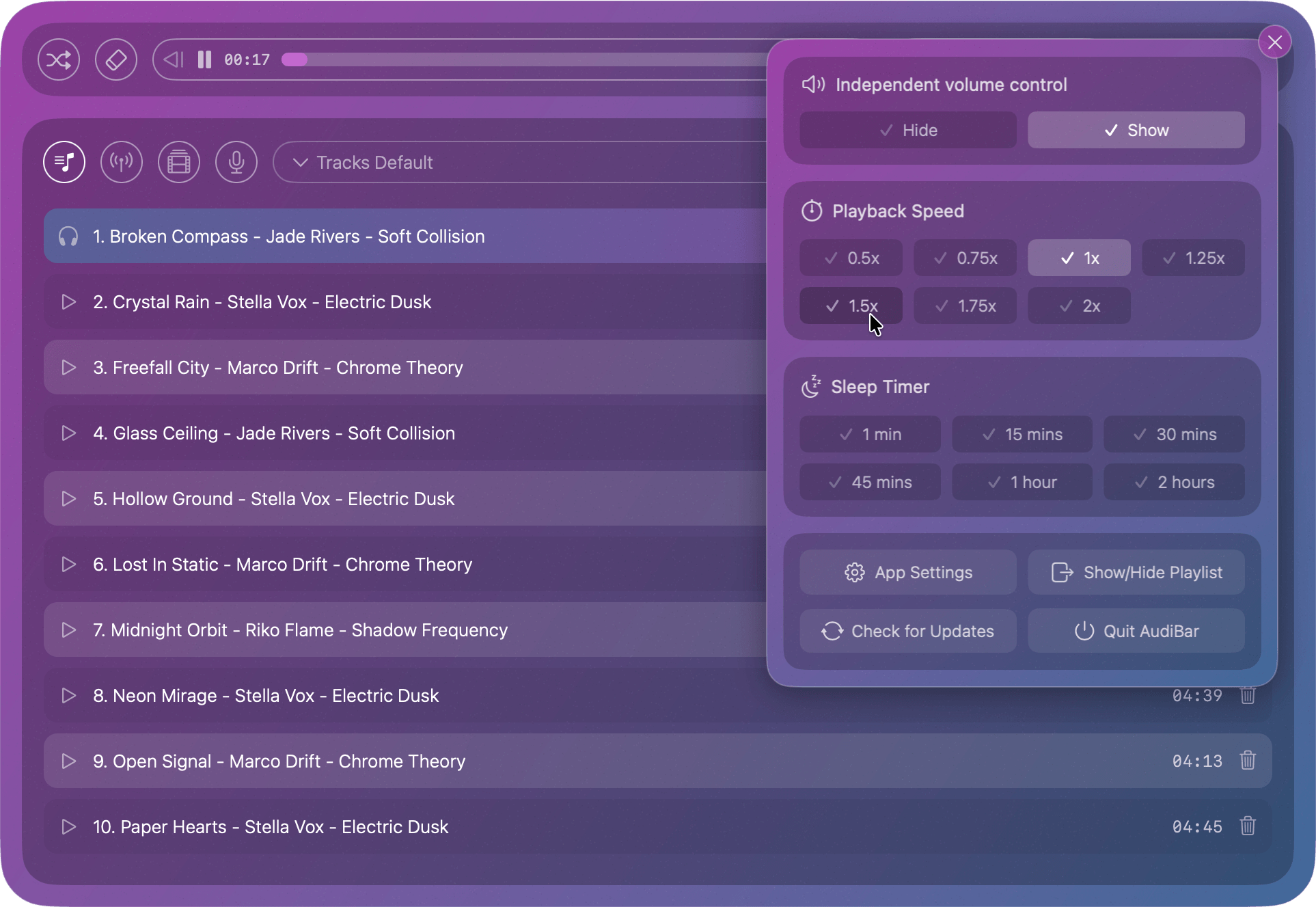
Playlist Menu

Access independent volume control, playback speed selection, sleep timer setup and quick action buttons, all without leaving the playlist panel.

Menu Bar Controls screenshot

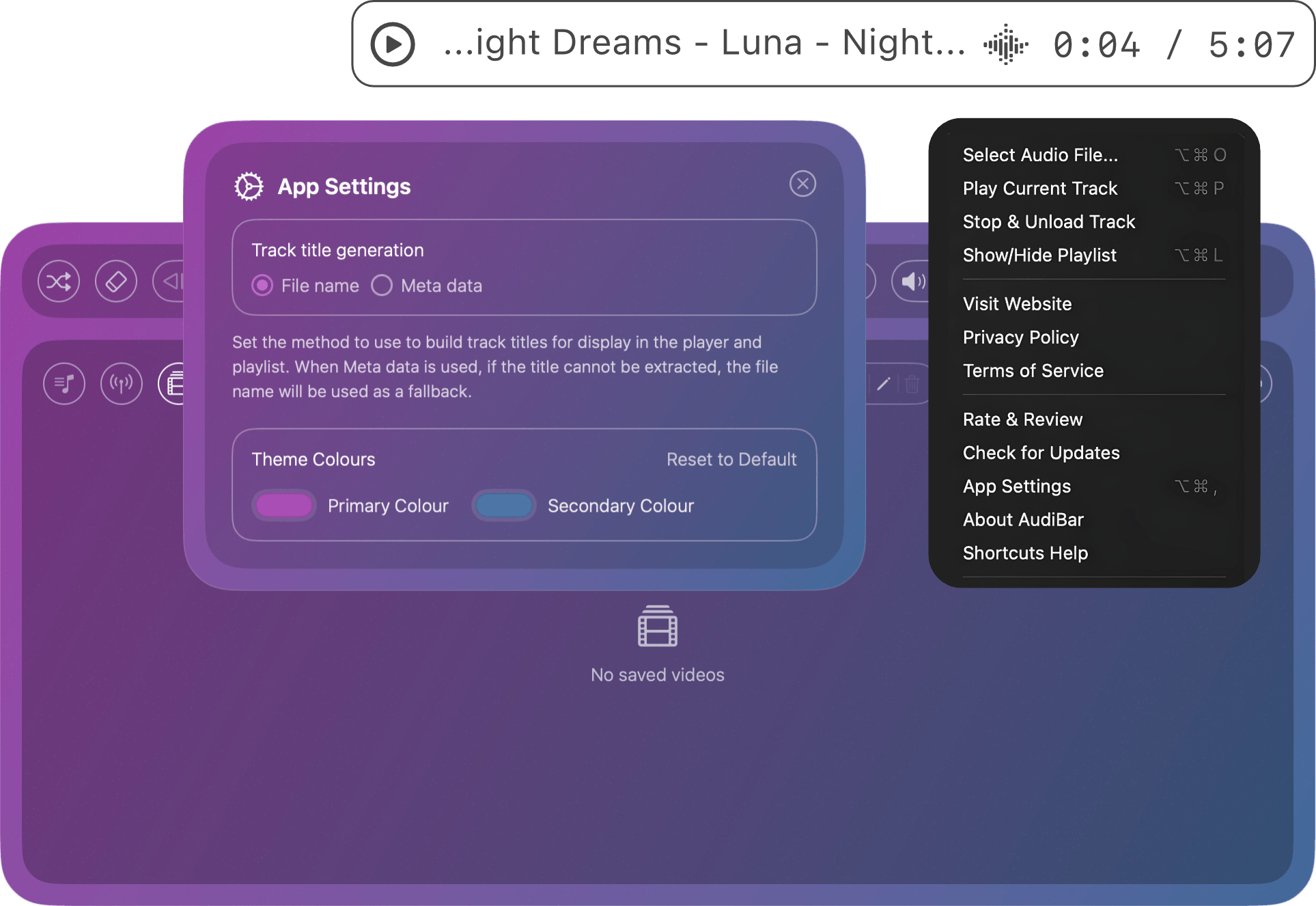
Menu Bar Controls

Right-click the menu bar icon for instant access to file selection, playback, playlist visibility and app settings. Options update based on the active playlist type.

Powerful Simplicity

Simple on the surface, seriously capable underneath. No library management, no complexity, no compromise.

Playlists & Playback

Track Playlists

Build playlists by dragging files or entire folders onto the panel. Supports unlimited tracks with persistent playlists across sessions, so everything is exactly where you left it when you return.

YouTube Audio Playback

Play YouTube videos as audio directly in AudiBar. Add multiple URLs to build a playlist with a visual carousel showing current and upcoming tracks with thumbnails. No browser or account required.

Podcast Playlists

Add any podcast RSS feed and browse all episodes. Playback position saved per episode. Feeds auto-refresh on a configurable schedule. Variable speed playback with pitch correction.

Internet Radio Streaming

Stream live radio directly from your menu bar. Supports M3U, M3U8, PLS, XSPF, ASX, RSS and direct stream URLs. Save your favourite stations and switch between them instantly from the menu bar.

Playback Speed Control

Adjust playback speed from 0.5x to 2x with pitch correction across 7 presets. Works for tracks and podcast episodes. Current speed shown in the menu bar when not at normal rate.

Sleep Timer

Set playback to stop automatically after 15, 30 or 45 minutes, or 1 or 2 hours. Works across all playlist types including tracks, radio, YouTube and podcasts. Audio fades out smoothly when the timer ends.

Controls & Integration

Media Key Support

Control playback with your keyboard media keys even when AudiBar is not in focus. Play, pause and skip system-wide without ever switching apps or windows.

Keyboard Shortcuts

Full keyboard shortcut support with a built-in shortcuts help window. All shortcuts use Command and Option and work whenever AudiBar is running.

Control Centre Integration

Current track and stream info appears in macOS Control Centre with native playback controls. Manage playback without opening AudiBar.

Finder Integration

Right-click any audio or playlist file in Finder and choose Open With to open it instantly in AudiBar. Set it as your default player for a faster double-clicks.

iCloud Drive Support

Handles iCloud Drive files gracefully with a loading state while files download in the background. Playback starts automatically once ready.

Lightweight by Design

Under 50MB memory, less than 3% CPU during playback, zero CPU when idle. Launches instantly and stays out of your way.

Library & Organisation

Multi-Playlist Support

Create multiple playlists for all audio types. Each with its own name and sort preferences. Switch between them instantly from the playlist picker.

Drag and Drop

Drag files, folders or YouTube URLs straight onto the panel to add them instantly. Works from Finder, browsers and anywhere on your Mac.

Smart Track Naming

Automatically extracts metadata from audio files to display artist and track info. Switch to filename display in Settings if you prefer a cleaner look.

Multiple Audio Formats

Supports MP3, WAV, FLAC, M4A, AAC, AIFF, AIF, CAF and MP4 natively through macOS Core Audio. No external codecs required.

Playlist Sorting & Pagination

Sort playlists and paginate efficiently through collections of 100 to 10,000 tracks. Auto-scrolls to the currently playing track when you open the playlist.

Auto-play & Shuffle

Automatically advance to the next track or shuffle your playlist for a randomised listening experience. Both settings persist across restarts.

Personalisation & Accessibility

Custom Themes

Make AudiBar yours with custom colours that flow throughout the entire app. Choose your primary and secondary colours in Settings.

Independent Volume

Control AudiBar's volume independently from your Mac's system volume. Perfect for balancing it against other apps.

VoiceOver Support

Full VoiceOver accessibility support across all UI elements, labels and controls. AudiBar is designed to be fully navigable without a mouse or display.

No Nonsense Pricing

Try everything free for 7 days. Then keep a capable free tier or unlock it all with a single purchase.

AudiBar Free

Free forever, no credit card needed

Free
  • 7-day trial with all features unlocked
  • Single file playback
  • File picker and drag and drop loading
  • Default track playlist with unlimited tracks
  • All supported audio formats
  • Custom theme colours

AudiBar Premium

One-time purchase, yours forever

£6.99
  • Multi-playlist support for tracks, streams and YouTube
  • Internet radio streaming with saved stations
  • YouTube audio playlists with visual carousel
  • Podcast playlists with auto-refresh and episode resume
  • Playback speed control from 0.5x to 2x
  • Sleep timer with smooth fade out

Both free and premium versions of AudiBar include and feature:

  • Menu bar controls
  • Right-click context menu
  • Smart track naming
  • Independent volume control
  • Media key support
  • Control Centre integration
  • Finder integration via Open With
  • Keyboard shortcuts
  • iCloud Drive support
  • VoiceOver accessibility support
  • Auto-play, shuffle
  • Playlist sorting and pagination

Ready to Try AudiBar?

Download AudiBar and start your free 7-day trial today. Play files, stream radio, listen to podcasts and play YouTube audio. All from your menu bar. Upgrade to premium when you are ready.

macOS 14.6+ Free 7-day trial One-time purchase

FAQ

Everything you need to know about AudiBar, answered.

Getting Started

What are the system requirements?

AudiBar requires macOS 14.6 (Sonoma) or later and runs natively on both Intel and Apple Silicon Macs. It is designed to be lightweight and efficient, using under 50MB of memory and less than 3% CPU during playback, with zero CPU usage when idle. This makes it well suited for all day use without impacting battery life.

How does the free trial work?

All new and existing free users automatically receive a 7-day trial with every premium feature unlocked. No credit card required. You can see your remaining trial days in the About window. After the trial, you keep a capable free tier or purchase premium to unlock everything permanently.

What happens after the trial ends?

After 7 days you revert to the free tier, which includes single file playback, a default track playlist with unlimited tracks, custom themes, independent volume, media keys, Control Centre integration and more. Premium features including internet radio, YouTube playlists, podcast playlists, multi-playlist support, speed control and sleep timer require a one-time purchase to continue.

Does it need an internet connection?

AudiBar works fully offline for local file playback with no internet connection required. All track playlist features including drag and drop loading, shuffle, auto-play, sleep timer and speed control work entirely on your Mac. An internet connection is only needed for streaming radio, YouTube audio playback, podcast episode playback and refreshing podcast feeds.

Playback & Controls

What playback controls are available?

AudiBar includes a seek slider with previous and next track buttons, independent volume control, playback speed from 0.5x to 2x, sleep timer, shuffle, and auto-play. Playback can also be controlled through the macOS Control Center.

Can I use keyboard shortcuts or media keys?

Yes. AudiBar has full keyboard shortcut support accessible via the shortcuts help window in the right-click menu. All shortcuts work whenever AudiBar is running. Media keys for play, pause, and skip work system-wide even when AudiBar is not in focus.

Does it remember my last track?

Yes. AudiBar remembers your last played track or stream when you restart the app. Your place is saved automatically, so it will be ready to play right where you left off, but will not start automatically without your input.

Does it work with iCloud Drive files?

Yes. AudiBar handles iCloud Drive files with a loading state while the file downloads in the background. Playback starts automatically once the file is ready, so there is no need to wait or manually manage downloads before listening.

Content & Formats

What audio formats are supported?

AudiBar supports MP3, WAV, FLAC, AAC, M4A, AIFF, AIF, CAF and MP4 natively through macOS Core Audio. No external codecs required.

What streaming formats are supported?

AudiBar supports M3U, M3U8, PLS, XSPF, ASX, WAX, RSS and direct stream URLs for internet radio.

Can I listen to podcasts?

Yes. Add any RSS feed from the playlist panel, browse all episodes and play with full controls including variable speed. Playback position is saved per episode so you always pick up where you left off. Feeds refresh automatically on a schedule you configure.

How do I find a podcast RSS feed URL?

AudiBar supports standard RSS feeds and Apple Podcast URLs. In Apple Podcasts, open the show, tap the three dots and choose Copy Link. For other platforms, search the podcast name on a directory like Podchaser or Listen Notes to find the RSS feed URL.

How does YouTube playback work?

Paste or drag any YouTube URL into AudiBar to play its audio directly without opening a browser. You can queue multiple YouTube URLs to build a playlist and browse upcoming tracks with thumbnails in the visual carousel. Full playback controls are supported including seek and sleep timer. No account or sign in is required.

Why do some streams fail to play?

Stream playback depends on the station or URL being online and accessible at the time of playback. Some streams go offline, change URLs, or use formats that are not supported. If a stream fails, try refreshing or re-adding the URL. Streams that require authentication or are behind a paywall are not supported.

Playlists & Organisation

Can I have multiple playlists?

Yes, with Premium. You can create multiple playlists for tracks, streams and YouTube videos, each with its own name and sort preferences. Free users have access to one default track playlist with unlimited tracks.

What happens if I move or delete a file?

If a file becomes unavailable, AudiBar will remove it from your playlist when you try to play it. Files need to be re-added if moved from their original location.

Does it integrate with Finder?

Yes. Right-click any audio or playlist file in Finder and choose Open With to open it instantly in AudiBar. You can also set AudiBar as the default app for specific file types so files open directly with a double-click.

Why doesn't AudiBar appear in the Dock?

AudiBar is a menu bar app, designed to live in your Mac's menu bar rather than the Dock. This keeps it out of the way while remaining one click away at all times. No Dock icon, no app switching, no desktop clutter.

Pricing & Purchase

Is it truly a one-time purchase?

Yes. Premium is a single one-time purchase with no subscription, no recurring charges and no hidden fees. All future premium feature updates are included at no additional cost. Your purchase works across all your Macs using the same Apple ID.

Can I use AudiBar on multiple Macs?

Yes. Your premium purchase is tied to your Apple ID and works across all your Macs through the App Store. Simply download AudiBar and sign in with the same Apple ID to restore your purchase on any Mac.

Can I get a refund if I am not happy?

AudiBar is sold through the Mac App Store, so refunds are handled directly by Apple. Make use of the free 7-day trial before purchasing so you can try every feature first.

Do I need a YouTube account to use YouTube playback?

No. You can add and play any public YouTube URL without signing in to a YouTube account. Simply paste or drag the URL into AudiBar and it will play the audio directly.

Privacy & Permissions

Is my data private?

Yes, completely. AudiBar stores everything locally on your Mac. No data is ever transmitted to our servers or any third parties. Your files, stations and listening habits stay entirely on your Mac.

Does YouTube playback use data?

Yes. YouTube playback streams audio over the internet and will use your data connection. The amount depends on the length and quality of the video. If you are on a metered connection, bear this in mind when building large YouTube playlists.

Why does AudiBar ask for permission to access my files?

macOS requires apps to request explicit permission before accessing files outside of their sandbox. When AudiBar asks for access, it is simply requesting permission to read the audio files you have chosen to play. AudiBar uses security-scoped bookmarks to remember these permissions between sessions so you are not asked repeatedly. No data is ever sent anywhere.

Why does AudiBar ask to access my Downloads or Desktop folder?

macOS restricts app access to certain folders including Downloads and Desktop by default. When you open a file from one of these locations, macOS prompts you to grant access. AudiBar only requests this permission to read the file you have chosen and does not access anything else in that folder. You can manage these permissions anytime in System Settings under Privacy and Security.