<?xml version="1.0" encoding="utf-8"?>
<feed xmlns="http://www.w3.org/2005/Atom">
    <id>https://chiahsien.github.io</id>
    <title>Nelson</title>
    <updated>2026-03-29T06:27:26.074Z</updated>
    <generator>https://github.com/jpmonette/feed</generator>
    <link rel="alternate" href="https://chiahsien.github.io"/>
    <link rel="self" href="https://chiahsien.github.io/atom.xml"/>
    <subtitle>我寫故我在</subtitle>
    <logo>https://chiahsien.github.io/images/avatar.png</logo>
    <icon>https://chiahsien.github.io/favicon.ico</icon>
    <rights>All rights reserved 2026, Nelson</rights>
    <entry>
        <title type="html"><![CDATA[Swift Package 多語言支援]]></title>
        <id>https://chiahsien.github.io/post/swift-package-localization-guide/</id>
        <link href="https://chiahsien.github.io/post/swift-package-localization-guide/">
        </link>
        <updated>2026-03-29T06:20:00.000Z</updated>
        <summary type="html"><![CDATA[<p>在開發 iOS 應用程式時，使用 Swift Package Manager (SPM) 來模組化程式碼已經成為主流做法。然而，當你在 Swift Package 中實作多國語言支援時，可能會遇到一個令人困惑的問題：Package 內的本地化在測試時運作正常，但整合到主專案後卻失效了。本文將深入探討這個問題的根源，以及如何透過 <code>CFBundleLocalizations</code> 和 <code>CFBundleAllowMixedLocalizations</code> 這兩個 Info.plist 設定來解決。</p>
]]></summary>
        <content type="html"><![CDATA[<p>在開發 iOS 應用程式時，使用 Swift Package Manager (SPM) 來模組化程式碼已經成為主流做法。然而，當你在 Swift Package 中實作多國語言支援時，可能會遇到一個令人困惑的問題：Package 內的本地化在測試時運作正常，但整合到主專案後卻失效了。本文將深入探討這個問題的根源，以及如何透過 <code>CFBundleLocalizations</code> 和 <code>CFBundleAllowMixedLocalizations</code> 這兩個 Info.plist 設定來解決。</p>
<!-- more -->
<h2 id="swift-package-在多國語言會遇到什麼問題">Swift Package 在多國語言會遇到什麼問題</h2>
<h3 id="問題現象">問題現象</h3>
<p>假設你正在開發一個 Swift Package，並且已經正確配置了多語言支援：</p>
<pre><code class="language-swift">let package = Package(
    name: &quot;MyFeatureKit&quot;,
    defaultLocalization: &quot;en&quot;,
    targets: [
        .target(
            name: &quot;MyFeatureKit&quot;,
            resources: [.process(&quot;Resources&quot;)]
        )
    ]
)
</code></pre>
<p>Package 的資料夾結構如下：</p>
<pre><code>MyFeatureKit/
└── Sources/
    └── MyFeatureKit/
        └── Resources/
            ├── en.lproj/Localizable.strings
            ├── es.lproj/Localizable.strings
            ├── ja.lproj/Localizable.strings
            └── de.lproj/Localizable.strings
</code></pre>
<p>在 Package 內部測試時，你使用 <code>Bundle.module</code> 來載入本地化字串：</p>
<pre><code class="language-swift">Text(&quot;welcome_message&quot;, bundle: .module)
</code></pre>
<p>一切運作正常。但當你將這個 Package 整合到主 App 中時，日文和德文的本地化突然失效了，系統只會回退到預設的英文。</p>
<h3 id="問題根源">問題根源</h3>
<p>這個問題的核心在於 iOS 系統的本地化載入機制：<strong>系統預設只允許 Swift Package 使用主 App Bundle 中明確支援的語言</strong>。</p>
<p>換句話說：</p>
<ul>
<li>主 App 透過 <code>.lproj</code> 資料夾或 <code>CFBundleLocalizations</code> 宣告它支援哪些語言</li>
<li>Swift Package 雖然有自己的 Bundle (<code>Bundle.module</code>) 和本地化資源</li>
<li>但在執行時，系統會檢查主 App 支援的語言清單</li>
<li>如果 Package 嘗試使用主 App 未宣告支援的語言，該語言會被忽略</li>
</ul>
<p>這個設計的原意是確保整個應用程式的本地化體驗一致，避免出現部分介面是語言 A，部分介面是語言 B 的混亂情況。然而，這也造成了 Swift Package 無法獨立提供更多語言支援的限制。</p>
<h2 id="cfbundlelocalizations明確宣告支援的語言">CFBundleLocalizations：明確宣告支援的語言</h2>
<h3 id="什麼是-cfbundlelocalizations">什麼是 CFBundleLocalizations</h3>
<p><code>CFBundleLocalizations</code> 是 Info.plist 中的一個鍵值，用於明確告訴系統你的應用程式支援哪些語言。它的資料型態是字串陣列，每個元素代表一種語言代碼。</p>
<h3 id="解決-swift-package-本地化問題">解決 Swift Package 本地化問題</h3>
<p>假設你的主 App 只有英文和西班牙文的本地化檔案（只有 <code>en.lproj</code> 和 <code>es.lproj</code>），但你的 Swift Package 支援英文、西班牙文、日文和德文。</p>
<p><strong>不加 CFBundleLocalizations 的情況：</strong></p>
<ul>
<li>英文使用者：看到英文（正常）</li>
<li>西班牙文使用者：看到西班牙文（正常）</li>
<li>日文使用者：看到英文（Package 的日文被忽略）</li>
<li>德文使用者：看到英文（Package 的德文被忽略）</li>
</ul>
<p><strong>加入 CFBundleLocalizations 後：</strong></p>
<pre><code class="language-xml">&lt;key&gt;CFBundleLocalizations&lt;/key&gt;
&lt;array&gt;
    &lt;string&gt;en&lt;/string&gt;
    &lt;string&gt;es&lt;/string&gt;
    &lt;string&gt;ja&lt;/string&gt;
    &lt;string&gt;de&lt;/string&gt;
&lt;/array&gt;
</code></pre>
<p>現在的結果：</p>
<ul>
<li>英文使用者：看到英文</li>
<li>西班牙文使用者：看到西班牙文</li>
<li>日文使用者：看到日文（Package 的日文正常載入）</li>
<li>德文使用者：看到德文（Package 的德文正常載入）</li>
</ul>
<h3 id="重要特性與限制">重要特性與限制</h3>
<p><strong>優點：</strong></p>
<ul>
<li>即使主 App 沒有對應的 <code>.lproj</code> 資料夾，只要在 <code>CFBundleLocalizations</code> 中宣告，Swift Package 就能使用該語言</li>
<li>實作簡單，只需修改 Info.plist</li>
</ul>
<p><strong>限制：</strong></p>
<ul>
<li>App Store 會顯示你宣告的所有語言為「支援語言」</li>
<li>使用者可能會期待整個 App 都支援該語言，但實際上只有 Package 部分支援</li>
<li>容易造成使用者體驗不一致：主 App 介面是英文，但 Package 提供的功能是日文</li>
</ul>
<p><strong>適用情境：</strong></p>
<ul>
<li>你計劃在主 App 中也加入這些語言的支援，只是還沒完成</li>
<li>你的 App 結構簡單，大部分內容都在 Package 中</li>
<li>你願意接受 App Store 顯示更多支援語言</li>
</ul>
<h2 id="cfbundleallowmixedlocalizations允許混合本地化">CFBundleAllowMixedLocalizations：允許混合本地化</h2>
<h3 id="什麼是-cfbundleallowmixedlocalizations">什麼是 CFBundleAllowMixedLocalizations</h3>
<p><code>CFBundleAllowMixedLocalizations</code> 是一個布林值設定，用於明確告訴系統：「允許我的依賴項（包括 Swift Package、Framework 等）使用它們自己支援的任何語言，不受主 App 宣告語言的限制。」</p>
<h3 id="解決-swift-package-本地化問題-2">解決 Swift Package 本地化問題</h3>
<p>使用相同的情境：主 App 只有英文和西班牙文，Swift Package 支援英文、西班牙文、日文和德文。</p>
<p><strong>加入 CFBundleAllowMixedLocalizations 後：</strong></p>
<pre><code class="language-xml">&lt;key&gt;CFBundleAllowMixedLocalizations&lt;/key&gt;
&lt;true/&gt;
</code></pre>
<p>結果：</p>
<ul>
<li>英文使用者：主 App 顯示英文，Package 顯示英文</li>
<li>西班牙文使用者：主 App 顯示西班牙文，Package 顯示西班牙文</li>
<li>日文使用者：主 App 顯示英文（或回退到基礎語言），Package 顯示日文</li>
<li>德文使用者：主 App 顯示英文（或回退到基礎語言），Package 顯示德文</li>
</ul>
<h3 id="重要特性與優勢">重要特性與優勢</h3>
<p><strong>優點：</strong></p>
<ul>
<li>App Store 只顯示主 App 實際支援的語言（英文、西班牙文）</li>
<li>Swift Package 可以獨立提供更多語言支援</li>
<li>使用者不會對整體語言支援有錯誤期待</li>
<li>對於只使用特定 Package 功能的使用者，可以獲得更好的本地化體驗</li>
</ul>
<p><strong>限制：</strong></p>
<ul>
<li>可能造成介面語言不一致（主 App 和 Package 顯示不同語言）</li>
<li>需要確保這種混合語言的體驗在 UI/UX 上是可接受的</li>
</ul>
<p><strong>適用情境：</strong></p>
<ul>
<li>主 App 只支援少數語言，但整合的 Swift Package 提供更豐富的多語言支援</li>
<li>Package 是功能型模組（如支付、地圖、社交分享），語言不一致不影響整體體驗</li>
<li>希望 App Store 只顯示主 App 實際完整支援的語言數量</li>
</ul>
<h2 id="實際案例不同語言配置的影響">實際案例：不同語言配置的影響</h2>
<p>讓我們用一個具體的案例來說明這兩個設定的實際差異。</p>
<h3 id="案例設定">案例設定</h3>
<p><strong>主 App (Main Bundle)：</strong></p>
<ul>
<li>實際本地化檔案：英文 (en)、西班牙文 (es)、繁體中文 (zh-Hant)</li>
<li>有完整的 UI 翻譯、App 名稱本地化等</li>
</ul>
<p><strong>Swift Package (第三方支付 SDK)：</strong></p>
<ul>
<li>本地化檔案：英文 (en)、西班牙文 (es)、繁體中文 (zh-Hant)、日文 (ja)、德文 (de)</li>
<li>包含支付流程的 UI 和訊息</li>
</ul>
<h3 id="方案一不做任何設定">方案一：不做任何設定</h3>
<p><strong>Info.plist：</strong></p>
<pre><code class="language-xml">&lt;!-- 空白，不加任何設定 --&gt;
</code></pre>
<p><strong>各語言使用者的體驗：</strong></p>
<table>
<thead>
<tr>
<th>使用者語言</th>
<th>主 App 顯示</th>
<th>Package 顯示</th>
<th>整體體驗</th>
</tr>
</thead>
<tbody>
<tr>
<td>英文</td>
<td>英文</td>
<td>英文</td>
<td>完美一致</td>
</tr>
<tr>
<td>西班牙文</td>
<td>西班牙文</td>
<td>西班牙文</td>
<td>完美一致</td>
</tr>
<tr>
<td>繁體中文</td>
<td>繁體中文</td>
<td>繁體中文</td>
<td>完美一致</td>
</tr>
<tr>
<td>日文</td>
<td>英文（回退）</td>
<td>英文（被限制）</td>
<td>一致但未本地化</td>
</tr>
<tr>
<td>德文</td>
<td>英文（回退）</td>
<td>英文（被限制）</td>
<td>一致但未本地化</td>
</tr>
</tbody>
</table>
<p><strong>App Store 顯示：</strong> 支援 3 種語言</p>
<p><strong>問題：</strong> 日文和德文使用者無法使用 Package 內建的本地化，即使 Package 已經準備好這些語言。</p>
<h3 id="方案二使用-cfbundlelocalizations">方案二：使用 CFBundleLocalizations</h3>
<p><strong>Info.plist：</strong></p>
<pre><code class="language-xml">&lt;key&gt;CFBundleLocalizations&lt;/key&gt;
&lt;array&gt;
    &lt;string&gt;en&lt;/string&gt;
    &lt;string&gt;es&lt;/string&gt;
    &lt;string&gt;zh-Hant&lt;/string&gt;
    &lt;string&gt;ja&lt;/string&gt;
    &lt;string&gt;de&lt;/string&gt;
&lt;/array&gt;
</code></pre>
<p><strong>各語言使用者的體驗：</strong></p>
<table>
<thead>
<tr>
<th>使用者語言</th>
<th>主 App 顯示</th>
<th>Package 顯示</th>
<th>整體體驗</th>
</tr>
</thead>
<tbody>
<tr>
<td>英文</td>
<td>英文</td>
<td>英文</td>
<td>完美一致</td>
</tr>
<tr>
<td>西班牙文</td>
<td>西班牙文</td>
<td>西班牙文</td>
<td>完美一致</td>
</tr>
<tr>
<td>繁體中文</td>
<td>繁體中文</td>
<td>繁體中文</td>
<td>完美一致</td>
</tr>
<tr>
<td>日文</td>
<td>英文（回退）</td>
<td>日文</td>
<td>不一致但部分本地化</td>
</tr>
<tr>
<td>德文</td>
<td>英文（回退）</td>
<td>德文</td>
<td>不一致但部分本地化</td>
</tr>
</tbody>
</table>
<p><strong>App Store 顯示：</strong> 支援 5 種語言</p>
<p><strong>問題：</strong></p>
<ul>
<li>日文和德文使用者在 App Store 看到「支援日文/德文」</li>
<li>下載後發現只有支付流程是日文/德文，主 App 介面仍是英文</li>
<li>可能造成使用者困惑或負評</li>
</ul>
<h3 id="方案三使用-cfbundleallowmixedlocalizations">方案三：使用 CFBundleAllowMixedLocalizations</h3>
<p><strong>Info.plist：</strong></p>
<pre><code class="language-xml">&lt;key&gt;CFBundleAllowMixedLocalizations&lt;/key&gt;
&lt;true/&gt;
</code></pre>
<p><strong>各語言使用者的體驗：</strong></p>
<table>
<thead>
<tr>
<th>使用者語言</th>
<th>主 App 顯示</th>
<th>Package 顯示</th>
<th>整體體驗</th>
</tr>
</thead>
<tbody>
<tr>
<td>英文</td>
<td>英文</td>
<td>英文</td>
<td>完美一致</td>
</tr>
<tr>
<td>西班牙文</td>
<td>西班牙文</td>
<td>西班牙文</td>
<td>完美一致</td>
</tr>
<tr>
<td>繁體中文</td>
<td>繁體中文</td>
<td>繁體中文</td>
<td>完美一致</td>
</tr>
<tr>
<td>日文</td>
<td>英文（回退）</td>
<td>日文</td>
<td>不一致但部分本地化</td>
</tr>
<tr>
<td>德文</td>
<td>英文（回退）</td>
<td>德文</td>
<td>不一致但部分本地化</td>
</tr>
</tbody>
</table>
<p><strong>App Store 顯示：</strong> 支援 3 種語言</p>
<p><strong>優勢：</strong></p>
<ul>
<li>日文和德文使用者在 App Store 知道 App 主要支援 3 種語言</li>
<li>下載後發現支付流程有日文/德文支援，這是額外的驚喜</li>
<li>使用者期待管理更合理</li>
</ul>
<h2 id="決策指南何時使用哪一種設定">決策指南：何時使用哪一種設定</h2>
<p>根據不同的開發情境，選擇合適的設定策略：</p>
<table>
<thead>
<tr>
<th>情境</th>
<th>推薦方案</th>
<th>理由</th>
</tr>
</thead>
<tbody>
<tr>
<td>Swift Package 語言 ⊆ 主 App 語言</td>
<td>不需要任何設定</td>
<td>系統預設行為已足夠</td>
</tr>
<tr>
<td>短期內會為主 App 加入 Package 支援的所有語言</td>
<td>CFBundleLocalizations</td>
<td>提前宣告，為完整本地化做準備</td>
</tr>
<tr>
<td>Package 支援的額外語言是長期規劃，近期不會在主 App 實作</td>
<td>CFBundleAllowMixedLocalizations</td>
<td>避免誤導使用者，同時提供更好的 Package 體驗</td>
</tr>
<tr>
<td>Package 是核心功能，語言支援是主要賣點</td>
<td>CFBundleLocalizations + 盡快完成主 App 本地化</td>
<td>確保整體體驗一致性</td>
</tr>
<tr>
<td>Package 是輔助功能（如第三方 SDK、工具庫）</td>
<td>CFBundleAllowMixedLocalizations</td>
<td>Package 語言不一致影響較小</td>
</tr>
<tr>
<td>有多個 Package，各自支援不同語言集合</td>
<td>CFBundleAllowMixedLocalizations</td>
<td>統一管理，避免 Info.plist 過於複雜</td>
</tr>
<tr>
<td>企業內部 App，使用者明確知道語言支援範圍</td>
<td>CFBundleLocalizations</td>
<td>可以接受混合語言體驗</td>
</tr>
<tr>
<td>面向大眾市場的 App</td>
<td>CFBundleAllowMixedLocalizations</td>
<td>使用者體驗和期待管理更重要</td>
</tr>
</tbody>
</table>
<h3 id="特殊情境處理">特殊情境處理</h3>
<p><strong>情境 A：同時使用兩個設定</strong></p>
<pre><code class="language-xml">&lt;key&gt;CFBundleLocalizations&lt;/key&gt;
&lt;array&gt;
    &lt;string&gt;en&lt;/string&gt;
    &lt;string&gt;es&lt;/string&gt;
&lt;/array&gt;
&lt;key&gt;CFBundleAllowMixedLocalizations&lt;/key&gt;
&lt;true/&gt;
</code></pre>
<p><strong>結果：</strong> <code>CFBundleAllowMixedLocalizations</code> 會覆蓋 <code>CFBundleLocalizations</code> 的限制，Package 可以使用任何它支援的語言。此設定組合通常沒有必要。</p>
<p><strong>情境 B：Package 的 defaultLocalization 與主 App 不同</strong></p>
<pre><code class="language-swift">// Package.swift
let package = Package(
    defaultLocalization: &quot;ja&quot;  // 主 App 的基礎語言是 &quot;en&quot;
)
</code></pre>
<p><strong>問題：</strong> 當系統找不到合適的語言時，Package 會回退到日文，而主 App 會回退到英文，造成體驗不一致。</p>
<p><strong>解決方案：</strong> 確保 Package 的 <code>defaultLocalization</code> 與主 App 的基礎語言（<code>CFBundleDevelopmentRegion</code>）一致。</p>
<h2 id="實作檢查清單">實作檢查清單</h2>
<p>在實作 Swift Package 多語言支援時，使用此檢查清單確保一切配置正確：</p>
<h3 id="swift-package-端">Swift Package 端</h3>
<ul class="contains-task-list">
<li class="task-list-item"><input class="task-list-item-checkbox" disabled="" type="checkbox" id="task-item-7820692"> Package.swift 中設定了 <label class="task-list-item-label" for="task-item-7820692"> Package.swift 中設定了 `defaultLocalization`</label></li>
<li class="task-list-item"><input class="task-list-item-checkbox" disabled="" type="checkbox" id="task-item-3256961"> 所有語言的資料夾使用正確的命名格式（如 <code>en.lproj</code>、<code>zh-Hans.lproj</code><label class="task-list-item-label" for="task-item-3256961"> 所有語言的資料夾使用正確的命名格式（如 `en.lproj`、`zh-Hans.lproj`）</label></li>
<li class="task-list-item"><input class="task-list-item-checkbox" disabled="" type="checkbox" id="task-item-973179"> <code>Localizable.strings</code><label class="task-list-item-label" for="task-item-973179"> `Localizable.strings` 檔案使用 UTF-16 編碼</label></li>
<li class="task-list-item"><input class="task-list-item-checkbox" disabled="" type="checkbox" id="task-item-8365599"> 在程式碼中使用 <code>Bundle.module</code> 而非 <label class="task-list-item-label" for="task-item-8365599"> 在程式碼中使用 `Bundle.module` 而非 `Bundle.main`</label></li>
<li class="task-list-item"><input class="task-list-item-checkbox" disabled="" type="checkbox" id="task-item-1013730"><label class="task-list-item-label" for="task-item-1013730"> 在 Package 內部測試過所有語言的載入</label></li>
</ul>
<h3 id="主-app-端">主 App 端</h3>
<ul class="contains-task-list">
<li class="task-list-item"><input class="task-list-item-checkbox" disabled="" type="checkbox" id="task-item-5011507"> 決定使用 <code>CFBundleLocalizations</code> 或 <label class="task-list-item-label" for="task-item-5011507"> 決定使用 `CFBundleLocalizations` 或 `CFBundleAllowMixedLocalizations`</label></li>
<li class="task-list-item"><input class="task-list-item-checkbox" disabled="" type="checkbox" id="task-item-859178"><label class="task-list-item-label" for="task-item-859178"> 在 Info.plist 中正確加入選擇的設定</label></li>
<li class="task-list-item"><input class="task-list-item-checkbox" disabled="" type="checkbox" id="task-item-6082109"> 如果使用 <code>CFBundleLocalizations</code><label class="task-list-item-label" for="task-item-6082109"> 如果使用 `CFBundleLocalizations`，確認所有語言代碼正確</label></li>
<li class="task-list-item"><input class="task-list-item-checkbox" disabled="" type="checkbox" id="task-item-8613591"> Package 的 <code>defaultLocalization</code><label class="task-list-item-label" for="task-item-8613591"> Package 的 `defaultLocalization` 與主 App 的基礎語言一致</label></li>
<li class="task-list-item"><input class="task-list-item-checkbox" disabled="" type="checkbox" id="task-item-5556488"><label class="task-list-item-label" for="task-item-5556488"> 在實際裝置上測試各種語言環境</label></li>
</ul>
<h3 id="測試驗證">測試驗證</h3>
<ul class="contains-task-list">
<li class="task-list-item"><input class="task-list-item-checkbox" disabled="" type="checkbox" id="task-item-9274737"><label class="task-list-item-label" for="task-item-9274737"> 切換系統語言，確認 Package 內容正確本地化</label></li>
<li class="task-list-item"><input class="task-list-item-checkbox" disabled="" type="checkbox" id="task-item-6277388"><label class="task-list-item-label" for="task-item-6277388"> 測試 Package 支援但主 App 不支援的語言</label></li>
<li class="task-list-item"><input class="task-list-item-checkbox" disabled="" type="checkbox" id="task-item-8245204"><label class="task-list-item-label" for="task-item-8245204"> 檢查 App Store Connect 顯示的支援語言清單是否符合預期</label></li>
<li class="task-list-item"><input class="task-list-item-checkbox" disabled="" type="checkbox" id="task-item-9045168"><label class="task-list-item-label" for="task-item-9045168"> 確認沒有使用到不存在的語言代碼（會導致回退）</label></li>
</ul>
<h2 id="總結">總結</h2>
<p>Swift Package 的多語言支援問題源自於 iOS 系統對本地化資源載入的限制機制。理解 <code>CFBundleLocalizations</code> 和 <code>CFBundleAllowMixedLocalizations</code> 的差異，能幫助你根據專案需求做出正確的技術決策：</p>
<ul>
<li><strong>CFBundleLocalizations</strong>：明確宣告支援的語言，適合計劃完整本地化的情境</li>
<li><strong>CFBundleAllowMixedLocalizations</strong>：允許 Package 獨立提供額外語言，適合大多數整合第三方 Package 的情境</li>
</ul>
<p>對於多數開發者而言，<code>CFBundleAllowMixedLocalizations</code> 提供了更靈活且使用者友善的解決方案。它讓你能夠誠實地向使用者呈現 App 的實際語言支援情況，同時允許整合的 Swift Package 提供更豐富的多語言體驗。</p>
<h2 id="參考資料">參考資料</h2>
<ul>
<li><a href="https://developer.apple.com/documentation/bundleresources/information_property_list/cfbundlelocalizations">Apple Developer Documentation - CFBundleLocalizations</a></li>
<li><a href="https://developer.apple.com/documentation/bundleresources/information_property_list/cfbundleallowmixedlocalizations">Apple Developer Documentation - CFBundleAllowMixedLocalizations</a></li>
<li><a href="https://developer.apple.com/documentation/xcode/localizing-package-resources">Apple Developer Documentation - Localizing Package Resources</a></li>
</ul>
]]></content>
    </entry>
    <entry>
        <title type="html"><![CDATA[我偏好的 Coordinator Pattern]]></title>
        <id>https://chiahsien.github.io/post/coordinator-pattern/</id>
        <link href="https://chiahsien.github.io/post/coordinator-pattern/">
        </link>
        <updated>2026-03-28T14:03:00.000Z</updated>
        <summary type="html"><![CDATA[<h2 id="前言">前言</h2>
<p>當我實作畫面流程時，我會為一組「流程」建立一個 Coordinator。如果這組流程很複雜，它可以拆分成多個「子流程」，那每一個子流程也會有對應的 Sub-Coordinator。主流程的 Coordinator 可以管理子流程的 Sub-Coordinator。</p>
<p>Coordinator 用來管理流程的畫面，它負責建立畫面、傳遞資料給畫面、回應畫面的請求、移除畫面等等。如果用 <strong>tree</strong> 來理解畫面流程的話，Coordinator 就是 <strong>root</strong>，各個畫面就是 <strong>leaf</strong>。換個角度看，Coordinator 像一個<strong>容器</strong> — 它自己不產出畫面內容，而是決定裡面放哪些畫面、什麼時候切換。</p>
]]></summary>
        <content type="html"><![CDATA[<h2 id="前言">前言</h2>
<p>當我實作畫面流程時，我會為一組「流程」建立一個 Coordinator。如果這組流程很複雜，它可以拆分成多個「子流程」，那每一個子流程也會有對應的 Sub-Coordinator。主流程的 Coordinator 可以管理子流程的 Sub-Coordinator。</p>
<p>Coordinator 用來管理流程的畫面，它負責建立畫面、傳遞資料給畫面、回應畫面的請求、移除畫面等等。如果用 <strong>tree</strong> 來理解畫面流程的話，Coordinator 就是 <strong>root</strong>，各個畫面就是 <strong>leaf</strong>。換個角度看，Coordinator 像一個<strong>容器</strong> — 它自己不產出畫面內容，而是決定裡面放哪些畫面、什麼時候切換。</p>
<!-- more -->
<h2 id="uikit">UIKit</h2>
<p>在 UIKit 實作 Coordinator Pattern 的時候，我喜歡使用 <code>UIViewController</code> 作為 Coordinator，並且在裡頭內嵌一個 <code>UINavigationController</code>。</p>
<h3 id="coordinator-結構">Coordinator 結構</h3>
<p>Coordinator 持有 <code>UINavigationController</code>，負責建立畫面、處理事件、決定導航行為：</p>
<pre><code class="language-swift">public final class FeatureCoordinator: UIViewController {
    private let rootNav = UINavigationController()

    public override func viewDidLoad() {
        super.viewDidLoad()

        addChild(rootNav)
        rootNav.view.translatesAutoresizingMaskIntoConstraints = false
        view.addSubview(rootNav.view)
        NSLayoutConstraint.activate([
            rootNav.view.topAnchor.constraint(equalTo: view.topAnchor),
            rootNav.view.bottomAnchor.constraint(equalTo: view.bottomAnchor),
            rootNav.view.leadingAnchor.constraint(equalTo: view.leadingAnchor),
            rootNav.view.trailingAnchor.constraint(equalTo: view.trailingAnchor),
        ])
        rootNav.didMove(toParent: self)

        showHome()
    }

    private func showHome() {
        let homeVC = HomeViewController()
        homeVC.delegate = self
        rootNav.pushViewController(homeVC, animated: false)
    }

    private func showDetail(item: String) {
        let detailVC = DetailViewController(item: item)
        detailVC.delegate = self
        rootNav.pushViewController(detailVC, animated: true)
    }

    private func showSettings() {
        let settingsVC = SettingsViewController()
        settingsVC.delegate = self
        rootNav.pushViewController(settingsVC, animated: true)
    }
}

// MARK: - Event Handlers

extension FeatureCoordinator: HomeViewControllerDelegate {
    func homeViewController(
        _ vc: HomeViewController,
        didSelectItem item: String
    ) {
        showDetail(item: item)
    }

    func homeViewControllerDidTapSettings(
        _ vc: HomeViewController
    ) {
        showSettings()
    }
}

extension FeatureCoordinator: DetailViewControllerDelegate {
    func detailViewController(
        _ vc: DetailViewController,
        didSelectRelatedItem item: String
    ) {
        showDetail(item: item)
    }

    func detailViewControllerDidFinish(
        _ vc: DetailViewController
    ) {
        rootNav.popViewController(animated: true)
    }
}

extension FeatureCoordinator: SettingsViewControllerDelegate {
    func settingsViewControllerDidLogOut(
        _ vc: SettingsViewController
    ) {
        rootNav.popToRootViewController(animated: true)
    }
}
</code></pre>
<h3 id="畫面與-coordinator-的溝通偏好-delegate">畫面與 Coordinator 的溝通：偏好 Delegate</h3>
<p>畫面透過 delegate 與 Coordinator 溝通。我偏好 delegate 而非 closure，因為：</p>
<ul>
<li><strong>Contract 明確</strong>：protocol 就是溝通介面的完整定義，一眼就能看出畫面會發出哪些事件</li>
<li><strong>不容易漏</strong>：Xcode 會強制你實作每個 protocol method，不會忘記處理某個事件</li>
<li><strong>可讀性</strong>：當畫面有多種事件需要回傳時，closure 會變成一堆散落的 property，delegate 則集中在一個 protocol 裡</li>
</ul>
<p>Closure 適合一次性、單一事件的回傳（例如 completion block），但在 Coordinator pattern 中，畫面通常有多種事件需要通知 Coordinator，delegate 更合適。</p>
<pre><code class="language-swift">// MARK: - View Delegate Protocols

protocol HomeViewControllerDelegate: AnyObject {
    func homeViewController(
        _ vc: HomeViewController,
        didSelectItem item: String
    )
    func homeViewControllerDidTapSettings(
        _ vc: HomeViewController
    )
}

protocol DetailViewControllerDelegate: AnyObject {
    func detailViewController(
        _ vc: DetailViewController,
        didSelectRelatedItem item: String
    )
    func detailViewControllerDidFinish(
        _ vc: DetailViewController
    )
}

protocol SettingsViewControllerDelegate: AnyObject {
    func settingsViewControllerDidLogOut(
        _ vc: SettingsViewController
    )
}
</code></pre>
<h3 id="子流程管理與反向溝通">子流程管理與反向溝通</h3>
<p>既然 Coordinator 是 <code>UIViewController</code>，子流程的管理就是標準的 UIKit parent-child 關係。呈現子流程用 <code>present</code>，子流程結束後透過 delegate 把結果傳回 parent Coordinator — 溝通方式與畫面 → Coordinator 一致，整個架構的溝通模型是統一的。</p>
<pre><code class="language-swift">// MARK: - Sub-Coordinator Management

protocol SubFeatureCoordinatorDelegate: AnyObject {
    func subFeatureCoordinator(
        _ coordinator: SubFeatureCoordinator,
        didFinishWith result: SubFeatureResult
    )
}

// In parent FeatureCoordinator:
extension FeatureCoordinator {
    func showSubFeature() {
        let subCoordinator = SubFeatureCoordinator()
        subCoordinator.delegate = self
        present(subCoordinator, animated: true)
    }
}

extension FeatureCoordinator: SubFeatureCoordinatorDelegate {
    func subFeatureCoordinator(
        _ coordinator: SubFeatureCoordinator,
        didFinishWith result: SubFeatureResult
    ) {
        coordinator.dismiss(animated: true)
        // Handle result from sub-flow
    }
}
</code></pre>
<p>這正好是 UIViewController-based Coordinator 相較 protocol-based 做法的優勢：你不需要手動從 <code>childCoordinators</code> 陣列移除子 Coordinator，<code>dismiss</code> 就是一切。Sub-Coordinator 如果有需要清理的資源，應該在自己的 <code>deinit</code> 處理 — Coordinator 是 self-contained 的，不該讓 parent 操心內部清理。</p>
<h2 id="swiftui">SwiftUI</h2>
<p>在 SwiftUI 實作 Coordinator Pattern 的時候，對應 UIKit 版的「Coordinator = UIViewController」，我使用 <strong>SwiftUI View 作為 Coordinator</strong>，讓它擁有 <code>NavigationStack</code> 和 <code>@State</code> 導航狀態。</p>
<h3 id="coordinator-結構-2">Coordinator 結構</h3>
<p>Coordinator View 持有 <code>NavigationStack</code> 的 path 和 sheet 狀態，負責建立畫面、處理事件、決定導航行為：</p>
<pre><code class="language-swift">struct FeatureCoordinatorView: View {
    enum Route: Hashable {
        case home
        case detail(String)
        case settings
    }

    @State private var path: [Route] = []
    @State private var sheetRoute: Route?

    var body: some View {
        NavigationStack(path: $path) {
            HomeView(onEvent: handleHomeEvent)
                .navigationDestination(for: Route.self) { route in
                    view(for: route)
                }
        }
        .sheet(item: $sheetRoute) { route in
            NavigationStack {
                view(for: route)
            }
        }
    }

    @ViewBuilder
    private func view(for route: Route) -&gt; some View {
        switch route {
        case .home:
            HomeView(onEvent: handleHomeEvent)
        case .detail(let item):
            DetailView(item: item, onEvent: handleDetailEvent)
        case .settings:
            SettingsView(onEvent: handleSettingsEvent)
        }
    }

    // MARK: - Event Handlers

    private func handleHomeEvent(_ event: HomeView.Event) {
        switch event {
        case .didSelectItem(let item):
            path.append(.detail(item))
        case .didTapSettings:
            path.append(.settings)
        }
    }

    private func handleDetailEvent(_ event: DetailView.Event) {
        switch event {
        case .didSelectRelatedItem(let item):
            path.append(.detail(item))
        case .didFinish:
            if !path.isEmpty { path.removeLast() }
        }
    }

    private func handleSettingsEvent(_ event: SettingsView.Event) {
        switch event {
        case .didLogOut:
            path.removeAll()
        }
    }
}
</code></pre>
<h3 id="畫面與-coordinator-的溝通event-enum-closure">畫面與 Coordinator 的溝通：Event Enum + Closure</h3>
<p>UIKit 版偏好 delegate，SwiftUI 版則改用每個 View 自己定義的 <code>Event</code> enum 搭配 <code>onEvent</code> closure。精神是一樣的 — <strong>contract 明確、不容易漏</strong>。</p>
<p>具體做法：</p>
<ul>
<li>每個 View 內部宣告自己的 <code>Event</code> enum，列出這個 View 會發出的所有事件</li>
<li>Coordinator 建立 View 時必須提供 <code>(Event) -&gt; Void</code>，漏了就 compile error</li>
<li>Handler 裡 switch 這個 concrete enum，Swift 會強制處理每個 case — 不會有 <code>default</code> fallback 的漏洞</li>
</ul>
<p>命名用 <code>Event</code> 而非 <code>NavigationEvent</code>，因為不是每個事件都跟導航有關。更重要的是，Event 的 case 應該描述<strong>發生了什麼事</strong>，而非<strong>指揮 Coordinator 該做什麼導航</strong> — 讓 View 保持 context-independent。</p>
<pre><code class="language-swift">struct DetailView: View {
    enum Event {
        case didSelectRelatedItem(String)
        case didFinish(DetailResult)
    }

    let item: String
    let onEvent: (Event) -&gt; Void

    var body: some View {
        VStack {
            Text(&quot;詳情: \(item)&quot;)

            Button(&quot;完成&quot;) {
                onEvent(.didFinish(.success))
            }
        }
    }
}
</code></pre>
<h3 id="子流程管理與反向溝通-2">子流程管理與反向溝通</h3>
<p>與 UIKit 版一樣，子流程用獨立的 Coordinator View 實作，透過 <code>.sheet</code> 或 <code>.fullScreenCover</code> 呈現。子流程完成後透過 <code>onEvent</code> closure 把結果傳回 parent Coordinator — 溝通方式與畫面 → Coordinator 一致。</p>
<pre><code class="language-swift">struct FeatureCoordinatorView: View {
    // ...
    @State private var isShowingSubFeature = false

    var body: some View {
        NavigationStack(path: $path) {
            // ...
        }
        .sheet(isPresented: $isShowingSubFeature) {
            SubFeatureCoordinatorView(
                onEvent: handleSubFeatureEvent
            )
        }
    }

    private func handleSubFeatureEvent(
        _ event: SubFeatureCoordinatorView.Event
    ) {
        switch event {
        case .didFinish(let result):
            isShowingSubFeature = false
            // Handle result from sub-flow
        }
    }
}

// Sub-Coordinator 也是一個 View，擁有自己的 NavigationStack
struct SubFeatureCoordinatorView: View {
    enum Event {
        case didFinish(SubFeatureResult)
    }

    let onEvent: (Event) -&gt; Void

    @State private var path: [SubRoute] = []

    var body: some View {
        NavigationStack(path: $path) {
            // Sub-flow's root view
            // ...
        }
    }
}
</code></pre>
<h2 id="qa">Q&amp;A</h2>
<h3 id="一定要整個-app-都用-coordinator-嗎">一定要整個 app 都用 Coordinator 嗎？</h3>
<p>不用。Coordinator 可以作為 app 的 root 直接使用，也可以在開發新功能時局部導入 — 為某個功能建立 Coordinator 不需要改動既有架構，侵入性很低。</p>
<h3 id="為什麼選-uiviewcontroller-而不是社群常見的-protocol-based-coordinator">為什麼選 UIViewController 而不是社群常見的 Protocol-based Coordinator？</h3>
<p>社群主流的 Coordinator pattern（如 Soroush Khanlou 原版）是用 <code>Coordinator</code> protocol 搭配 <code>childCoordinators</code> 陣列來管理子流程。我選擇直接用 <code>UIViewController</code> 作為 Coordinator，理由如下：</p>
<ul>
<li><strong>少一層抽象</strong>：Coordinator 的 lifecycle 直接跟 UIKit 綁定，不需要自己維護 <code>start()</code> / <code>stop()</code> 等生命週期方法</li>
<li><strong>不需要手動管理 <code>childCoordinators</code> 陣列</strong>：UIKit 的 <code>children</code>（child view controller）已經替你做了這件事，少一個容易遺漏的 bookkeeping</li>
<li><strong><code>present / dismiss</code> 不需要額外 wiring</strong>：因為 Coordinator 本身就是 <code>UIViewController</code>，所以呈現子流程就是標準的 <code>present(_:animated:)</code>，結束就是 <code>dismiss</code>，不需要額外的 routing 邏輯</li>
</ul>
<h3 id="為什麼不定義一個所有-coordinator-都-conform-的-protocol">為什麼不定義一個所有 Coordinator 都 conform 的 protocol？</h3>
<p>我刻意不定義一個所有 Coordinator 都要 conform 的 <code>CoordinatorProtocol</code>。Coordinator 是一個概念，不是一個介面。</p>
<p>每個流程的需求不同 — 有的要處理 deep link，有的不用；有的有子流程，有的只有兩個畫面。硬定義一個共用 protocol（<code>start()</code>、<code>childCoordinators</code>、<code>router</code> 等）反而綁手綁腳，逼你為了滿足 protocol 而寫不需要的東西。</p>
<p>依需求開發每一個 Coordinator，比套一個 protocol 更實際。</p>
<h3 id="這樣做對畫面復用有什麼幫助">這樣做對畫面復用有什麼幫助？</h3>
<p>Coordinator 全權管理導航，帶來一個實務上很重要的好處：<strong>畫面不需要知道自己被放在什麼容器裡</strong>。</p>
<p>畫面不用管自己是被 push 進 NavigationStack、用 sheet 呈現、還是當 tab 的 root — 它只負責顯示內容、發出事件。導航相關的 UI（back button、close button、toolbar action、tab item）全部由 Coordinator 或容器決定，畫面本身不碰。</p>
<p>主要的例外是 title：畫面可以自己聲明標題。在 UIKit 中是 <code>self.title</code>，在 SwiftUI 中是 <code>.navigationTitle</code> — 兩者的性質一樣，都是「我叫什麼名字」，不是「我要怎麼被導航」。至於標題最終怎麼呈現，是容器的事。</p>
<p>這讓同一個畫面可以在不同情境直接復用，不用為了換容器而改畫面的程式碼。</p>
<h3 id="uikit-用-delegate-swiftui-用-closure為什麼不統一">UIKit 用 delegate、SwiftUI 用 closure，為什麼不統一？</h3>
<p>兩個框架選擇不同溝通方式，是因為架構特性不同：</p>
<ul>
<li><strong>UIKit 用 delegate</strong>：ViewController 是 reference type（class），closure capture <code>self</code> 容易造成 retain cycle，每個地方都要寫 <code>[weak self]</code>。Delegate 用 <code>weak</code> 一次解決，而且整個 UIKit 框架本身就大量使用 delegate（<code>UITableViewDelegate</code>、<code>UITextFieldDelegate</code> 等），風格一致</li>
<li><strong>SwiftUI 用 closure</strong>：View 是 value type（struct），沒有 retain cycle 的問題。SwiftUI 框架本身就是 closure 慣例 — <code>Button(action:)</code>、<code>.onTapGesture {}</code>、<code>.task {}</code> 全部都是 closure，用 delegate 反而格格不入。而且 View struct 會被頻繁重建，delegate 這種需要 assign reference 的模式不適合這個生命週期</li>
</ul>
<p>不是 closure 或 delegate 誰絕對更好，而是<strong>跟著框架的慣例和型別系統走</strong>。</p>
<h3 id="coordinator-要負責-dependency-injection-嗎">Coordinator 要負責 dependency injection 嗎？</h3>
<p>Coordinator 負責管理流程，不負責規定 dependency 怎麼到達畫面。Coordinator 建立畫面時注入 dependency、畫面自己從 DI container 取得、或透過 SwiftUI 的 environment 傳遞，都可以 — 視專案的 DI 策略決定。</p>
<h3 id="deep-link-怎麼跟-coordinator-整合">Deep link 怎麼跟 Coordinator 整合？</h3>
<p>收到 deep link 時，Coordinator 如果知道怎麼處理就直接顯示對應畫面；如果不知道，就詢問它能建立的 Sub-Coordinator — 每個 Sub-Coordinator 提供一個 static method 來回答自己能不能處理這個 deep link。Parent Coordinator 找到能處理的 Sub-Coordinator 後，建立並呈現它。這個 resolve 過程沿著 tree 從 root 往 leaf 遞迴，跟 Coordinator 管理畫面的結構一致。</p>
]]></content>
    </entry>
    <entry>
        <title type="html"><![CDATA[自動排序 Xcode 專案檔以減少合併衝突]]></title>
        <id>https://chiahsien.github.io/post/sort-xcode-project-file-reduce-merge-conflicts/</id>
        <link href="https://chiahsien.github.io/post/sort-xcode-project-file-reduce-merge-conflicts/">
        </link>
        <updated>2026-02-15T14:48:37.000Z</updated>
        <summary type="html"><![CDATA[<p>Xcode 的 <code>project.pbxproj</code> 檔案採用文字格式儲存專案結構，但 Xcode 在新增檔案或修改設定時，不保證項目的插入順序一致。多人協作時，即使修改不同的檔案或 target，也可能因為項目順序差異而產生 merge conflict。這些衝突往往與實際變更無關，純粹是格式問題。</p>
<h2 id="我的解決方案">我的解決方案</h2>
<p>將 <code>project.pbxproj</code> 中的各個區塊按固定規則排序，確保相同內容產生相同的檔案結構。配合 git pre-commit hook，每次提交前自動排序，團隊成員的專案檔就能維持一致的順序，大幅降低無意義的衝突。</p>
<p>我開發了一個腳本工具來執行這個任務，也已經在多個專案上跑了好幾年，GitHub repo 放在這裡：<a href="https://github.com/chiahsien/sort-Xcode-project-file">https://github.com/chiahsien/sort-Xcode-project-file</a></p>
<p>雖然目前推崇使用 Swift Package Manager 進行模組化，Xcode 16 也引入了 buildable folders 功能來減少專案檔變更，甚至也有 Tuist 或 Xcode Gen 這類的工具來生成專案檔，但這些新技術主要針對新專案或願意大幅重構的專案。對於已經開發多年、結構複雜的舊專案，貿然改用 SPM 模組化或轉換成 folder references 風險過高。此時，這個排序工具仍是最務實的選擇，能以最小成本解決 merge conflict 問題。</p>
]]></summary>
        <content type="html"><![CDATA[<p>Xcode 的 <code>project.pbxproj</code> 檔案採用文字格式儲存專案結構，但 Xcode 在新增檔案或修改設定時，不保證項目的插入順序一致。多人協作時，即使修改不同的檔案或 target，也可能因為項目順序差異而產生 merge conflict。這些衝突往往與實際變更無關，純粹是格式問題。</p>
<h2 id="我的解決方案">我的解決方案</h2>
<p>將 <code>project.pbxproj</code> 中的各個區塊按固定規則排序，確保相同內容產生相同的檔案結構。配合 git pre-commit hook，每次提交前自動排序，團隊成員的專案檔就能維持一致的順序，大幅降低無意義的衝突。</p>
<p>我開發了一個腳本工具來執行這個任務，也已經在多個專案上跑了好幾年，GitHub repo 放在這裡：<a href="https://github.com/chiahsien/sort-Xcode-project-file">https://github.com/chiahsien/sort-Xcode-project-file</a></p>
<p>雖然目前推崇使用 Swift Package Manager 進行模組化，Xcode 16 也引入了 buildable folders 功能來減少專案檔變更，甚至也有 Tuist 或 Xcode Gen 這類的工具來生成專案檔，但這些新技術主要針對新專案或願意大幅重構的專案。對於已經開發多年、結構複雜的舊專案，貿然改用 SPM 模組化或轉換成 folder references 風險過高。此時，這個排序工具仍是最務實的選擇，能以最小成本解決 merge conflict 問題。</p>
<!-- more -->
<h2 id="排序範圍">排序範圍</h2>
<p>此工具排序以下 array 結構：</p>
<ul>
<li><code>children</code> — group 內的檔案與 subgroup（目錄排在檔案前面）</li>
<li><code>files</code> — build phase 的檔案列表</li>
<li><code>buildConfigurations</code> — build configuration 列表</li>
<li><code>targets</code> — 專案 target 列表</li>
<li><code>packageProductDependencies</code> — Swift Package product dependency</li>
<li><code>packageReferences</code> — Swift Package reference</li>
</ul>
<h2 id="安全性">安全性</h2>
<p>這些 array 是宣告性內容，Xcode 透過 24 字元的十六進位 ID 參照物件，而非依賴位置。排序不影響建置行為或專案結構，僅改變檔案內的呈現順序。</p>
<p>不排序的區塊：<code>PBXFrameworksBuildPhase</code> section 的 framework 連結順序會影響符號解析，工具會偵測到這個區塊並完整保留原始順序。其餘不在上述排序範圍內的 array（例如 <code>buildPhases</code>）則不會被處理，同樣維持原始順序。</p>
<p>寫入方式採用原子操作（透過暫存檔 + <code>os.replace()</code>），即使過程中發生錯誤，也不會留下損壞的 <code>.pbxproj</code> 檔案。</p>
<p><strong>警告：</strong><br>
雖然這個工具已經在多個不同專案執行很長一段時間了，我還是強烈建議在修改之前先做好備份，才不會出現難以挽回的錯誤！</p>
<h2 id="與原版的差異">與原版的差異</h2>
<p>本版本是 WebKit 專案的 fork，以 Python 3 重寫並新增以下功能：</p>
<ul>
<li><strong>Natural sorting</strong>：數字部分按數值比較，<code>file2.m</code> 排在 <code>file10.m</code> 前面，符合人類直覺</li>
<li><strong>Case-insensitive 選項</strong>：提供 <code>--case-insensitive</code> 參數支援不分大小寫排序，預設仍為 case-sensitive 以保持原始行為</li>
<li><strong>目錄優先排序</strong>：<code>children</code> array 中目錄排在檔案前面，符合檔案系統慣例</li>
<li><strong>自動去除重複</strong>：移除重複的項目 reference</li>
<li><strong>擴充排序範圍</strong>：包含所有 <code>children</code> array、<code>files</code> array、<code>targets</code> 列表、<code>packageProductDependencies</code> 與 <code>packageReferences</code></li>
<li><strong>CI 檢查模式</strong>：<code>--check</code> 參數可檢查檔案是否已排序，不修改檔案，適合整合到 CI pipeline</li>
<li><strong>遞迴搜尋</strong>：<code>-r</code> 參數可遞迴搜尋目錄下所有 <code>project.pbxproj</code> 並排序，適合 monorepo</li>
<li><strong>Stdin/stdout 支援</strong>：使用 <code>-</code> 參數可從 stdin 讀取、寫到 stdout，方便管線操作</li>
<li><strong>原子寫入</strong>：透過暫存檔 + <code>os.replace()</code> 確保寫入過程不會損壞原始檔案</li>
</ul>
<h2 id="使用方法">使用方法</h2>
<h3 id="基本呼叫">基本呼叫</h3>
<pre><code class="language-bash">python3 sort-Xcode-project-file.py path/to/Project.xcodeproj
</code></pre>
<p>腳本會自動找到 <code>project.pbxproj</code> 並就地排序。也可以直接指定 <code>project.pbxproj</code> 檔案路徑。</p>
<h3 id="選項">選項</h3>
<pre><code class="language-bash"># 使用 case-insensitive sorting
python3 sort-Xcode-project-file.py --case-insensitive Project.xcodeproj

# CI 檢查模式：exit 0 = 已排序，exit 1 = 未排序（不修改檔案）
python3 sort-Xcode-project-file.py --check Project.xcodeproj

# 遞迴搜尋目錄下所有 project.pbxproj 並排序
python3 sort-Xcode-project-file.py -r .

# 從 stdin 讀取，寫到 stdout
cat project.pbxproj | python3 sort-Xcode-project-file.py - &gt; sorted.pbxproj

# 抑制 warning 訊息
python3 sort-Xcode-project-file.py -w Project.xcodeproj

# 顯示版本號
python3 sort-Xcode-project-file.py --version

# 顯示說明
python3 sort-Xcode-project-file.py --help
</code></pre>
<h3 id="git-pre-commit-hook-整合">Git Pre-commit Hook 整合</h3>
<p>在專案根目錄建立 <code>Scripts</code> 目錄，將 <code>sort-Xcode-project-file.py</code> 放進去，然後建立 <code>.git/hooks/pre-commit</code>：</p>
<pre><code class="language-bash">#!/bin/sh

echo 'Sorting Xcode project files'

GIT_ROOT=$(git rev-parse --show-toplevel)
sorter=&quot;$GIT_ROOT/Scripts/sort-Xcode-project-file.py&quot;

git diff --name-only --cached | grep &quot;project.pbxproj&quot; | while IFS= read -r filePath; do
  fullFilePath=&quot;$GIT_ROOT/$filePath&quot;
  python3 &quot;$sorter&quot; &quot;$fullFilePath&quot;
  git add &quot;$fullFilePath&quot;
done

echo 'Done sorting Xcode project files'
</code></pre>
<p>記得設定執行權限：</p>
<pre><code class="language-bash">chmod +x .git/hooks/pre-commit
</code></pre>
<p>另外可以在 <code>.gitattributes</code> 加上以下設定，進一步減少合併衝突：</p>
<pre><code>*.pbxproj merge=union
</code></pre>
<blockquote>
<p><strong>注意：</strong> <code>merge=union</code> 會讓 Git 自動保留衝突的雙方內容。搭配排序工具使用效果很好，但如果專案檔沒有經過排序，可能會產生無效的結果。請確保團隊成員都有使用這個排序工具。</p>
</blockquote>
]]></content>
    </entry>
    <entry>
        <title type="html"><![CDATA[讓 KOReader 的資料夾顯示書籍封面]]></title>
        <id>https://chiahsien.github.io/post/koreader-patch-browser-cover/</id>
        <link href="https://chiahsien.github.io/post/koreader-patch-browser-cover/">
        </link>
        <updated>2026-02-01T15:18:52.000Z</updated>
        <summary type="html"><![CDATA[<p>這次要介紹的是我為 KOReader 檔案瀏覽（Mosaic）所做的另一個 userpatch：<code>2-browser-folder-cover.lua</code>。這個 patch 可以讓資料夾在 Mosaic 檢視時顯示封面圖片，支援放置自訂 <code>.cover</code> 檔案，若無自訂封面則會自動從該資料夾或其子資料夾的書籍取得封面。此外還提供兩種顯示風格：單一封面或 2×2 格狀封面。</p>
<p>下載路徑：<a href="https://github.com/chiahsien/KOReader.Patches">https://github.com/chiahsien/KOReader.Patches</a></p>
]]></summary>
        <content type="html"><![CDATA[<p>這次要介紹的是我為 KOReader 檔案瀏覽（Mosaic）所做的另一個 userpatch：<code>2-browser-folder-cover.lua</code>。這個 patch 可以讓資料夾在 Mosaic 檢視時顯示封面圖片，支援放置自訂 <code>.cover</code> 檔案，若無自訂封面則會自動從該資料夾或其子資料夾的書籍取得封面。此外還提供兩種顯示風格：單一封面或 2×2 格狀封面。</p>
<p>下載路徑：<a href="https://github.com/chiahsien/KOReader.Patches">https://github.com/chiahsien/KOReader.Patches</a></p>
<!-- more -->
<p><strong>重點摘要</strong></p>
<ul>
<li>功能：資料夾顯示自訂或來源於書籍的封面；支援單一封面與 2×2 格狀兩種風格；遞迴搜尋子資料夾。</li>
<li>來源：修改自 <code>sebdelsol/KOReader.patches</code> 的 <code>2-browser-folder-cover.lua</code>，新增格狀封面、遞迴搜尋、<code>.cover</code> 支援、非同步載入、e-ink 閃爍消除、LRU 快取與 UI 選項。</li>
</ul>
<h2 id="為什麼會需要這個-patch">為什麼會需要這個 patch</h2>
<p>KOReader 的 Mosaic 檢視本身會以書籍封面作為格子顯示；但資料夾通常只會顯示資料夾名稱或預設圖示。這個 patch 補強了資料夾的視覺表現，讓資料夾也能像書籍一樣顯示代表性的封面，改進瀏覽體驗，特別適合把資料夾當作書櫃或系列集合來管理的使用者。</p>
<h2 id="主要功能">主要功能</h2>
<ul>
<li>支援自訂封面檔案：將自訂圖片放在資料夾內，檔名前綴為 <code>.cover</code> 並附上副檔名（範例：<code>.cover.jpg</code>、<code>.cover.png</code>、<code>.cover.webp</code>）。</li>
<li>兩種封面風格：
<ul>
<li><strong>Single cover</strong>（單一封面）：每個資料夾顯示一張書籍封面，底部對齊。</li>
<li><strong>Grid (2×2)</strong>（格狀封面）：最多顯示四張書籍封面以 2×2 格狀排列，每格使用 aspect fill（裁切溢出以填滿格子）。支援不完整的格狀排列：2 張填滿上排、3 張多填左下角。只找到 1 張時自動退回單一封面顯示。</li>
</ul>
</li>
<li>自動從書籍封面取代：若沒有 <code>.cover</code>，會在資料夾內尋找有效的書籍封面並使用。</li>
<li>遞迴搜尋子資料夾：若資料夾本身沒有可用封面，會往下搜尋子資料夾（預設深度 3）以找到合適的書籍封面。</li>
<li>非同步封面載入：當書籍封面尚未被 KOReader 擷取時，資料夾格子會在封面就緒後自動重新整理，不需手動操作。</li>
<li>e-ink 閃爍消除：資料夾跳過預設的 <code>original_update()</code> 流程，避免先畫預設圖示再替換封面所產生的 e-ink 閃爍。</li>
<li>性能優化：Per-directory LRU widget 快取（最多保留 10 個目錄）與封面來源快取，避免重複掃描目錄；settings version 追蹤機制，只在設定變更時才清除快取。</li>
</ul>
<h2 id="封面搜尋順序">封面搜尋順序</h2>
<p>Patch 依以下優先順序決定資料夾封面：</p>
<ol>
<li><strong>自訂 <code>.cover</code> 檔案</strong>：檢查資料夾內是否有 <code>.cover.{jpg,jpeg,png,webp,gif}</code>。找到即直接使用，不論目前選擇的封面風格為何，自訂封面一律以單一封面方式顯示。</li>
<li><strong>封面來源快取</strong>：若該資料夾先前已解析過書籍封面路徑，直接重用，跳過目錄掃描。</li>
<li><strong>掃描資料夾內的書籍</strong>：呼叫 <code>BookInfoManager:getBookInfo()</code> 逐一檢查檔案，收集有效封面（grid 模式最多 4 張、single 模式 1 張）。</li>
<li><strong>遞迴搜尋子資料夾</strong>：若仍需更多封面，往下遞迴搜尋子資料夾（最多深度 3）以尋找額外的書籍封面。</li>
</ol>
<p>若封面仍在背景擷取中，資料夾格子會註冊到 CoverBrowser 的 polling 機制，待封面就緒後自動重試。</p>
<h2 id="與上游原作者差異">與上游（原作者）差異</h2>
<p>此版本基於 <code>sebdelsol/KOReader.patches</code> 的實作，但做了下列主要改動：</p>
<ul>
<li>新增 2×2 格狀封面模式（Grid mode），支援不完整排列。</li>
<li>新增對自訂 <code>.cover</code> 檔案的偵測與使用。</li>
<li>新增遞迴搜尋子資料夾以尋找書籍封面（避免空資料夾顯示預設圖示）。</li>
<li>新增非同步封面載入，封面未就緒時自動重試。</li>
<li>消除 e-ink 閃爍：資料夾直接設定封面，不再先畫預設圖示。</li>
<li>改用 Per-directory LRU widget 快取（最多 10 個目錄）與封面來源快取，大幅降低 UI 建構成本。</li>
<li>尊重 KOReader 既有的封面快取有效性檢查，避免使用過期封面。</li>
</ul>
<h2 id="安裝與使用">安裝與使用</h2>
<ol>
<li>
<p>將 <code>2-browser-folder-cover.lua</code> 複製到 KOReader 的 <code>patches</code> 資料夾（通常位於 <code>&lt;koreader_data_dir&gt;/patches/</code>）。常見路徑：</p>
<ul>
<li>Kobo: <code>/mnt/onboard/.adds/koreader/patches/</code></li>
<li>Kindle: <code>/mnt/us/documents/koreader/patches/</code></li>
<li>Android: <code>/sdcard/koreader/patches/</code></li>
<li>Desktop: <code>~/.koreader/patches/</code></li>
</ul>
</li>
<li>
<p>重新啟動 KOReader，patch 會在啟動時自動載入。</p>
</li>
<li>
<p>使用方法：</p>
<ul>
<li>若要使用自訂封面，於資料夾放入檔名為 <code>.cover</code> 並含有副檔名的圖片檔（例如 <code>.cover.jpg</code>）。</li>
<li>若未放 <code>.cover</code>，patch 會先檢查該資料夾內的書籍封面，找不到時再往子資料夾遞迴搜尋（最多 3 層）。</li>
<li>可於 KOReader 設定中找到新增的選項（File browser settings → Mosaic and detailed list settings）：
<ul>
<li><strong>Folder cover style</strong>：子選單，可選擇 &quot;Single cover&quot;（預設）或 &quot;Grid (2×2)&quot;。</li>
<li>Crop folder custom image（裁切自訂封面，預設啟用）</li>
<li>Show folder name（顯示資料夾名稱，預設啟用）</li>
</ul>
</li>
</ul>
</li>
</ol>
<h2 id="注意事項與建議">注意事項與建議</h2>
<ul>
<li><code>.cover</code> 的優先度高於書籍封面：一旦發現 <code>.cover</code>，patch 會直接使用該圖片並略過書籍封面搜尋。自訂封面一律以單一封面顯示，不受封面風格設定影響。</li>
<li>若資料夾或子資料夾包含大量檔案或深度很深，遞迴搜尋可能帶來額外的檔案系統存取成本，建議將預設深度（目前程式內使用 3）視情況調整或僅在目標目錄使用 <code>.cover</code>。</li>
<li>若發現封面顯示不正常，請先檢查 <code>BookInfoManager</code> 是否已正確擷取並快取了該書的封面，或在 KOReader 中重建封面快取。</li>
</ul>
<h2 id="授權與來源">授權與來源</h2>
<p>此 patch 為我自行維護的衍生版本，原始實作與靈感來自：</p>
<ul>
<li><a href="https://github.com/sebdelsol/KOReader.patches">sebdelsol/KOReader.patches</a></li>
</ul>
<p>若想回到上游版本或查看原始程式碼，可參考上面連結。</p>
]]></content>
    </entry>
    <entry>
        <title type="html"><![CDATA[如何為單一 Feature 建立 Swift Package]]></title>
        <id>https://chiahsien.github.io/post/swift-package-with-resources/</id>
        <link href="https://chiahsien.github.io/post/swift-package-with-resources/">
        </link>
        <updated>2025-11-03T15:12:51.000Z</updated>
        <summary type="html"><![CDATA[<p>在專案開發到一定規模後，你可能會發現某些 feature 其實相對獨立：它們有自己的流程、畫面、資源檔，甚至可以被其他專案重用。這時候，最乾淨、最有彈性的做法，就是把它抽成 <strong>Swift Package</strong>。</p>
<p>以我最近在做的功能為例，它是一個完整的獨立模組 - 有多個頁面、支援多國語言、使用圖片與動畫資源。為了避免日後整合時出現命名衝突、相依過重或編譯過慢的問題，我選擇把它獨立成一個 Swift Package。在將 feature 抽出到 Package 的過程我也踩到了一些坑，趁著這個機會記錄下來，以免日後忘記。</p>
<h2 id="為什麼要把-feature-打包成-swift-package">為什麼要把 Feature 打包成 Swift Package？</h2>
<p>建立專屬的 Swift Package 有幾個明顯的好處：</p>
<ul>
<li>✅ <strong>可獨立開發與測試</strong>：模組化後不必依賴主專案，可單獨編譯與驗證。</li>
<li>⚙️ <strong>降低相依與衝突</strong>：減少命名重複、依賴鏈過長等問題。</li>
<li>🚀 <strong>加快編譯速度</strong>：主專案不需每次都重新編譯整個功能。</li>
<li>🔄 <strong>方便整合與重用</strong>：未來可以直接被其他 app 或團隊使用。</li>
</ul>
]]></summary>
        <content type="html"><![CDATA[<p>在專案開發到一定規模後，你可能會發現某些 feature 其實相對獨立：它們有自己的流程、畫面、資源檔，甚至可以被其他專案重用。這時候，最乾淨、最有彈性的做法，就是把它抽成 <strong>Swift Package</strong>。</p>
<p>以我最近在做的功能為例，它是一個完整的獨立模組 - 有多個頁面、支援多國語言、使用圖片與動畫資源。為了避免日後整合時出現命名衝突、相依過重或編譯過慢的問題，我選擇把它獨立成一個 Swift Package。在將 feature 抽出到 Package 的過程我也踩到了一些坑，趁著這個機會記錄下來，以免日後忘記。</p>
<h2 id="為什麼要把-feature-打包成-swift-package">為什麼要把 Feature 打包成 Swift Package？</h2>
<p>建立專屬的 Swift Package 有幾個明顯的好處：</p>
<ul>
<li>✅ <strong>可獨立開發與測試</strong>：模組化後不必依賴主專案，可單獨編譯與驗證。</li>
<li>⚙️ <strong>降低相依與衝突</strong>：減少命名重複、依賴鏈過長等問題。</li>
<li>🚀 <strong>加快編譯速度</strong>：主專案不需每次都重新編譯整個功能。</li>
<li>🔄 <strong>方便整合與重用</strong>：未來可以直接被其他 app 或團隊使用。</li>
</ul>
<!-- more -->
<hr>
<h2 id="問題一如何支援多國語言">問題一：如何支援多國語言？</h2>
<p>若要在 Package 內使用多國語言，有兩件事情一定要搞清楚：</p>
<ol>
<li><strong>檔案結構要正確放置。</strong></li>
<li><strong>讀取時要明確指定 <code>.module</code>。</strong></li>
</ol>
<h3 id="正確的資料夾結構">正確的資料夾結構</h3>
<p>根據 Apple 官方文件，多國語言檔（<code>.lproj</code>）必須直接放在 <code>Resources</code> 資料夾底下，<strong>不能再有子目錄</strong>。正確的結構如下：</p>
<pre><code>MyPackage/
├─ Sources/
│  └─ MyLibrary/
│     └─ Resources/
│        ├─ en.lproj/
│        │  └─ Localizable.strings
│        ├─ zh-Hant.lproj/
│        │  └─ Localizable.strings
│        └─ Strings.dict
</code></pre>
<p>這樣做可以確保 <code>.lproj</code> 檔會被正確地讀取與載入。若放錯層級，Xcode 雖然不會報錯，但翻譯字串就是不會出現。</p>
<h3 id="正確的呼叫方式">正確的呼叫方式</h3>
<p>在 Package 內呼叫多國語言字串時，別忘了指定 <code>bundle: .module</code>。否則 Swift 會自動去主專案尋找對應字串，導致載不到 Package 內的翻譯。</p>
<pre><code class="language-swift">extension String {
    var localized: String {
        NSLocalizedString(
            self,
            tableName: &quot;Localizable&quot;,
            bundle: .module,    // 關鍵：指定為 package 的 bundle
            value: self,
            comment: &quot;&quot;
        )
    }
}
</code></pre>
<p>使用時只要 <code>&quot;Some.Localized.String.Key&quot;.localized</code> 就能正確取回包內的翻譯字串。這樣做讓 package 在任何專案中都能獨立運作，無需依賴主專案的語言設定。</p>
<hr>
<h2 id="問題二如何使用圖片與動畫資源">問題二：如何使用圖片與動畫資源？</h2>
<p>圖片與多國語言的處理方式類似，同樣要注意<strong>資料夾結構</strong>與<strong>載入方式</strong>。</p>
<h3 id="圖片資源結構">圖片資源結構</h3>
<p>官方建議將圖片檔（<code>.xcassets</code>）放在 <code>Resources</code> 目錄底下。若你使用像 Lottie 這類第三方函式庫，也可以把相關 JSON 資源放在同個目錄。</p>
<pre><code>MyPackage/
├─ Sources/
│  └─ MyLibrary/
│     └─ Resources/
│        ├─ Images.xcassets/
│        │  ├─ Avatar.imageset/
│        │  ├─ Error.imageset/
│        │  └─ ...
│        └─ Lottie/
│           ├─ greeting.json
│           └─ ...
</code></pre>
<h3 id="呼叫圖片的方式">呼叫圖片的方式</h3>
<p>有兩種常見方式可以載入圖片：</p>
<ol>
<li><code>UIImage(resource: .xxx)</code></li>
<li><code>UIImage(named: &quot;xxx&quot;, in: .module, with: nil)</code></li>
</ol>
<p>而如果你使用 Lottie 動畫，則要記得加上 <code>bundle</code>：</p>
<p><code>LottieAnimationView(name: &quot;greeting&quot;, bundle: .module)</code></p>
<p>這樣才能確保動畫資源來自 package，而不是主專案。</p>
<hr>
<h2 id="問題三packageswift-要怎麼設定">問題三：Package.swift 要怎麼設定？</h2>
<p>最後一步，就是在 <code>Package.swift</code> 中設定好本地化與資源處理。這一步如果漏掉，前面做的一切可能都不會生效。</p>
<pre><code class="language-swift">let package = Package(
    name: &quot;MyLibrary&quot;,
    defaultLocalization: &quot;en&quot;,  // 一定要設定預設語言
    platforms: [
        .iOS(.v16)
    ],
    products: [
        .library(
            name: &quot;MyLibrary&quot;,
            targets: [&quot;MyLibrary&quot;]
        ),
    ],
    dependencies: [
        .package(url: &quot;https://github.com/airbnb/lottie-spm.git&quot;, from: &quot;4.5.2&quot;),
    ],
    targets: [
        .target(
            name: &quot;MyLibrary&quot;,
            dependencies: [
                .product(name: &quot;Lottie&quot;, package: &quot;lottie-spm&quot;),
            ],
            resources: [
                .process(&quot;Resources&quot;)  // 使用 .process 讓 Xcode 處理資源檔
            ]
        ),
    ]
)
</code></pre>
<p>這裡的兩個重點是：</p>
<ul>
<li><code>defaultLocalization</code>：沒有這行，多國語言會無法自動套用。</li>
<li><code>.process(&quot;Resources&quot;)</code>：讓 Xcode 知道要把資源包含進 target。</li>
</ul>
<hr>
<h2 id="結語讓-feature-真正成為可重用的模組">結語：讓 Feature 真正成為可重用的模組</h2>
<p>當一個功能變得越來越複雜時，把它獨立成 Swift Package 不只是整潔問題，更是 <strong>架構與維護性的升級</strong>。</p>
<p>模組化能讓你：</p>
<ul>
<li>更容易進行單元測試；</li>
<li>快速重用或移植到新專案；</li>
<li>明確定義每個功能的邊界與責任。</li>
</ul>
<p>只要依照上面的步驟設定語言與資源，就能建立一個乾淨、可移植、可重用的 Feature Package。當你下一次打開 Xcode 時，或許就會開始想：「這個功能，其實也該是一個獨立的 package 吧？」</p>
]]></content>
    </entry>
    <entry>
        <title type="html"><![CDATA[我的 Mac 設定]]></title>
        <id>https://chiahsien.github.io/post/my-mac-setup/</id>
        <link href="https://chiahsien.github.io/post/my-mac-setup/">
        </link>
        <updated>2025-07-26T06:36:04.000Z</updated>
        <summary type="html"><![CDATA[<p>工程師都會有自己習慣的電腦設定，我自然也不例外。本文記錄了我自己的環境建置，方便以後換電腦或換工作時可以快速 setup。</p>
]]></summary>
        <content type="html"><![CDATA[<p>工程師都會有自己習慣的電腦設定，我自然也不例外。本文記錄了我自己的環境建置，方便以後換電腦或換工作時可以快速 setup。</p>
<!-- more -->
<hr>
<h2 id="01-系統地基-system-foundation">01. 系統地基 (System Foundation)</h2>
<p>拿到新電腦的第一步，先把終端機與套件管理搞定，這是所有開發工作的基礎。</p>
<h3 id="套件管理homebrew">套件管理：Homebrew</h3>
<p><a href="https://brew.sh/">Homebrew</a> 是 macOS 必備的套件管理工具。</p>
<pre><code class="language-shell">/bin/bash -c &quot;$(curl -fsSL https://raw.githubusercontent.com/Homebrew/install/HEAD/install.sh)&quot;
</code></pre>
<p><strong>Apple Silicon (M1/M2/M3...) 設定注意：</strong></p>
<p>安裝完成後，為了讓系統能正確找到 <code>brew</code> 指令，建議將環境變數設定寫入 <code>~/.zprofile</code>（而非 <code>.zshrc</code>），這樣能避免每次開新分頁都重複執行，提升效能：</p>
<pre><code class="language-shell">echo 'eval &quot;$(/opt/homebrew/bin/brew shellenv)&quot;' &gt;&gt; ~/.zprofile
eval &quot;$(/opt/homebrew/bin/brew shellenv)&quot;
</code></pre>
<h3 id="終端機與-shell">終端機與 Shell</h3>
<ul>
<li><strong>Terminal App</strong>
<ul>
<li>我改用 <a href="https://ghostty.org/">Ghostty</a>（推薦，已推出正式版）或 <a href="https://iterm2.com/">iTerm2</a> 取代內建終端機。</li>
<li>如果需要更強大的功能，可以試試 <a href="https://tabby.sh/">Tabby</a>，它跨平台且支援 SSH / Serial / Telnet 連線。</li>
<li><em>Tip: Ghostty 雖然強調開箱即用，還是可以透過修改設定檔自訂。有人建立了 <a href="https://spectre-ghostty-config.vercel.app/">這個網站</a> 方便使用者調整設定。</em></li>
</ul>
</li>
<li><strong>Shell</strong>
<ul>
<li><a href="https://ohmyz.sh/">Oh My Zsh</a>：讓 Zsh 更好用、更漂亮的必裝框架。</li>
</ul>
</li>
</ul>
<pre><code class="language-shell">sh -c &quot;$(curl -fsSL https://raw.github.com/ohmyzsh/ohmyzsh/master/tools/install.sh)&quot;
</code></pre>
<p>如果安裝了 Oh My Zsh 又想要自動補完 brew 的指令，記得在 <code>~/.zprofile</code> 加入：</p>
<pre><code class="language-shell">FPATH=&quot;$(brew --prefix)/share/zsh/site-functions:${FPATH}&quot;
</code></pre>
<h3 id="版本控制核心git">版本控制核心：Git</h3>
<p><a href="https://git-scm.com/">Git</a> 是版本控制的靈魂。</p>
<pre><code class="language-shell">brew install git
brew install git-lfs
</code></pre>
<hr>
<h2 id="02-開發與語言環境-coding-environment">02. 開發與語言環境 (Coding Environment)</h2>
<h3 id="編輯器與-ide">編輯器與 IDE</h3>
<ul>
<li><strong><a href="https://code.visualstudio.com/">Visual Studio Code</a></strong>：我的首選編輯器，理由是「速度快」、「界面友好」、「套件生態系豐富」。必備套件可參考 <a href="https://chiahsien.github.io/post/visual-studio-code-extensions/">這篇文章</a>。</li>
<li><strong><a href="https://developer.apple.com/xcode/">Xcode</a></strong>：iOS/macOS 開發必備。
<ul>
<li>推薦使用 <a href="https://github.com/RobotsAndPencils/XcodesApp">Xcodes</a> 來管理多版本 Xcode，詳情參考 <a href="https://chiahsien.github.io/post/xcode-the-right-way/">這篇文章</a>。</li>
<li>定期使用 <a href="https://github.com/vashpan/xcode-dev-cleaner">DevCleaner</a> 清理肥大的暫存檔。</li>
<li>搭配 <a href="https://github.com/github/CopilotForXcode">Github Copilot for Xcode</a> 輔助開發。</li>
</ul>
</li>
<li><strong><a href="https://zed.dev/">Zed</a></strong>：使用 Rust 開發的高效能編輯器，速度極快且內建 AI 支援，適合追求極致效能或需要開啟大檔案的人。</li>
<li><strong><a href="https://www.sublimetext.com/">Sublime Text</a></strong>：以前用過，真的很快，但因介面不夠友善懶得折騰而放棄。</li>
<li><strong><a href="https://typora.io/">Typora</a></strong>：Markdown 編輯器首選，<strong>所見即所得</strong>的體驗與佈景主題讓我離不開它。
<ul>
<li><em>輕量替代品：<a href="https://miaoyan.app/">妙言</a>，簡單輕巧是它的特色。</em></li>
</ul>
</li>
</ul>
<h3 id="語言執行環境-runtimes">語言執行環境 (Runtimes)</h3>
<p>以 Ruby 為例，我使用 <code>rbenv</code> 來管理版本：</p>
<pre><code class="language-shell">brew install rbenv ruby-build
</code></pre>
<p>接著安裝常用的 Ruby 版本並設為全域預設：</p>
<pre><code class="language-shell">rbenv install 3.2.2 # 請依當下最新穩定版調整
rbenv rehash
rbenv global 3.2.2
</code></pre>
<p>最後記得在 <code>~/.zshrc</code> 加入初始化設定：</p>
<pre><code class="language-shell">eval &quot;$(rbenv init - zsh)&quot;
</code></pre>
<p><em>(如果安裝過程遇到 permission denied，可嘗試 <code>sudo chown -R &quot;$(whoami)&quot;:admin /usr/local/var</code> 修復)</em></p>
<hr>
<h2 id="03-開發輔助工具-development-tools">03. 開發輔助工具 (Development Tools)</h2>
<h3 id="git-gui-客戶端">Git GUI 客戶端</h3>
<p>Git 指令雖然強大，但在檢視複雜的線圖或做部分 commit 時，GUI 工具還是比較直覺。</p>
<ul>
<li><strong><a href="https://git-fork.com/">Fork</a></strong>：目前的主力，介面非常友善且操作流暢。</li>
<li><strong>其他選擇</strong>：
<ul>
<li><a href="https://www.sourcetreeapp.com/">SourceTree</a></li>
<li><a href="https://www.git-tower.com/mac/">Tower</a></li>
<li><a href="http://www.syntevo.com/smartgit/">SmartGit</a></li>
<li><a href="https://www.gitkraken.com/git-client">GitKraken</a></li>
</ul>
</li>
</ul>
<h3 id="api-與網路除錯">API 與網路除錯</h3>
<ul>
<li><strong><a href="https://www.usebruno.com/">Bruno</a></strong>：管理與呼叫 API 的工具。</li>
<li><strong><a href="https://kapeli.com/dash">Dash</a></strong>：強大的離線 API 文件瀏覽器與程式碼片段管理工具。</li>
<li><strong><a href="https://proxyman.com/">Proxyman</a></strong>：介面漂亮的抓包工具，用來檢查與修改 HTTP/HTTPS 請求。</li>
</ul>
<h3 id="ui-檢測">UI 檢測</h3>
<ul>
<li><strong><a href="https://lookin.work/">Lookin</a></strong> (免費)：若 Xcode 內建工具不夠用時的進階選擇。</li>
<li><strong>其他付費選擇</strong>：<a href="https://revealapp.com/">Reveal</a> 或 <a href="https://sherlock.inspiredcode.io/">Sherlock</a>。</li>
</ul>
<hr>
<h2 id="04-生產力與系統增強-productivity-utilities">04. 生產力與系統增強 (Productivity &amp; Utilities)</h2>
<p>這區塊收錄了讓 Mac 更順手的小工具，依照功能分類：</p>
<h3 id="滑鼠增強">滑鼠增強</h3>
<ul>
<li><strong><a href="https://better-mouse.com/">Better Mouse</a></strong>：我不喜歡安裝肥大的驅動程式，這是更流暢、功能強大的輕量化替代品。</li>
<li><strong><a href="https://github.com/tjsky/logi-options-plus-mini">logi-options-plus-mini</a></strong>：如果你依然必須使用羅技官方驅動 (Logi Options+)，建議使用這個工具進行最小化安裝，去除不必要的臃腫功能。</li>
</ul>
<h3 id="視窗與檔案管理">視窗與檔案管理</h3>
<ul>
<li><strong>視窗管理</strong>：
<ul>
<li>用 <a href="https://itunes.apple.com/tw/app/magnet/id441258766?mt=12">Magnet</a> 或 <a href="https://github.com/rxhanson/Rectangle">Rectangle</a> (免費) 進行視窗分割。</li>
<li>用 <a href="https://alt-tab-macos.netlify.app/">AltTab</a> 或 <a href="https://bahoom.com/hyperswitch">HyperSwitch</a> 將 Windows 的視窗切換邏輯帶回 Mac。</li>
<li><em>Tip: 如果你有安裝 <a href="https://www.raycast.com/">Raycast</a>，它的 Window Management extension 也能完美處理視窗分割的需求。</em></li>
</ul>
</li>
<li><strong>Finder 增強</strong>：
<ul>
<li><a href="https://github.com/Ji4n1ng/OpenInTerminal">Open In Terminal</a>：在 Finder 快速開啟終端機。</li>
<li><a href="https://github.com/sbarex/QLMarkdown">QLMarkdown</a>：按空白鍵預覽 Markdown 文件。</li>
<li><a href="https://github.com/sbarex/SourceCodeSyntaxHighlight">Syntax Highlight</a>：按空白鍵預覽帶有高亮色彩的原始碼。</li>
<li><a href="https://www.binarynights.com/forklift/">ForkLift 3</a>：雙視窗檔案管理 + FTP 傳輸工具。</li>
<li><a href="https://apps.apple.com/tw/app/qspace/id1469774098?mt=12">QSpace</a>：功能單純的多面板 Finder。</li>
</ul>
</li>
<li><strong>解壓縮</strong>：
<ul>
<li><a href="https://theunarchiver.com/">The Unarchiver</a> 或 <a href="https://www.keka.io/">Keka</a>。</li>
<li>如果不介意 command line，也可考慮 <a href="https://rar.tw/download.html">WinRAR for Mac</a>。</li>
</ul>
</li>
</ul>
<h3 id="知識管理-pkm">知識管理 (PKM)</h3>
<ul>
<li><strong>筆記軟體</strong>：<a href="https://logseq.com/">Logseq</a> 與 <a href="https://obsidian.md/">Obsidian</a>，無論在家或公司都用它們整理思緒。</li>
<li><strong>心智圖</strong>：<a href="https://www.xmind.net/">XMind</a>，用於紀錄發散性或階層性的想法（雖然稍嫌笨重）。</li>
</ul>
<h3 id="系統優化與小工具">系統優化與小工具</h3>
<ul>
<li><strong>啟動器</strong>：
<ul>
<li><a href="https://www.raycast.com/">Raycast</a>：我的首選，自訂性高。</li>
<li><a href="https://www.alfredapp.com/">Alfred</a>：也是很棒的替代品。</li>
</ul>
</li>
<li><strong>防休眠</strong>：
<ul>
<li><a href="https://apps.apple.com/tw/app/amphetamine/id937984704?mt=12">Amphetamine</a>：長時間跑程式或下載時防止電腦休眠。</li>
<li><em>Tip: Raycast 也有 Coffee / Anti-sleep 相關的 extension 可以達到一樣的效果，不一定要裝獨立 App。</em></li>
</ul>
</li>
<li><strong>軟體更新檢查</strong>：<a href="https://github.com/mangerlahn/Latest">Latest</a> 或 <a href="https://aerolite.dev/applite">Applite</a>，檢查新版本非常方便。</li>
<li><strong>截圖工具</strong>：<a href="https://shottr.cc/">Shottr</a>。</li>
</ul>
<hr>
<h2 id="05-日常應用-daily-essentials">05. 日常應用 (Daily Essentials)</h2>
<h3 id="瀏覽器">瀏覽器</h3>
<p>我目前的需求是「多組帳號切換」、「設定可同步」與「套件多」。</p>
<ul>
<li><strong>主力使用</strong>：<a href="https://vivaldi.com/?lang=zh_TW">Vivaldi</a>。</li>
<li><strong>其他 Chromium 選擇</strong>：<a href="https://www.google.com.tw/chrome/browser/desktop/index.html">Google Chrome</a> (以前常用)、<a href="https://www.microsoft.com/zh-tw/edge">Microsoft Edge</a>、<a href="https://brave.com/zh/">Brave</a>、<a href="https://arc.net/">Arc</a>。
<ul>
<li><em>必備 Extension 記錄在 <a href="https://chiahsien.github.io/post/essential-google-chrome-extension/">這篇文章</a>。</em></li>
</ul>
</li>
<li><strong>WebKit 選擇</strong>：<a href="https://browser.kagi.com/">Orion</a> (重視隱私且支援 Chrome 套件)。</li>
<li><strong>AI 瀏覽器 (新趨勢)</strong>：
<ul>
<li><a href="https://www.diabrowser.com">Dia</a></li>
<li><a href="https://chatgpt.com/zh-Hant/atlas/">ChatGPT Atlas</a></li>
<li><a href="https://www.perplexity.ai/comet">Perplexity Comet</a></li>
</ul>
</li>
<li><strong>Firefox</strong>：<a href="https://www.mozilla.org/zh-TW/firefox/new/">Firefox</a> (因帳號切換功能不符需求而未採用)。</li>
</ul>
<h3 id="通訊軟體">通訊軟體</h3>
<p>為了避免開一大堆視窗，我通常使用整合型工具：</p>
<ul>
<li><strong>整合工具</strong>：<a href="https://ferdium.org/">Ferdium</a> (主力)，其他類似選擇還有 <a href="https://meetfranz.com/">Franz</a> 與 <a href="https://getstation.com/">Station</a>。</li>
<li><strong>常用服務</strong>：<a href="https://apps.apple.com/tw/app/line/id539883307?mt=12">LINE</a>、<a href="https://slack.com/downloads/osx">Slack</a>、<a href="https://telegram.org/">Telegram</a>、<a href="https://www.messenger.com/">Facebook Messenger</a>。</li>
</ul>
<hr>
<h2 id="06-線上工具-online-tools">06. 線上工具 (Online Tools)</h2>
<p>偶爾才用一次的需求，可以使用一些免費的線上工具解決。</p>
<ul>
<li><strong><a href="https://jsoneditoronline.org/">JSON Editor Online</a></strong>：檢視與編輯 JSON 的工具。</li>
<li><strong>圖表繪製</strong>：
<ul>
<li><a href="https://www.draw.io/">draw.io</a>、<a href="https://excalidraw.com/">Excalidraw</a>、<a href="https://www.tldraw.com/">tldraw</a>、<a href="https://www.zenflowchart.com/">Zen Flowchart</a>、<a href="https://www.yworks.com/yed-live/">yEd live</a>。</li>
<li><a href="http://asciiflow.com/">ASCIIFlow Infinity</a>：輕鬆畫出 ASCII 圖，適合放在程式碼註解裡說明架構。</li>
</ul>
</li>
<li><strong>圖片工具</strong>：
<ul>
<li><a href="https://collagemaker.tools/photo/">Collage Maker</a>：圖片拼貼工具，通常送 PR 給同事 review UI 修改時，用來製作前後對照圖。</li>
</ul>
</li>
</ul>
]]></content>
    </entry>
    <entry>
        <title type="html"><![CDATA[必備的 Google Chrome Extension]]></title>
        <id>https://chiahsien.github.io/post/essential-google-chrome-extension/</id>
        <link href="https://chiahsien.github.io/post/essential-google-chrome-extension/">
        </link>
        <updated>2025-07-26T06:04:16.000Z</updated>
        <summary type="html"><![CDATA[<p>我用的瀏覽器主要是 Chromium based，從早期愛用的 <a href="https://www.google.com.tw/chrome/">Google Chrome</a>，到現在改用 <a href="https://vivaldi.com/zh-hant/">Vivaldi</a>、<a href="https://brave.com/zh/">Brave Browser</a>、<a href="https://arc.net/">Arc</a>、<a href="https://diabrowser.com/">Dia</a>。有時還會用 WebKit based 而且支援 Chrome/Firefox 套件的 <a href="https://browser.kagi.com">Orion Browser</a>。</p>
<p>每次換工作都是一次整理工作環境的機會，我的瀏覽器也藉此重裝，雖然每次的工作都不完全一樣，但我發現有些 extension 是不管在之前還是現在的工作、不管是公司還是家裏都會安裝的。以下就是我必備的幾個 extension：</p>
]]></summary>
        <content type="html"><![CDATA[<p>我用的瀏覽器主要是 Chromium based，從早期愛用的 <a href="https://www.google.com.tw/chrome/">Google Chrome</a>，到現在改用 <a href="https://vivaldi.com/zh-hant/">Vivaldi</a>、<a href="https://brave.com/zh/">Brave Browser</a>、<a href="https://arc.net/">Arc</a>、<a href="https://diabrowser.com/">Dia</a>。有時還會用 WebKit based 而且支援 Chrome/Firefox 套件的 <a href="https://browser.kagi.com">Orion Browser</a>。</p>
<p>每次換工作都是一次整理工作環境的機會，我的瀏覽器也藉此重裝，雖然每次的工作都不完全一樣，但我發現有些 extension 是不管在之前還是現在的工作、不管是公司還是家裏都會安裝的。以下就是我必備的幾個 extension：</p>
<!-- more -->
<ul>
<li>
<p><a href="https://chromewebstore.google.com/detail/adguard-adblocker/bgnkhhnnamicmpeenaelnjfhikgbkllg">AdGuard 廣告封鎖器</a><br>
這一定是我第一個安裝的套件，實在是因為現在的網頁充斥著大量的廣告，不裝擋廣告套件根本無法好好瀏覽網頁了。</p>
</li>
<li>
<p><a href="https://chrome.google.com/webstore/detail/bitwarden-free-password-m/nngceckbapebfimnlniiiahkandclblb">Bitwarden</a><br>
我使用 Bitwarden 來儲存帳號密碼，透過這個套件就可以在瀏覽器快速存取密碼登入網站了。</p>
</li>
<li>
<p><a href="https://chrome.google.com/webstore/detail/tab-group/gjgjkhbmehogehkdnoooeihkipifimme">Tab Group</a><br>
很容易為了查資料不知不覺就開啟幾十個分頁，由於只是臨時查詢的頁面，存為書籤感覺不太必要，一直開著又很浪費資源。這時我就會用這個套件把分頁存成不同的 group 方便日後參考，不需要的時候就把整個 group 砍掉。<a href="https://arc.net/">Arc Browser</a> 跟 <a href="https://vivaldi.com/zh-hant/">Vivaldi</a> 瀏覽器在分頁管理方面做得非常好，完全不需要這個套件。</p>
</li>
<li>
<p><a href="https://chromewebstore.google.com/detail/tab-copy/micdllihgoppmejpecmkilggmaagfdmb">Tab Copy</a><br>
這個套件可以讓你自訂格式，複製目前開啟的分頁資訊，對於時常需要寫信寫文件傳訊息的工程師來說很方便。</p>
</li>
<li>
<p><a href="https://chrome.google.com/webstore/detail/autopagerize/igiofjhpmpihnifddepnpngfjhkfenbp">AutoPagerize</a><br>
顧名思義就是自動載入下一頁的套件，幫忙我們節省寶貴的時間。</p>
</li>
<li>
<p><a href="https://immersivetranslate.com/zh-TW/">沉浸式翻譯</a><br>
方便翻譯單字、片段或是全文的好工具。</p>
</li>
<li>
<p><a href="https://chrome.google.com/webstore/detail/clearly-reader-your-missi/odfonlkabodgbolnmmkdijkaeggofoop">Cleary Reader</a>、<a href="https://chrome.google.com/webstore/detail/simpread-reader-view/ijllcpnolfcooahcekpamkbidhejabll">簡悅 - SimpRead</a> 或是 <a href="https://ranhe.xyz/circle/">Circle 閱讀模式</a><br>
讓你瞬間進入沉浸式閱讀的 Chrome 擴展，提供與 Safari 類似的 read mode，以及其他更有彈性的設定。</p>
</li>
</ul>
]]></content>
    </entry>
    <entry>
        <title type="html"><![CDATA[一個自訂 KOReader 書籍排序的腳本]]></title>
        <id>https://chiahsien.github.io/post/koreader-custom-sorting-script/</id>
        <link href="https://chiahsien.github.io/post/koreader-custom-sorting-script/">
        </link>
        <updated>2025-05-07T03:43:31.000Z</updated>
        <summary type="html"><![CDATA[<p>我在 KOBO 電子書閱讀器上額外安裝了 <a href="https://koreader.rocks">KOReader</a> 系統，它的眾多設定讓我可以調整出自己最喜歡的樣子來觀看電子書，無論是 ePUB、PDF、CBZ 格式，高度自訂化佈局讓閱讀成為一件舒服的事。</p>
<p>最近有一個困擾我的地方，就是它的書本排序方式雖然很多，但卻沒有我想要的排序方式，我想要讓書本「先按照作者排序，然後如果是系列套書就按照系列順序排序，最後再按照書名或是出版日期排序」，這樣才符合我整理書本的習慣。</p>
<p>還好 KOReader 提供了讓使用者開發與安裝 <a href="https://github.com/koreader/koreader/wiki/User-patches">user patch</a> 的功能，那就自己來寫一個 patch 滿足我的需求吧！</p>
<p>p.s.: 也有開發者搜集了很多實用的 user patch，可以<a href="https://github.com/sebdelsol/KOReader.patches">來這裡看看</a>！</p>
]]></summary>
        <content type="html"><![CDATA[<p>我在 KOBO 電子書閱讀器上額外安裝了 <a href="https://koreader.rocks">KOReader</a> 系統，它的眾多設定讓我可以調整出自己最喜歡的樣子來觀看電子書，無論是 ePUB、PDF、CBZ 格式，高度自訂化佈局讓閱讀成為一件舒服的事。</p>
<p>最近有一個困擾我的地方，就是它的書本排序方式雖然很多，但卻沒有我想要的排序方式，我想要讓書本「先按照作者排序，然後如果是系列套書就按照系列順序排序，最後再按照書名或是出版日期排序」，這樣才符合我整理書本的習慣。</p>
<p>還好 KOReader 提供了讓使用者開發與安裝 <a href="https://github.com/koreader/koreader/wiki/User-patches">user patch</a> 的功能，那就自己來寫一個 patch 滿足我的需求吧！</p>
<p>p.s.: 也有開發者搜集了很多實用的 user patch，可以<a href="https://github.com/sebdelsol/KOReader.patches">來這裡看看</a>！</p>
<!-- more -->
<p>你可以在我的 <a href="https://github.com/chiahsien/KOReader.Patches">GitHub Repo</a> 找到 patch 檔，安裝步驟如下：</p>
<ol>
<li>下載 <code>2-sort-by-author-series.lua</code> 這個檔案</li>
<li>建立 <code>koreader/patches</code> 目錄</li>
<li>將下載的檔案放到該目錄</li>
<li>重新啟動 KOReader</li>
</ol>
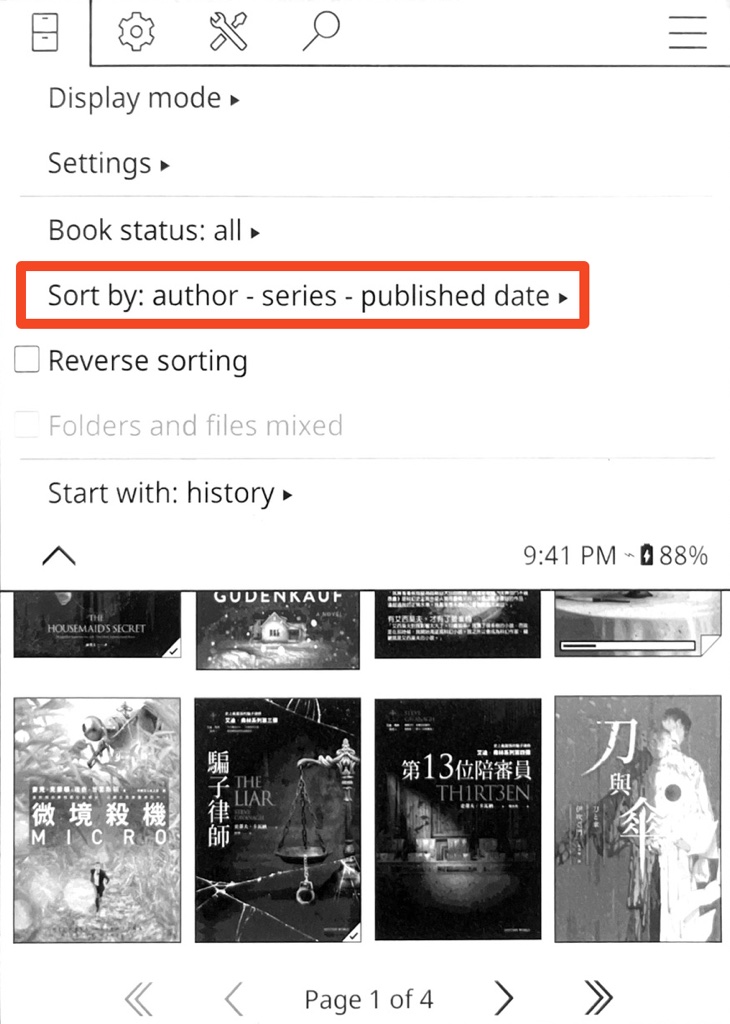
<p>這樣你就可以在 KOReader 的檔案瀏覽器的 <code>Sort by:</code> 選單看到一個新增的選項囉！</p>
<figure data-type="image" tabindex="1"><img src="https://chiahsien.github.io/post-images/1769699689625.jpeg" alt="" loading="lazy"></figure>
]]></content>
    </entry>
    <entry>
        <title type="html"><![CDATA[FormattedListKit: Elegant List Displays Made Easy]]></title>
        <id>https://chiahsien.github.io/post/ListFormatter-swift-package/</id>
        <link href="https://chiahsien.github.io/post/ListFormatter-swift-package/">
        </link>
        <updated>2025-03-25T07:41:05.000Z</updated>
        <summary type="html"><![CDATA[<p>When developing iOS and macOS applications, formatting lists is a common requirement. Whether it's terms and conditions, setting options, or tutorial steps, we often need to present ordered or unordered list content. However, Apple's native frameworks have relatively limited support for list formatting, which often puts developers in a dilemma: existing solutions aren't perfect, while heavier solutions seem like overkill.</p>
<p>To solve this problem, I developed <a href="https://github.com/chiahsien/FormattedListKit">FormattedListKit</a>, a lightweight yet fully-featured Swift Package specifically designed for creating beautifully formatted ordered and unordered lists.</p>
]]></summary>
        <content type="html"><![CDATA[<p>When developing iOS and macOS applications, formatting lists is a common requirement. Whether it's terms and conditions, setting options, or tutorial steps, we often need to present ordered or unordered list content. However, Apple's native frameworks have relatively limited support for list formatting, which often puts developers in a dilemma: existing solutions aren't perfect, while heavier solutions seem like overkill.</p>
<p>To solve this problem, I developed <a href="https://github.com/chiahsien/FormattedListKit">FormattedListKit</a>, a lightweight yet fully-featured Swift Package specifically designed for creating beautifully formatted ordered and unordered lists.</p>
<!-- more -->
<h2 id="why-formattedlistkit">Why FormattedListKit?</h2>
<p>I've tried several existing solutions, but wasn't fully satisfied with any of them:</p>
<ol>
<li>
<p><strong>Using Markdown</strong>: iOS/macOS has limited native support for Markdown. Although <code>AttributedString</code> can process markdown syntax, it performs poorly when it comes to list formatting.</p>
</li>
<li>
<p><strong>Using third-party Markdown packages</strong>: Introducing a complete Markdown parsing engine just to display lists seems bloated and over-engineered.</p>
</li>
<li>
<p><strong>Using WebView to display HTML</strong>: This requires converting simple text lists to HTML first, and WebViews consume more resources.</p>
</li>
<li>
<p><strong>Custom implementation (handling markers and items separately)</strong>: Highly flexible, but requires dealing with relatively complex layout logic.</p>
</li>
</ol>
<p>Based on these pain points, FormattedListKit was born. It provides a simple yet powerful solution that allows developers to create beautiful lists with just a few lines of code.</p>
<h2 id="core-features-of-formattedlistkit">Core Features of FormattedListKit</h2>
<p>FormattedListKit's design philosophy is &quot;simple and focused&quot; - it concentrates on solving the specific problem of list formatting. Here are its main features:</p>
<h3 id="1-support-for-multiple-list-types">1. Support for Multiple List Types</h3>
<ul>
<li><strong>Ordered lists</strong>: Supports integers (1. 2. 3.), Roman numerals (i. ii. iii. or I. II. III.), and letters (a. b. c. or A. B. C.)</li>
<li><strong>Unordered lists</strong>: Supports bullets (•), hollow circles (◦), squares (▪), and custom symbols</li>
</ul>
<h3 id="2-flexible-formatting-options">2. Flexible Formatting Options</h3>
<ul>
<li><strong>Marker alignment</strong>: Supports left or right alignment of markers</li>
<li><strong>Custom font</strong>: Allows setting font for list items</li>
<li><strong>Proper indentation</strong>: Ensures multi-line text is correctly aligned, improving readability</li>
</ul>
<h3 id="3-simple-api">3. Simple API</h3>
<p>FormattedListKit provides a simple and intuitive API through <code>NSAttributedString</code> extensions, creating complete lists with just one function call.</p>
<pre><code class="language-swift">let items = [&quot;First item&quot;, &quot;Second very long item that needs to wrap to the next line&quot;, &quot;Third item&quot;]
let attributedString = NSAttributedString.createList(
    for: items,
    type: .ordered(style: .decimal),
    font: .systemFont(ofSize: 16),
    markerAlignment: .right
)

// Set the formatted list to a UILabel or UITextView
myTextView.attributedText = attributedString
</code></pre>
<h3 id="4-cross-platform-support">4. Cross-platform Support</h3>
<p>FormattedListKit supports both iOS and macOS platforms, ensuring consistent list display experiences across different devices.</p>
<h2 id="how-to-use-formattedlistkit-in-your-project">How to Use FormattedListKit in Your Project</h2>
<p>Add FormattedListKit to your project using Swift Package Manager, then just <code>import FormattedListKit</code>:</p>
<pre><code class="language-swift">dependencies: [
    .package(url: &quot;https://github.com/chiahsien/FormattedListKit.git&quot;, from: &quot;1.0.0&quot;)
]
</code></pre>
<h2 id="practical-use-cases">Practical Use Cases</h2>
<p>FormattedListKit is particularly suitable for:</p>
<ol>
<li><strong>User agreements and terms</strong>: Clearly formatted lists of terms, improving readability</li>
<li><strong>Tutorials and guides</strong>: Step-by-step instructions or helpful tips</li>
<li><strong>Content display</strong>: Any place where lists need to be displayed</li>
</ol>
<h2 id="conclusion">Conclusion</h2>
<p>FormattedListKit was born from practical development needs, aiming to solve a seemingly simple but actually annoying problem: how to elegantly display formatted lists. By focusing on this specific functionality, it provides a lightweight but complete solution that both avoids reinventing the wheel and doesn't require overly large dependencies.</p>
<p>Check out <a href="https://github.com/chiahsien/FormattedListKit">FormattedListKit</a>, and please consider contributing through Issues or PRs on GitHub 😁</p>
]]></content>
    </entry>
    <entry>
        <title type="html"><![CDATA[在 KOReader 使用偽直排字體]]></title>
        <id>https://chiahsien.github.io/post/vertical-reading-in-koreader/</id>
        <link href="https://chiahsien.github.io/post/vertical-reading-in-koreader/">
        </link>
        <updated>2025-03-11T02:23:47.000Z</updated>
        <summary type="html"><![CDATA[<p>我很喜歡閱讀中文書籍，有些類型的中文書在直排版面下閱讀總是特別有韻味。然而在電子閱讀器上，要享受直排閱讀的體驗並不容易。今天要分享一個在 <a href="https://koreader.rocks/">KOReader</a> 上實現「偽直排」的方法，讓我們能在電子書閱讀器上，也能享受傳統直排的閱讀樂趣。</p>
]]></summary>
        <content type="html"><![CDATA[<p>我很喜歡閱讀中文書籍，有些類型的中文書在直排版面下閱讀總是特別有韻味。然而在電子閱讀器上，要享受直排閱讀的體驗並不容易。今天要分享一個在 <a href="https://koreader.rocks/">KOReader</a> 上實現「偽直排」的方法，讓我們能在電子書閱讀器上，也能享受傳統直排的閱讀樂趣。</p>
<!-- more -->
<h2 id="為什麼需要直排閱讀">為什麼需要直排閱讀？</h2>
<p>傳統的中文書籍都是採用直排方式，從右至左、從上至下閱讀。這種排版方式不只是傳統，更是為了適應漢字的特性而生。即使到了現代，許多文學作品、古籍，甚至是日文書籍，仍然採用直排方式。在紙本書上，我們可以輕易找到直排版本，但在電子書的世界裡，直排版面卻成了一個難題。</p>
<h2 id="偽直排的運作原理">偽直排的運作原理</h2>
<p>這個解決方案的原理其實很有趣：</p>
<ol>
<li>首先使用特製的偽直排字體，每個字都被旋轉了 90 度</li>
<li>接著透過 <a href="https://koreader.rocks/">KOReader</a> 的腳本功能，將內容區域旋轉 90 度</li>
<li>這樣一來，旋轉的字體就會「站」起來，形成直排的效果</li>
<li>最重要的是，UI 介面依然保持原本的方向，不會影響操作</li>
</ol>
<p>以下是一些可以用來實現偽直排效果的字體：</p>
<ul>
<li><a href="https://github.com/tonyhuan/GuanKiapTsingKhai">原俠正楷</a></li>
<li><a href="https://here.vixual.net/files/fonts/rotate/">偽直排 源流明體 / 懷源黑體 / 花明蘭黑體</a></li>
</ul>
<p>這些字體都是經過特殊設計，能夠在旋轉後仍然保持良好的可讀性。</p>
<h2 id="實際效果">實際效果</h2>
<p>使用這個方法的優點是：</p>
<ul>
<li>不需要修改原始檔案，可以隨時切換橫排/直排模式</li>
<li>保留了 <a href="https://koreader.rocks/">KOReader</a> 的所有功能，包括字體大小調整、版面調整等</li>
<li>UI 介面維持原本方向，操作起來更直覺</li>
</ul>
<h2 id="如何安裝">如何安裝</h2>
<p>以下是安裝步驟：</p>
<ol>
<li>到<a href="https://github.com/plateaukao/koreader_patch_vertical_read">這裡</a>下載腳本檔案 <code>2-cre-rotate-japanese-book.lua</code>，不要修改檔名。</li>
<li>將檔案放到 <code>koreader/patches</code> 目錄下，如果沒有 <code>patches</code> 目錄就手動建立一個。</li>
<li>重新啟動 KOReader。</li>
<li>開啟一本書，在上方的書籍相關設定選單裡頭，會多出一個「Toggle vertical reading」的選單，勾選即可啟動。</li>
<li>選擇一個偽直排字體。</li>
</ol>
<h2 id="使用建議">使用建議</h2>
<p>安裝完成後，有幾個小技巧可以讓閱讀體驗更好：</p>
<ol>
<li>建議將邊距調整得更寬一些，讓版面更有餘裕</li>
<li>可以嘗試不同的偽直排字體，找到最適合自己的選擇</li>
<li>如果覺得預設的行距太擠，可以適當調整行距</li>
</ol>
<h2 id="結語">結語</h2>
<p>透過這個方法，我們可以在 KOReader 上重現傳統直排的閱讀體驗。雖然是「偽」直排，但實際使用起來的效果相當不錯，特別適合閱讀古文、文學作品。如果你也喜歡直排閱讀，不妨試試這個方法，相信會讓你的閱讀體驗更加豐富。</p>
]]></content>
    </entry>
</feed>