Search the Community
Showing results for tags 'administrator'.
Found 9 results
-

Version 1.0.5
86 downloads
Enables administrators to perform administrative actions anonymously, hiding their profile when they use in-game chat as well as within the game environment, displaying 'ADMIN' instead of their nickname above their character. Commands /aa - Admin Anon Enable /aa - Admin Anon Disable Permissions adminanon.use - Enables anonymity in the game. Permission Recommendation: We recommend adding the permission to the individual user rather than to a group. For example, grant the permission to John Doe directly, not to the "admin" group (even if John Doe belongs to that group). Change Color This plugin allows Rust admins to hide their identity in the chat. To change the username color for the "ADMIN" group, configure the "admin" group in BetterChat. Changes in BetterChat will automatically reflect in the plugin. Steps: 1. Open BetterChat Configuration: Locate and edit BetterChat.json. 2. Edit the "admin" group: Change the username color for the "admin" group. 3. Save and Apply Changes: Save and reload BetterChat & AdminAnon (Just in case) Change avatar admin ? Changing the admin's avatar is unnecessary for this plugin, as its purpose is to hide the admin's identity, not to impersonate another player. Configuration { "Stay Anonymous After Reconnecting": false, "Properties": [ { "Name": "ADMIN", "Better Chat Group": "admin", "Required Permission": "adminanon.use" } ] } Data (example) { "PlayerData": { "76561198196941415": { "Groups": [ "admin", "default" ], "Name": "ADMIN", "Better Chat Group": "admin", "Required Permission": "adminanon.use" } } } Language (EN) { "No Permission": "<size=12>You don't have permission to use this command</size>", "No Profile Permission": "<size=12>You don't have permission to use this profile</size>", "Admin Anon Enabled": "<size=12>Admin Anon has been <color=#00fa9a>ENABLED</color></size>", "Admin Anon Disabled": "<size=12>Admin Anon has been <color=#00fa9a>DISABLED</color></size>", "Admin Anon Changed": "<size=12>Fake identity has changed to <color=#00fa9a>{0}</color></size>", "Requested Fake Identify Not Found": "<size=12>Requested fake identity is not found</size>", "No Fake Identities Available": "<size=12>No fake identities available</size></size>", "Fake Identify Not Found": "<size=12>Fake identity is not found</size>", "Data Corrupted Up": "<size=12>Data is corrupt</size>" }$6.00 -

Version 1.0.0
46 downloads
Kilobyte Admin Tools (KAT) A comprehensive admin toolkit for Rust servers with moderation tools and playful troll commands for dealing with rule-breakers. Works with Carbon & Oxide. Features Moderation Effects Pacify - Prevents damage to other players Reflect - Reflects damage back to attacker NoFarm - Prevents resource gathering NoMeds - Prevents medical item usage Freeze - Stops player movement Inventory & Teleport DropIt - Force drop entire inventory Strip - Clear inventory Bring - Teleport player to you Goto - Teleport to player Investigation Tools Sit - Seat player in chair for chat Unsit - Release from chair Skyfall - Drop player from 50m Troll Commands Slap, Bounce, Rocket, Heal, Slay Scramble, Nudge, Yeet, Dizzy, Chaos Tickle, Confuse, Beep, Lag, Bouncy Installation Place KilobyteAdminTools.cs in your oxide/plugins/ or carbon/plugins/ folder Config file creates automatically on first load Grant permission: oxide.grant user <name> kilobyteadmintools.use Permissions kilobyteadmintools.use - Access to all KAT commands Commands Use /kat or /kat.help for full command list Main commands: /kat.pacify, /kat.reflect, /kat.nofarm, /kat.nomeds, /kat.freeze, /kat.dropit, /kat.strip, /kat.sit, /kat.unsit, /kat.skyfall, /kat.bring, /kat.goto, /kat.slap, /kat.bounce, /kat.rocket, /kat.heal, /kat.slay, /kat.scramble, /kat.nudge, /kat.yeet, /kat.dizzy, /kat.chaos, /kat.tickle, /kat.confuse, /kat.beep, /kat.lag, /kat.bouncy Short aliases available without kat. prefix Configuration Customize settings in oxide/config/KilobyteAdminTools.json SlapDamage (default: 5) BounceHeight (default: 15m) RocketForce (default: 25m) ScrambleRadius (default: 10m) YeetDistance (default: 20m) DizzyRadius (default: 5m) Notes Sit and Nudge require the admin to be in-game Effects are toggles - run command again to remove Chairs auto-cleanup on unsit or plugin unload Players cannot leave chair until admin uses unsit$10.00 -
Version 2.0.1
121 downloads
AdminEssentials is a powerful and easy-to-use toolkit for Rust server administrators. It provides a comprehensive suite of moderation, management, and utility commands to help you run your server smoothly. Features Teleportation tools: Teleport to players or coordinates, teleport back to previous locations, and teleport to placed map markers. Player moderation: Kick players, ban players (with timed durations and reasons), and unban players via simple commands. Player management: Heal players to full health, kill players instantly, and toggle special modes like God mode and Creative mode for yourself or others. Inventory and items: Give items to players, clear a player’s inventory, repair items, and view any player’s inventory contents in real time. Item Trash Can: Includes a personal Trash Can UI for safely destroying items. Server controls: Change the server time, set a personal “admin time”, instantly clear all weather effects, and reload server plugins in-game. Communication: Send private messages to players and reply quickly to the last message. Display a list of all online players and get detailed information on any player with a WhoIs lookup command. Automated messages: Optionally broadcast welcome messages to joining players and goodbye messages on disconnect. Configure periodic auto-messages that broadcast to the server at set intervals. Logging and customization: All admin actions can be logged to the server console/RCON and/or to a Discord webhook (configurable per command). Customize the chat prefix and icon for AdminEssentials messages to suit your server’s style. Commands (Use these commands in chat with the "/" prefix. All commands require the user to have the appropriate permission as listed in the Permissions section.) Teleportation Commands /goto – Teleport yourself to a player or to specific coordinates. (You can also teleport one player to another by specifying two player names.) /tpm – Toggle “teleport to marker” mode. When enabled, placing a map marker will instantly teleport you to that location. Use /tpm again to disable this mode. /back – Teleport back to your last saved location. Typically this returns you to where you teleported from (or your death location, if applicable). /spectate – Spectate the target player. Puts you into spectate mode attached to that player. Use the command again (or the on-screen UI button) to exit spectating and return to your original position. Moderation Commands /kick [reason] – Kick a player from the server. You may provide an optional reason which will be shown to the player. /ban [duration] [reason] – Ban a player. Optionally specify a duration (e.g. “30m”, “2h”, “7d”) and/or a reason. If no duration is given, a default (1 day) ban is applied. /unban – Unban a player. You can use either the player’s name or Steam ID. Player Management Commands /heal [player] – Fully heal yourself (no name) or the specified player (if a name is given). Restores health and vital stats to maximum. /kill [player] – Instantly kill yourself or the specified player. /god [player] – Toggle god mode (invincibility) on yourself or on another player. A player in god mode will not take damage or die until god mode is toggled off. /creative [player] – Toggle Rust’s creative mode on yourself or on another player. Creative mode allows building and crafting without restrictions. /creativeall – Toggle creative mode for all players on the server at once. Inventory Commands /give [amount] [skinId] [name] – Give an item to a player. You must specify the target player and item short name (or Item ID). You can optionally specify an amount (default 1), a skin ID, and a custom item name. /clear [player] – Clear your own inventory (no name given) or another player’s inventory (if a player name is provided). This completely empties the inventory of the target. /repair [player] – Repair the currently held item to full condition. If a player name is given, repair that player’s held item instead. /repairall [player] – Repair all items in your inventory. If a player name is given, repair all items in that player’s inventory instead. /viewinv – View the specified player’s inventory. This opens the target player’s inventory containers (main, belt, wear) for you, allowing you to see and/or move items. /trash – Open your personal trash can UI. This provides a special container (default 18 slots) where you can place items to destroy. Closing the trash UI with items inside will delete those items (after you confirm via the Delete button). Server Management Commands /time <0-24> – Change the server time to the specified hour (0–24). For example, “/time 12” sets in-game time to noon. /admintime [0-24] – Set your personal time of day. This overrides the server time for you only (useful for admins who want daylight while it’s night on the server). Specify an hour (0–24) to lock your time, or use no argument to reset back to normal server time. If you run it with no number or with -1 it will disable admintime. /clearweather – Instantly clear all weather effects on the server. This will stop rain, fog, and thunderstorms, returning to clear weather. /reload [plugin] – Reload an Oxide/Umod plugin. By default (no name given), this will reload the AdminEssentials plugin itself. You can specify another plugin name to reload that plugin instead. Communication Commands /pm <player> <message> – Send a private message to a player. The target player will receive your message privately. /r <message> – Reply to the last private message you received. This sends a PM back to whoever last messaged you (equivalent to a “reply” function). Information Commands /whois [player] – Display detailed information about a player. With no name, it will show your own info. The info can include the player’s name, Steam ID, position coordinates, connection status, health and vitals, and flags (admin, godmode, etc.). (The amount of detail shown depends on your permissions; see Permissions.) /players – Show a list of all online players on the server. By default this will list the player names (and possibly IDs) in chat. Utility Commands /essentials – Display the AdminEssentials help list. This command prints a list of all available AdminEssentials commands (the same commands listed above) with brief descriptions, to your chat. Only users with permission can use this. Permissions (Each permission can be granted to server staff or groups to allow use of the corresponding commands. All permission strings begin with adminessentials. as shown.) adminessentials.goto – Required to use the /goto command. adminessentials.back – Required to use the /back command. adminessentials.tpm – Required to use the /tpm teleport-to-marker command. adminessentials.spectate – Required to use /spectate. adminessentials.kick – Required for the /kick command. adminessentials.ban – Required for the /ban command. adminessentials.unban – Required for the /unban command. adminessentials.heal – Allows use of /heal. adminessentials.kill – Allows use of /kill. adminessentials.god – Allows use of /god mode toggle. adminessentials.creative – Allows use of /creative mode toggle. adminessentials.creativeall – Allows use of /creativeall (creative mode for all players). adminessentials.give – Required for /give item command. adminessentials.clear – Required for /clear inventory command. adminessentials.repair – Required for /repair command (repair held item). adminessentials.repairall – Required for /repairall command (repair all items). adminessentials.viewinv – Required for /viewinv (view player inventory). adminessentials.trash – Required for /trash (open personal trash can). adminessentials.time – Allows use of /time to set server time. adminessentials.admintime – Allows use of /admintime for personal time setting. adminessentials.clearweather – Allows use of /clearweather. adminessentials.reload – Allows use of /reload command to reload plugins. adminessentials.pm – Required for /pm and /r (private messaging commands). WhoIs Information Permissions: (The /whois command output is divided into sections; each section requires a specific permission. Granting all will show full info.) adminessentials.whois.info – Allows the /whois command to show basic info: player name, Steam ID, and position. adminessentials.whois.status – Allows /whois to show connection status (online/offline), life status (alive or dead), sleeping or wounded state. adminessentials.whois.stats – Allows /whois to show the player’s stats: health, calories, hydration, temperature, radiation, bleeding, wetness. adminessentials.whois.flags – Allows /whois to show player flags: whether the player is admin, in creative mode, developer mode, flying, or in god mode. adminessentials.players – Required for the /players list command. adminessentials.help – Required for the /essentials help command (to view the in-game command list).$19.99- 15 comments
- 1 review
-
- 2
-

-

-
- #admin
- #essentials
- (and 17 more)
-

Version 3.1.19
1,468 downloads
Installation Place the AdminToggle.cs file in /oxide/plugins/ Place the XLIB.dll Dependency in /RustDedicated_Data/Managed/ Grant yourself the default permission o.grant user YOURNAME admintoggle.master the .master permission selector needs to be adapted to what you called the permission setting for the mode Information AdminToggle Allows admins with permission to toggle between player & admin mode Reset Command Open f1 console & write at.fix - Reverts you to player mode (the hard way) (Permission, Priority, Toggle Commands) - Must be unique Core Mode Featues Unlimited custom modes Customizable permission name Priority system for modes Master mode Oxide group toggling Custom commands to toggle Restriction system to specfic steam ids a certan mode Mode Settings (admin) Require a reason to toggle Autorun commands on toggle Separated inventories Teleport back to toggle location upon exiting Revert auth to 0 on disconnect Blocked commands Custom outfit while in mode Notifications (global-chat notification, local-chat notification, popup notification, sound perfab notification & Discord embed Notification) Interface toggle button, pulsing panel, action menu Blocked actions Blocked plugins hooks Mode Settings (player) Autorun commands on revert Notifications (global-chat notification, local-chat notification, popup notification, sound perfab notification & Discord embed Notification) Blocked commands Blocked plugins hooks API Hooks void admintoggle_onAdmin (BasePlayer player) { /*Do something epic*/ } void admintoggle_onPlayer (BasePlayer player) { /*Do something epic*/ } API Methods bool IsAdmin(BasePlayer player); object[] GetMode(BasePlayer player, bool TrueMode = false); /* IF player.userID IS ASSIGNED ANY MODE RETURNS TRUE IF player.userID IS NOT ASSIGNED ANY MODE RETURNS FALSE */ bool isAdmin = AdminToggle.Call<bool>("IsAdmin", player.userID); /* IF player IS NOT ASSIGNED MODE RETURNS NULL IF bool IS SET FALSE RETURNS CURRENT MODE -- object[0] permission (string), object[1] priority (int), object[2] isMaster (bool) IF bool IS SET TRUE RETURNS HIGHEST MODE -- object[0] permission (string), object[1] priority (int), object[2] isMaster (bool) */ object[] getMode = AdminToggle.Call<object[]>("GetMode", player, false); Default Configuration (1 mode) Known incompatible plugins Server Armour (Compatible with v2.29.44 and above)$8.99- 146 comments
- 11 reviews
-
- 2
-
-
- #admin
- #admintool
- (and 31 more)
-
Version 1.0.0
25 downloads
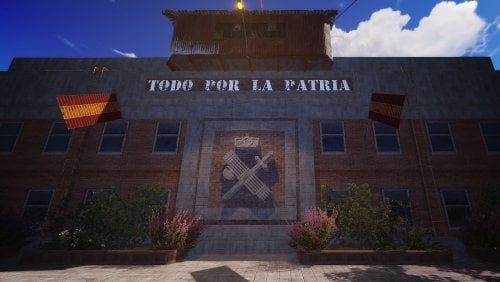
This civil guard barracks is a empty building to be used by the server administrator to build The roof of the monument is public and has some helicopter re spawns and loot.$7.10 -

Version 1.0.1
20 downloads
PlayerVisionTracer is a powerful Rust Oxide plugin designed to give server administrators unprecedented insights into player behavior. By visualizing where players are looking in real-time, admins can monitor suspicious activity, guide new players, and manage in-game events more effectively. Key Features: Real-Time Visualization: Draws lines and arrows from players' eyes to where they are looking. Configurable Settings: Customize line color, thickness, length, hit-stop, and more. Permission-Based Targeting: Control who gets monitored based on group permissions. Efficient Monitoring: Set thresholds to minimize unnecessary visual updates and control whether the line stops at hit objects or continues. Auto Vision Control: Automatically start or stop visualization for admins when they join or leave the server. Hit Detection Color: Configure a different color when the line hits a player. Improved Admin Control: Admins can toggle visualization, refresh tracers, and more via chat commands. Supported Languages PlayerVisionTracer is fully localized and supports multiple languages. The following is an example of the language file used: { "NoPermission": "{0}\n\nYou don't have permission to use this command.", "VisualizationOn": "{0}\n\nLook direction visualization is now <color=green>ON</color>.", "VisualizationOff": "{0}\n\nLook direction visualization is now <color=red>OFF</color>.", "LineLengthSet": "{0}\n\nLook direction line length set to <color=yellow>{1}</color> units.", "ViewRadiusSet": "{0}\n\nView radius set to <color=yellow>{1}</color> meters.", "LineThicknessSet": "{0}\n\nLine thickness set to <color=yellow>{1}</color>.", "UpdateIntervalSet": "{0}\n\nUpdate interval set to <color=yellow>{1}</color> seconds.", "StopLineAtHitSet": "{0}\n\nStop line at hit set to <color=yellow>{1}</color>.", "SyntaxError": "{0}\n\nSyntax error.\nUse <color=#44b9fc>/{1} help</color> to see the correct usage.", "Help": "{0}\n\n<color=yellow>Commands:</color>\n<color=#44b9fc>/{1}</color> <color=white>- Toggle look direction visualization on or off.</color>\n<color=#44b9fc>/{1} help</color> <color=white>- Show this help message.</color>\n<color=#44b9fc>/{1} radius <value></color> <color=white>- Set the view radius in meters.</color>\n<color=#44b9fc>/{1} length <value></color> <color=white>- Set the line length in units.</color>\n<color=#44b9fc>/{1} thickness <value></color> <color=white>- Set the line thickness.</color>\n<color=#44b9fc>/{1} interval <value></color> <color=white>- Set the update interval in seconds.</color>\n<color=#44b9fc>/{1} stoplineathit</color> <color=white>- Toggle whether the line should stop at a hit.</color>" } Configuration: PlayerVisionTracer offers extensive configuration options to tailor its functionality to your server's needs. Default Configuration: { "TitleHeader": "<color=#44b9fc>Player Vision Tracer</color>", "CommandPrefix": "tl", "UpdateInterval": 0.1, "ViewRadius": 100.0, "LineLength": 10.0, "RequireTargetsPermission": true, "LineThickness": 0.5, "ArrowThickness": 0.3, "LineColor": "#FF0000", "ArrowColor": "#FF0000", "HitEntityColor": "#FFA500", "MovementThreshold": 0.1, "StopLineAtHit": true } Configuration Options Explained: TitleHeader: The title displayed in all chat messages related to this plugin. You can customize it with HTML color tags. CommandPrefix: The command used to interact with the plugin in the chat. The default is /tl. UpdateInterval: The time (in seconds) between each update of the visualization. Lower values mean more frequent updates but could affect performance. ViewRadius: The maximum distance (in meters) within which the plugin will visualize players. LineLength: The length (in units) of the line drawn from a player's eyes. RequireTargetsPermission: If set to true, only players with the playervisiontracer.targets permission will be visualized. LineThickness: The thickness of the line drawn to represent the player's view direction. ArrowThickness: The thickness of the arrow at the end of the line. LineColor: The color of the line in hexadecimal format (e.g., #FF0000 for red). HitEntityColor: The color of the line when it hits a player (default is orange #FFA500). ArrowColor: The color of the arrow in hexadecimal format. MovementThreshold: The minimum movement required to redraw the line, preventing excessive updates for small movements. StopLineAtHit: Set to true to stop the line at the first hit object, or false to allow the line to pass through entities. Permissions Explanation: PlayerVisionTracer uses two key permissions to control access and functionality: playervisiontracer.admin Who: Admins and moderators. What it does: Allows you to turn the visualization on or off and change the plugin’s settings. playervisiontracer.targets Who: Players you want to monitor. What it does: Only players with this permission will have their looking direction visualized by admins. How It Works: Admins get the playervisiontracer.admin permission to control the plugin. Targets get the playervisiontracer.targets permission to be monitored. This system lets you easily control who can use the plugin and who gets monitored. Important: Before upgrading to version 1.0.1, you must delete your lang folder and existing config files to ensure compatibility with the new version. Use Cases: 1. Monitoring Suspicious Players: Scenario You suspect certain players of using cheats or engaging in suspicious activity. Solution Assign the playervisiontracer.targets permission to a group like suspects and monitor only those players without overwhelming your resources. Support If you encounter any issues or have questions about the plugin, feel free to reach out to our support team. We’re here to help ensure you get the most out of PlayerVisionTracer!$9.99- 7 comments
-
- 1
-

-
- #admin
- #administrator
- (and 3 more)
-
Version 2.0.2
1,641 downloads
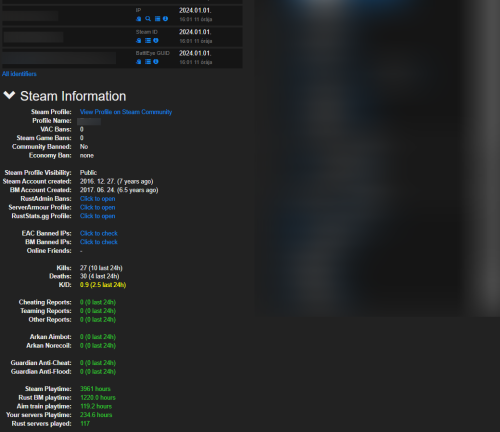
Features: This chrome extension collects and shows additional information about players in battlemetrics rcon. Such as: Steam profile, Battlemetrics profile creation date EAC Ban, EAC Banned Friends, EAC Banned Identifiers (IPs), BM Banned Identifiers (IPs) (if player with an ip can be found on your ban list) Temp ban counts Kills, Deaths, KD Reports, Arkan and Guardian violations (optional) Rust servers played, playtime on: rust servers, aim train servers, your servers Global rust stats (optional) Steam profile picture and the current server's name in battlemetrics Link for ServerArmour, RustAdmin and RustBanned profile (optional) What you receive: By purchasing the product you receive: The source code of this extension Lifetime access Detailed setup guide Support If you need help or If you have any issues or suggestions you can contact me by joining my discord server: https://discord.gg/efVKDG6z6F or by adding me on discord: Farkas#6006$9.90- 12 comments
- 6 reviews
-
- 10
-
-
-
- #battlemetrics
- #bm
- (and 15 more)
-

Version 1.0.0
233 downloads
A small yet plugin that swiftly provides information about the item you're holding in your hand. #Features Once you have an item in your hand and want to get information about it, execute the command /iteminfo. The relevant information will then be displayed in the chat. ItemName ItemShortName ItemSkinId ItemID #Permission iteminfo.use - Grants the user permission to use the /iteminfo command. #Command /iteminfo - This command allows you to display information about the item. You need to execute the command while holding the item in your hand. #Localization The plugin currently supports English and German. English { "NoPermission": "You do not have permission to use this command!", "NoItemEquipped": "You have not equipped any item.", "PluginPrefix": "<size=16><color=#AE3624>ITEM</color> <color=#738D45>INFO</color></size>" } Deutsch { "NoPermission": "Du hast keine Berechtigung, diesen Befehl zu verwenden!", "NoItemEquipped": "Du hast kein Item ausgerüstet!", "PluginPrefix": "<size=16><color=#AE3624>ITEM</color> <color=#738D45>INFO</color></size>" } Ps: If you find the plugin useful, I would appreciate a thumbs up, as I'm fond of likes!Free -

Version 1.0.0
137 downloads
This small plugin displays your current position in the format x, y, z. It is particularly useful for plugins that support custom coordinates. #Permission myinfo.use - Grants the user permission to use the /myposi command. #Command /myposi - By using the command /myposi, you can display your current position in the chat. #Localization The plugin currently supports English and German. English { "NoPermission": "You do not have permission to use this command!", "Position": "You posi is: ", "PluginPrefix": "<size=16><color=#AE3624>MY</color> <color=#738D45>POSI</color></size>" } Deutsch { "NoPermission": "Du hast keine Berechtigung, diesen Befehl zu verwenden!", "Position": "Deine Position ist: ", "PluginPrefix": "<size=16><color=#AE3624>MY</color> <color=#738D45>POSI</color></size>" } Ps: If you find the plugin useful, I would appreciate a thumbs up, as I'm fond of likes! If you're looking for a plugin with advanced features, I highly recommend the @Krungh Crow plugin!Free

.thumb.png.33346561fd8ce85b482bbc270307bb8b.png)