Search the Community
Showing results for tags 'destroy'.
Found 6 results
-
Version 0.1.8
793 downloads
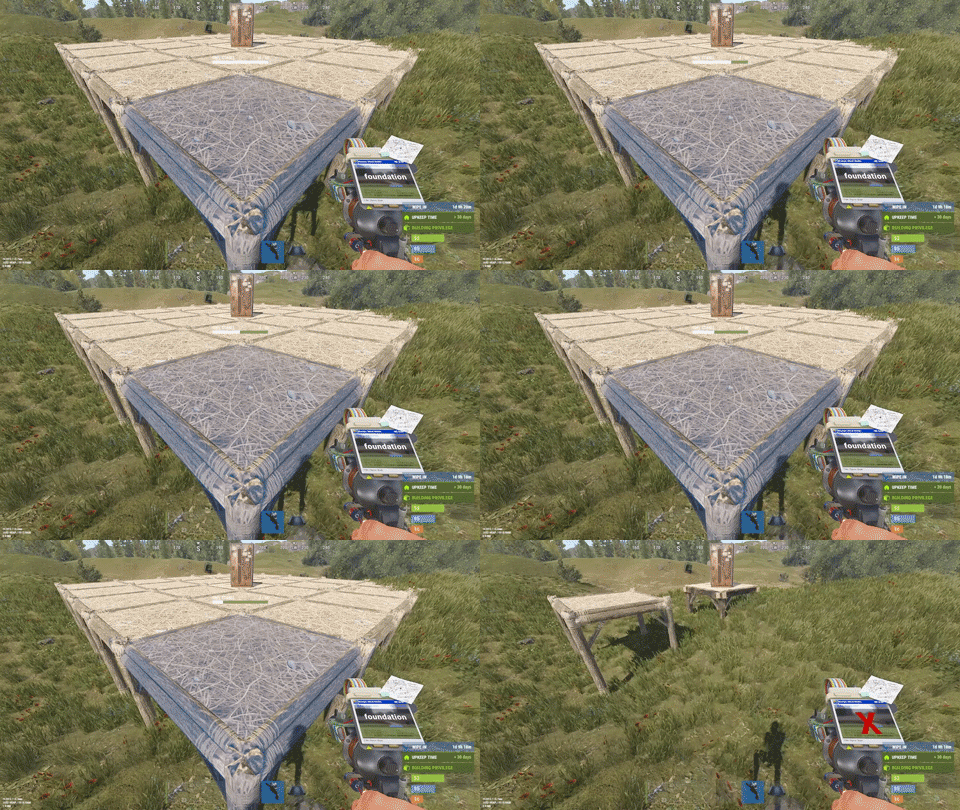
This plugin is designed for the forced decay of Building Blocks with Twigs grade. This plugin will be especially useful for PvE servers. The ability to enable and disable forced decay of Building Blocks with Twigs grade; The ability to specify the type of building block that will decay; The ability to adjust the interval of decay damage; The ability to specify the amount of decay damage; The ability to prevent players and the tool cupboard from repairing Building Blocks with a grade of Twigs; The ability to show warnings when placing/repairing Building Blocks with Twigs grade; The ability to specify the style type for GameTips; The ability to personally enable or disable warnings; The ability to automatically grade Building Blocks from Twig grade to Wood grade upon plugin initialization, if the owner player is offline. This helps to avoid the complete decay of buildings for those players who are offline and unable to upgrade right now; The ability to upgrade only undamaged building blocks during forced upgrades. { "Chat command": "twigs", "Is it worth enabling GameTips for messages?": true, "GameTips message style type - Blue_Normal(0), Red_Normal(1), Blue_Long(2), Blue_Short(3), Server_Event(4), Error(5).": 5, "Is it worth using Notify plugins for messages instead of the vanilla UI?": false, "Specify the message type for Notify": 1, "List of language keys for creating language files": [ "en" ], "Is it worth upgrading Building Blocks from Twigs grade to Wood grade during plugin initialization if the players are offline?": false, "Is it worth forcing the upgrade to apply only to undamaged blocks? This is an addition to the setting above.": true, "Is it worth disallowing the repair of Building Blocks with Twigs grade?": true, "The interval, in seconds, at which damage is inflicted on the building.": 60.0, "The periodic damage inflicted. Ranges from 0 to 10. Set to 0 to disable.": 1.0, "Is it worth enabling the tracking list? If it's disabled, it will track all types of building blocks without needing to check the list each time.": false, "List of tracked building block types. Leave empty or null to return the default list.": [ "foundation", "foundation.triangle", "foundation.steps", "ramp", "floor", "floor.triangle", "floor.frame", "floor.triangle.frame", "wall", "wall.doorway", "wall.window", "wall.frame", "wall.half", "wall.low", "block.stair.ushape", "block.stair.lshape", "block.stair.spiral", "block.stair.spiral.triangle", "roof", "roof.triangle" ], "Version": { "Major": 0, "Minor": 1, "Patch": 8 } } EN: { "MsgWarningEnabled": "Forced decay warnings are enabled!", "MsgWarningDisabled": "Forced decay warnings are disabled!", "MsgOnTwigsPlace": "On this server, forced decay of Building Blocks with Twigs grade is enabled!\n<size=12><color=#9A9A9A>To toggle notifications, use </color><color=#BBBBBB>/{0} warn</color></size>", "MsgOnTwigsRepair": "Repairing of Building Blocks with Twigs grade is prohibited!\n<size=12><color=#9A9A9A>To toggle notifications, use </color><color=#BBBBBB>/{0} warn</color></size>" } RU: { "MsgWarningEnabled": "Предупреждения принудительного гниения включены!", "MsgWarningDisabled": "Предупреждения принудительного гниения выключены!", "MsgOnTwigsPlace": "На данном сервере включено принудительное гниение построек из соломы!\n<size=12><color=#9A9A9A>Чтобы включить или выключить уведомления, введите </color><color=#BBBBBB>/{0} warn</color></size>", "MsgOnTwigsRepair": "Ремонт построек из соломы запрещен!\n<size=12><color=#9A9A9A>Чтобы включить или выключить уведомления, введите </color><color=#BBBBBB>/{0} warn</color></size>" } warn - Enabling and disabling personal warning. Example: /twigs warn$6.99 -
Version 1.0.2
320 downloads
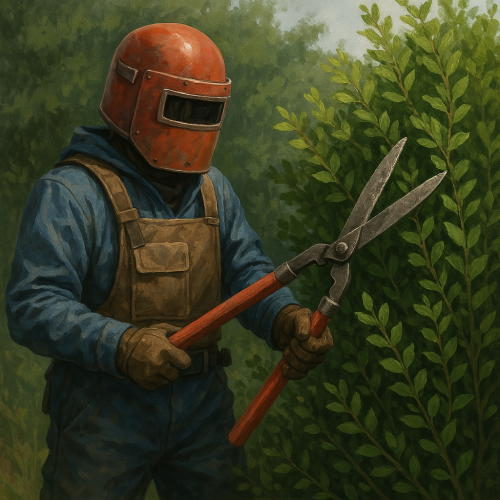
Lets you "trim" bushes via a command! Great for RP/PVE servers where a player doesnt want a bush to be at. Simply give yourself the permission, run the command while standing at the base of the bush and click enter! Poof its gone! Features * Ability to trim bushes via position and a command * Comes with customizable commands, permissions, and radius to detect bushes Commands * Trim Bush: /trimbush (default) Permissions * Allow Trimmiing Bushes: bushtrimmer.allowFree -
Version 1.0.3
9 downloads
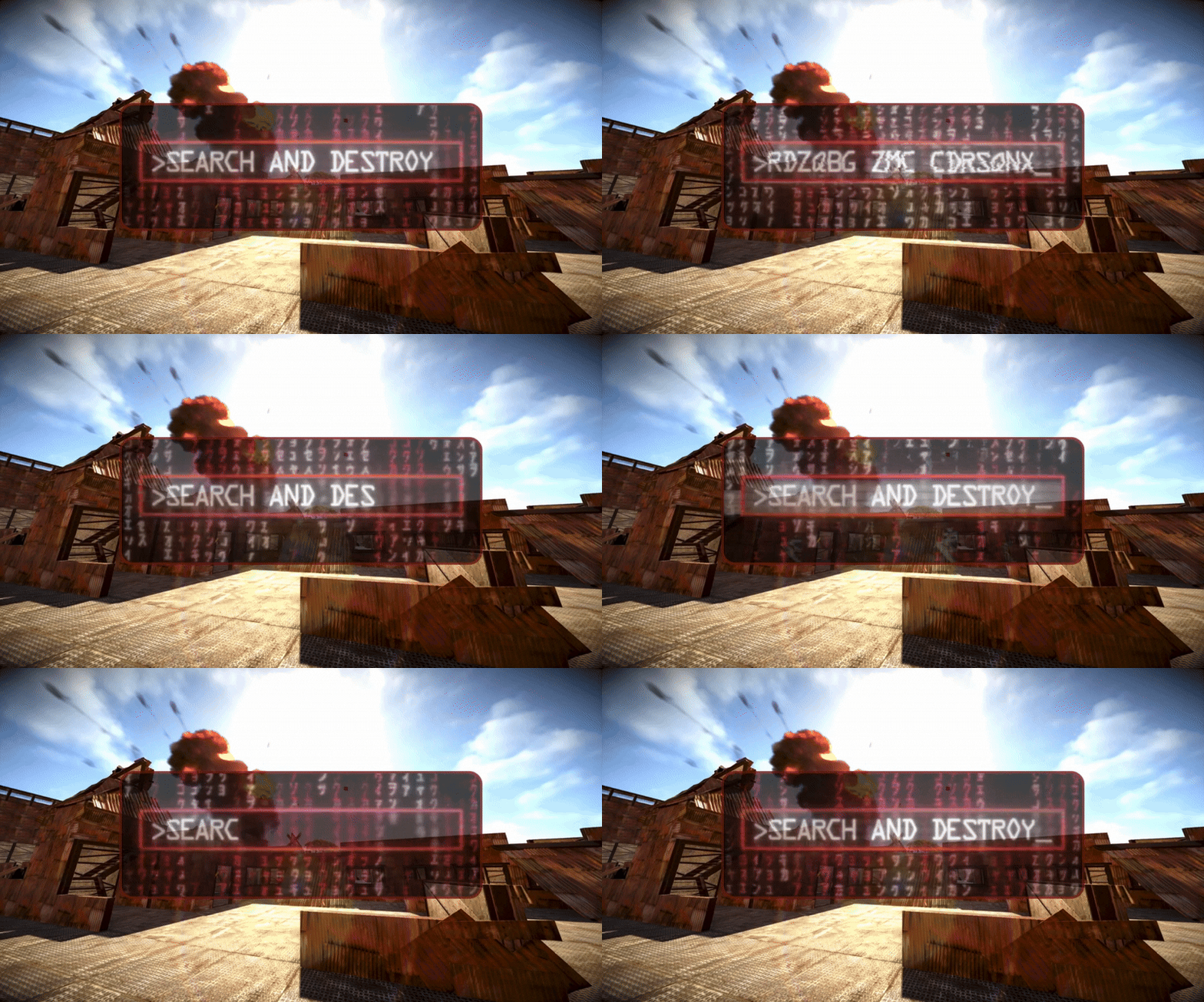
Search And Destroy Search and Destroy Classic PVP Game Mode Event. 2 in 1: Respawn or No Respawn. Features How Search and Destroy works: Each team spawns on the opposite side of the arena. Both teams must locate the bomb sites. Each round one team defends and one team is the attacker, the objectives switch each round or halfway through depending on your configuration. The attackers can plant the bomb at a bomb site to start the countdown. If the bomb detonates before the defender team defuses it the attackers win the round. If the defenders prevent the attackers from planting, or defuse the bomb before it explodes they win the round. The game ends when one team reaches the score limit first. Choose if players respawn until the round time limit is reached or if players have one life per round so you can also win the round by eliminating the other team. Choose if anyone on the attacking team can plant the bomb or if one bomb spawns on the ground that someone from the attacking team must pick up to plant at the bomb site. Edit your game settings for a faster or slower paced game! Three demo arenas included as seen in images. These are Copy Paste files. Build your own custom arena: You can build a custom arena in-game or use an arena prefab and set the location where the game starts with commands. Use the commands /bomb 1, /bomb 2, /setspawn red, /setspawn blue, and /setspawn spectate to set the teleport locations for the game to your arena. Location settings can be saved and loaded using the arena profile command. Lots of configurable options and an editable language file for in-game message customization. Customize your game settings including: Time limit for event registration. Time limit per round if bomb is not planted. Choose if players respawn until the round time limit is reached or if they have one life per round. Choose optional respawn delay timer. Choose optional spawn protection timer. Choose how often sides switch. Choose if all attacking team players can plant bomb or if only one bomb spawns on the ground for the attackers to plant. Choose duration of bomb timer. Choose number of points points required to win. Choose if there are one or two bomb sites. Choose length of bomb plant code. Choose length of bomb defuse code. Minimum number of players required to start event. Maximum number of players required to start event. Choose if players get instant full health when they get a kill. Choose if players can team kill. Increase or decrease randomized distance from spawn point to teleport players. Optional temporary Team UI with save and restore original team UI after the game. Works with vanilla teams only. Blocked command list to prevent players from using commands during the game. Choose kit name for Red and Blue teams to spawn with. Choose kit for ammo and med restock when a player gets a kill. Configure skin ID for bomb site object (fridge). Required. Configure skin ID for ground bomb item (satchel). Required. More Features: GUI with random code for planting and defusing the bomb. Command for players to join event when registration opens. Chat command and console command to start event registration. If enabled, bomb item spawns in front of attacking teams spawn. One player can pick it up and it is required to plant the bomb at the bomb site. If they die with the bomb it will drop and only the attacking team can pick it up. Bomb ticking noise near bomb that speeds up in the last five seconds. Chat notifications to participating players for events like kills, bomb plants, etc. Scoreboard (sorted by kills) in chat at the end of the event with player names, kills, deaths, plants, and defuses. If you knock a player and they f1 kill it will count as a kill for the person who knocked them. Developer API hook OnGameWin to notify you when a game has been won along with the statistics. Good for rewards and score keeping. Optional temporary Team UI for players on the same team during the event. They will be returned to their original team after the event (vanilla teams only). Restore player items after the game. (Players are teleported to the event naked). After the event teleport players back to original location from when they joined the event. Player disconnection handling in case anyone leaves during the event. Bomb object is unbreakable during the event. You can't remove your team clothing and armor. No looting bodies or knocked players. Admin team change commands to change players teams with a configurable amount of time for team changing before game. Yes, the bomb explodes. Demo Arenas: If you want to use the three demo arenas that come with the plugin as seen in the images you will need: Copy Paste by misticos (https://umod.org/plugins/copy-paste) Skins: If you want colored kits and don't have a plugin to skin items already: Skins by misticos (https://umod.org/plugins/skins) Check out Steam Workshop for free skins. Dependencies The following plugin is required for Search And Destroy. Rust Kits by k1lly0u - Required (Free) This plugin does not include pre-configured kits. You can choose what to give as a kit in the configuration. Permissions searchanddestroy.join - Required to use /snd command to join event. searchanddestroy.admin - Required to use event management and setup commands. Chat Commands Join, start, stop event: /snd - Command for players to join event during registration. Requires permission searchanddestroy.join. /snd start - Command for admins to start the event registration. Requires permission searchanddestroy.admin. Optionally, you can also use /snd start <profile name> to start a specific arena profile if you have any saved. /snd stop - Command for admins to stop the event in progress. Requires permission searchanddestroy.admin. Set bomb locations: /bomb 1 - Set location for Bomb 1 to where you are standing Requires permission searchanddestroy.admin. /bomb 2 - Set location for Bomb 2 to where you are standing. Requires permission searchanddestroy.admin. Set spawn locations: /setspawn red - Set location for Red Team Player Spawn to where you are standing. Requires permission searchanddestroy.admin. /setspawn blue - Set location for Blue Team Player Spawn to where you are standing. Requires permission searchanddestroy.admin. /setspawn spectate - Set location for pre-game lobby and spectator zone to where you are standing. Requires permission searchanddestroy.admin. Team management: /sndteam swap <player1> <player2> - Swap two players teams during the team swapping period. Requires permission searchanddestroy.admin. /sndteam red <player> - Force blue team player to join red team during team swapping period. Requires permission searchanddestroy.admin. /sndteam blue <player> - Force red team player to join blue team during team swapping period. Requires permission searchanddestroy.admin Arena profiles (optional): /profile save <name> - Save current arena configuration to an arena profile. Requires permission searchanddestroy.admin. /profile load <name> - Load arena configuration from an arena profile. Requires permission searchanddestroy.admin Keep in mind you can also use /ctf start <profile name> to load and start a specific profile. /profile list - List saved arenas. Requires permission searchanddestroy.admin. /profile option <name> <option> <value> - Change arena gameplay settings for a specific arena. Requires permission searchanddestroy.admin. /profile show <name> - Display current settings for an arena profile. Requires permission searchanddestroy.admin. Console Commands snd start - Start the event. You can use snd start <arena profile> to load and start an arena profile. snd stop - Stop the event. Configuration { "Amount of time in seconds for event registration": 180, "Amount of time in seconds before a round ends for taking too long if bomb is not planted": 300, "Amount of time in seconds between registration end and event start (for admin team swapping)": 15, "First to reach this number of points wins": 4, "Minimum number of players required to start the game": 2, "Maximum number of players before registration closes": 20, "Maximum distance from team spawn point player can spawn within": 4.0, "Length of random code to enter when planting bomb": 10, "Length of random code to enter when defusing bomb": 10, "Duration of bomb timer in seconds": 60, "Use two bomb sites, otherwise use one": true, "Require bomb ground item to plant at bombsite, otherwise anyone on attacking team can plant": true, "Do players respawn until the round time limit is reached or bomb explodes?": false, "Cooldown in seconds for respawning during game": 10, "Amount of time in seconds player will be invincible after spawning": 5, "Can players on the same team kill each other?": false, "Grant player instant full health when they get a kill": false, "Create a temporary Team UI for players and restore vanilla teams after the game": false, "Blocked command list for players during game": [ "home", "outpost" ], "Red Team kit name": "red team", "Blue Team kit name": "blue team", "Ammo Restock and Meds on kill kit name": "restock ammo", "Bomb Skin ID (Fridge)": 3484089384, "Bomb ground item Skin ID (Satchel)": 2921225770, "Bomb one position (X)": 0.0, "Bomb one position (Y)": 0.0, "Bomb one position (Z)": 0.0, "Bomb two position (X)": 0.0, "Bomb two position (Y)": 0.0, "Bomb two position (Z)": 0.0, "Position to teleport players on pre-game lobby and spectate (X)": 0.0, "Position to teleport players on pre-game lobby and spectate (Y)": 0.0, "Position to teleport players on pre-game lobby and spectate (Z)": 0.0, "Red team spawn position (X)": 0.0, "Red team spawn position (Y)": 0.0, "Red team spawn position (Z)": 0.0, "Blue team spawn position (X)": 0.0, "Blue team spawn position (Y)": 0.0, "Blue team spawn position (Z)": 0.0 } Arena Profiles (optional): Save your arena settings and load them later. If you have multiple arenas on your map you can save your current arena configuration to an arena profile and load it when you need it. Use the /arena commands to manage your arena profiles. An arena profile contains player spawn locations and bomb spawn locations and gameplay settings. What is an arena profile? Arena profiles are optional and are not required. They are used to make setting up games easier when you have multiple arenas on your map. Use arena profiles to save arena and game settings from your current configuration to a named profile that you can load back to your configuration when needed. This lets you configure multiple arenas on your map with different settings, and swap between them when you need to with one command. How do I create an arena profile? First, set up your /bomb and /setspawn locations. Save your current config to an arena profile using the command /profile save <profile name>. Edit additional arena gameplay options using /profile option <profile name>. Load the arena with /profile load <profile name> when you need it. This will copy the arena profile to your current configuration. How do I edit an existing arena profile? Updating player and bomb spawn points: Load the arena profile you want to edit. Use the commands /bomb and /setspawn to set update teleport locations in your current configuration. Using the same saved profile name with /profile save, save the current configuration to the arena profile so the teleport locations are updated and your current profile options are still saved. Updating arena gameplay options: Save your arena profile after you set up the spawn points, then use the command /profile option to change your settings. Reload the arena profile to apply the updated profile to your current configuration. What arena gameplay options can I edit on the arena profile? You can use the /profile option command to modify: PointsToWin MaxPlayers SpawnMaxDistance BombTimer UseTwoBombSites RequireGroundBomb PlayerRespawn RespawnDelay RespawnProtection RedTeamKit BlueTeamKit AmmoRestockKit In case you want to have different settings per arena. Here's an example: /profile option <profile name> PointsToWin 5. Included Arenas The included arenas are Copy Paste data files. To use the arenas you must download Copy Paste by Misticos here and upload the snd_*.json files to your your server framework folder (oxide/carbon)/data/copypaste/snd_stone.json. Paste the arena in-game using the command /paste snd_stone. If you need to, you can adjust the height with /paste ctf_stone height 10 (to paste it in the air). Use the available commands to set the bomb spawns and teleport locations. Developer API Hooks void OnGameWin(string winningTeam, List<ulong> redTeamPlayers, List<ulong> blueTeamPlayers, Dictionary<ulong, int> playerKills, Dictionary<ulong, int> playerDetahs, Dictionary<ulong, int> playerPlants, Dictionary<ulong, int> playerDefuses) - Called when a game is won. Good for rewards and score keeping. Support and Configuration Help Discord For support or for questions about the plugin before you purchase reach out on Codefling or visit the support Discord for my plugins here: https://discord.gg/25sR5EZktP$30.00- 5 comments
-
- 1
-

-
- #search and destroy
- #snd
- (and 10 more)
-

Version 1.0.0
4 downloads
DestroyUnlootedCrates is a plugin designed for Rust servers to automatically handle loot containers (crates) that have not been looted within a specified time frame. This plugin provides a way to manage the environment, ensuring that loot containers do not remain forever, encouraging players to interact with them. It can be customized to convert items to scrap or gradually destroy items in the container. Server admins can easily configure which loot containers are affected, how long they remain before being cleared, and if they should be converted to scrap upon destruction. Features: Automatic Crate Cleanup: Loot containers that are not looted within a specific time are automatically destroyed. Item Conversion to Scrap: Items in the crates can be converted into scrap when they are destroyed. Gradual Destruction: Instead of instant deletion, items in the crates can be destroyed over time. Configurable: Every aspect of the plugin can be adjusted via a configuration file, including crate types, time delays, and whether items are converted to scrap. Multi-Language Support: Supports multiple languages for in-game notifications. Flexible Settings: You can enable or disable crate types in the config file, and even set different destruction delays for each crate. Installation: Download: Download the DestroyUnlootedCrates plugin file and place it in the oxide/plugins/ folder on your Rust server. Configuration: Upon first installation, the plugin will automatically generate a configuration file (DestroyUnlootedCrates.json) in the oxide/config/ folder. Open the configuration file to customize the plugin settings. All crates, delays, and scrap conversion options can be set here. Configuration File: The configuration file (DestroyUnlootedCrates.json) contains several customizable options: PluginEnabled: Enable or disable the plugin. NotifyPlayer: Whether players should receive a notification when items are converted to scrap or destroyed. ConvertToScrap: Determines if items should be converted to scrap when the container is destroyed. GradualDestruction: Whether items should be destroyed gradually instead of immediately. ScrapAmount: Defines how much scrap an item should be converted into. AffectedContainers: A dictionary of loot containers that can be affected by the plugin (each crate type can be individually enabled or disabled). ContainerDestroyDelays: The time (in seconds) before a crate is destroyed after its contents have not been looted. Example Configuration: { "PluginEnabled": true, "NotifyPlayer": true, "ConvertToScrap": false, "GradualDestruction": false, "ScrapAmount": 5, "AffectedContainers": { "crate_normal": true, "crate_basic": true, "crate_tools": true, "crate_elite": true, "crate_military": true }, "ContainerDestroyDelays": { "crate_normal": 10, "crate_basic": 10, "crate_tools": 15, "crate_elite": 20, "crate_military": 30 } } How It Works: Crate Cleanup: Once a loot container is placed and has been left unopened for a set time (based on the container’s destroy delay), the plugin will either destroy the items or convert them to scrap, depending on your settings. Item Conversion: If enabled, all items inside the crate will be converted into scrap upon destruction. The amount of scrap given can be adjusted in the configuration. Gradual Destruction: If gradual destruction is enabled, the plugin will destroy items over a specified period rather than instantly. Notification: Players who are near the affected crate will receive a notification when the loot is either converted to scrap or destroyed. Commands: No specific commands are needed for this plugin, as it works automatically based on the configuration settings. Example Use Case: Imagine you are running a Rust server where you want to ensure that crates don't sit around forever, cluttering the map. You could configure the plugin to delete basic crates after 10 minutes if they are not looted. You could also configure elite crates to convert any remaining items to scrap after 30 minutes. This helps to maintain server performance and adds an additional challenge for players who need to loot crates before they are destroyed. Troubleshooting: "Entität ist keine LootContainer!": This error occurs when the plugin is trying to interact with an entity that is not a loot container. Make sure the entities in your server are valid loot containers. Config not loading properly: If the configuration is not loading correctly, check the oxide/config/ folder for the DestroyUnlootedCrates.json file. If it's missing or corrupted, the plugin will generate a new one. Notes: Make sure your server's performance is optimal when running plugins that modify loot containers frequently. Test the plugin on a local server first to ensure it meets your needs before deploying it to a live server. Regularly back up your server configuration and plugin files. Conclusion: The DestroyUnlootedCrates plugin provides server admins with an efficient way to manage loot containers in Rust. With its customizable settings, it ensures that the game world remains dynamic and prevents clutter from containers that are left unattended for too long. Whether you want to clear the loot, convert it to scrap, or gradually destroy items, this plugin has you covered!$14.99 -

Version 1.0.0
3 downloads
Hot Zones are special areas that spawn amplified or additional loot players can fight for. Permissions The use permission (configurable within the configuration file) allows players to spawn their own hot zone. Commands /hz - Spawns a hot zone Configuration { "General Settings": { "Main command": "hz", "Use permission": "hotzones.use" }, "Chat Settings": { "Chat icon (Steam 64 ID)": 0, "Chat prefix": "Hot Zones: ", "Chat prefix colour": "#fcc253", "Message player when they enter a hot zone": false, "Message player when they leave a hot zone": false }, "Zone Settings": { "Enable custom zone radius (If some boxes that can be looted are beyond the radius they will be ignored!)": false, "Custom zone radius": 0, "Cooldown between hot zone spawns (seconds)": 600, "Min hot zone alive duration (seconds)": 900, "Max hot zone alive duration (seconds)": 1800, "Blacklisted monuments": [ "All Safe Zones" ], "Zone Map Marker": { "Enable map marker": true, "Enable custom map marker radius": false, "Custom map marker radius": 0.25, "Map marker inner-colour": "#6789bc", "Map marker outer-colour": "#6789bc", "Map marker type ('none', 'vendingmachine', 'explosion')": "none", "Map marker opacity": 0.7 }, "Zone Sphere": { "Enable sphere": false, "Sphere Colour (black, blue, red, green or purple)": "black" } }, "Loot Settings": { "Global zone loot percentage amplify amount (0 = ignore setting)": 0, "Containers": { "crate_elite": { "Items": [ { "Shortname": "", "Probability": 50, "Min amount": 0, "Max amount": 1 }, { "Shortname": "", "Probability": 50, "Min amount": 0, "Max amount": 1 }, { "Shortname": "", "Probability": 50, "Min amount": 0, "Max amount": 1 } ] }, "crate_tools": { "Items": [ { "Shortname": "", "Probability": 50, "Min amount": 0, "Max amount": 1 }, { "Shortname": "", "Probability": 50, "Min amount": 0, "Max amount": 1 }, { "Shortname": "", "Probability": 50, "Min amount": 0, "Max amount": 1 } ] } } } } Localisation { "Info.HotZoneStarted": "A hot zone has appeared!", "Info.HotZoneEnded": "A hot zone has ended!", "Info.EnteredHotZone": "You have entered a hot zone. Extra loot will be found in containers.", "Info.ExitedHotZone": "You have left the hot zone.", "Info.DamageOnlyInHotZone": "You are unable to damage players while outside of a hot zone.", "Error.NoCommand": "Execution failed for this command.", "Error.NoPermission": "You have no permission to execute this command." }$6.99 -
Version 1.0.3
68 downloads
Allows players with the required permission to automatically loot items from a distance from destroyable containers with the option for them to enable/disable it for themselves whenever they see fit. Permission: "autoloot.use" - Required to use the plugin Command: /aloot - Enables or disables the plugin for the individual player as they see fit. Configuration: Lets you set the maximum distance the plugin will be allowed to work. Set the command for players to use. Enable optional containers. Add/remove optional containers using the short prefab name. Default Config: { "Distance to allow Auto Loot to be used (meters): ": 15.0, "Auto Loot command for players: ": "aloot", "Enable Optional Containers": true, "Optional Containers": [ "box.wooden.large", "woodbox_deployed", "cupboard.tool.deployed", "coffinstorage", "vendingmachine.deployed", "dropbox.deployed", "fridge.deployed", "tunalight.deployed", "furnace.prefab", "furnace.large.prefab", "bbq.deployed", "mixingtable.deployed", "composter", "fireplace.deployed", "researchtable_deployed", "hitchtrough.deployed", "locker.deployed" ] }$7.99